Approvals
Approvals keep a person in charge of anything an assistant cannot undo. For example, your support assistant can refund small orders on its own, but a refund over $500 waits until a manager clicks Approve. The same works for payments, emails to customers, or deleting something.
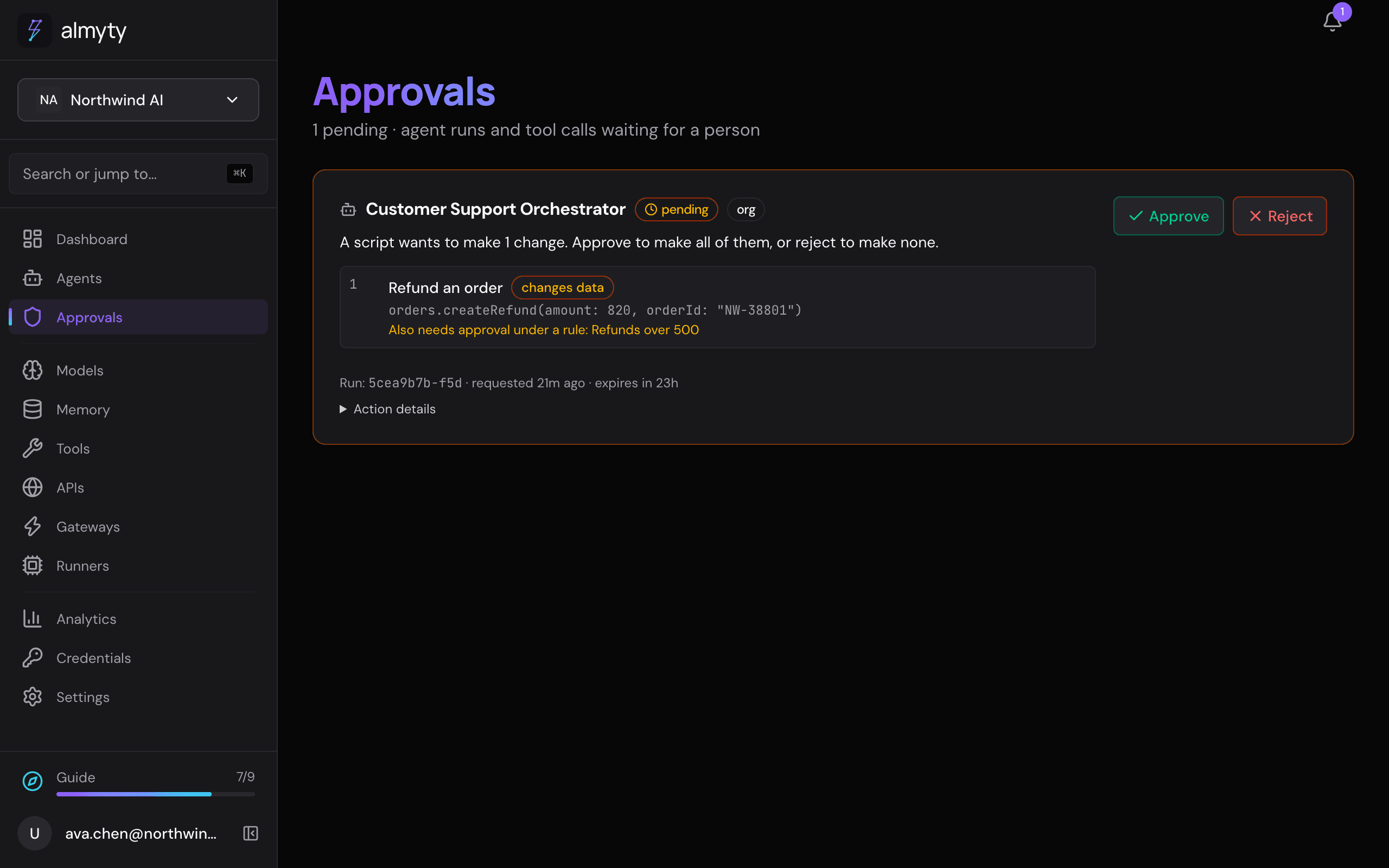
How it works
- The assistant asks. When it reaches a step that needs sign-off, the assistant stops and asks for approval, with a short reason (“Refund of $820 on order NW-44120, over the $500 limit”).
- The right people are told. The request appears on the Approvals page, and the people who may decide get a notification.
- Someone decides. They click Approve or Reject, and can add an optional note, which is saved with the decision.
- The work continues or stops. On approve, the assistant carries on exactly where it paused. On reject, the work is cancelled and the note is recorded as the reason. Whoever started the run is told the outcome.
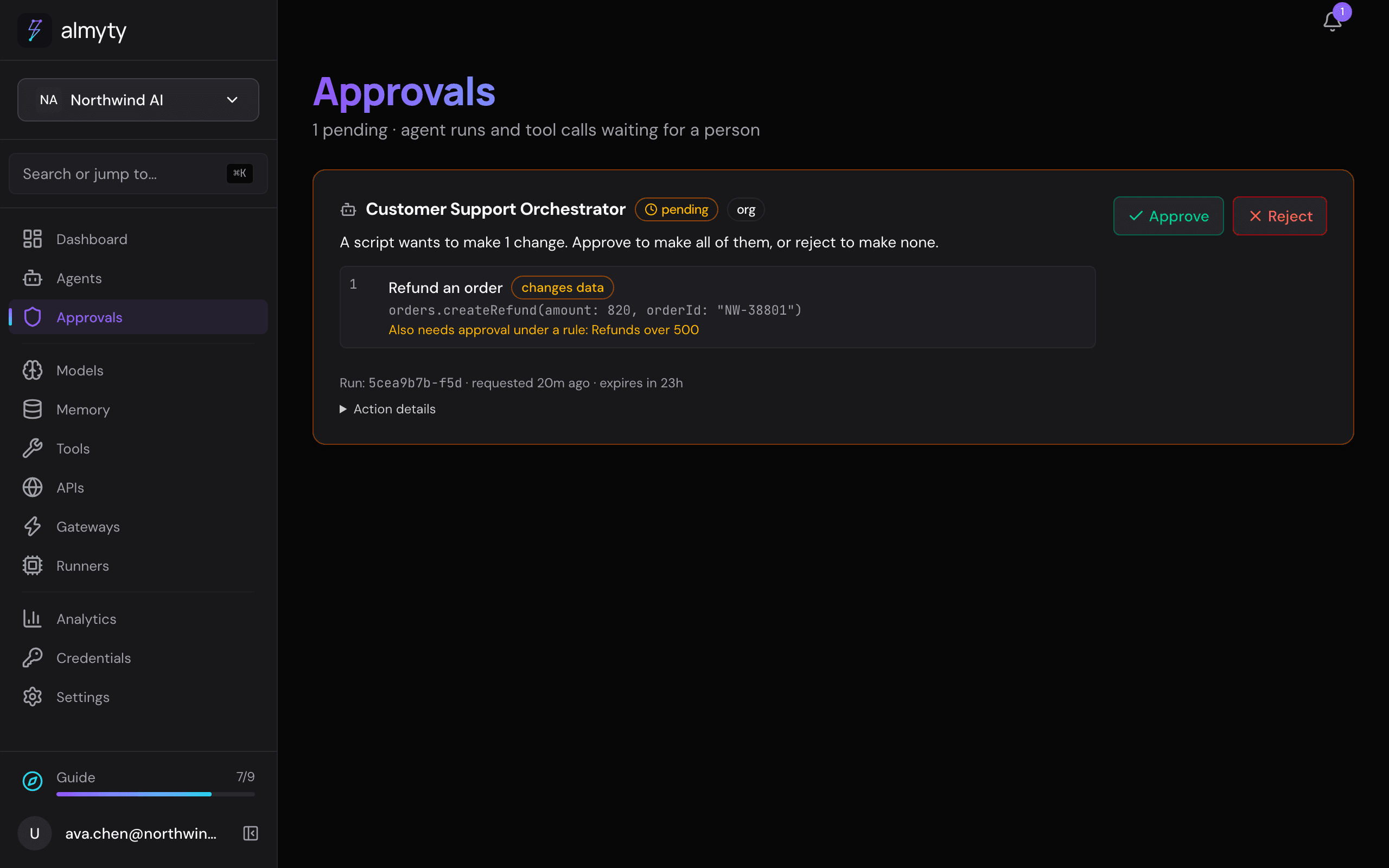
Tell the assistant when to ask
Write it into the assistant’s instructions in plain words, for example:
Before issuing any refund, transfer, or other action that cannot be undone,
ask for approval with a clear reason that says what you intend to do and the
amounts and people involved.
The assistant waits for the decision and only goes ahead once it is approved.
Ask before a large amount, whatever the assistant was told
Instructions depend on the assistant following them. For money, set a rule instead: Ask before “Create refund” when amount is over 500. almyty then checks every call to that tool before it runs, so it holds even if the assistant forgets, and even when the tool is called from somewhere else. Rules like this are included in every plan.
- Go to Settings → Advanced → Approvals.
- Under Ask before large amounts, click New rule.
- Give it a name, such as Refunds over 500.
- Choose the Tool, then The number it should look at (only the tool’s numbers are listed), then over or at or over, and the Amount. The amount is just a number, in whatever currency the tool uses.
- Choose whether it covers every call or only one team’s assistants, and click Create rule.
The page says the rule back in a sentence, so you can check it before you save.
What happens next:
- A call at or under the amount runs straight away. Nobody is asked.
- A call over the amount waits on the Approvals page, showing the tool, what it was asked to do, and the rule. Once someone approves, exactly that call is made, once. If they reject it, it is not made.
- An assistant that works on its own pauses while it waits, and carries on with the result.
- A workflow agent waits at that step: its page says Waiting for your approval and names the call (“Issue refund (amount is 820)”). Once someone approves, the call is made and the workflow carries on from there with its result. If they reject it, the call is not made and the run stops there, marked Rejected.
- A workflow’s Code step whose script wants to make changes that need a person stops the run, which says Waiting for your approval and how many changes. The changes wait here as one list. Approve, and they are made and the run carries on from that step; reject, and none of them is made and the run stops there, marked Rejected.
- An app or a connected tool client (through a gateway or MCP) gets an answer saying the call is waiting for approval, with an approval id. It can ask again later with that id to get the result, or the reason it was turned down.
- If the person using that app could approve the call themselves, and the app can ask questions (an MCP 2026-07-28 app with elicitation), the app asks them right away: it shows the tool, the rule and what the call wants to do, with Approve and Reject. Approving there counts exactly like approving on the Approvals page. Anyone who could not approve it on that page gets the “waiting for approval” answer instead.
- A number written in words, such as “eight hundred”, counts as over the amount.
- Every call a rule holds, and every approved call that then runs, is written to the audit log.
One approval from an owner or an admin (or, for a team’s rule, the team’s lead) decides a rule. Sign-off in several steps comes with approval policies on the Business plan.
Who can approve
It depends on who the assistant is shared with:
- Shared with the whole organization: the organization’s owners and admins.
- Shared with a team: owners and admins, or a lead of that team. Other team members can see the request but cannot decide it.
- Private to one person: that person.
If nobody decides
A request that nobody decides expires after 24 hours, and the work is cancelled with the reason “approval expired”.
Approval rules for the whole organization
One person approving is the default and is included in every plan, and so are amount rules. With approval policies (Business and Enterprise plans) you can set rules across every assistant: finance first and then an admin, or two people who must both approve. See approval policies.
For developers
The assistant asks through its built-in request_approval tool:
request_approval(reason="Send a $500 wire to ACME Corp", payload={...})The runtime creates an ApprovalRequest row, sets the run to waiting_approval and emits an event. The decision is recorded with decidedBy, decidedAt and decisionReason. On approve, the run returns to running and the approval result is the tool call’s return value; on reject or expiry, the run is cancelled with the reason recorded.
- Authorization is enforced on the server with
AccessPolicyService.canAccess(user, approvalRequest, 'manage'). Org-wide agents (visibility='org'): orgowneroradmin. Team agents (visibility='team'): orgowner/adminor the team’steam_admin(TeamRole.LEAD). Private agents: the owner. - Expiry: the default 24 hours can be set up to 7 days when a request is created through the API. A scheduled sweep flips expired requests to
expired. - Page refresh: the Approvals page checks for new requests every 10 seconds.
- API: list pending approvals, approve and reject over REST; responses only include approvals the caller can see. See the API reference.
Amount rules
An amount rule is an approval policy with a trigger, managed for every plan at /approval-rules (GET, POST, GET /:id, PATCH /:id, DELETE /:id, owners and admins):
{
  "name": "Refunds over 500",
  "trigger": { "kind": "tool_amount", "toolId": "<tool id>", "argument": "amount", "op": "gt", "amount": 500 },
  "teamId": null,
  "enabled": true
}
argument is a dot path into the tool’s input (refund.total); op is gt (over) or gte (at or over). Without the approval_policy entitlement a rule is decided by one approval; with it, steps may be set.
The rule is enforced in ToolExecutorService before the call is made, for every caller. What the caller gets depends on whether it can wait:
- Autonomous runs raise the approval request themselves; the run goes to
waiting_approvaland, once approved, the exact call runs (the request carries a fingerprint of the parameters inpayload._gate). - Everything else (workflow nodes, gateway, MCP and UTCP calls, the dashboard’s test call) gets a result with
success: false,approvalStatus: "pending",approvalId, and anerrorthat startsWaiting for approval:. The call waits as an approval request with no run (runIdnull,toolIdandfingerprintset). On approval it runs once, and what it returned is stored on the request (result,resultAt). Call the same tool again with the same arguments plus"_approvalId": "<id>"to collect it: the stored result on success,approvalStatus: "rejected"with the reason if it was turned down, or the pending answer again while it waits._approvalIdis removed before the tool sees the arguments. A workflow node that is held does not fail: its run waits inwaiting_approvalwith the approval id in the node’s recorded input, and carries on once the request is decided (Tool call, when the call needs approval).
On MCP 2026-07-28 the held call can be decided inside the call instead (multi round-trip requests). When the request declared elicitation and the caller could decide the request in Approvals (ApprovalsService.canDecide: it is pending, they can read it and may manage it), tools/call answers resultType: "input_required" with one elicitation/create form keyed approval-<id> (fields decision: approve or reject, and an optional reason) and a sealed requestState. The client retries the same call with inputResponses and the same requestState; the decision goes through ApprovalsService like one made on the page (policy steps and quorums included), and the retry returns the call’s result once it has run, waiting up to MCP_HELD_CALL_WAIT_MS (default 5000) for it. A closed form or a missing answer gets the form again; a decline rejects. The requestState is AES-256-GCM sealed under a key derived from ENCRYPTION_KEY and bound to the caller, the tool and its arguments, and an expiry (MCP_REQUEST_STATE_TTL_SECONDS, default 900): another user, another call or a changed byte is refused with -32602. Everyone else, and every legacy client, keeps the _approvalId answer above.
Held and approved calls are audited with the action approval_gate (status held or approved).