Chat interfaces
Put your assistant inside the messaging apps your customers and staff already use: Slack, Microsoft Teams, WhatsApp, Telegram, email, text messages and more. For example, customers text your WhatsApp number about an order and get an answer in seconds, and your staff ask the same assistant questions in Teams.
Connecting a messaging app always has two halves: give almyty the keys the app gave you, and tell the app where to send messages. For many apps almyty does the second half for you. This page walks through both halves for every app.
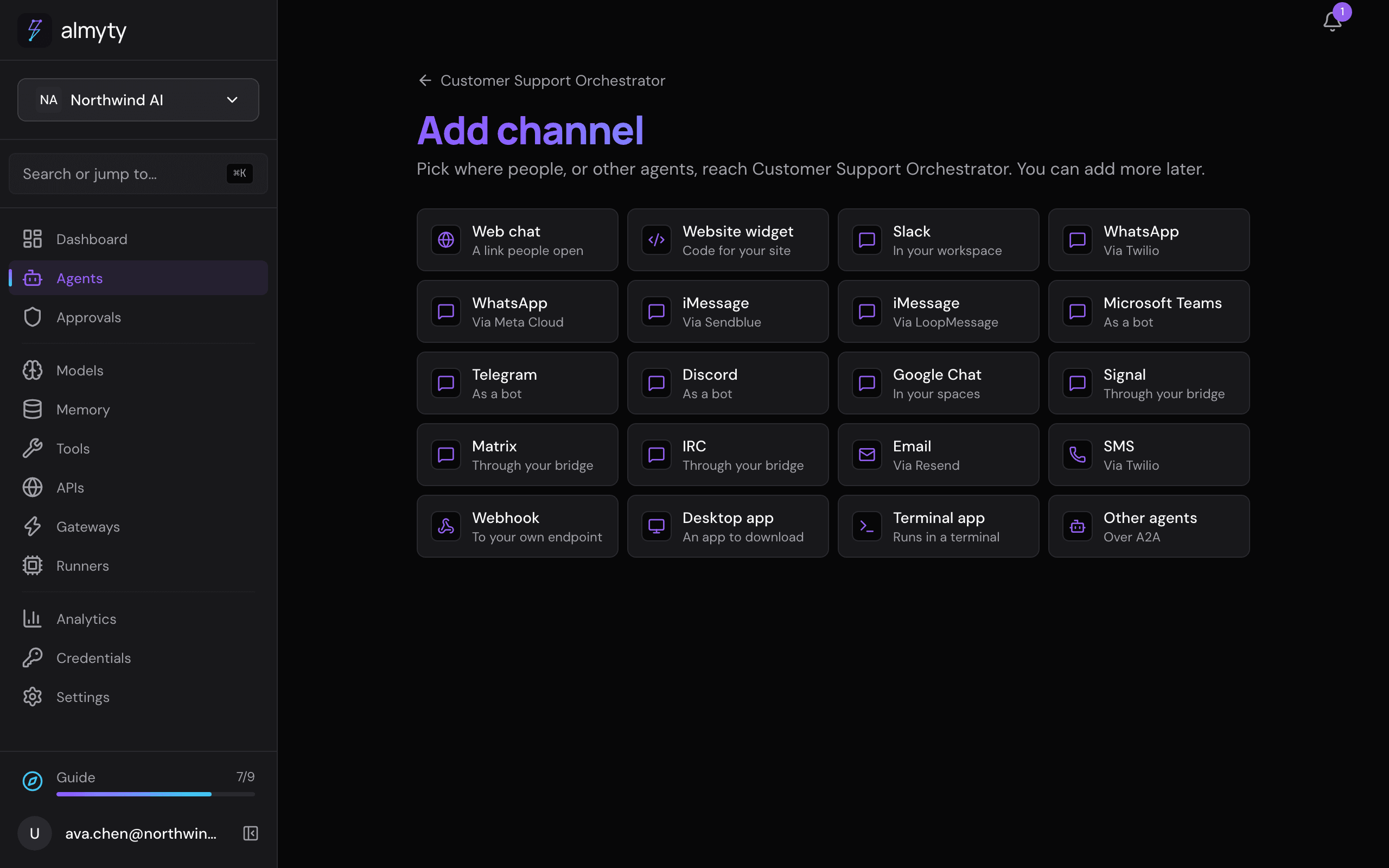
Connect a messaging app
- Open the assistant, go to its Channels tab, click Add channel and pick the app.
- Give almyty the app’s keys: pick a credential you already keep, or click Create one here to add it on the spot. A credential is a saved key or password, stored encrypted on Credentials. The table below says what each app needs.
- Click Publish. Where the app needs to be told where to send messages, the page shows a Callback URL with a copy button to paste into the app’s settings. Telegram and the Twilio-based channels (WhatsApp, SMS) are set up for you. Slack leads with Add to Slack: an install link any workspace can use.
- Send it a message from the app. If a key is wrong or missing, the channel’s page says so, so you find out before a customer’s message goes unanswered.
From then on, messages go back and forth: the app sends the message to almyty, the assistant answers, and almyty posts the reply back in the app.

What each app needs
| App | You need |
|---|---|
| Slack | A Slack app (client ID, client secret, signing secret) for Add to Slack, or a bot token for one workspace |
| Telegram | A bot token |
| Discord | A bot token |
| WhatsApp (Twilio) | Your Twilio account SID, auth token and WhatsApp sender number |
| WhatsApp Cloud (Meta) | Access token, phone number ID, verify token and app secret |
| SMS (Twilio) | Your Twilio account SID, auth token and phone number |
| iMessage (Sendblue) | API key ID, API secret key, your Sendblue number and signing secret |
| iMessage (LoopMessage) | API key, inbound token, and optionally a sender name |
| Microsoft Teams | Bot ID and password from an Azure bot registration |
| Google Chat | A webhook URL and verification token |
| Signal | The address of a signal-cli bridge you run, and a phone number |
| Matrix | Your homeserver address, an access token, and a bridge that forwards room messages |
| IRC | The address of an IRC bridge you run |
| A Resend API key (Resend is the email service almyty sends and receives through) | |
| Webhook | Your own callback address and a shared secret |
| Website widget | Nothing: add the Website widget channel and paste its line into your site |
Every message is checked
Each app proves that a message really came from it, usually with a secret it shares only with you. almyty checks that proof on every incoming message and refuses anything it cannot verify, so nobody can pretend to be your Slack or your WhatsApp number. A channel whose secret has not been set accepts nothing at all.
So a channel does not work until its verification secret is set, and its page names the exact key it is waiting for. If a channel is not receiving messages, check that key first.
Step by step, per app
Each channel’s page shows what that app needs and where to paste almyty’s address. This section is the full copy.
Slack
- Create an app at api.slack.com/apps (from scratch).
- Under OAuth & Permissions, add the bot scopes
chat:write,app_mentions:read,im:history,files:read(so the assistant can read files people share) andusers:read(so it knows who wrote each message in a channel), then install the app to your workspace. - On the channel’s page, under Add to Slack, pick or create the Slack app credential (client ID, client secret, signing secret). For a single workspace, a bot token (starting
xoxb-) goes under Advanced instead. - Under Event Subscriptions in Slack, turn events on and paste almyty’s callback URL as the Request URL.
- Subscribe to the bot events
message.imandapp_mention, then save.
Telegram
- Message @BotFather in Telegram, send
/newbot, and copy the bot token into the channel’s credential. - That’s it. almyty tells Telegram where to send messages when you publish.
WhatsApp and SMS (Twilio)
- Copy the Account SID and Auth Token from the Twilio Console .
- Enter the sender number (your WhatsApp sender or SMS phone number).
- When you publish, almyty sets your Twilio number to send incoming messages to it.
WhatsApp Cloud (Meta)
- Create a Meta app with the WhatsApp product at developers.facebook.com .
- Paste the access token, phone number ID, verify token and app secret into the channel’s credential.
- In the app’s WhatsApp, Configuration page, paste almyty’s callback URL, with the same verify token.
- Subscribe the app to the
messageswebhook field.
Discord
- Create an application and bot at discord.com/developers/applications .
- Turn on the MESSAGE CONTENT intent under Bot settings.
- Invite the bot to your server with an OAuth2 link that has the
botscope. - Nothing to paste back: almyty connects to Discord itself.
Google Chat
- Create a Chat app in the Google Cloud console and set almyty’s callback URL as its HTTP endpoint.
- Paste the space’s incoming webhook URL and the verification token into the channel’s credential.
Microsoft Teams
- Register a bot in Azure (Bot Framework) and copy the bot ID, password and tenant ID into the channel’s credential.
- Set the bot’s messaging endpoint to almyty’s callback URL.
Signal
- Run a signal-cli-rest-api bridge and enter its address and your phone number.
- Point the bridge’s receive webhook at almyty’s callback URL.
Matrix
- Enter the homeserver address and an access token for the bot account.
- Point your Matrix bridge at almyty’s callback URL to forward room messages, sending the incoming token as a Bearer token. Replies go to the room the message came from.
IRC
- Run an IRC-to-HTTP bridge and enter the server, port, channel and nick.
- Point the bridge’s outgoing webhook at almyty’s callback URL.
- Paste a Resend API key and set the reply-from and receiving addresses.
- Set up your incoming email route to forward to almyty’s callback URL.
Webhook
- Send messages to almyty’s callback URL, signed with the shared secret. Unsigned messages are refused.
- Replies are sent to the callback address you set on the channel.
Website widget
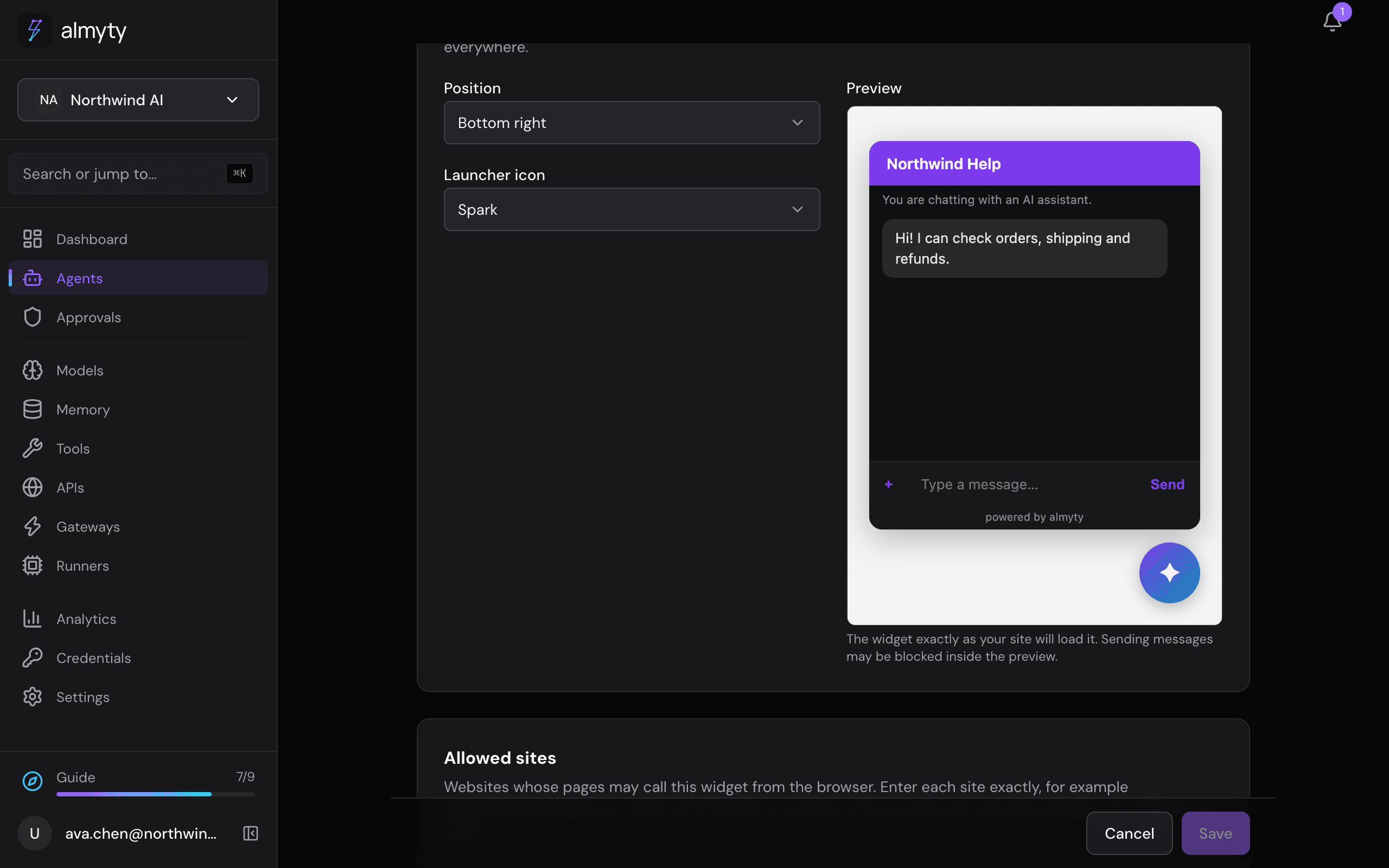
The widget is the Website widget channel. Publish it, then paste the line its page shows into your site’s HTML, just before the closing body tag. Nothing else to set up: the widget talks to almyty directly, from the websites you list under Allowed sites on the same page.
The widget’s look
The widget looks like your assistant: its colour, name, greeting, theme and AI disclosure come from the assistant’s branding (or the channel’s own), so it matches the web chat. On the widget’s page you choose where it sits and its button icon, with a live preview of the real widget.
If you want the assistant to be the whole page, on its own address with your name on it, rather than a bubble in the corner, see the hosted chat app.
Telling people they are talking to an AI
Every channel people talk to has an AI disclosure switch on its page, on by default. While it is on, the first reply in each messaging conversation is preceded by the disclosure line from the assistant’s branding (or the channel’s own), by default:
You are chatting with an AI assistant.
The web chat and website widget show the line under the message box instead. Change the wording under Branding and visitor rules. Turning the switch off needs the white-label option (Enterprise plan): the EU AI Act (Article 50) requires that people are told when they are talking to an AI. See Compliance.
Good to know
- Signal and IRC need a small bridge program that you run yourself.
- Rate limits are the app’s own. When an app refuses a message, the error shows on the run instead of being retried blindly.
- Each channel’s traffic shows in Analytics, and failed deliveries are recorded on the run.
- A refused incoming message is recorded with the reason, so a wrong secret looks different from a channel nobody has written to yet.
- How far a run may go once a message arrives is set by run limits.
For developers
How each channel proves a message is genuine, and which key configures it:
| Channel | Proof checked | Configure |
|---|---|---|
| Slack | X-Slack-Signature HMAC | signing_secret |
| Telegram | X-Telegram-Bot-Api-Secret-Token, minted for you at registration | automatic |
| Discord | The authenticated gateway websocket; no HTTP endpoint exists to forge | nothing |
| WhatsApp, SMS (Twilio) | X-Twilio-Signature over the exact callback URL | twilio_auth_token and webhook_url |
| WhatsApp Cloud (Meta) | X-Hub-Signature-256 | app_secret |
| Microsoft Teams | Bot Framework JWT, verified against the published JWKS | bot_id |
| Google Chat | Bearer verification token | verification_token |
| Svix signature on the inbound webhook | resend_inbound_signing_secret | |
| Signal, Matrix, IRC | Bearer token from your bridge | inbound_token |
| Generic webhook | HMAC-SHA256 over the body | secret |
| Chat widget | Nothing. Public by design, bounded by rate limits and the cost cap | nothing |
Twilio signs the exact URL it called, so webhook_url has to match what is set in the Twilio console. Automatic registration fills it in; if you registered the webhook by hand, enter it by hand too.
How each channel receives and sends:
| Channel | Inbound | Outbound |
|---|---|---|
| Slack | Events API webhook, request-signature verified | chat.postMessage |
| Telegram | Bot webhook (registered automatically) | Bot API sendMessage |
| Discord | Gateway events | Channel messages |
| WhatsApp (Twilio) | Twilio webhook (registered automatically), X-Twilio-Signature verified | Twilio Messages API |
| WhatsApp Cloud (Meta) | Meta callback webhook, app-secret verified | WhatsApp Cloud API |
| SMS (Twilio) | Twilio webhook (registered automatically), X-Twilio-Signature verified | Twilio Messages API |
| iMessage (Sendblue) | Sendblue receive webhook, sb-signing-secret header checked | Sendblue send-message API |
| iMessage (LoopMessage) | LoopMessage webhook, Authorization header checked | LoopMessage send API |
| Microsoft Teams | Bot Framework activities, JWT verified | Bot Framework replies |
| Google Chat | Space webhook, verification token | Incoming webhook |
| Signal | signal-cli REST bridge webhook | Bridge send API |
| Matrix | Bridge webhook, bearer token | Room send |
| IRC | IRC-to-HTTP bridge webhook | Bridge send |
| Inbound MIME parsing | Resend API | |
| Webhook | Any HTTP POST, HMAC-SHA256 verified | POST to your callback URL |
| Chat widget | Widget POST | SSE / polling delivery |
Requests that fail verification are rejected, never queued. A message’s round trip: platform, to adapter (verify, normalize), to agent run, back to adapter (format for the platform), to reply.
The website widget line:
<script src="https://<api-host>/gateways/<gateway-id>/widget.js" async></script>