Tutorial: a founder’s associate
What you’ll build
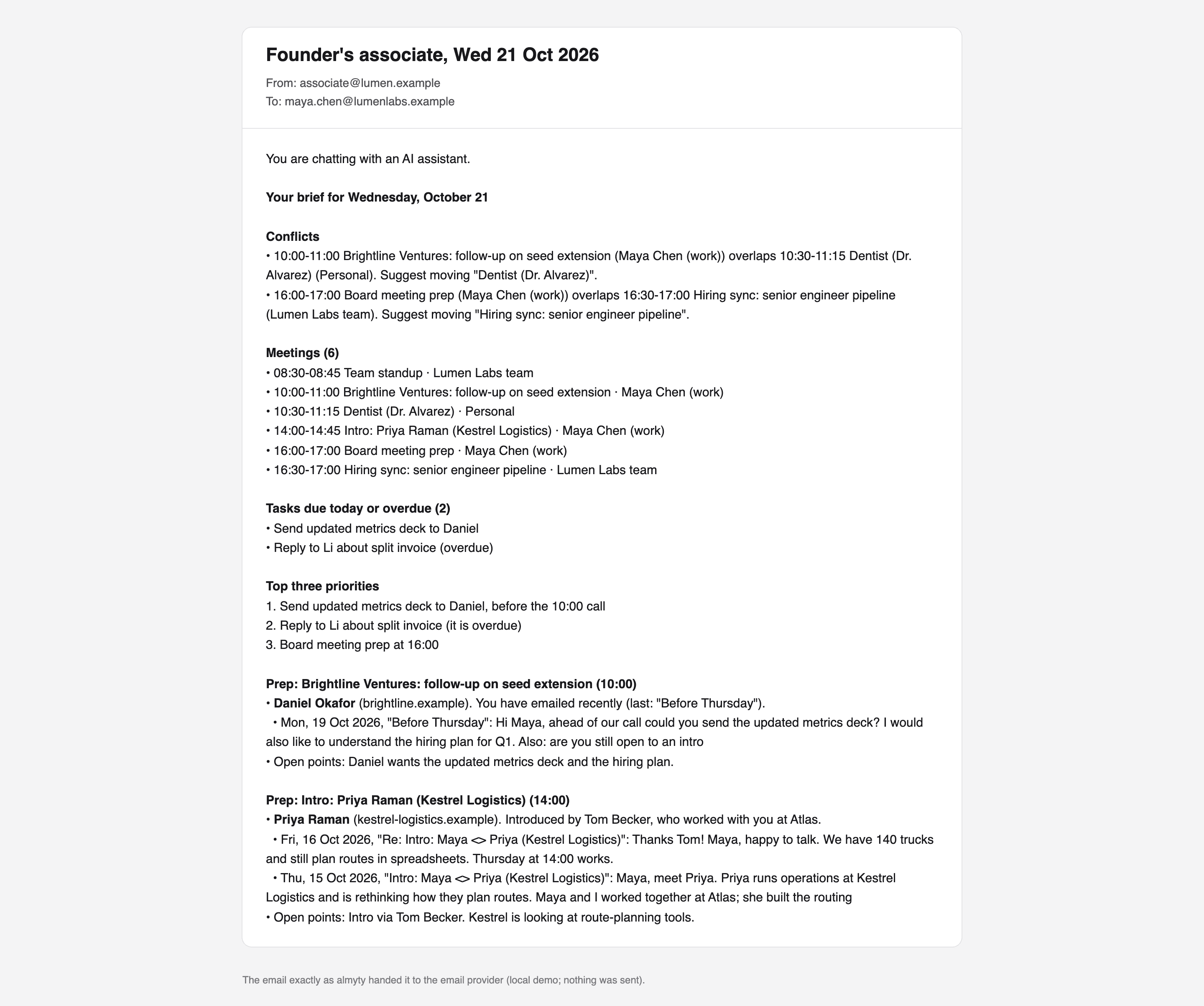
An assistant that looks after your day. Every weekday morning it reads all your calendars (work, team and personal), your inbox and your task list, and emails you a short brief: meetings that clash, today’s meetings in order, tasks that are due or late, your top three priorities, and a prep note for every meeting with someone from outside the company: who they are, how you know them, what you last wrote to each other and what is still open. It remembers what it learns about people, so “how do we know each other” gets better over time. It only reads: it never sends email, answers invitations or changes your tasks.
The screenshots in this tutorial come from a test installation with made-up people (Maya Chen, founder of “Lumen”), so web addresses in them start with http://localhost. Yours start with your almyty address.
What you need
- An almyty account, and the key of an AI provider, such as OpenAI.
- A Google account with the calendars, mail and tasks the assistant should read. A Google Workspace account (your company’s Google) is easiest, as you will see in step 2.
- About 30 minutes in Google Cloud, once, to let almyty sign in to your Google account. Google asks every app that reads someone’s calendar or mail to be registered there first. Ask your IT person if your company manages Google Workspace.
- An email sending service account with Resend (resend.com), with your company’s domain set up, for the morning email. If you would rather get the brief in Slack, see Make it yours.
- Time: about an hour in total.
1. Connect an AI model
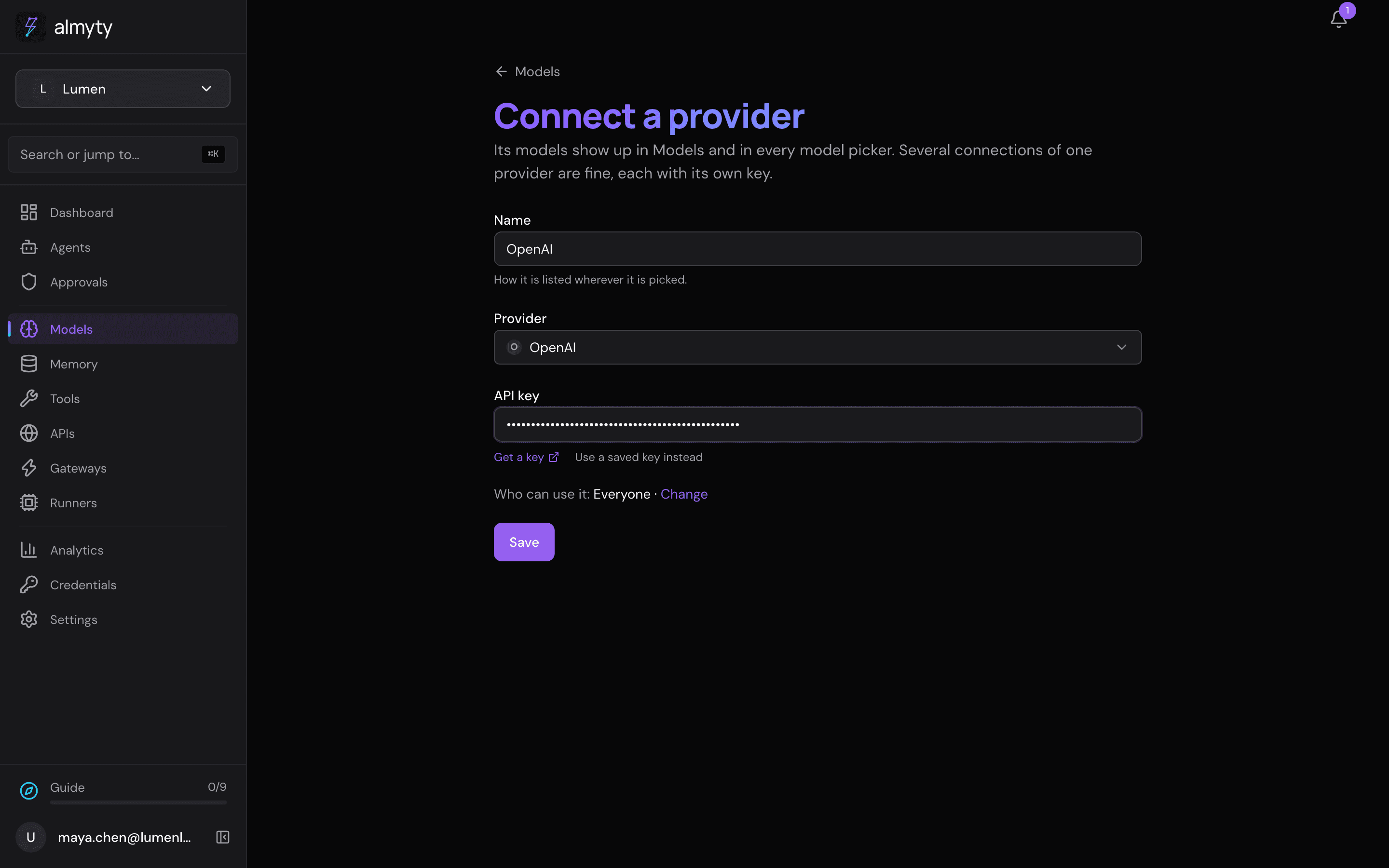
In the sidebar, open Models and click Connect a provider.
- Name:
OpenAI. - Provider: start typing
OpenAIand pick it. - API key: paste the key from your OpenAI account (platform.openai.com, API keys; Get a key next to the field opens that page).
- Click Save.
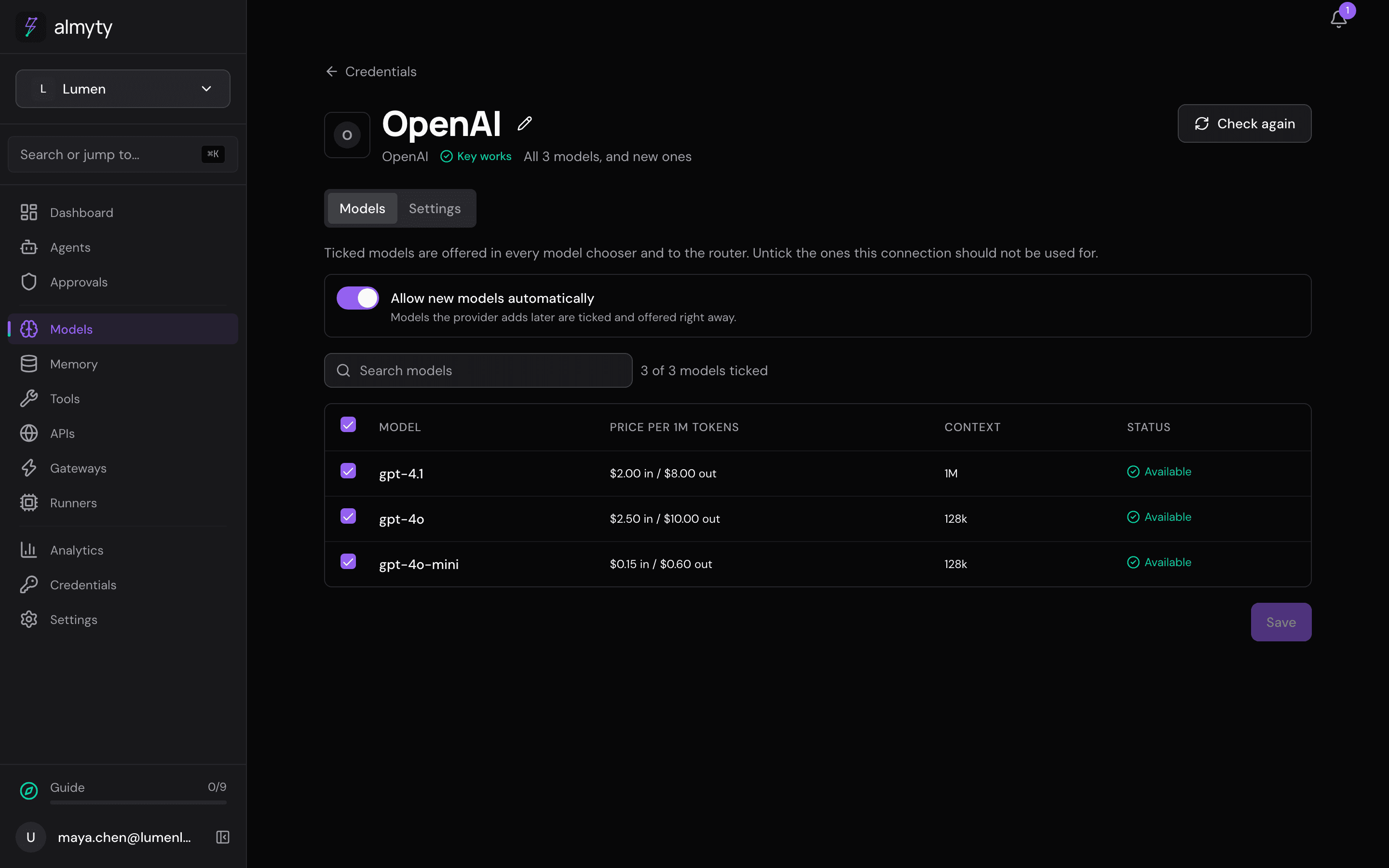
almyty checks the key with OpenAI and lists the models you can use. Key works means you are done.
2. Register your own Google app (once)
Google lets an app read someone’s calendar or mail only when that app is registered with Google. You register your own, in your own Google Cloud project; almyty then signs in through it. This step happens in Google’s console, not in almyty, so there are no almyty screenshots for it. You do it once; all three Google services use it. Connect Google has every step in detail, with what to do when Google refuses a sign-in.
- Open console.cloud.google.com and sign in with the Google account the assistant should read. Create a project, for example “almyty assistant”.
- Under APIs & Services → Library, turn on three APIs: Google Calendar API, Gmail API and Google Tasks API.
- Set up the OAuth consent screen (Google also calls it the Google Auth Platform): an app name such as “Lumen assistant” and your email.
- With Google Workspace, choose Internal. Only people in your company can use it, and Google does not need to review it.
- With a personal Google account, choose External. The app starts in Testing: add your own address under Audience → Test users, or Google will not let you sign in. Google ends sign-ins of an app in Testing after 7 days, so you sign in again once a week. Publishing the app for good needs Google’s review, because reading mail is something Google checks closely.
- Under Clients (or Credentials → Create credentials → OAuth client ID), create a client of type Web application. Leave Authorized redirect URIs open for now: you copy the address in from almyty in the next step.
- Keep the Client ID and Client secret that Google shows you.
3. Connect Google Calendar
- Open APIs and click Connect an API.
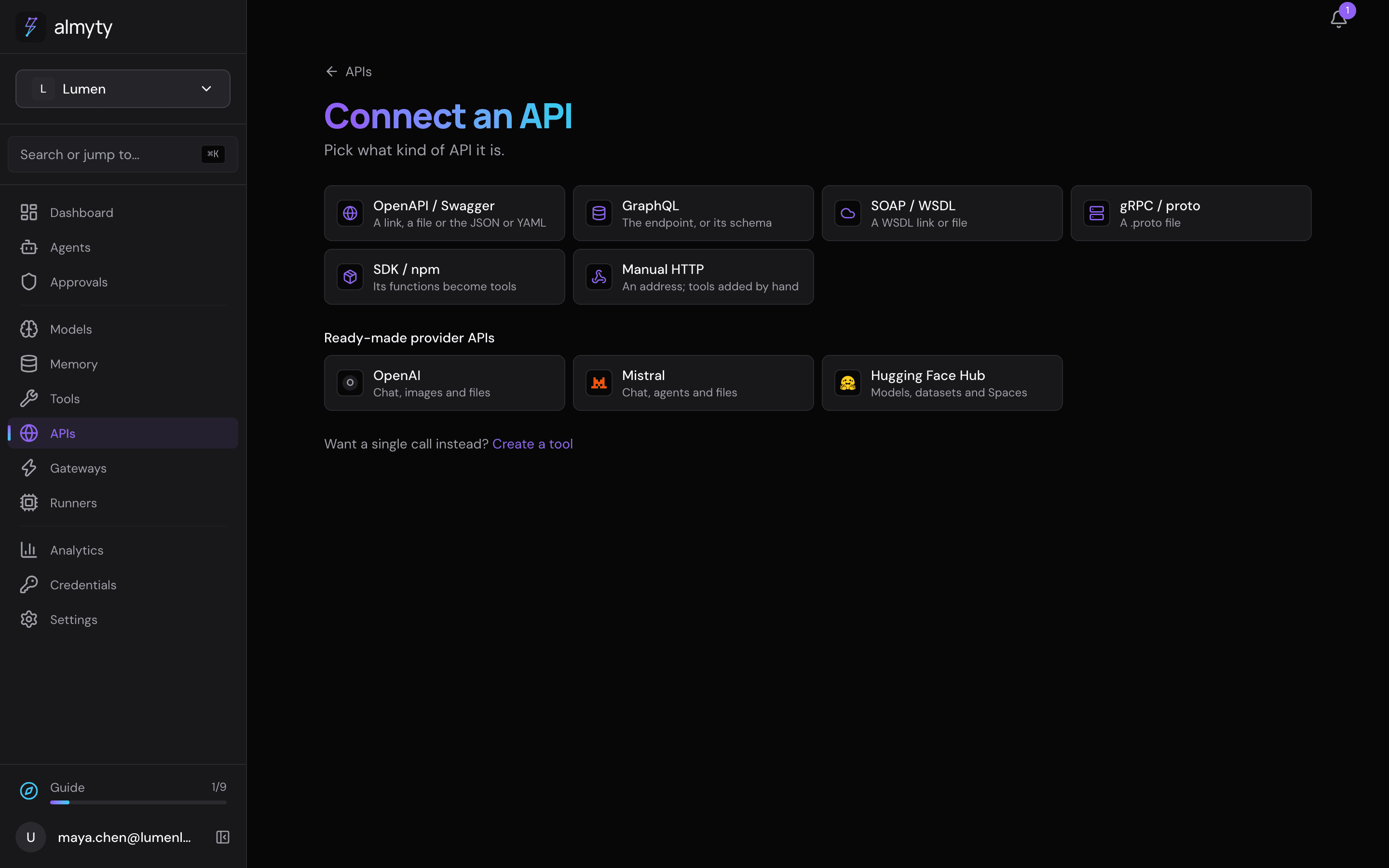
- Pick OpenAPI / Swagger. Under Link to the description, paste Google’s own description of Google Calendar:
https://www.googleapis.com/discovery/v1/apis/calendar/v3/rest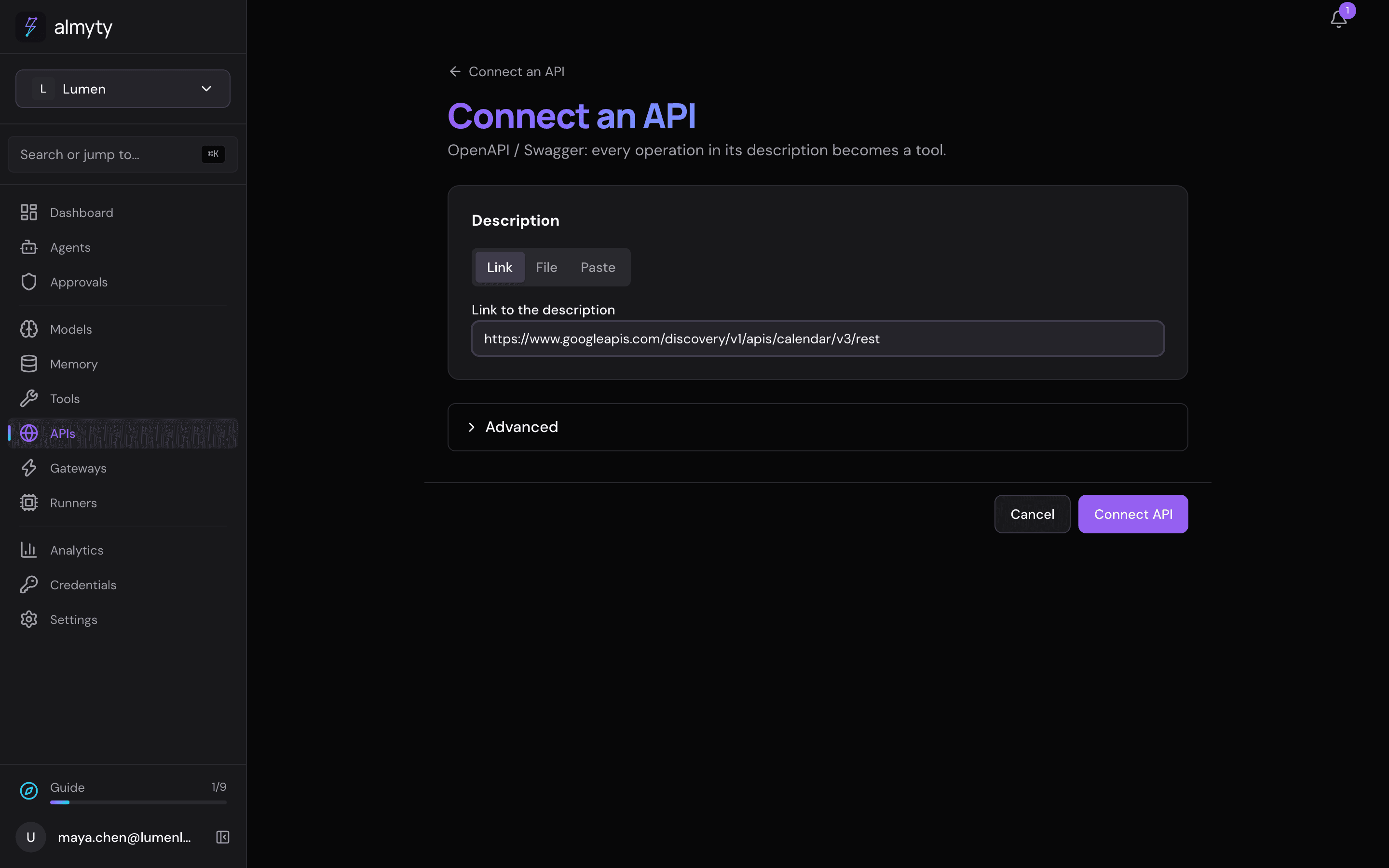
Open Advanced and set Name to Google Calendar, so the tool names match the ones in this tutorial.
- Click Connect API. almyty reads the description and makes a tool for everything Google Calendar can do: 38 of them.
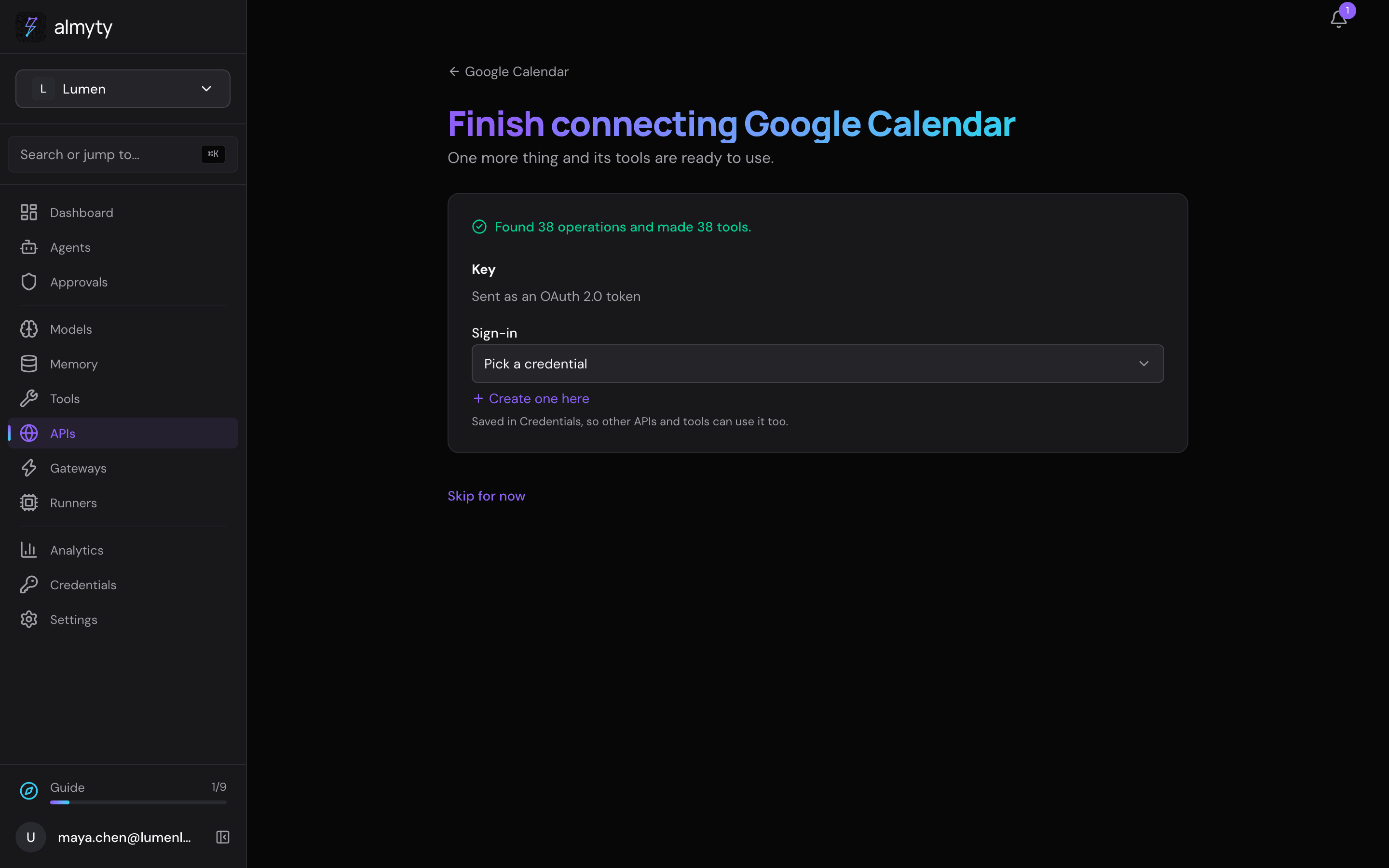
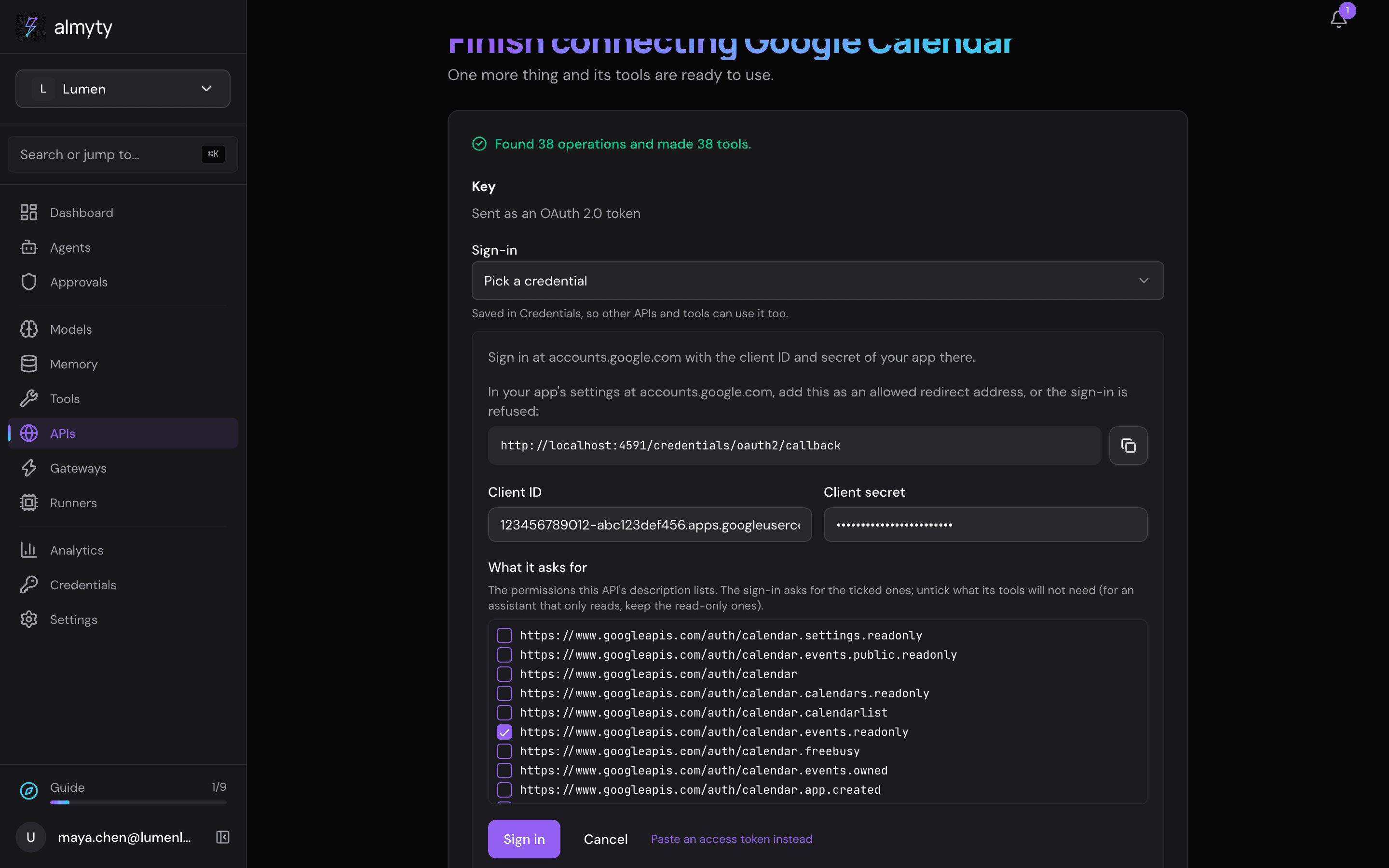
- Under Sign-in, click Create one here. The form shows a redirect address. Copy it with the button next to it, go back to your Google client from step 2, add it under Authorized redirect URIs and save there.
- Back in almyty, paste the Client ID and Client secret from Google.
- Under What it asks for, the form lists every permission Google Calendar’s description names, all ticked. The assistant only reads, so untick everything except the two that end in
calendar.readonlyandcalendar.events.readonly. Then click Sign in.
- Google opens its consent screen. It names your app and lists the permissions you left ticked. With an app in Testing, Google first warns that it has not verified the app: it is your own app, so click Continue. Then click Continue (or Allow) again.
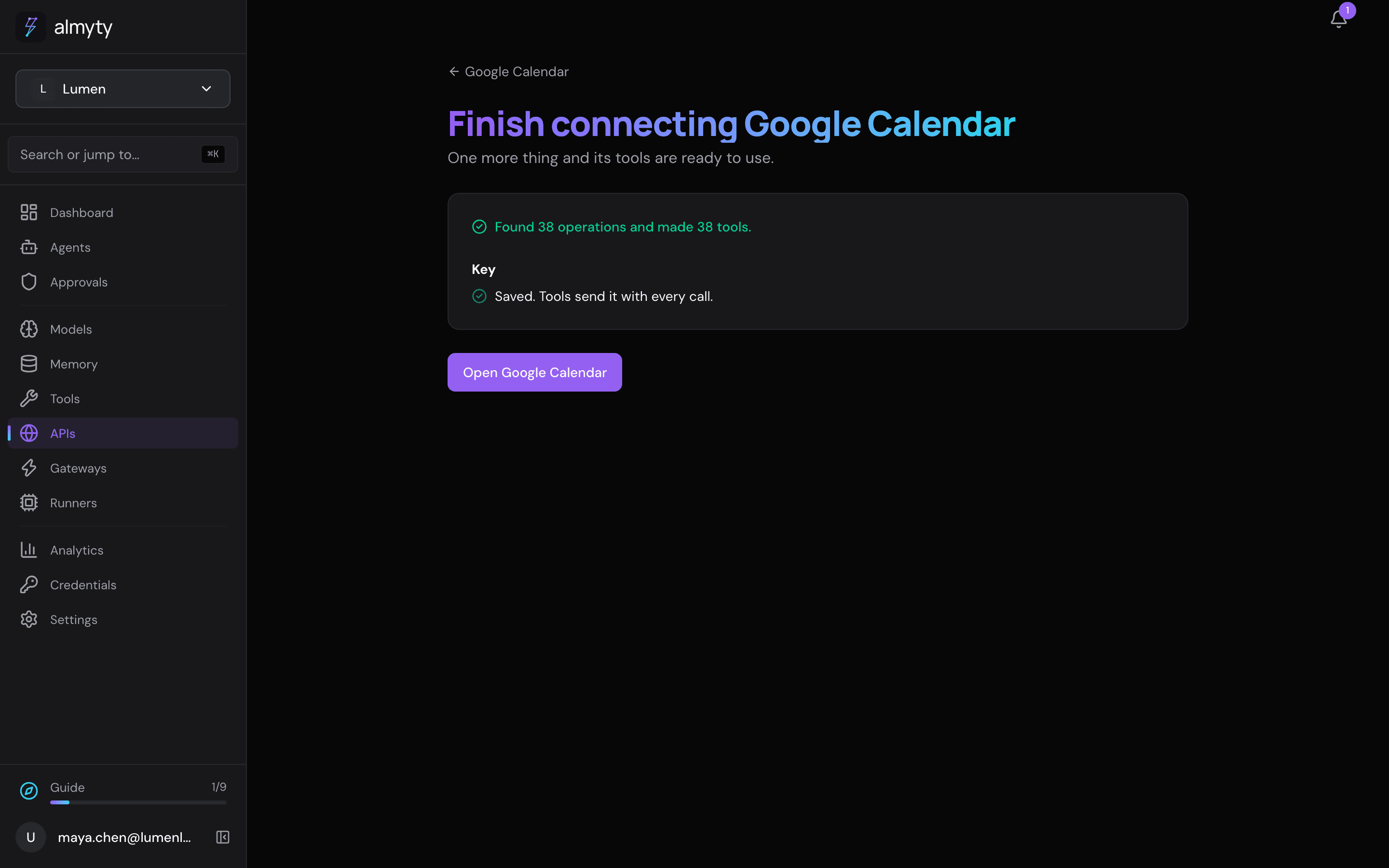
- You come back to almyty: Saved. Tools send it with every call. The sign-in is kept under Credentials and renews itself.
4. Connect Gmail and Google Tasks
Do step 3 twice more, with these links and names:
| Service | Link to paste | Name |
|---|---|---|
| Gmail | https://gmail.googleapis.com/$discovery/rest?version=v1 | Gmail |
| Google Tasks | https://tasks.googleapis.com/$discovery/rest?version=v1 | Google Tasks |
For each, click Create one here and Sign in again with the same client ID and secret. Under What it asks for, keep only gmail.readonly for Gmail and tasks.readonly for Google Tasks. Each Google service needs its own sign-in: the list offers your Calendar sign-in too, but it only covers the calendar, so Gmail would refuse it. You do not need to add a new redirect address; it is the same one.
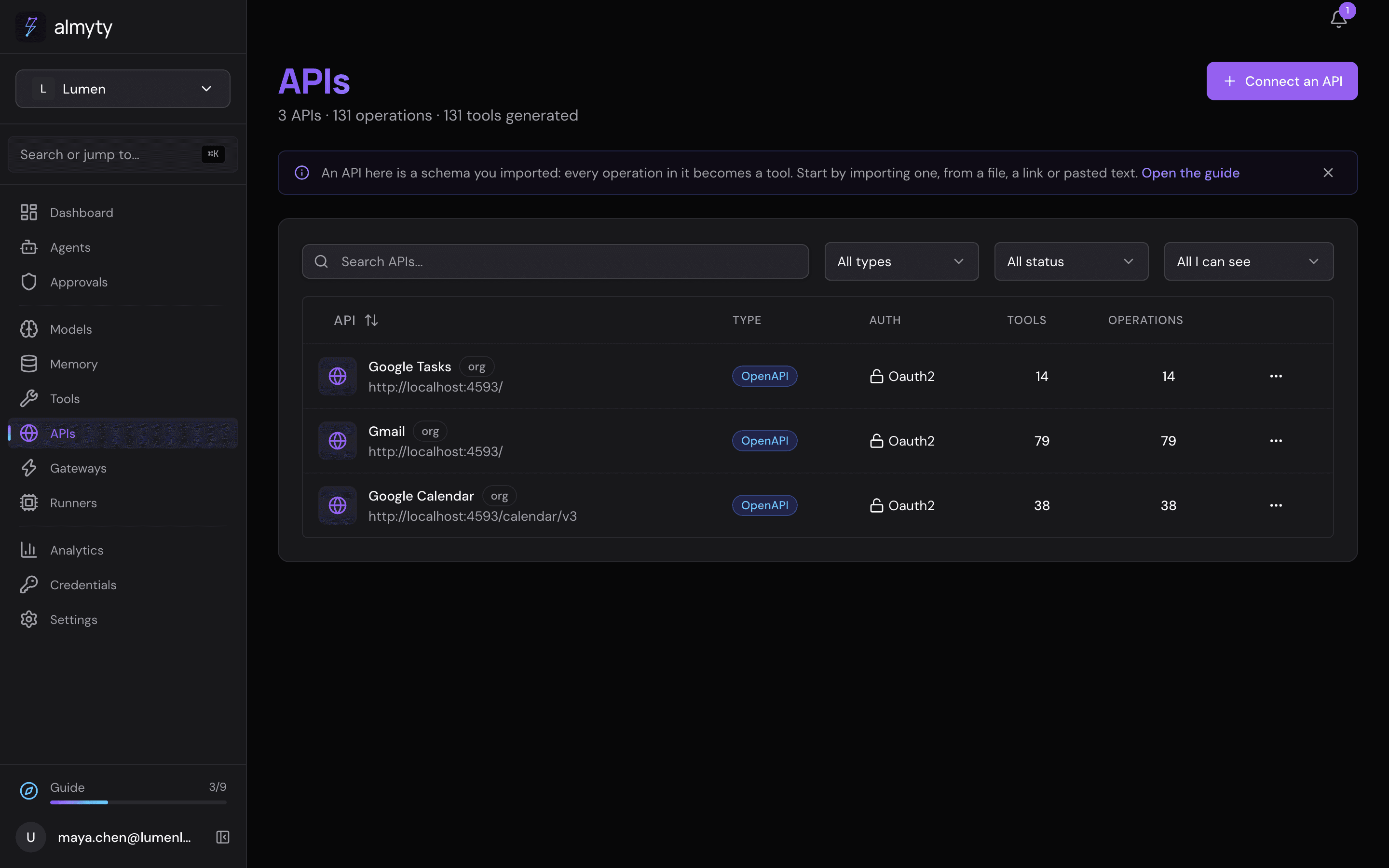
APIs now lists all three.
5. Check that the tools work
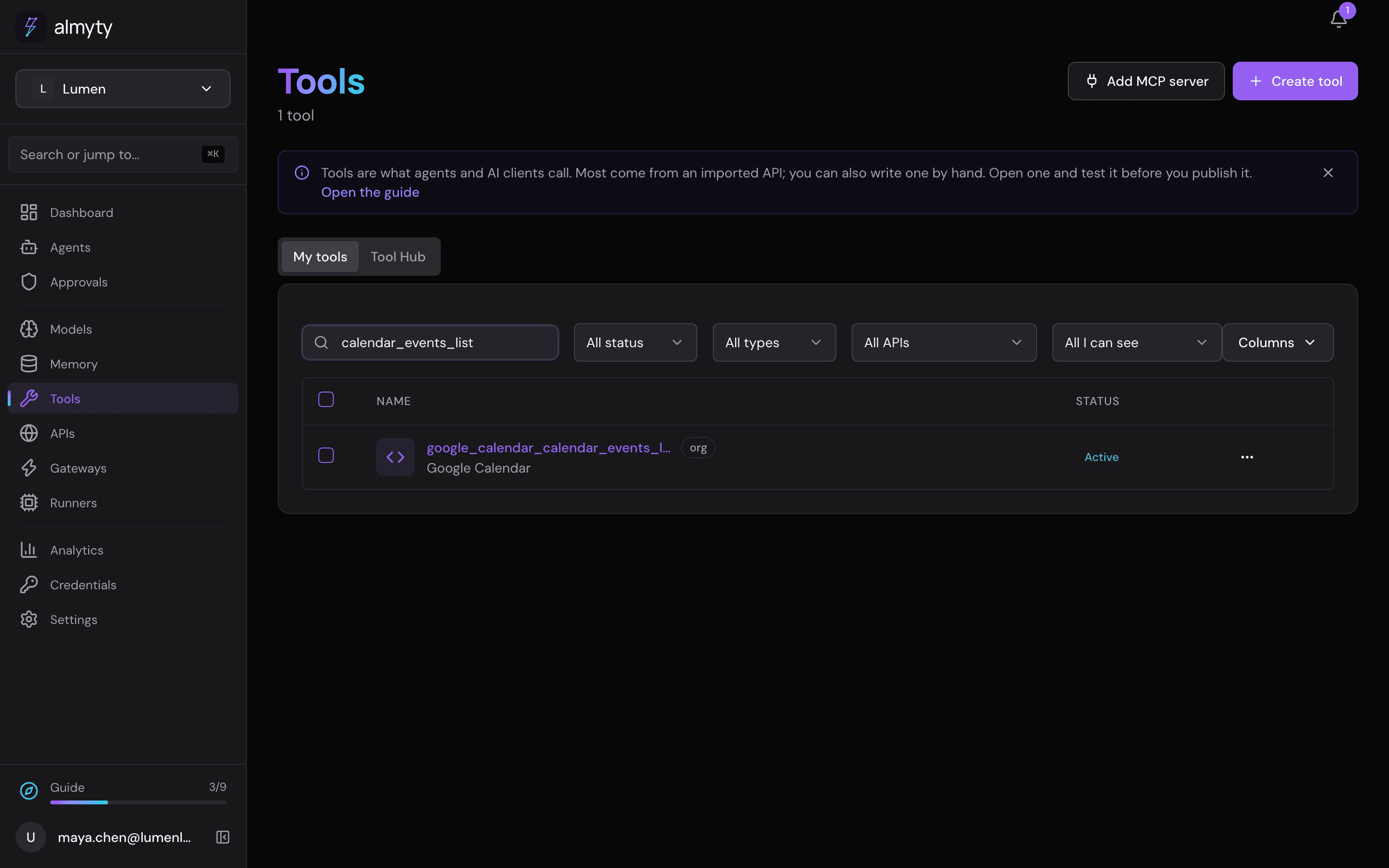
Open Tools and search for calendar_events_list.
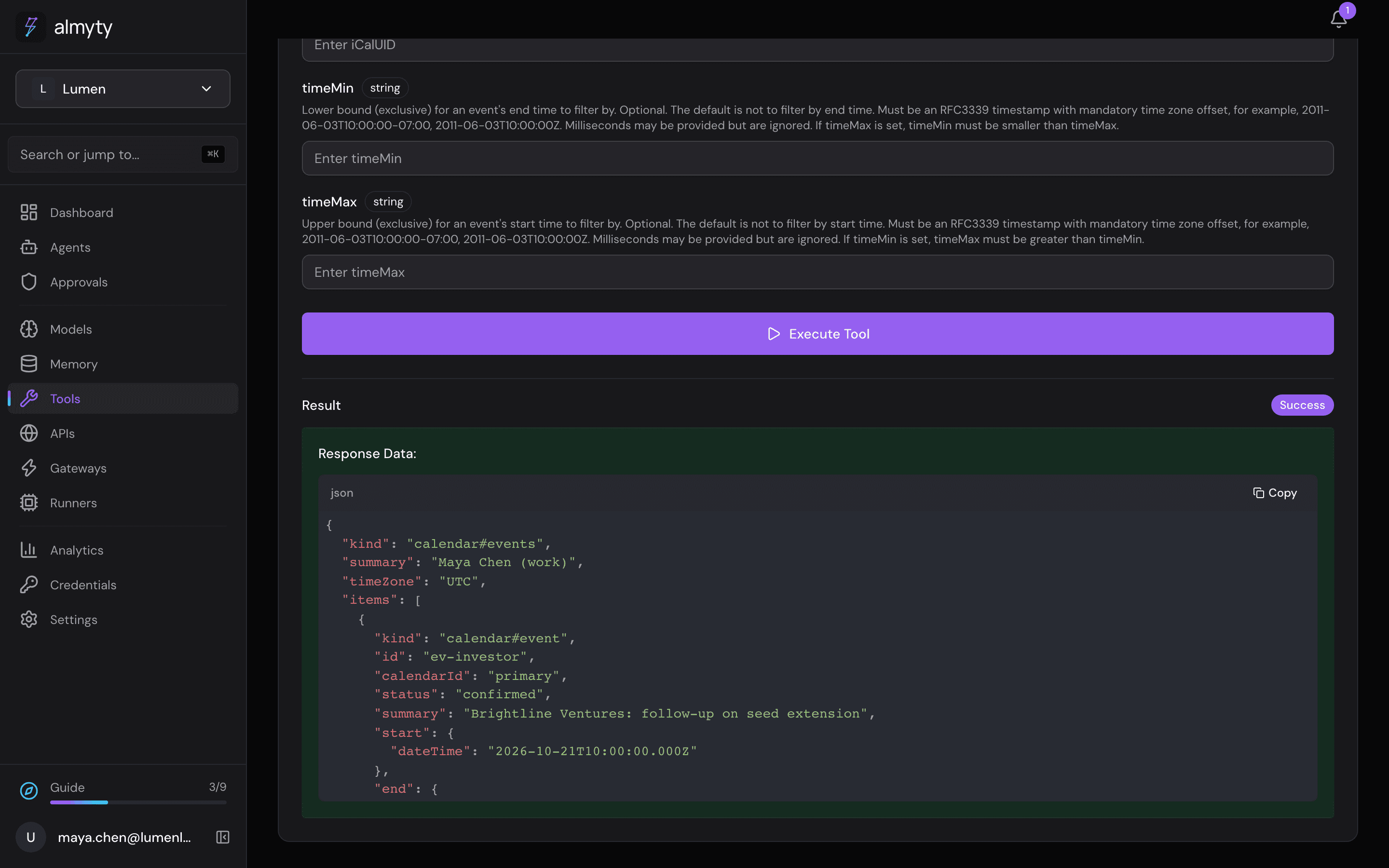
Open google_calendar_calendar_events_list, go to Test tool, type primary into calendarId and click Execute Tool. You should see your own calendar entries. If you get an error, see If something goes wrong.
6. Create the assistant
Open Agents, click Create agent and pick Autonomous at the top.
- Click the name New agent and call it
Founder's associate. - Work mode → Model: pick gpt-4o (or another strong model you connected).
- Personality & style:
Calm, brief and specific, like a trusted chief of staff. Facts first, no filler. If something is unclear or missing, say so instead of guessing.- Instructions (change the names to yours):
You are Maya's associate at Lumen.

Every morning, write Maya a short brief for the day:
1. Conflicts first: any meetings that overlap, across all her calendars (work, team and personal), with a suggestion for which one to move.
2. Today's meetings from all her calendars, in time order.
3. Open tasks that are due today or overdue.
4. The top three priorities for the day, based on the meetings, the tasks and recent emails.

Before each meeting with someone from outside the company, add a short prep note: who they are, how Maya knows them (check what you remember and past emails), what was discussed last time, and the open points.

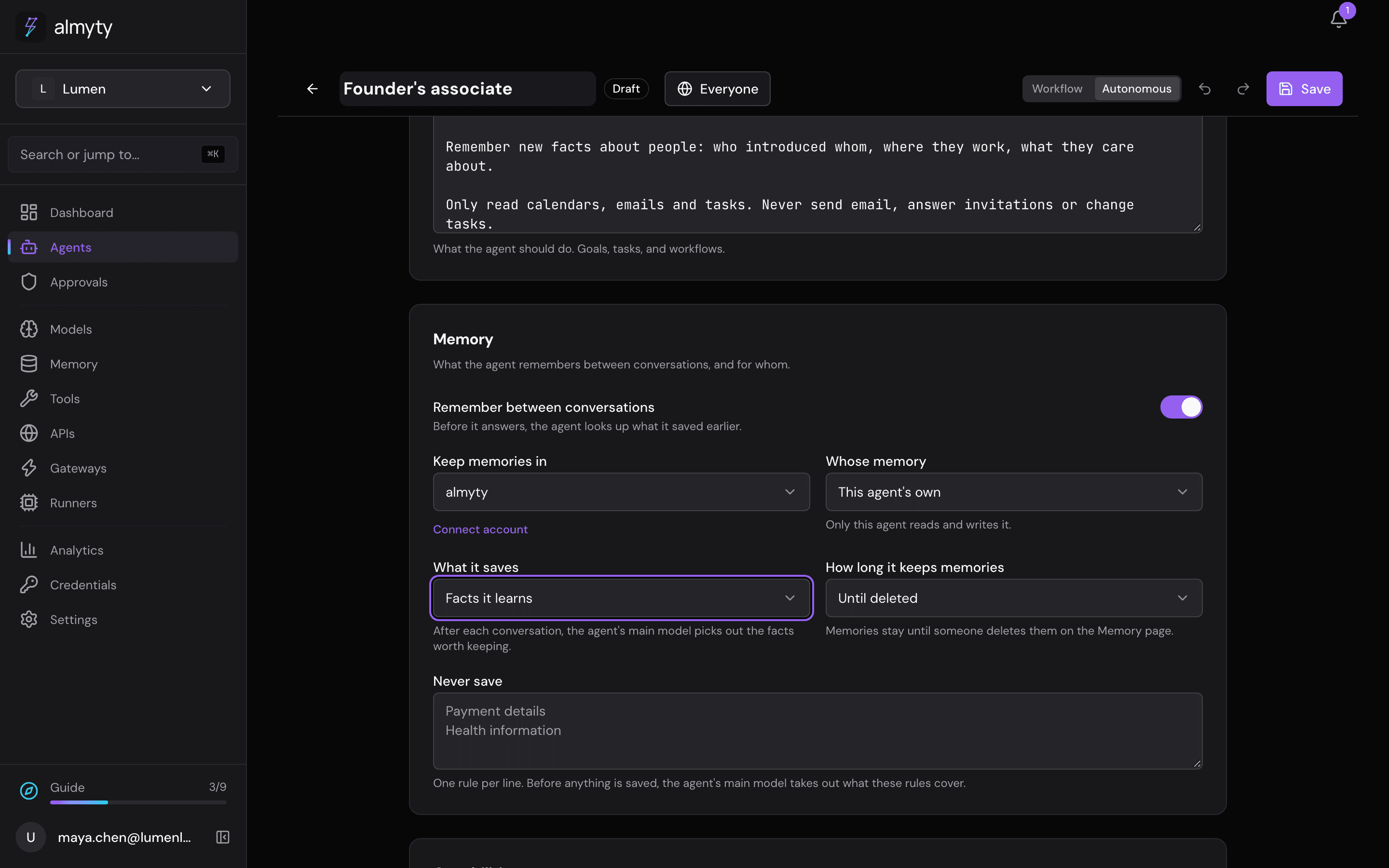
Remember new facts about people: who introduced whom, where they work, what they care about.

Only read calendars, emails and tasks. Never send email, answer invitations or change tasks.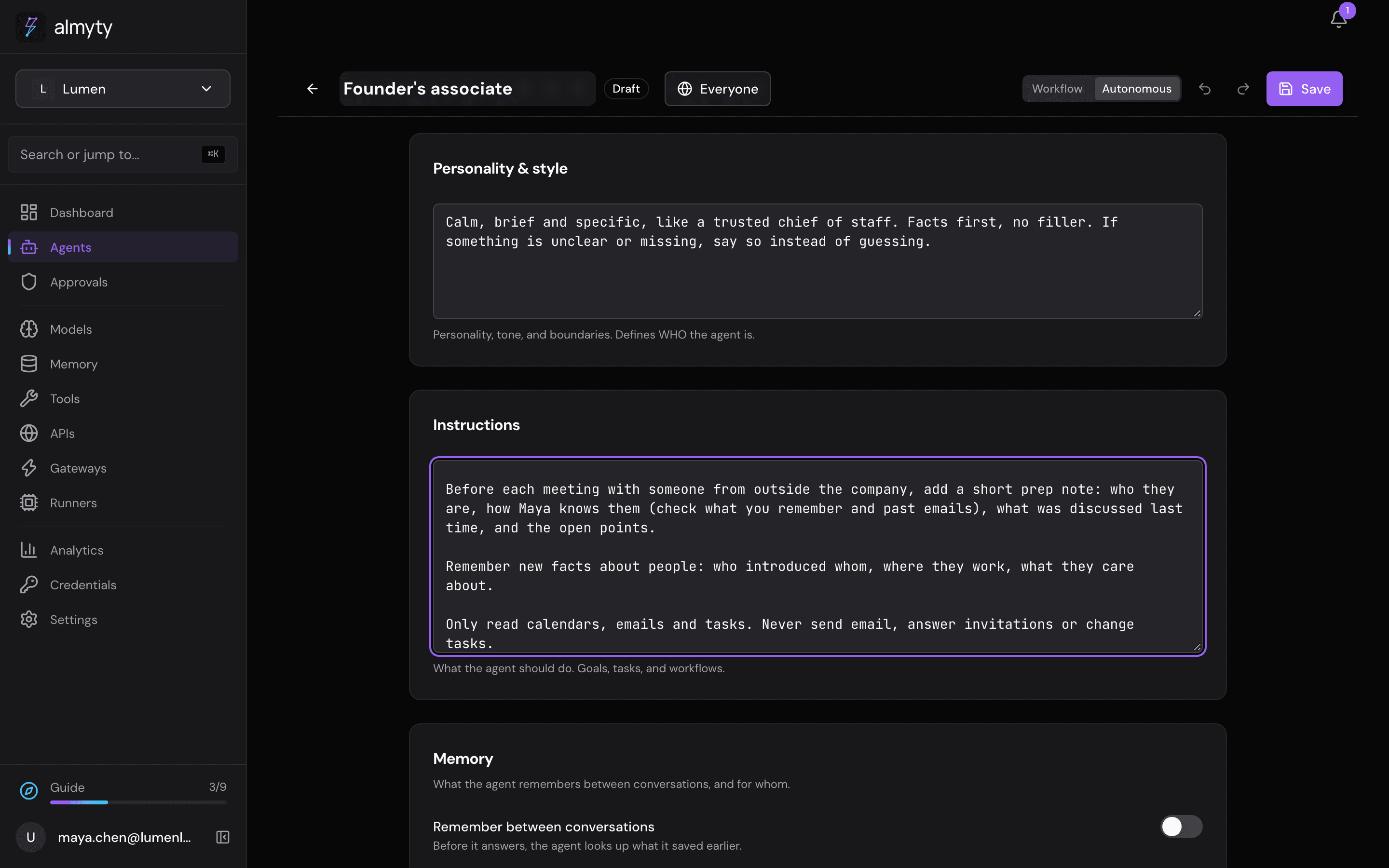
- Memory: turn on Remember between conversations. Set Whose memory to This agent’s own and What it saves to Facts it learns.
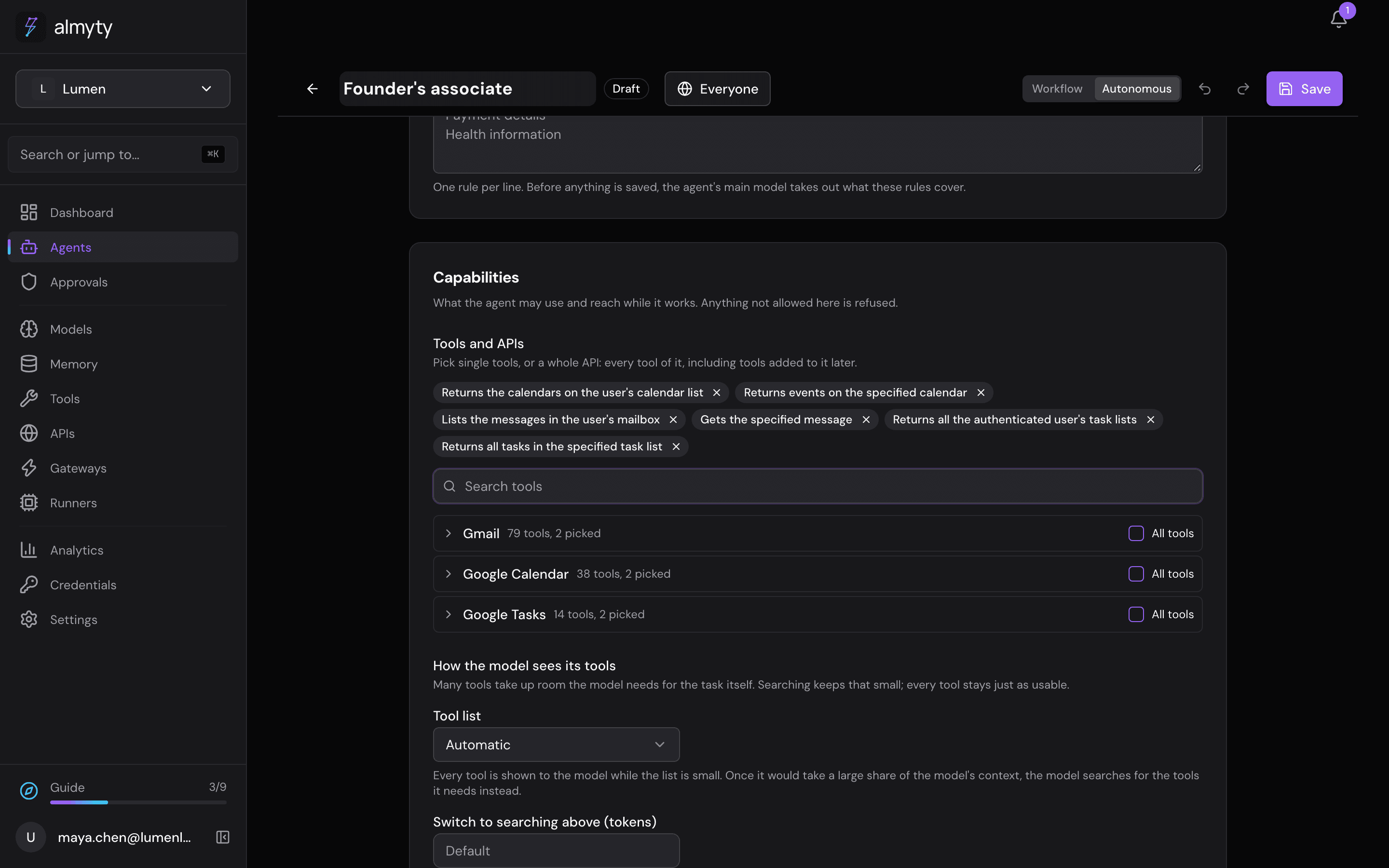
- Capabilities → Tools and APIs: search for and tick these six tools. Each shows what it does, with the name below it. They only read:
| Tool | What it does |
|---|---|
google_calendar_calendar_calendar_list_list | lists your calendars |
google_calendar_calendar_events_list | reads a calendar’s events |
gmail_gmail_users_messages_list | finds emails |
gmail_gmail_users_messages_get | reads one email |
google_tasks_tasks_tasklists_list | lists your task lists |
google_tasks_tasks_tasks_list | reads the tasks in a list |
- Click Save, go back with the arrow at the top left and click Activate.
7. Try it
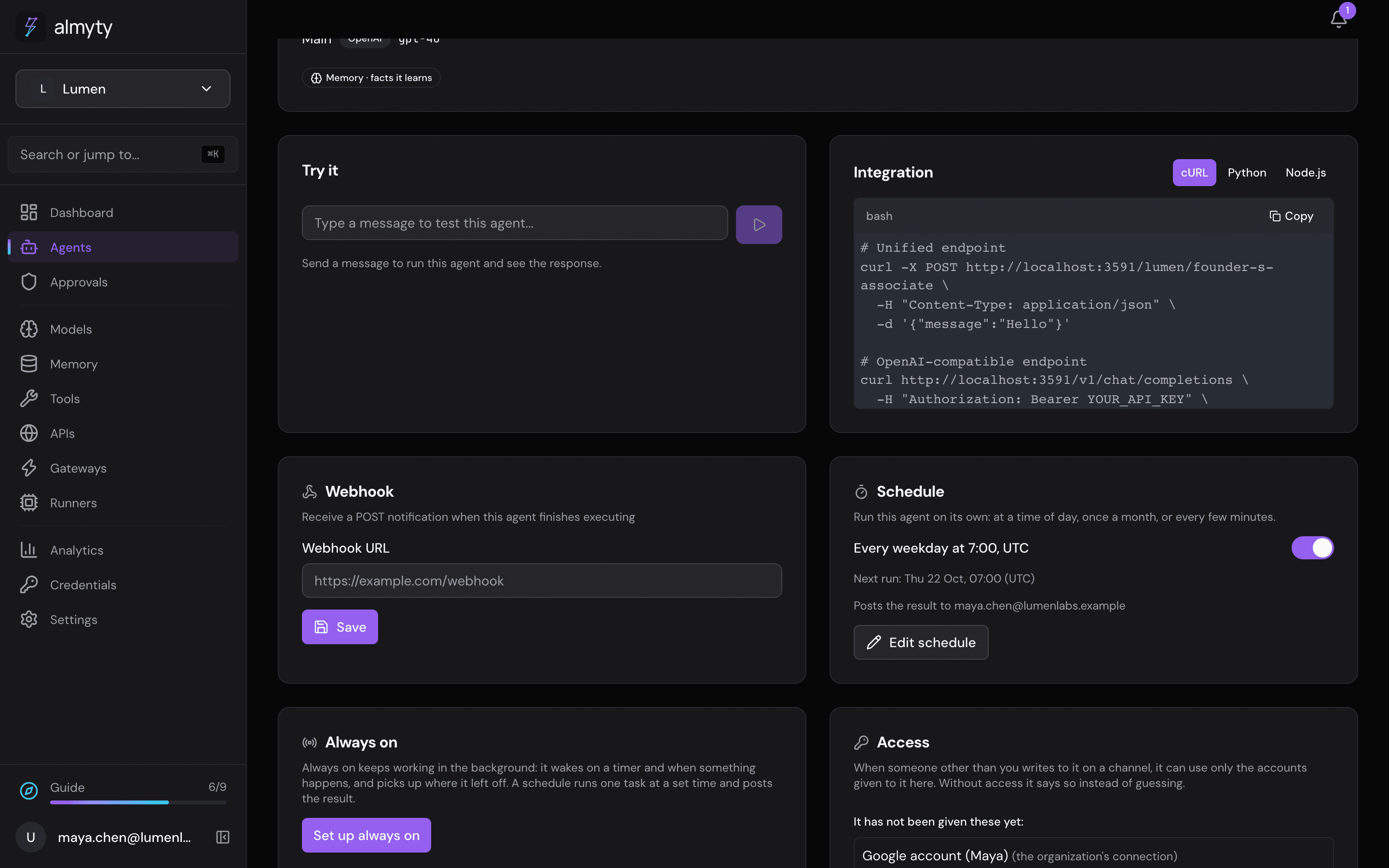
On the assistant’s Overview tab, under Try it, type Write my morning brief for today. and press Enter.
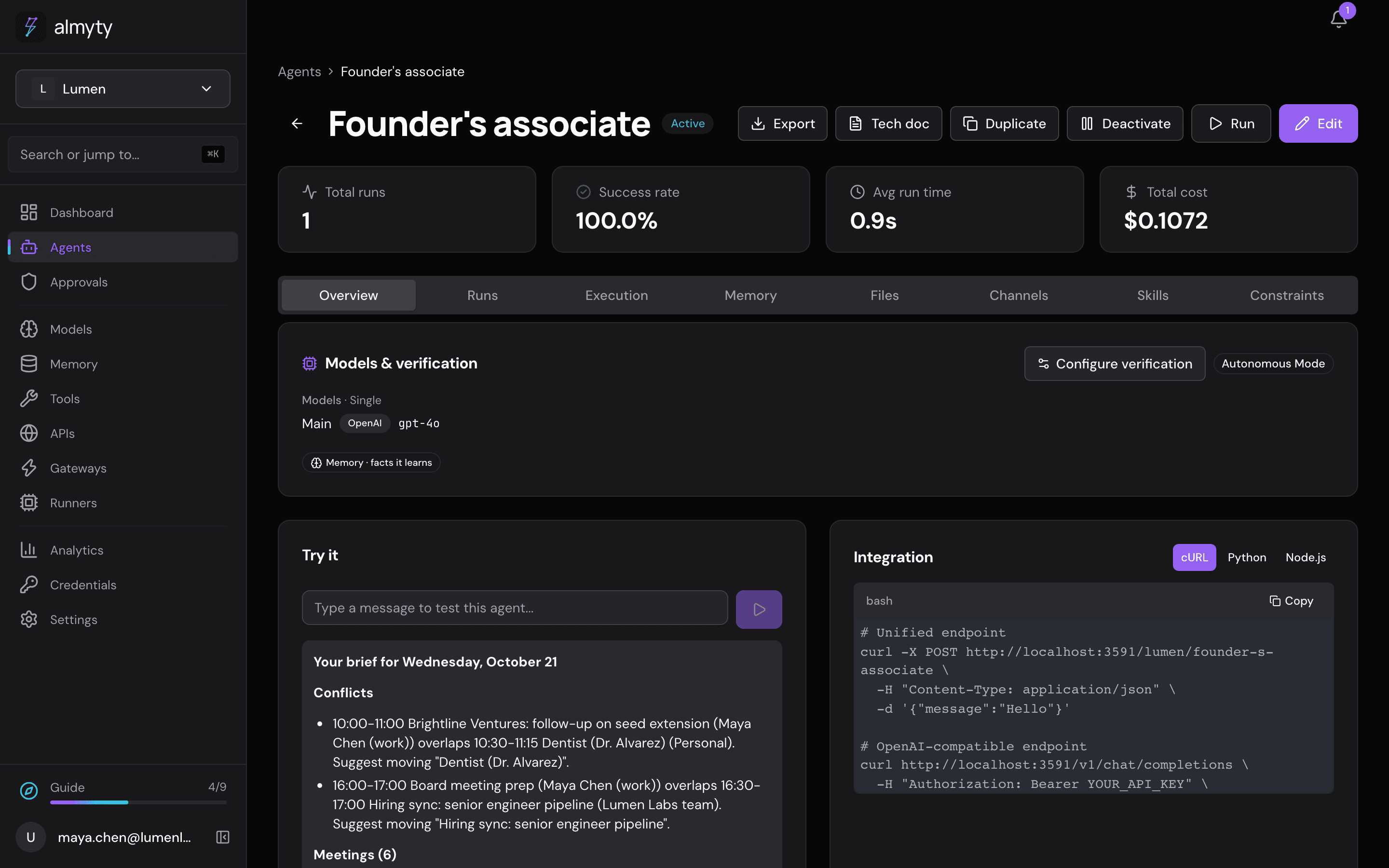
It found both clashes, even though the dentist appointment is on the personal calendar and the hiring sync on the team calendar.
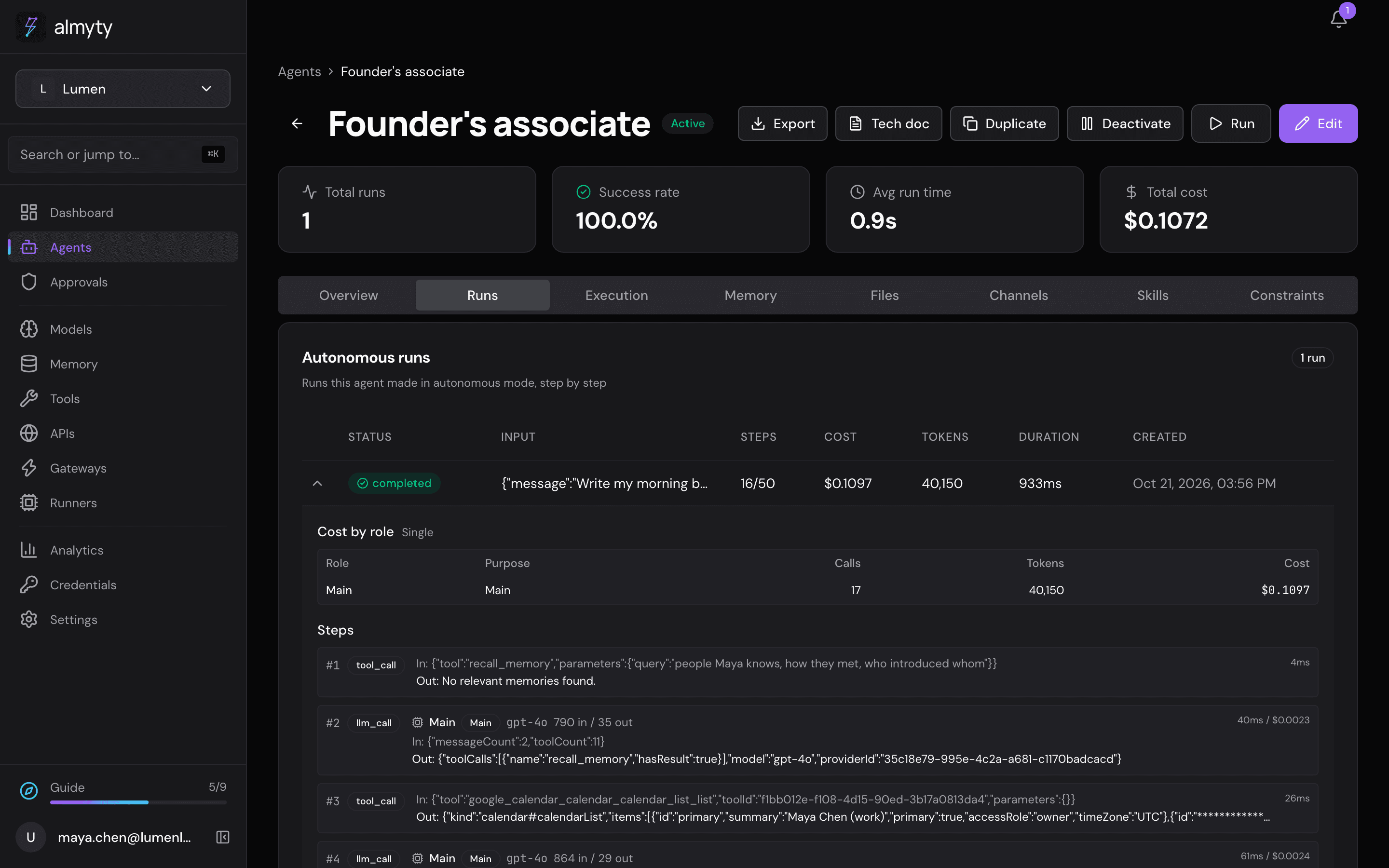
To see how it got there, open the Runs tab and click the run. Each step shows which tool it called, with what, and what came back.
8. Get the brief by email
The brief goes out through an Email channel. You need a Resend account with your domain verified (resend.com → Domains) and an API key (resend.com → API Keys).
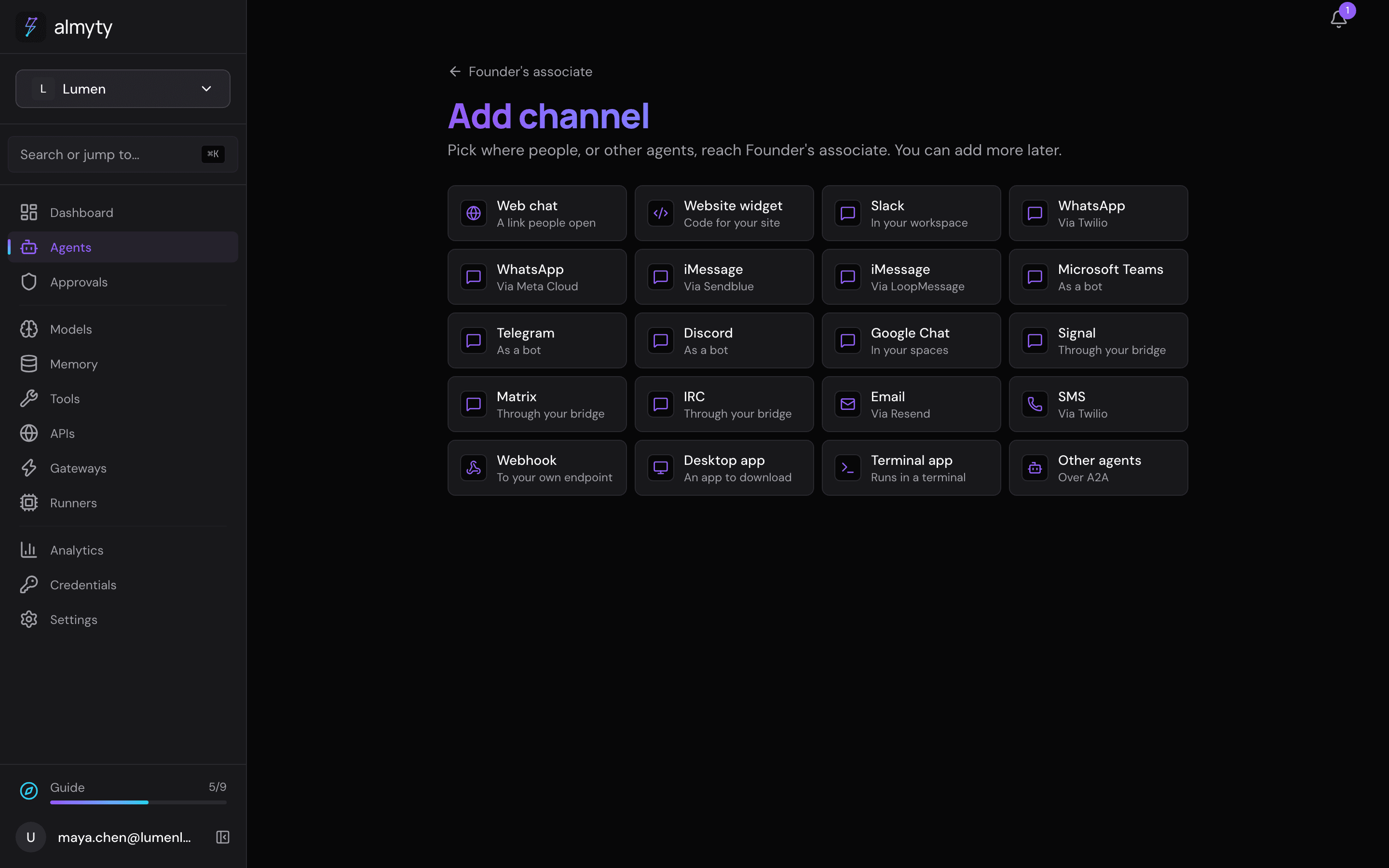
- Open the assistant’s Channels tab, click Add channel and pick Email.
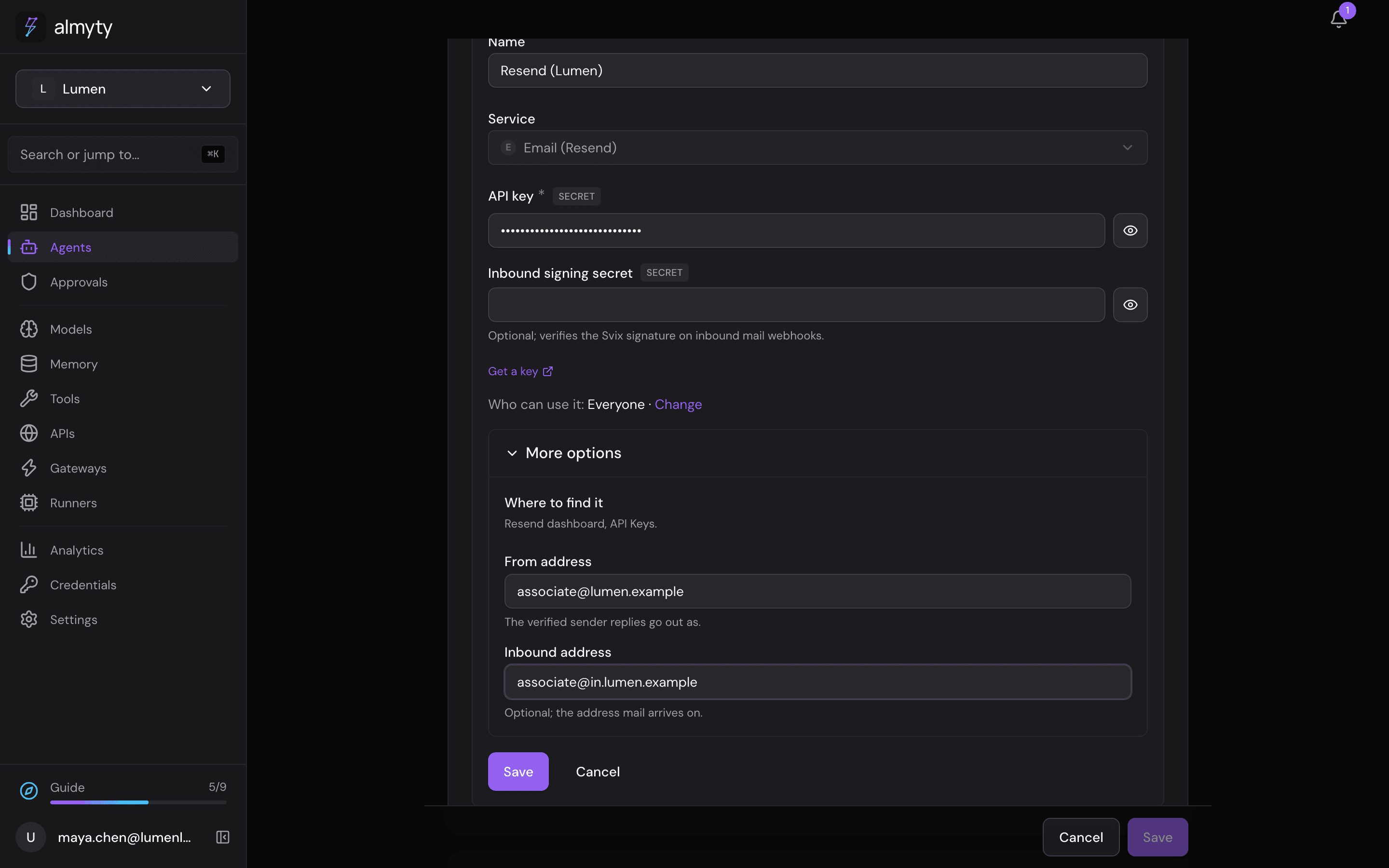
- Under Credential, click Create one here. Name it, paste the Resend API key, then open More options and fill in:
- From address: the address the brief comes from, on your verified domain, such as
associate@lumen.example. - Inbound address: an address on a domain whose mail Resend receives for you, such as
associate@in.lumen.example. The form calls it optional, but the channel cannot be published without it.
- From address: the address the brief comes from, on your verified domain, such as
- Click Save, then Save at the bottom of the page, then Publish.
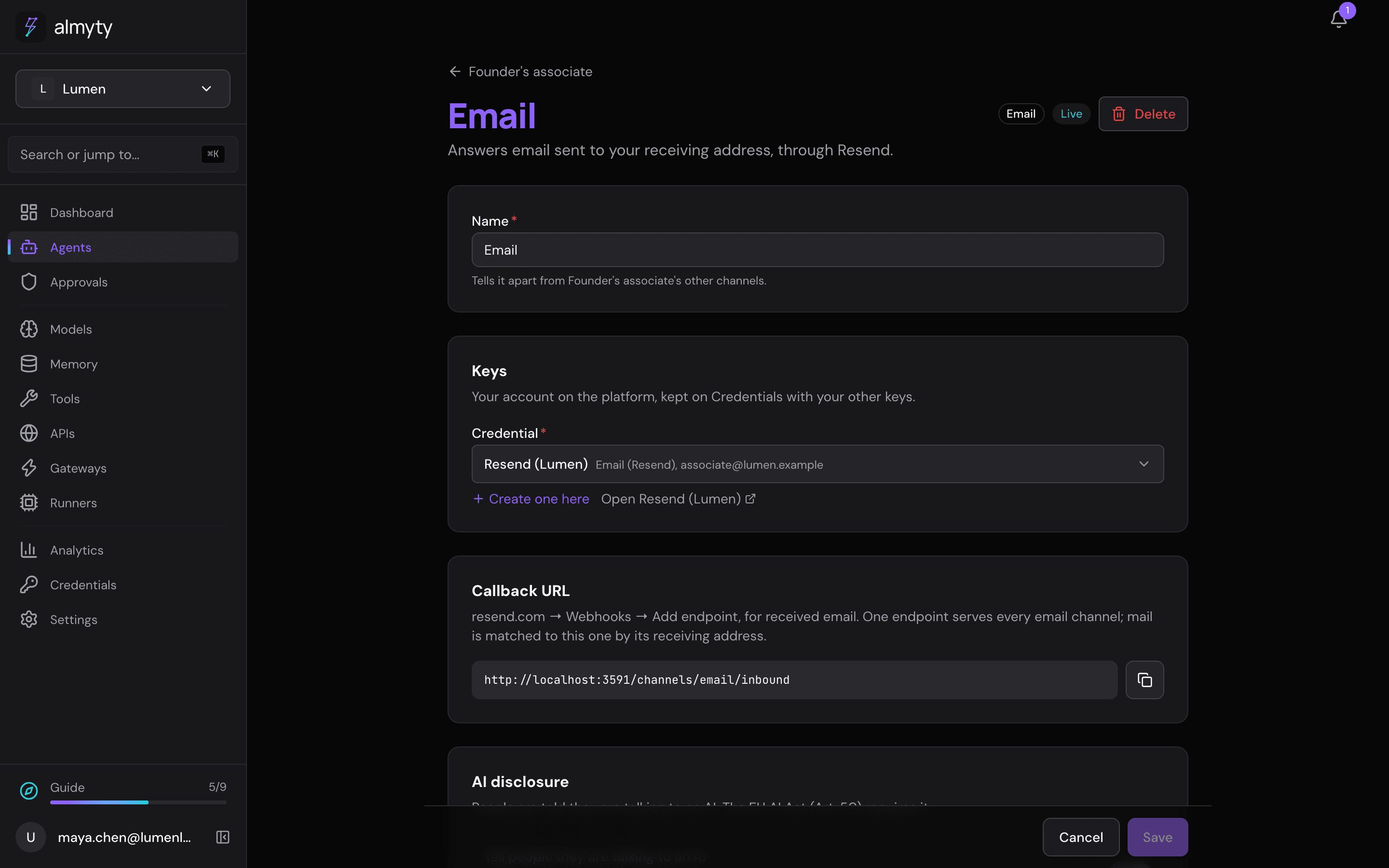
The channel shows Live.
9. Run it every weekday morning
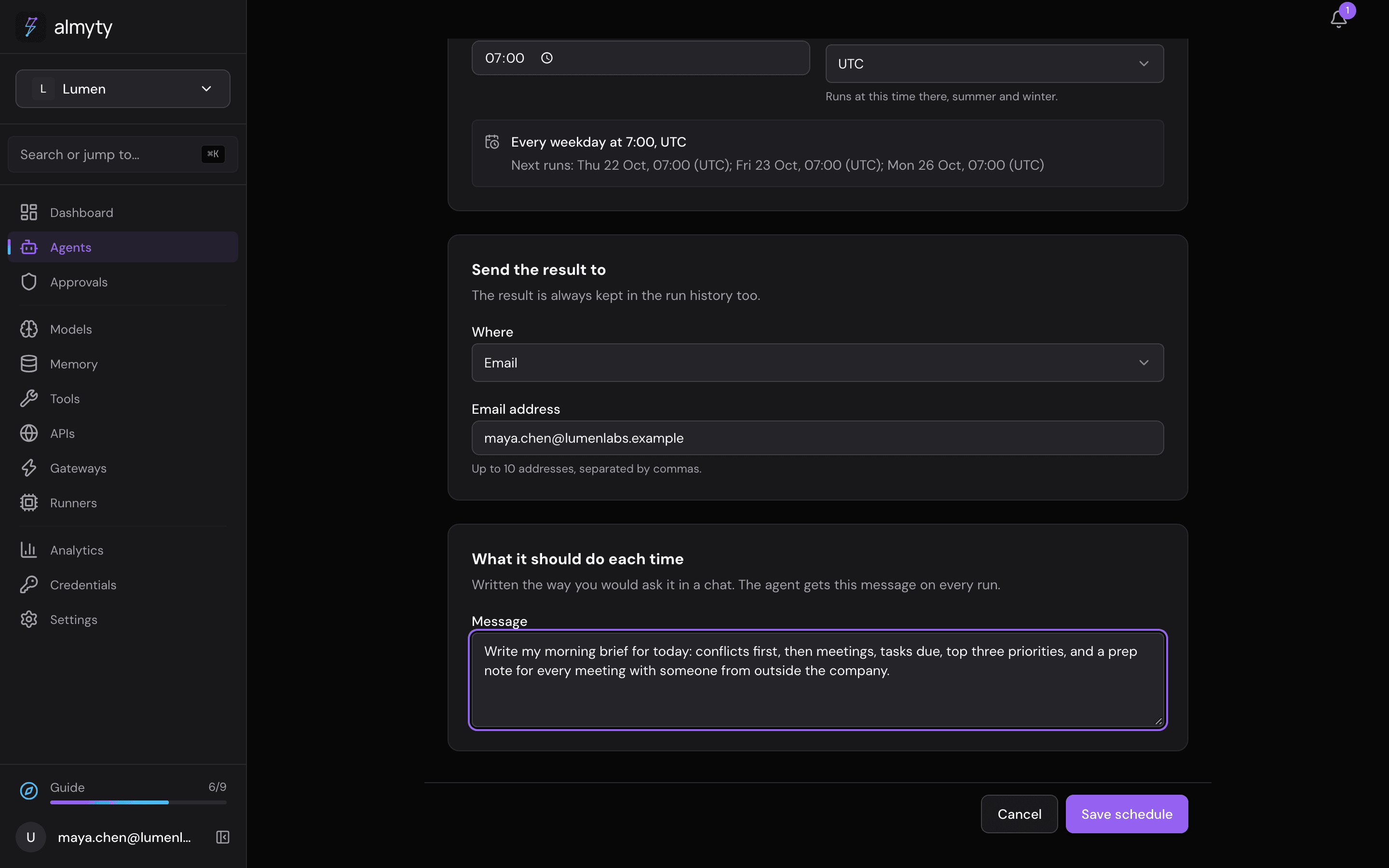
On the Overview tab, under Schedule, click Set up a schedule.
- Repeat: At a time of day. Days: Weekdays (Monday to Friday). Time:
07:00. Time zone: yours. - Send the result to: Email, with your own address.
- Message:
Write my morning brief for today: conflicts first, then meetings, tasks due, top three priorities, and a prep note for every meeting with someone from outside the company.- Click Save schedule.
The Schedule card on the Overview tab now says when it runs next and where the result goes.
10. The next morning
At 7:00 the brief arrives in your inbox, like the one at the top of this page. Every run is kept under Runs, with its cost.
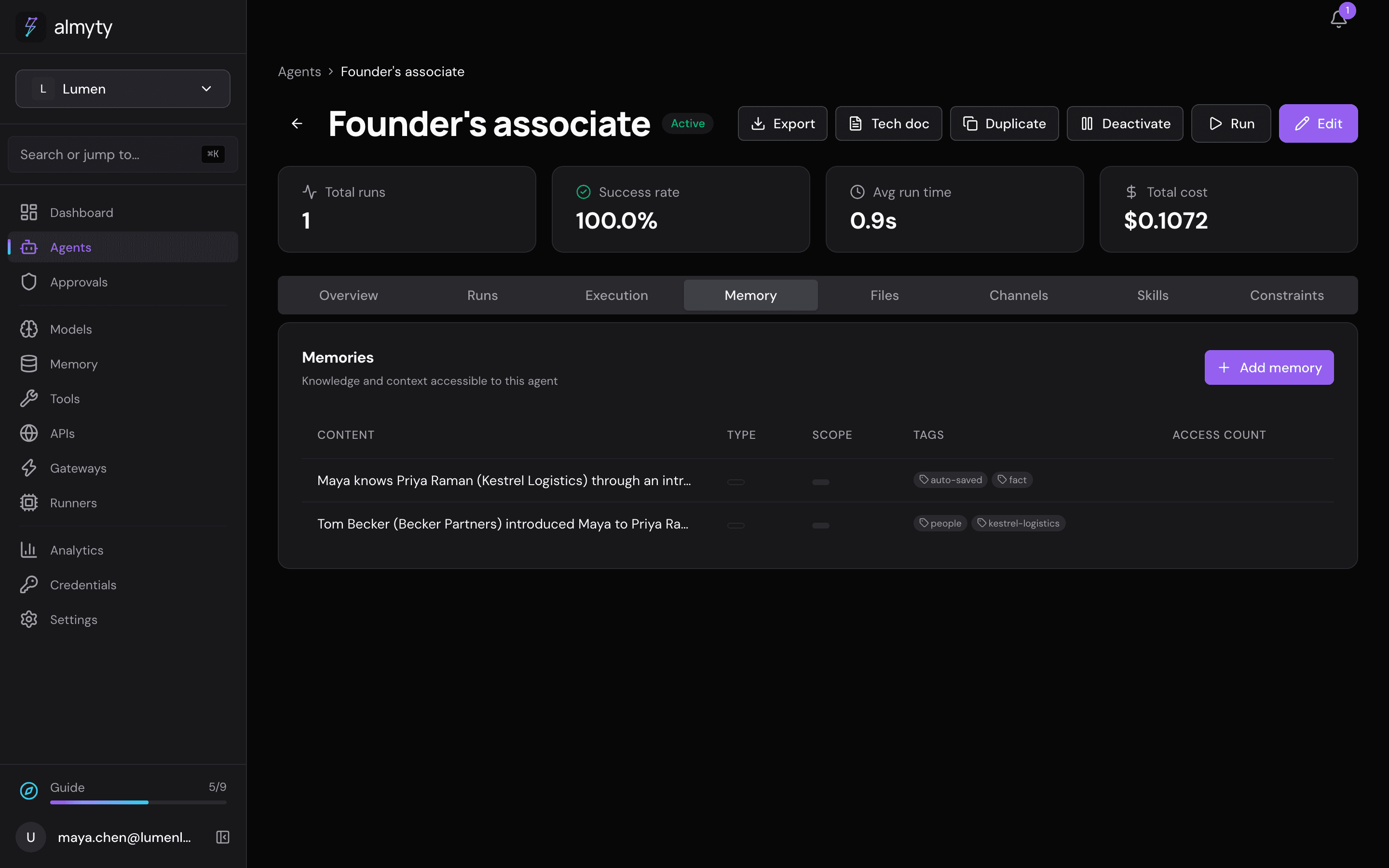
The Memory tab shows what it has learned about people, for example that Tom Becker introduced you to Priya Raman and that you worked with Tom before. It uses this in later prep notes. You can delete anything here.
Make it yours
- Outlook and Microsoft 365 instead of Google. Microsoft publishes an OpenAPI description of Microsoft Graph, which covers Outlook mail, calendars and To Do tasks. It is very large: connect it under APIs the same way, register an app in Microsoft Entra (the Microsoft counterpart of step 2), and tick only the calendar, mail-reading and task-reading tools. Each Microsoft sign-in works the same way as Google’s in step 3.
- Another task app. Any task app that publishes an OpenAPI description works: connect it under APIs, add its key, and tick its “list tasks” tool instead of Google Tasks.
- The brief in Slack instead of email. Add a Slack channel instead of Email (see the biz-dev tutorial) and pick it under Send the result to.
- A shorter or longer brief. Change the instructions in plain words: “skip the priorities on Fridays”, “only flag clashes with external meetings”.
- Prep notes during the day. Always on can wake the assistant every 30 minutes to prepare the next meeting. Today it reports either after every wake (including “nothing to prepare”) or only when it changed something, which a read-only assistant never does, so for now the morning brief with all of the day’s prep notes works better.
If something goes wrong
| What you see | What to do |
|---|---|
| Request had insufficient authentication scopes | The sign-in does not cover what the tool needs: you unticked that permission, or picked another service’s sign-in. Sign in again on the API’s page, under Key. |
| Google says Error 400: redirect_uri_mismatch | The redirect address from step 3 is not on your Google client. Copy it again from the sign-in form and add it under Authorized redirect URIs. |
| Google says access blocked or app not verified | With a personal account, add yourself under Test users on the consent screen (step 2). |
| A week later, every call fails | Your Google app is External and in Testing: Google ends those sign-ins after 7 days. Sign in again, or use a Workspace Internal app. |
| Publishing the Email channel says The Email credential still needs: inbound address | Open the Resend credential on Credentials, Replace key, fill in Inbound address under More options, then pick the credential again on the channel. |
| Connecting a model you run yourself (Ollama) says Could not reach almyty to check the key | The model took longer than 30 seconds to load. Start it once (ollama run <model>) and try again. |
| Always on says it was paused because the agent woke more often in an hour than it may | It woke itself in a loop (its own timer or channel messages; Wake now does not count). Check What woke it lately on its Always on page, then click Turn it back on. |