Hosted chat app
Give your assistant a chat page of its own, with your name and colours, at an address like https://northwind-help.almyty.app. Share the link in an email, a QR code or a campaign page, and anyone who opens it can chat with the assistant. There is nothing to install and no website to build.
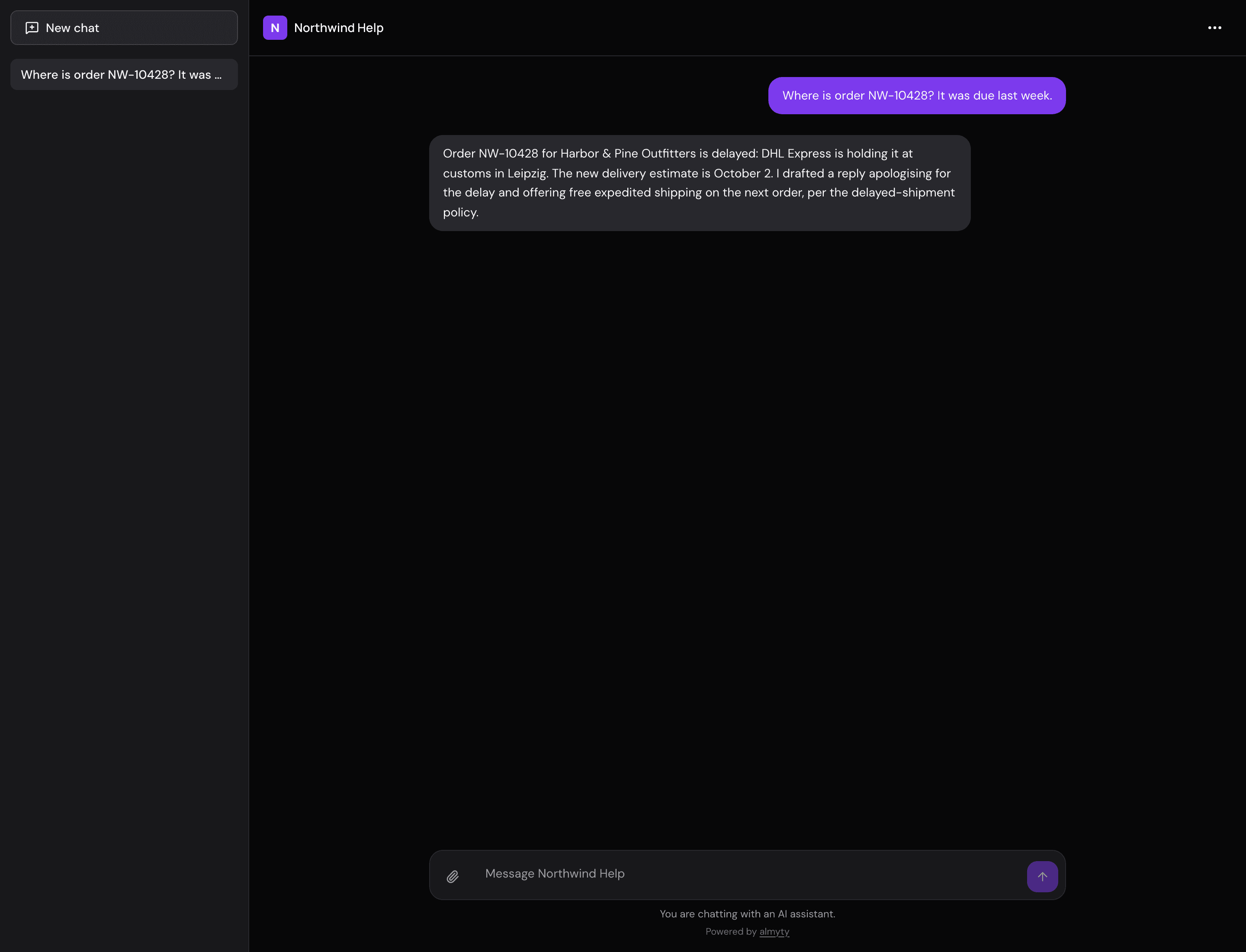
The page shows the name, colour, greeting and AI disclosure you set on the assistant. Visitors see answers appear as they are written and can come back to earlier conversations, without ever seeing the almyty dashboard.
Publish a web chat
The hosted chat is the Web chat channel of an assistant, set up on the assistant’s Channels tab.
- Open an autonomous assistant that is shared with your organization, and go to Channels.
- Open Branding and visitor rules and set what visitors see: name, colour, theme, greeting, suggested prompts and AI disclosure. Limits and visitor-data choices wait under Advanced, with their current values in one line.
- Click Add channel, then choose Web chat.
- Click Publish. The link appears straight away.
The channel shows Live when the chat is answering. Open the link to try it as a visitor would.
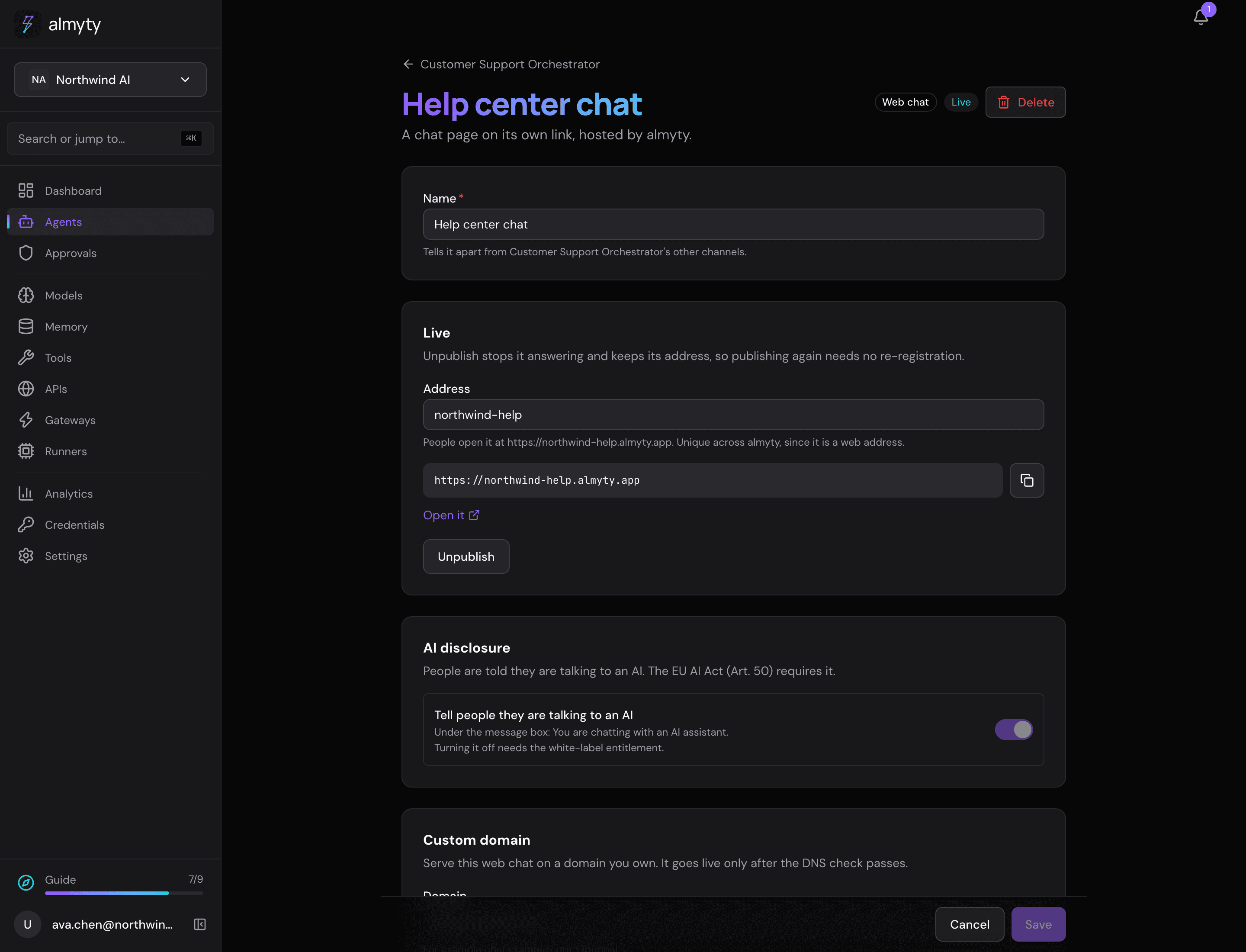
The address is made from the assistant’s name; change it under Address on the web chat’s page. Every web chat on almyty shares one address space, so yours has to be free; the page tells you when another web chat already has it. It must be 3 to 63 characters of lowercase letters, numbers and hyphens, with no hyphen at either end, and a few service names are reserved.
More on the web chat page
Everything else is on the same page, saved with one Save:
- Sign-in provider, when visitors must sign in with an account they already have: Google, Microsoft and GitHub first; Other asks for the provider’s details.
- Custom domain: use an address of your own, such as
help.northwind.com. Enter it and save, add the two DNS records shown (your IT team or domain provider knows where), then click Check DNS. - Allowed sites: the websites whose pages may show the chat.
Who can use the chat (anyone with the link, email verification, sign-in with a provider, or your company’s SSO) is set with the rest of the assistant’s visitor rules, and the web chat can have its own under Branding and visitor rules on its page. Changes to the look show right away, without publishing again.
What a visitor gets
A visitor can start a chat, watch the answer appear, and reopen earlier conversations. Visitors on a public link need no almyty account. Each visitor is still kept apart, so nobody can read someone else’s conversations.
Unpublish turns the chat off without losing its address or settings. Publishing again brings it back as it was.
Teach the assistant about your product
The name and greeting only change how the chat looks; they do not teach the assistant anything. Write the assistant’s instructions with what it should help with, your policies, and what to do when it doesn’t know. Give it the tools or knowledge it needs before it promises account-specific help.
Then test it like a visitor would, not just whether it answers: “What do you help with?”, a typical request, and a question at the edge of what it should do. Vague instructions give vague answers or needless refusals, even when the chat itself works perfectly.
What almyty keeps about a visitor
Someone who chats on your web chat (or your own domain), the widget on your website, a messaging app or your A2A channel is your user, not almyty’s. This is exactly what is kept, where it goes, who can read it and for how long. It applies to every channel an assistant answers on.
What is kept
- Who the visitor is, as each channel knows them:
- Web chat: a visitor record with a random code kept in a cookie for that chat’s address, a shortened scrambled form of their internet address (used only for message limits; the address itself is not kept), and when they were last seen. If visitors must sign in, the record also holds what the sign-in returned: the provider, the account id, the email and the display name.
- Website widget: a random conversation code kept in the visitor’s browser on your site. No cookie of almyty’s, and nothing about the visitor beyond the conversation.
- Messaging app: the app’s own id for the sender (a Slack user id, a phone number, an email address), on each run.
- A2A: nothing about a person. The caller is the key it used, which counts only for message limits.
- Conversations: every visitor message and every reply in full, with the AI model used, what it cost, and any tools the assistant used with what went in and came out. Each conversation is filed under the channel it came from.
- Runs: the work behind each reply, with what went in, the steps, what came out and any error, and the channel it answered on (that is what the spend limits count).
- Widget replies: the widget picks up its replies from a stored copy of each, kept with the conversation.
- Nothing goes into the assistant’s shared memory by default, from any channel. Visitor conversations are only summarized into shared memory if the owner switches on Include visitor conversations in memory. When that is on, what one visitor said may influence answers to others.
- Short-lived: message-limit counters (an hour at most) and the live stream of a reply (minutes).
Where it goes
- To the AI provider you connected, under your own account, as the question. What that provider keeps is governed by your agreement with them.
- To any tool the assistant uses, as the details it passes.
- Nowhere else. Chat pages and the widget load none of almyty’s own analytics or error reporting; those run only on the dashboard.
Who can read it
- Members of your organization whose role lets them open the assistant: its Runs tab shows each run with what went in and came out.
- Whoever operates the almyty installation can reach everything above. On almyty’s hosted service that is almyty; on your own installation it is you.
- No one else. Another visitor cannot see it, and an unpublished channel keeps its data but stops showing it.
How long
- Until you delete it, or until a retention period removes it. Retention is how long records are kept before they are deleted automatically. On Settings, under Organization, the Data retention card sets separate periods for conversations and runs for the whole organization; the hourly clean-up deletes records past the period and notes what it removed in the audit log. With no period set, records are kept until you delete them.
- An assistant can shorten that for its own visitors (see below), and a channel can set its own.
- Single conversations and runs can be deleted from the dashboard.
What you control, per assistant
These settings are under Branding and visitor rules on the Channels tab, under Advanced. The defaults need no attention, and a channel can set its own:
- Let visitors delete their data (on by default). In the web chat the menu offers Delete this conversation and Delete everything about me; deleting everything removes the visitor record, every conversation and the work behind them, the files they sent and the memories kept from their conversations, then starts the visitor afresh. The widget offers Delete my chat, pressed twice, which removes that conversation and everything stored with it. Each deletion is noted in the audit log, without what was deleted.
- Let visitors download their data (on by default). The web chat offers Download my data, a file with the visitor record, every conversation, the memories kept from them and a list of the files they sent; the widget offers Download my chat, the same for that conversation.
- Include visitor conversations in memory (off by default). Only switch it on for an assistant whose memory is meant to learn from the public.
- Delete visitor data after a number of days (empty by default, so the organization’s period applies). A value can only shorten the organization’s period.
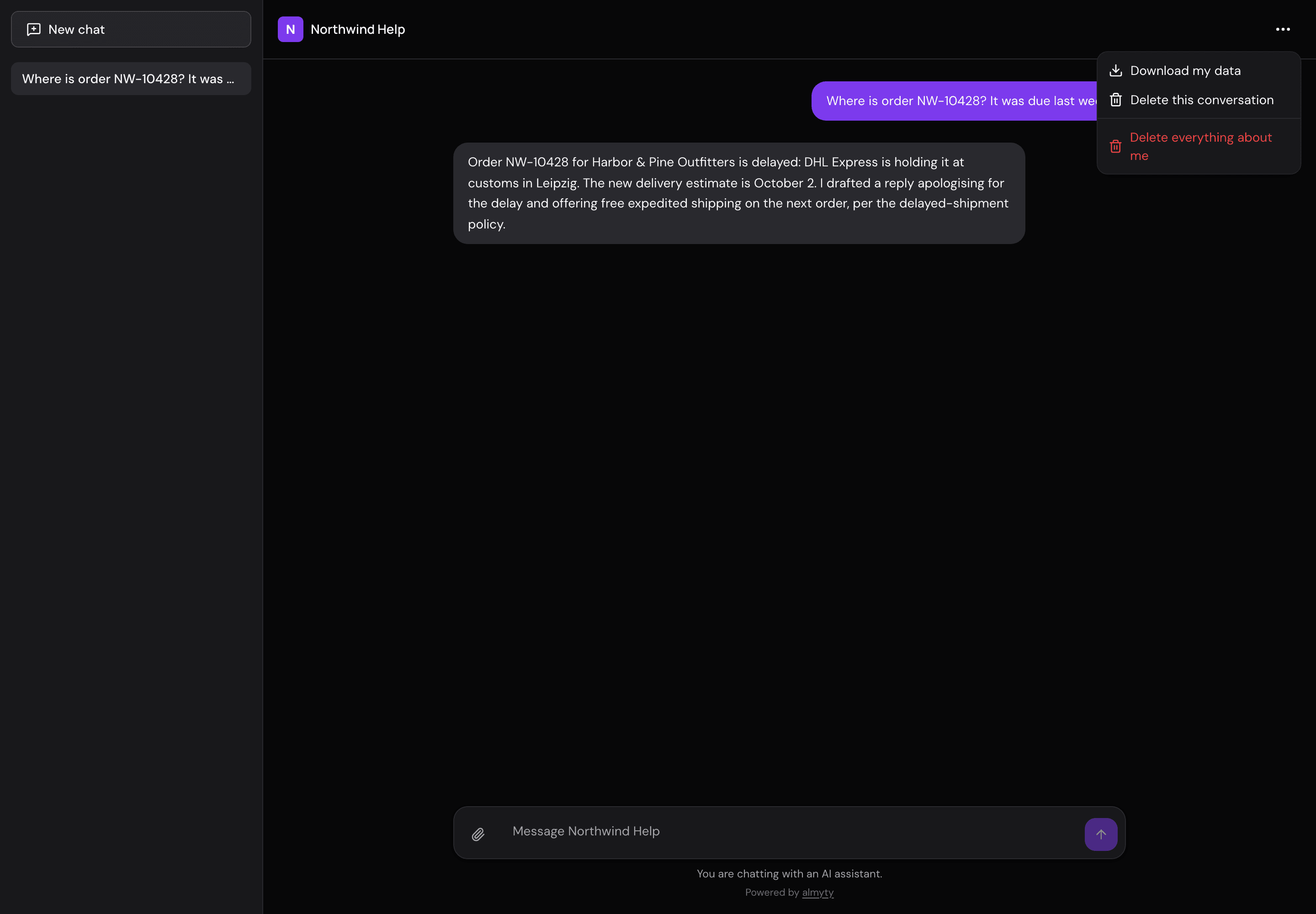
When you switch one of these off, a visitor who asks gets a plain refusal and the widget stops offering the button; nothing is deleted or downloaded behind their back. Messaging apps and A2A have no self-service buttons: someone who asks you through one of those, or a visitor whose right you switched off, is answered from the assistant’s Channels tab under Visitor data. See Visitor data requests.
Protect model spend
Every channel an assistant answers on applies these limits on every message:
- Spend limit per run: an answer that would cost more is stopped rather than paid for. Starts at 0.50.
- Messages per visitor, per hour, counted separately for each visitor: each web chat visitor, each widget conversation, each messaging-app sender, each A2A key. Starts at 60. A burst limit of a fifth of that per minute (at least 3) stops someone using the whole hour’s share in seconds.
- Messages per IP address, per hour (an IP address is a device’s internet address), for the channels that can see it: web chat, widget and A2A. Starts at 120. Messaging apps are limited per sender only, because their messages arrive from the app, not the visitor.
- Spend limit per day and per month for the whole assistant: every channel and every visitor together. A channel with its own daily or monthly limit has an allowance of its own instead. An assistant open to anyone starts at 5 a day and 50 a month; one only your company’s sign-in (SSO) can reach starts with none. Days and months start at midnight UTC.
Limits are per visitor and per assistant; one visitor’s allowance is never shared with everyone.
When the assistant reaches its daily or monthly spend limit, no channel sharing it answers a new message until the limit resets or you raise it. Visitors are told plainly: This chat has reached its limit for today (or for this month). The Channels tab says the same with what was spent, and owners and admins get one notification per period.
The limit counts what runs have already cost. A conversation already under way when the limit is reached finishes under its own per-run limit, so spending can go over by at most one run’s limit per conversation running at that moment. A conversation open across midnight counts in full on each day it is active.
A channel open to anyone (anyone with the link, email verification or sign-in with a provider) cannot be published until the per-run limit and both message limits are set. The page names each missing setting, so a public link can never spend against your AI provider account without a ceiling.
Email verification and sign-in with a provider still let in anyone with an inbox or an account, so they keep every limit. Only SSO, where your own company directory vouches for everyone, is treated as closed; it needs the Business or Enterprise plan.
AI disclosure
Every hosted chat shows an AI disclosure under the message box by default. Change the wording under Branding and visitor rules. Each channel’s page has an AI disclosure switch, on by default; turning it off (or blanking the wording) needs the white-label option (Enterprise plan), and publishing refuses it otherwise.
See Compliance for how this maps to the EU AI Act.
What needs a paid plan
- Removing the almyty mark (white-label, Enterprise plan).
- Using SSO as who can use a channel (Business and Enterprise plans).
Public links, email verification and sign-in with a provider are included in every edition.
Related
- Channels: put an assistant where people are
- Publishing a channel: the web chat, Slack and other channels
- Chat interfaces: the website widget and messaging apps
- Run limits: stop runs at clear ceilings
For developers
Visitor identity. The web chat’s visitor record is keyed by a random session key in a cookie scoped to that chat’s host; the IP is stored only as a truncated hash. The widget keeps a random conversation id in the browser storage of your site. Rate-limit counters and the live event stream of a reply are held in Redis. The web chat download is a JSON file; the widget’s is the conversation as JSON. A switched-off visitor right returns the stable code VISITOR_RIGHT_DISABLED; an A2A caller over the spend limit gets CHANNEL_SPEND_CAP_REACHED.
Sign-in provider. Other asks for a discovery URL; hand-entered endpoints, keys and scopes wait under Advanced.
Addresses in each environment. Hosted chats and the dashboard use separate domains, so the visitor cookie stays scoped to the chat:
| Environment | Dashboard | Hosted chat |
|---|---|---|
| Production | app.almyty.com | <slug>.almyty.app |
| Staging | app.staging.almyty.com | <slug>.staging.almyty.app |
| Development | your development dashboard | <slug>.dev.almyty.app |
A published web chat is served by a gateway; that gateway’s page says which assistant’s channel it is and links back. The chat reads its look from the assistant and the channel on every request.
Self-hosting
Hosted chat is part of the Apache-licensed core. To serve hosted chats on a domain you control:
- Point a wildcard DNS record at your deployment, for example
*.chat.acme.com. - Set
HOSTED_CHAT_BASE_DOMAIN=chat.acme.comon both the API and frontend containers. The frontend reads it at runtime, so the same image works in every environment. - Route
/apion every tenant host to the API and strip the/apiprefix. Route every other path to the frontend. Keeping these calls same-origin is what keeps the anonymous visitor cookie on the tenant host. - Issue a wildcard certificate for the domain and attach it to the tenant-host ingress.
A web chat with the slug support is then available at https://support.chat.acme.com.
Let’s Encrypt does not issue wildcard certificates through an HTTP-01 challenge. Use DNS-01, which means your certificate controller needs permission to create TXT records in the zone. If your issuer has no solver for that DNS provider, move the zone or delegate _acme-challenge to one it can update. A certificate per tenant also works, but Let’s Encrypt limits issuance to 50 certificates per registered domain each week.