Channels
A channel is a place where people can talk to one of your assistants: a chat page with its own link, a chat bubble on your website, Slack, Microsoft Teams, WhatsApp, email, text messages, iMessage, or an app people download. For example, the same support assistant can answer customers in a chat bubble on your site, on WhatsApp and by email, while your team asks it questions in Slack.
You set channels up on the assistant itself, and you decide when each one goes live.
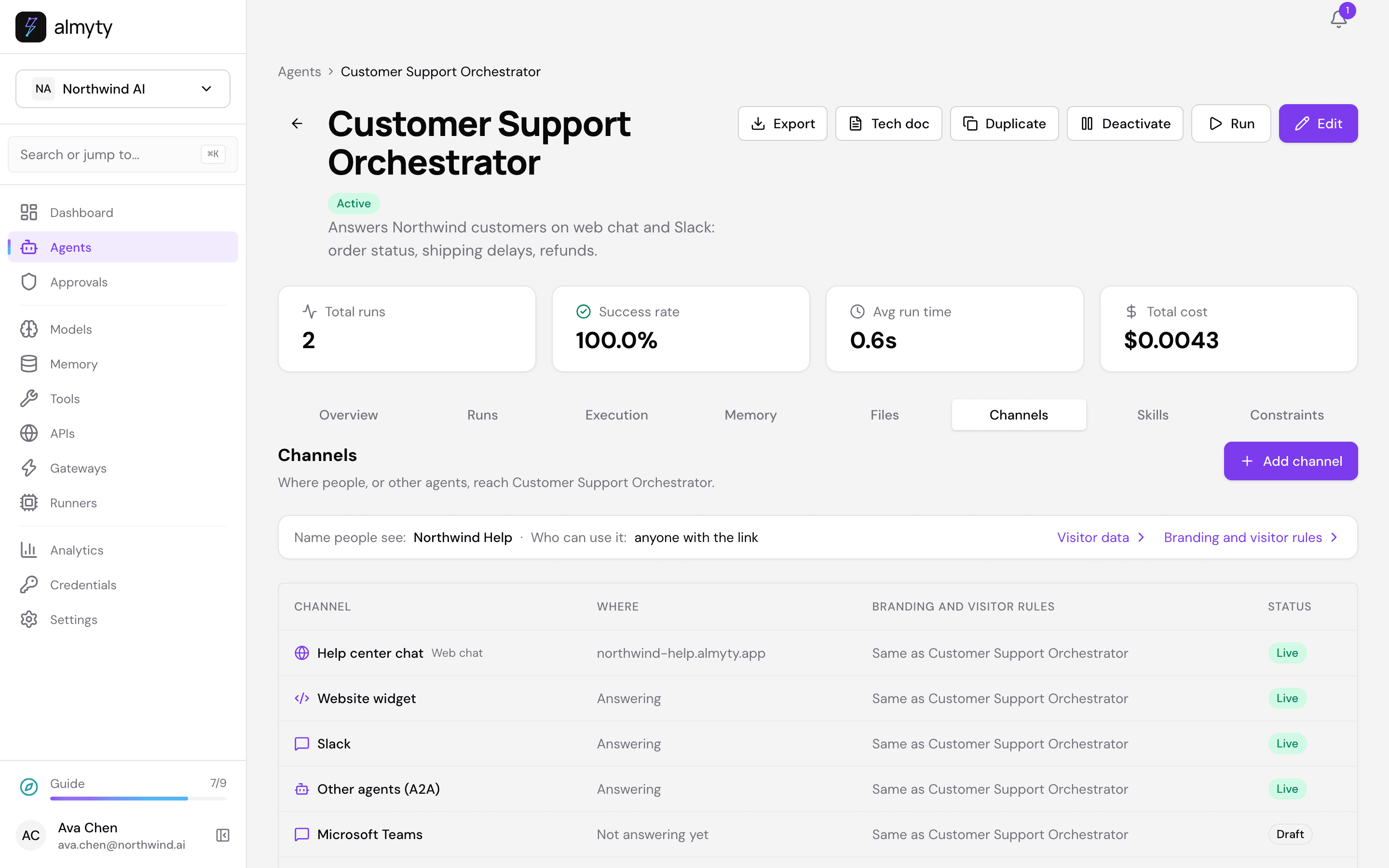
Where people can reach your assistant
| Channel | What people get |
|---|---|
| Web chat | A chat page on its own link, hosted by almyty |
| Website widget | A chat bubble on your own website, added by pasting one line into the page |
| Slack | Answers direct messages and mentions in your Slack workspace, installed with Add to Slack |
| Through Twilio, or directly through Meta’s WhatsApp Cloud API | |
| Microsoft Teams, Telegram, Discord, Google Chat | Answers as a bot |
| Signal, Matrix, IRC | Answers through a small relay program (a “bridge”) you run |
| Email, SMS | Answers mail sent to your receiving address, or texts sent to your Twilio number |
| iMessage | Answers one-to-one and group iMessages through a service that owns the number: Sendblue or LoopMessage |
| Webhook | Lets any service that can call a web address start the assistant; replies go to an address you own, or nowhere |
| Desktop app, Terminal app | An app people download and install; see Downloadable apps |
| Other agents (A2A) | Other AI agents can call your assistant. A2A (“agent to agent”) is a shared standard that lets agents from different companies talk to each other; see A2A |
An assistant can have as many channels as you like, including several of one kind (a Slack for support and a Slack for sales). Each channel belongs to one assistant and has its own name, which you can change on its page.
Add a channel
- Open the assistant on Agents and go to its Channels tab. This tab is the only place channels are added and changed.
- Click Add channel and pick where people should reach it. The channel’s page opens.
- Fill in what that channel needs (see below).
- Click Publish. Until you do, nothing answers: adding a channel only records where the assistant will be, publishing is the decision to let people in. A desktop or terminal app is built instead of published.
A desktop app opens the assistant’s web chat, so picking Desktop app on an assistant with no web chat offers to add the web chat too.
What’s on a channel’s page
A channel’s page has what that channel needs and nothing else:
- Its name, and for a web chat its address (the link people open).
- Keys for a messaging app. A key is the password-like code a platform such as Slack or Twilio gives you so almyty can post as your bot. Pick one you already keep on Credentials, or click Create one here to add it without leaving the page. Only keys for that platform are offered. On Slack this section is Add to Slack and takes your Slack app’s details.
- AI disclosure: a switch, on by default, that tells people they are talking to an AI, using the line you set in the branding. Turning it off needs the white-label option (Enterprise plan).
- The Callback URL, where the platform needs one: the address you paste into the other service so it knows where to send messages. Telegram and the Twilio channels register it for you when you publish.
- Publish and Unpublish. Unpublishing stops the channel answering but keeps its settings and address, so publishing again needs no new setup on the other service.
- Delete removes the channel and stops it answering.
Two kinds of assistant cannot be published on a channel: one that is private to its owner (share it with your organization first), and a workflow assistant, which runs a fixed series of steps when called rather than chatting with a person (switch it to autonomous).
Branding and visitor rules
What people see, and who may use the assistant, is set once for all its channels. On the Channels tab, open Branding and visitor rules.
- Look: the name people see, brand colour, theme, greeting, suggested prompts, the AI disclosure line, and whether the almyty mark shows (removing it needs the white-label option).
- Who can use it: Anyone with the link, Email verification (visitors confirm an email address first), Sign in with OAuth (visitors sign in with an account they already have, such as Google or Microsoft), or Enterprise SSO (your company’s own sign-in, on the Business and Enterprise plans).
- Under Advanced, what it may cost and what it keeps: a spend limit per run, per day and per month, how many messages each visitor and each internet address may send an hour, how long visitor data is kept, whether visitors may download or delete their own data, and whether visitor conversations may go into the assistant’s shared memory (off by default).
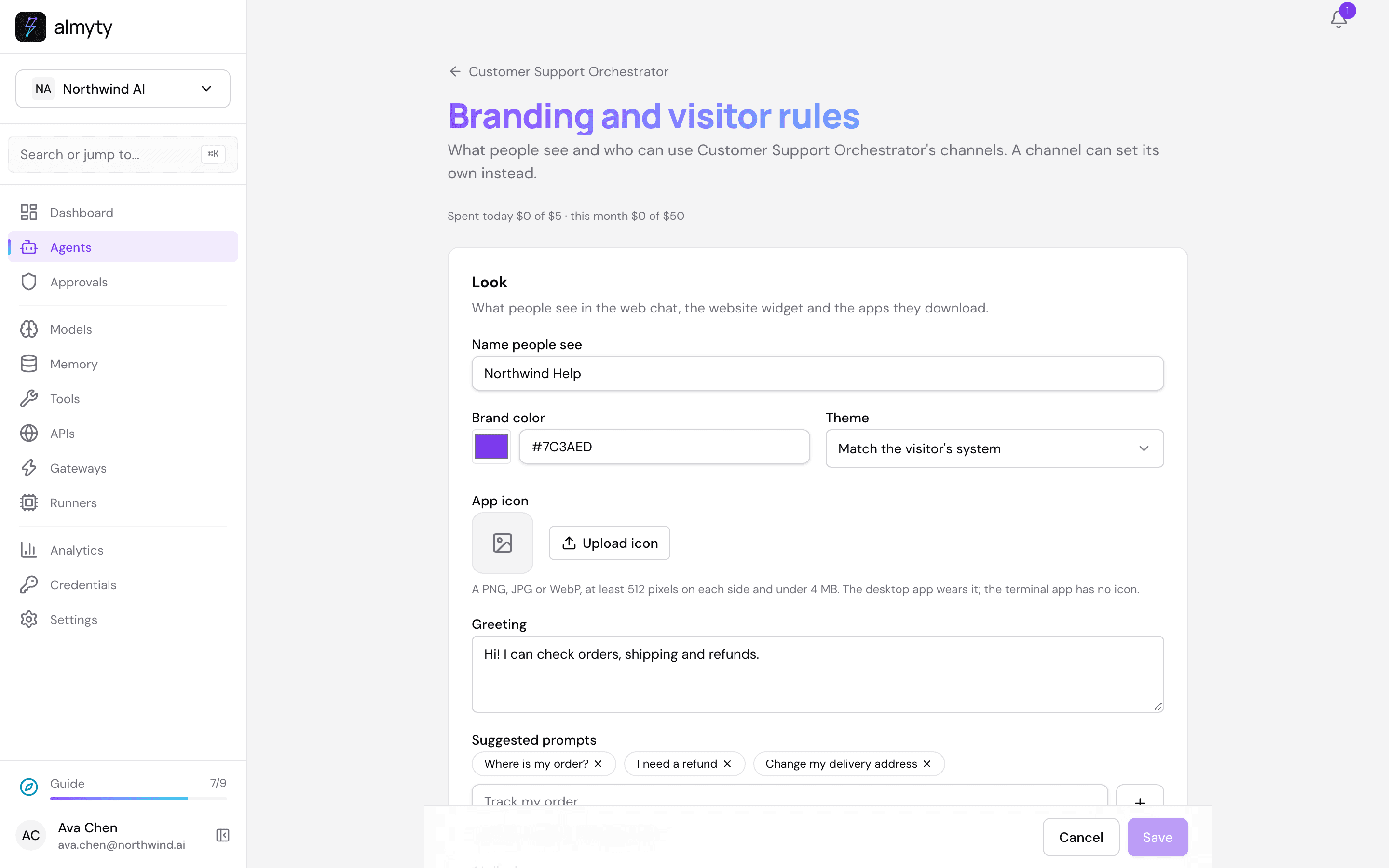
Every channel follows these unless you give it its own. On a channel’s page, under Branding and visitor rules, turn on Use this channel’s own and change what should be different. Only what you change is kept for that channel; everything else keeps following the assistant.
Spend limits
Spend limits stop a public assistant from running up your AI bill:
- Spend limit per run stops any single answer that would cost more.
- Spend limit per day and per month cover everything visitors spend on the assistant’s channels together. A channel with its own daily or monthly limit has an allowance of its own instead.
An assistant open to anyone starts at 5 a day and 50 a month (days and months in UTC). When a limit is reached, visitors are told the chat has reached its limit until it resets, and owners and admins get a notification. See Protect model spend.
Visitor data
When someone asks what the assistant keeps about them, or asks you to delete it, the assistant’s owner (or an owner or admin of your organization) answers from the Channels tab under Visitor data: say who they are and on which channel, see what is kept, then download a copy for them or delete it. People on the web chat and the website chat bubble can also do it themselves. See Visitor data requests.
Files, pictures and group chats
People can send files. A photo, a PDF or a text file sent on a channel is passed to the assistant. An AI model that can look at images or read PDFs gets the file itself; one that cannot is told what was sent (and reads a text file’s text). Whether a model can do this is shown on its card on Models, filled in automatically, and you can change it there. Up to five files of up to 10 MB each are read per message. Video, audio and archives are named to the assistant but not opened.
This works on Slack, Telegram, Discord, WhatsApp (both kinds), SMS, Microsoft Teams, Matrix, Signal, email, iMessage and the webhook, and in the web chat and website widget, where visitors attach files next to the message box. Google Chat names the files but cannot pass them on, and IRC has no files.
Files are kept with the conversation they arrived in. When the conversation is removed (by your retention period, or because the visitor deleted it) the files go with it. A file uploaded but never sent is removed after a day.
One chat is one conversation. Every message in the same chat belongs to one conversation, however long the gaps between them: a chat in the website widget, a Slack thread, a Teams or Telegram chat, a text conversation with one number, an email thread. The assistant reads what was said before, and the conversation is named after the first thing the person said in it, so a list of conversations (in Visitor data, say) reads as what each was about.
Group chats say who is talking. In a conversation with several people (a Slack channel, a Teams group chat, a Discord server, a Telegram or Signal group, a Google Chat space, an IRC channel, a Matrix room, an iMessage group) each message reaches the assistant with the writer’s name in front, like “Anna: can someone check order 1182?”. It is the name the platform shows. Where there is none, or the name is an email address or phone number, a short code such as user-3fa21c is used instead, the same one each time for that person. Contact details are never put in front of a message.
Pictures and files in replies. When the assistant’s answer includes an image or a link to a file, apps that can show media send it as a picture or attachment: Slack, Telegram, Discord, WhatsApp, Microsoft Teams, Google Chat, Signal, email and iMessage. SMS, Matrix and IRC keep the link, and so do the web chat and widget, which show an image as a link rather than loading it.
The webhook channel
A webhook channel lets any service that can call a web address start your assistant: a monitoring tool when an alert fires, a form when someone submits it, a CI system when a build fails. Its key holds:
- Signing secret: a shared secret both sides know. Every call must be signed with it, or almyty refuses the call.
- Reply address (optional): where each answer is posted. Leave it empty when the caller expects nothing back. The assistant still runs, and its answer is kept in the run history.
- How the caller signs. By default almyty expects the signature in an
X-Webhook-Signatureheader, as the hex HMAC-SHA256 of the request body. A service that signs another way is described in the key’s other fields: Signature header, Signature hash (SHA-256, SHA-1 or SHA-512), Signature encoding (hex or base64), Signature prefix (text in front of the signature, such asv1=) and Signed content ({body}is the request body;{header:Name}puts a request header in, for a service that signs a timestamp and the body).
For example, a PagerDuty v3 webhook signs the body with HMAC-SHA256 and sends v1=<signature> in X-PagerDuty-Signature. Set Signature header to X-PagerDuty-Signature and Signature prefix to v1=, paste PagerDuty’s signing secret, and leave the reply address empty. When a service sends several signatures at once (while it changes secrets), any one that matches is accepted.
Why a publish can be refused
Publishing refuses a channel that would be live but useless, or open when you meant it closed, and lists every reason at once:
- Missing keys. You are told which key the platform still needs.
- No limits on a channel open to anyone: no spend limit per run, or no per-visitor and per-address message limits. Otherwise anyone with the link could spend against your AI provider account.
- A workflow assistant, or one private to its owner.
- The website widget on a channel people must sign in to. The widget has no sign-in, so it only goes on a channel anyone can use.
- A desktop app with no web chat to open. Add a web chat channel first.
- Something your plan does not include: Enterprise SSO sign-in, removing the almyty mark, or turning the AI disclosure off.
For developers
Publishing a channel that almyty serves creates a gateway for it (a gateway is the address almyty answers on). That gateway is created only through the channel, never from Create gateway, and its page says which assistant’s channel it is and links back.