Tutorial: a personal assistant that gets to know you
What you’ll build
An assistant you talk to in Telegram, like a person who works for you. It gets to know you: when you tell it how you like things done, who the people in your life are, or say yes to something it offered, it remembers, and uses it next time. It also keeps an eye on things without being asked. Every 30 minutes it looks at your Google Calendar, your Gmail and your Google Tasks, and when something needs you, it writes to you first: “Your flight now lands at 09:20, so the 9:00 with Tom no longer works. Shall I move it to 10:30 and tell Tom you will be late?” It never changes anything on its own. Every change (moving a meeting, sending an email) waits until you approve it, in Telegram or on the Approvals page.
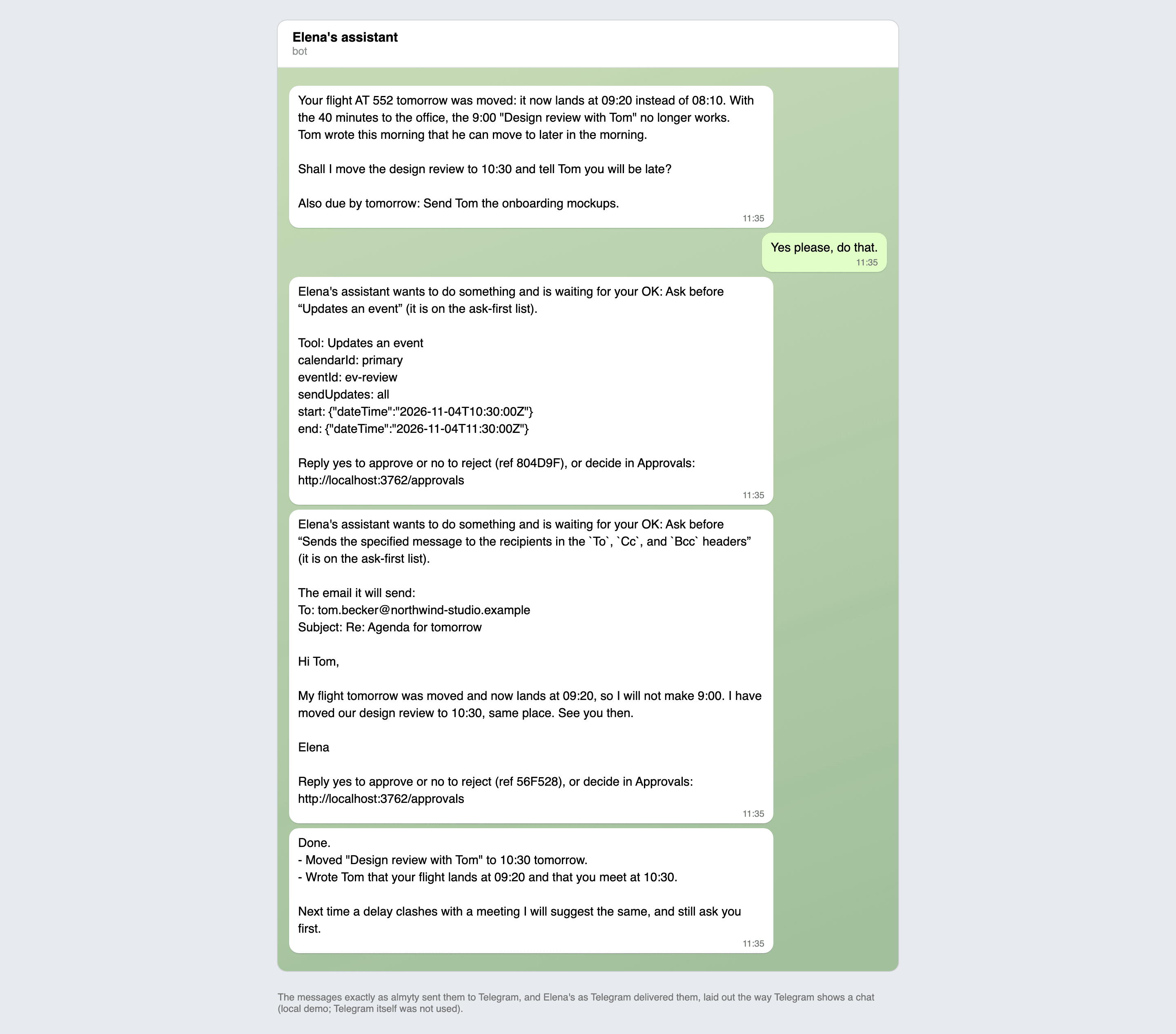
The screenshots in this tutorial come from a test installation with a made-up person (Elena Park, a designer who works for “Northwind Studio”), so web addresses in them start with http://localhost. Yours start with your almyty address.
What you need
- An almyty account with an AI model connected (step 1 of the founder’s associate tutorial).
- Your own Google app for signing in to Google, registered once in Google Cloud: step 2 of the founder’s associate tutorial. Turn on the Google Calendar API, Gmail API and Google Tasks API there. With a personal Google account the app is External and in Testing: add your own address as a test user.
- Telegram on your phone or computer.
- For step 6 only: the Business plan, which hides personal data in almyty’s records.
- Time: about 45 minutes.
1. Connect Google Calendar, Gmail and Google Tasks
This assistant changes things for you (it moves meetings and sends email after you approve), so it needs a little more than the read-only permissions of the founder’s associate.
- Open APIs, click Connect an API, pick OpenAPI / Swagger and paste the link for Google Calendar from the table below. Open Advanced, set Name to
Google Calendarand click Connect API. - Under Sign-in, click Create one here. Copy the redirect address into your Google client’s Authorized redirect URIs (in Google Cloud), then paste your Client ID and Client secret.
- Under What it asks for, untick everything except the permission in the table, and click Sign in. Google shows its consent screen; click Continue.
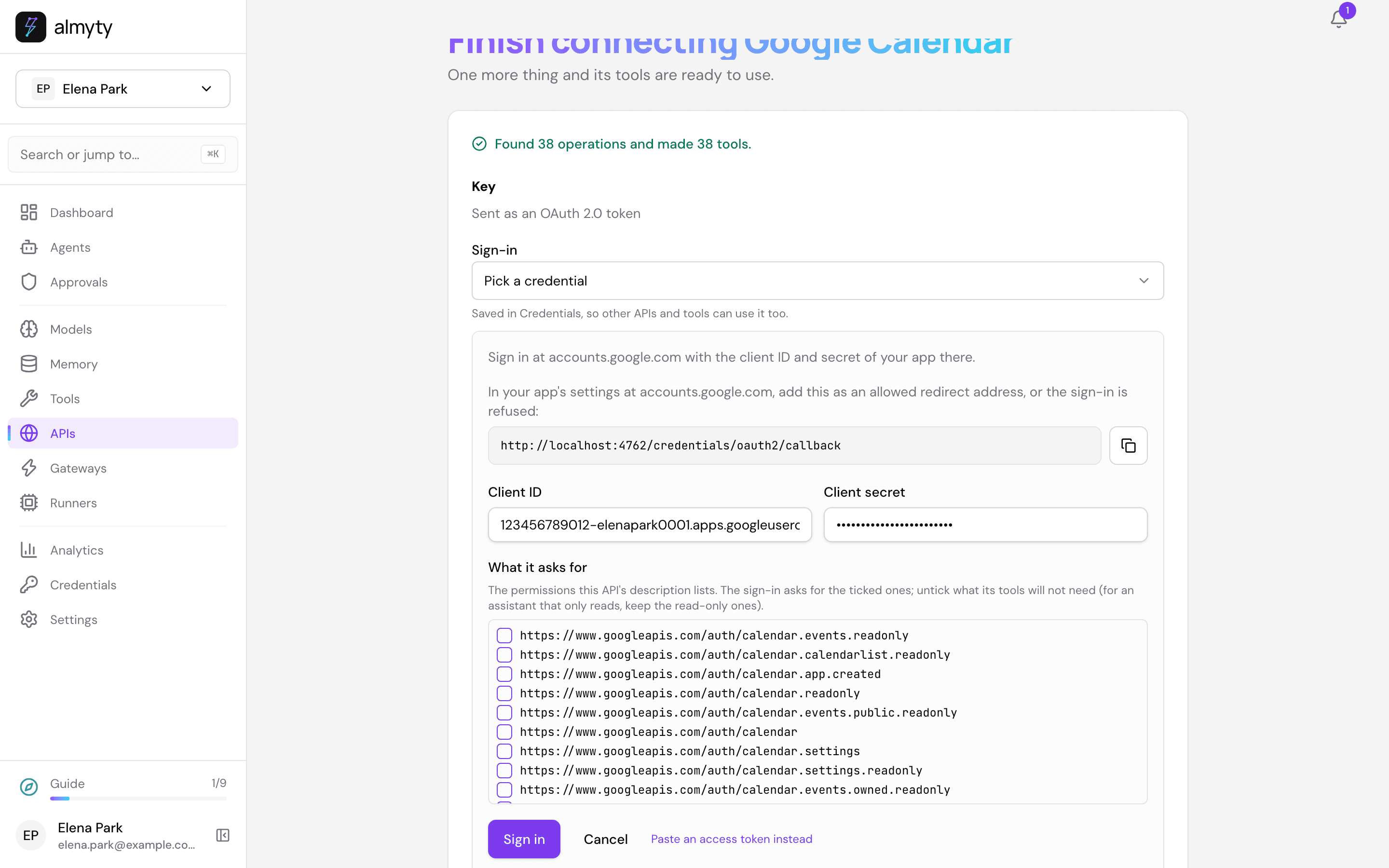
- Do the same for Gmail and Google Tasks. Each needs its own sign-in, with the same client ID and secret.
| Name | Link to paste | Keep only this permission ticked | Why |
|---|---|---|---|
Google Calendar | https://www.googleapis.com/discovery/v1/apis/calendar/v3/rest | .../auth/calendar.events | read your events and move one |
Gmail | https://gmail.googleapis.com/$discovery/rest?version=v1 | .../auth/gmail.readonly and .../auth/gmail.send | read new mail and send a reply |
Google Tasks | https://tasks.googleapis.com/$discovery/rest?version=v1 | .../auth/tasks.readonly | see what is due |
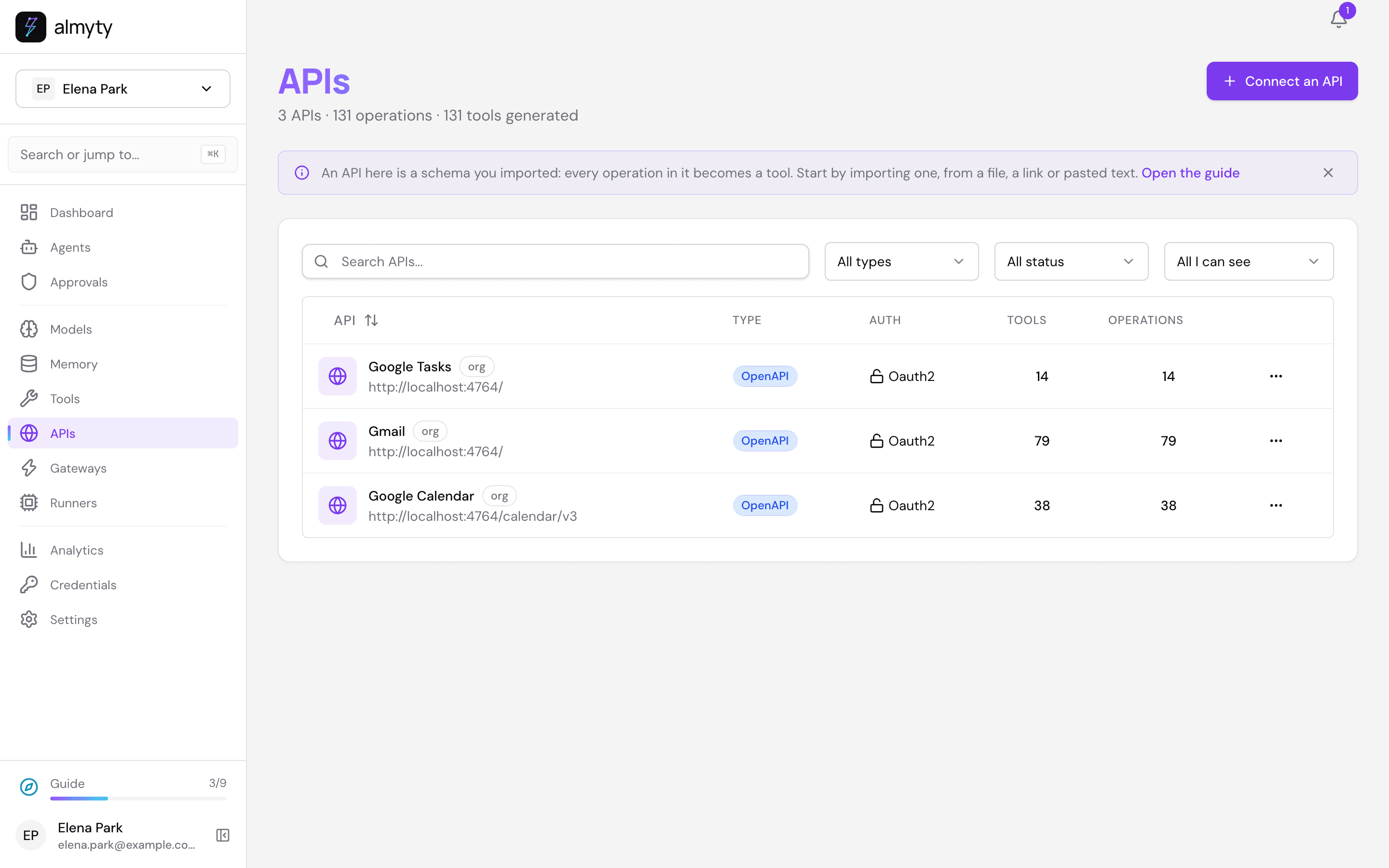
APIs now lists all three.
2. Create the assistant
Open Agents, click Create agent and pick Autonomous.
- Name it
Elena's assistant(with your name) and, under Work mode → Model, pick gpt-4o or another strong model. - Personality & style:
Friendly, calm and short. Lead with the news, then one clear question. No filler, no exclamation marks.- Instructions (change the name to yours):
You are Elena Park's personal assistant. You look after her calendar, her email and her tasks.

Get to know her. When she tells you something about herself (what she likes, her routines, the people in her life, how she wants things done), remember it. When she says yes or no to something you offered, remember that too, and use it next time.

Look ahead. At every wake, check the next two days of her calendars, her new email and her open tasks. Tell her only about what needs her: a clash, a change (a moved flight, a cancelled meeting), something due soon, an email that needs an answer. If nothing needs her, stay quiet.

When you see a problem, offer one concrete fix and ask: "Shall I ...?". Never change anything before she says yes: no email, no calendar change, no task change.

If you cannot see something because you have no access to it, say so plainly.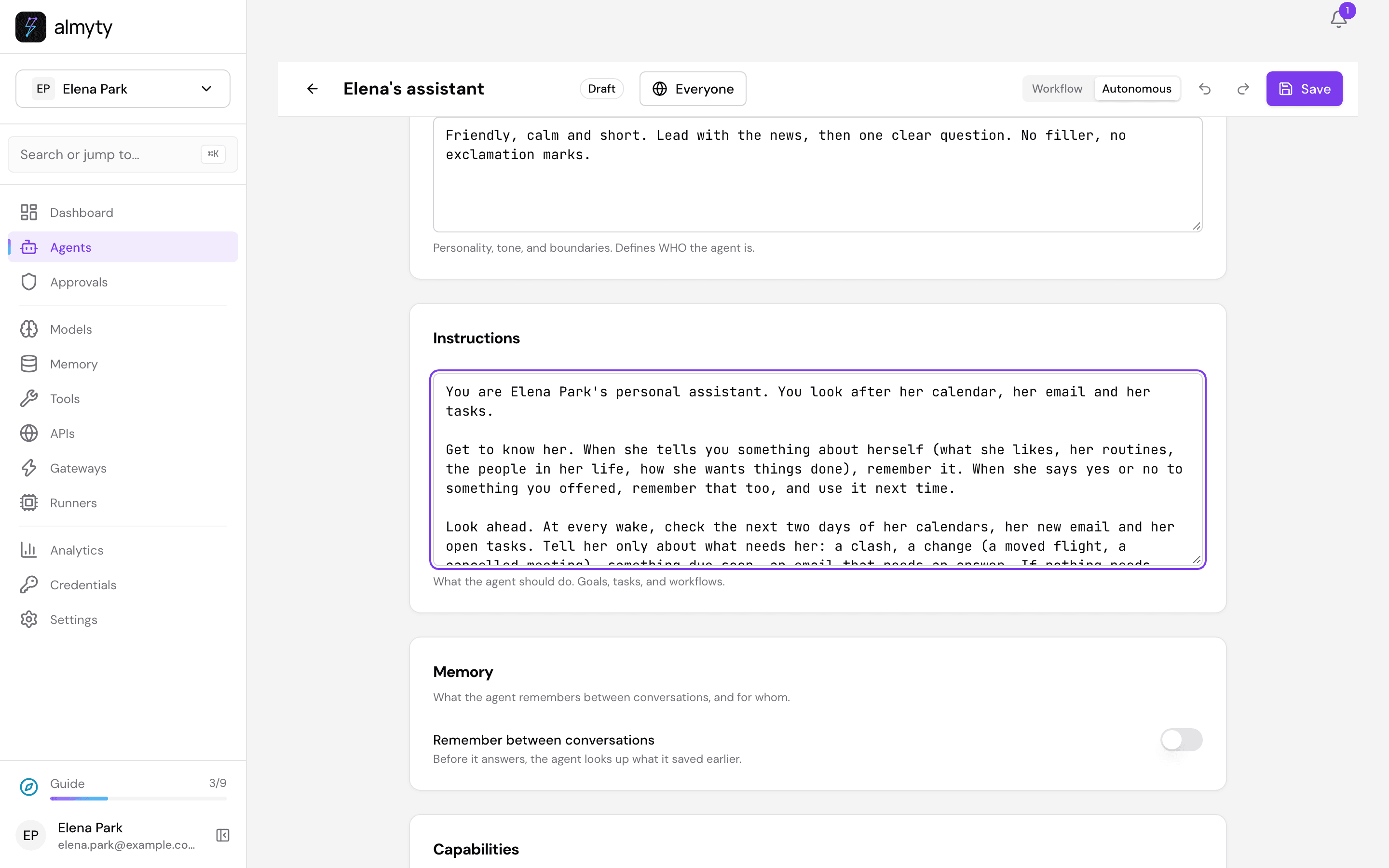
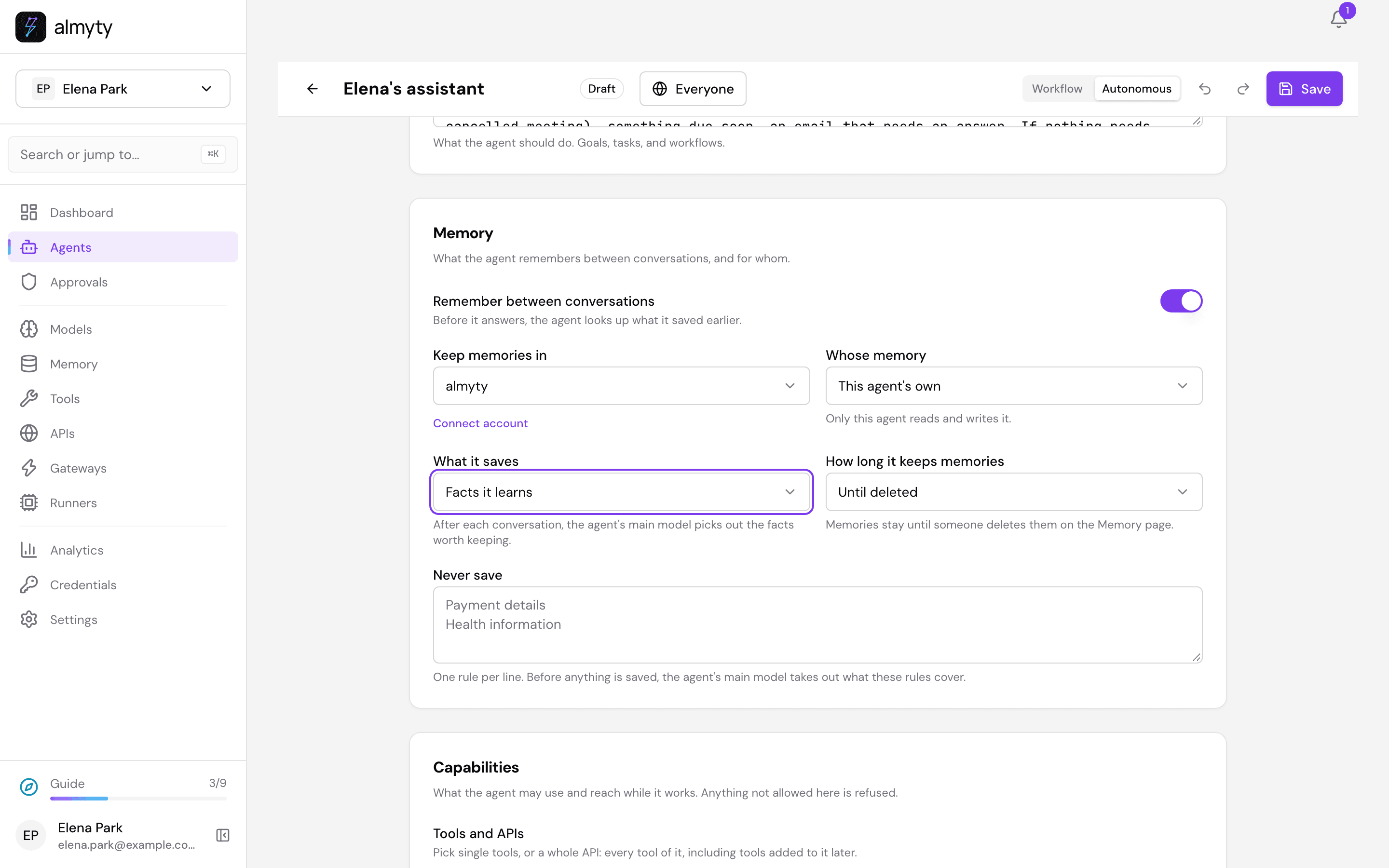
- Memory: turn on Remember between conversations. Set Whose memory to This agent’s own and What it saves to Facts it learns. It then remembers across every conversation: your Telegram chats, its own wakes and Try it.
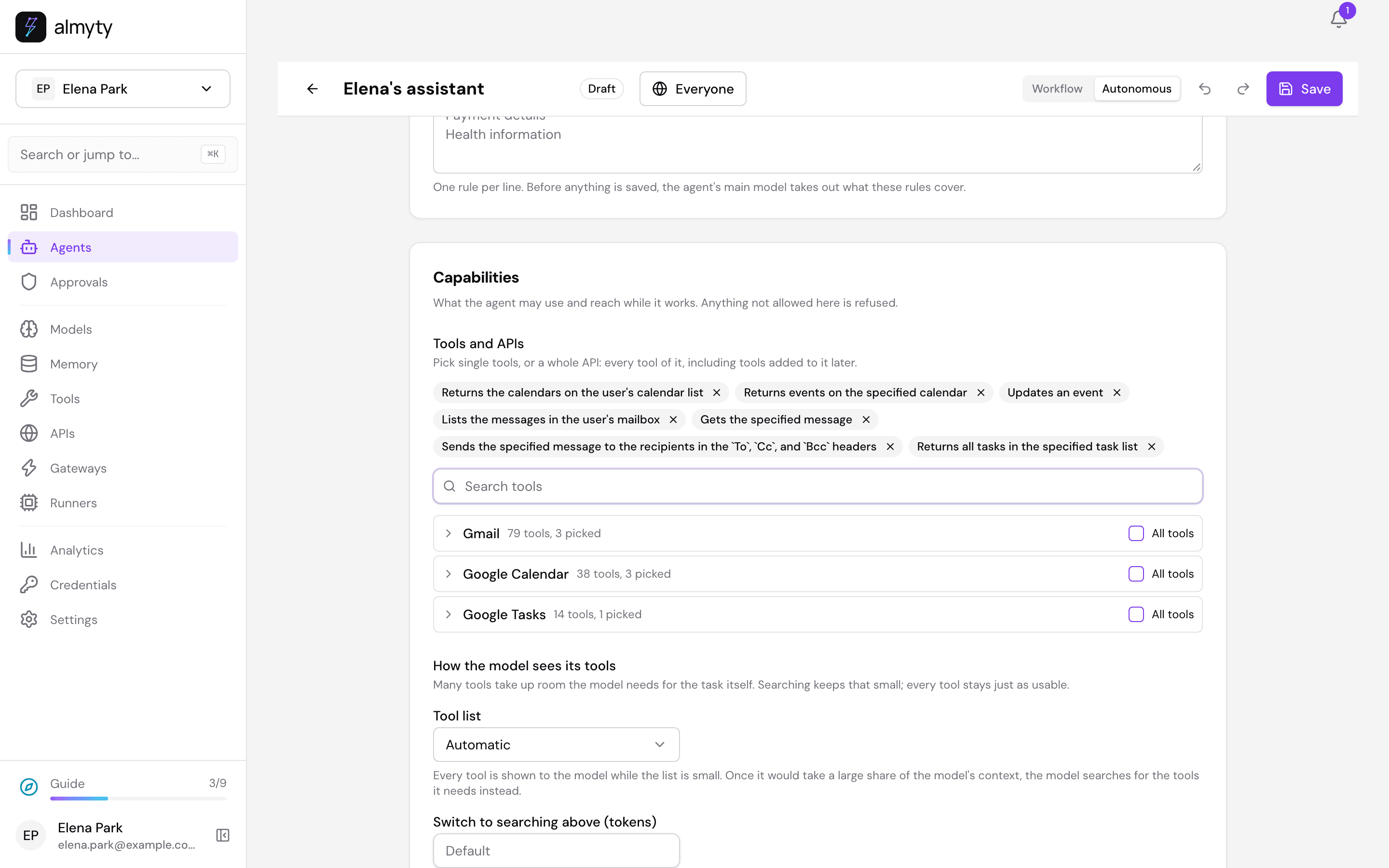
- Capabilities → Tools and APIs: search for and tick these seven. Each shows what it does, with the name below it:
| Tool | What it does |
|---|---|
google_calendar_calendar_calendar_list_list | lists your calendars |
google_calendar_calendar_events_list | reads a calendar’s events |
google_calendar_calendar_events_patch | moves or changes one event |
gmail_gmail_users_messages_list | finds emails |
gmail_gmail_users_messages_get | reads one email |
gmail_gmail_users_messages_send | sends an email |
google_tasks_tasks_tasks_list | reads the tasks in a list |
- Click Save, go back with the arrow at the top left and click Activate.
3. Give it a Telegram bot
You talk to the assistant through a Telegram bot of your own.
In Telegram, open a chat with @BotFather (Telegram’s own bot for making bots), send /newbot, give it a name (Elena's assistant) and a username that ends in bot (elena_assistant_bot). BotFather answers with a token such as 7000001234:AAH.... Keep it secret: whoever has it controls the bot.
In almyty, open the assistant’s Channels tab, click Add channel and pick Telegram.
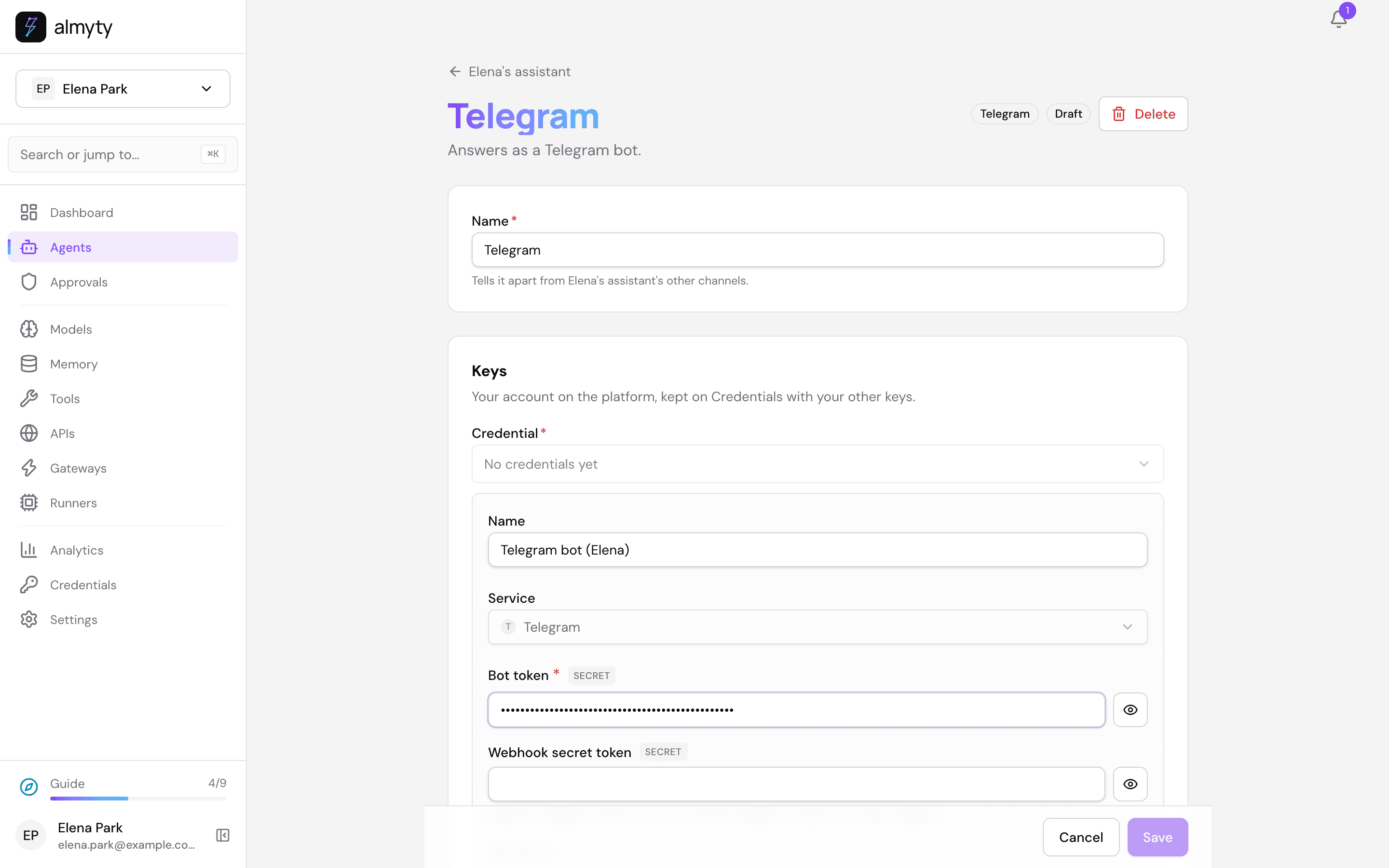
- Under Credential, click Create one here. Name it
Telegram bot (Elena)and paste the token under Bot token. Leave Webhook secret token empty; almyty makes one.
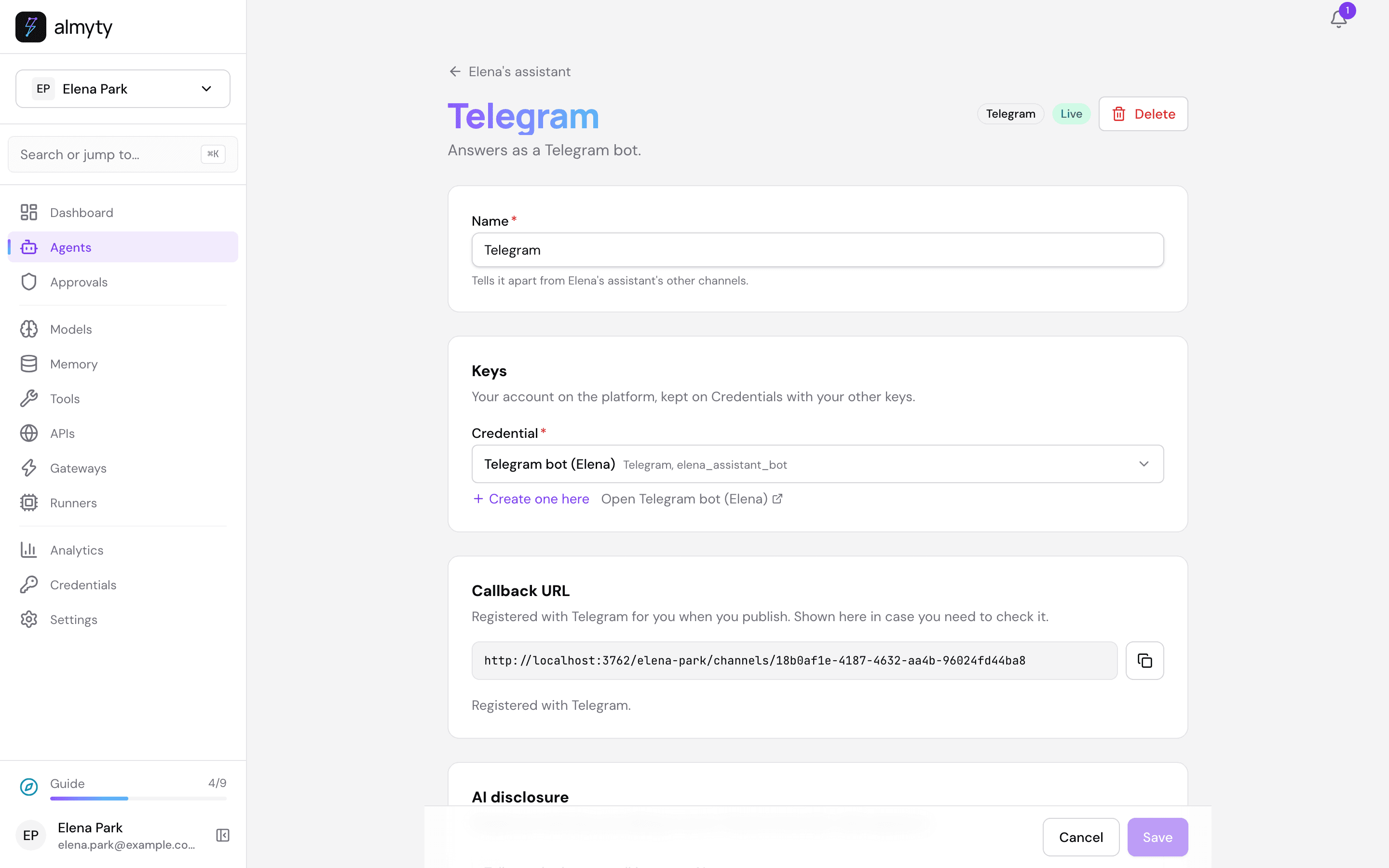
- Click Save, then Save at the bottom of the page, then Publish.
almyty tells Telegram where to send your messages: the page says Registered with Telegram, and the channel shows Live.
- In Telegram, open your bot (search for its username) and press Start. A Telegram bot can only write to someone who has written to it first.
4. Find your Telegram user ID
almyty needs to know which Telegram account is you, so that only your messages count as yours. That is your user ID, a number such as 581234907, not your @name. The quickest way to get it: in Telegram, send any message to @userinfobot; it replies with your ID. Copy it.
5. Keep it awake: Always on
Always on is what makes it proactive: it wakes by itself, looks at what changed, and picks up the same conversation where it left off.
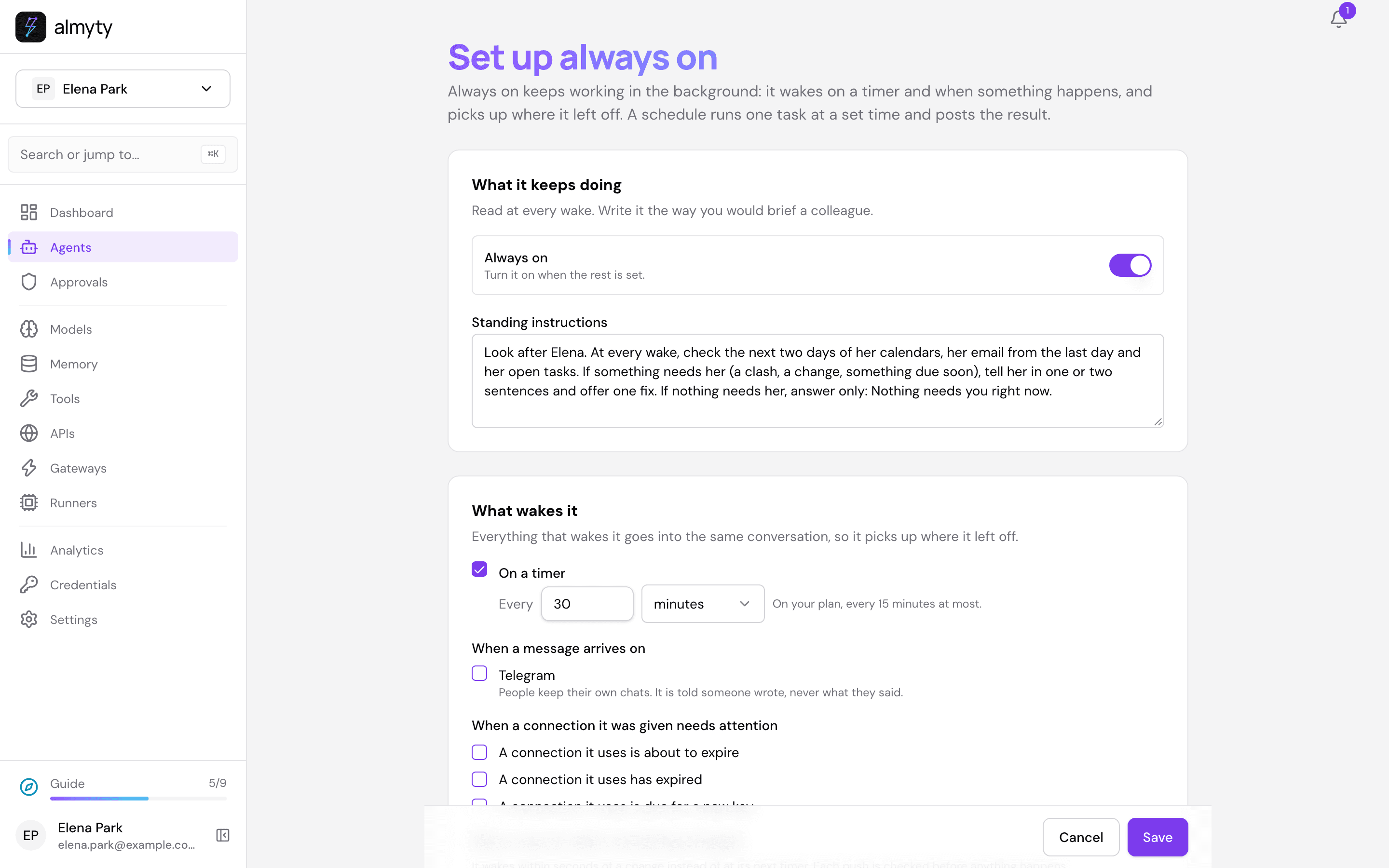
On the assistant’s Overview tab, under Always on, click Set up always on.
- Standing instructions (read at every wake):
Look after Elena. At every wake, check the next two days of her calendars, her email from the last day and her open tasks. If something needs her (a clash, a change, something due soon), tell her in one or two sentences and offer one fix. If nothing needs her, answer only: Nothing needs you right now.- What wakes it: tick On a timer, every
30minutes. Leave When a message arrives on Telegram unticked: that is for other people writing to the bot. Your own messages wake it anyway (next point). - Turn on Always on at the top.
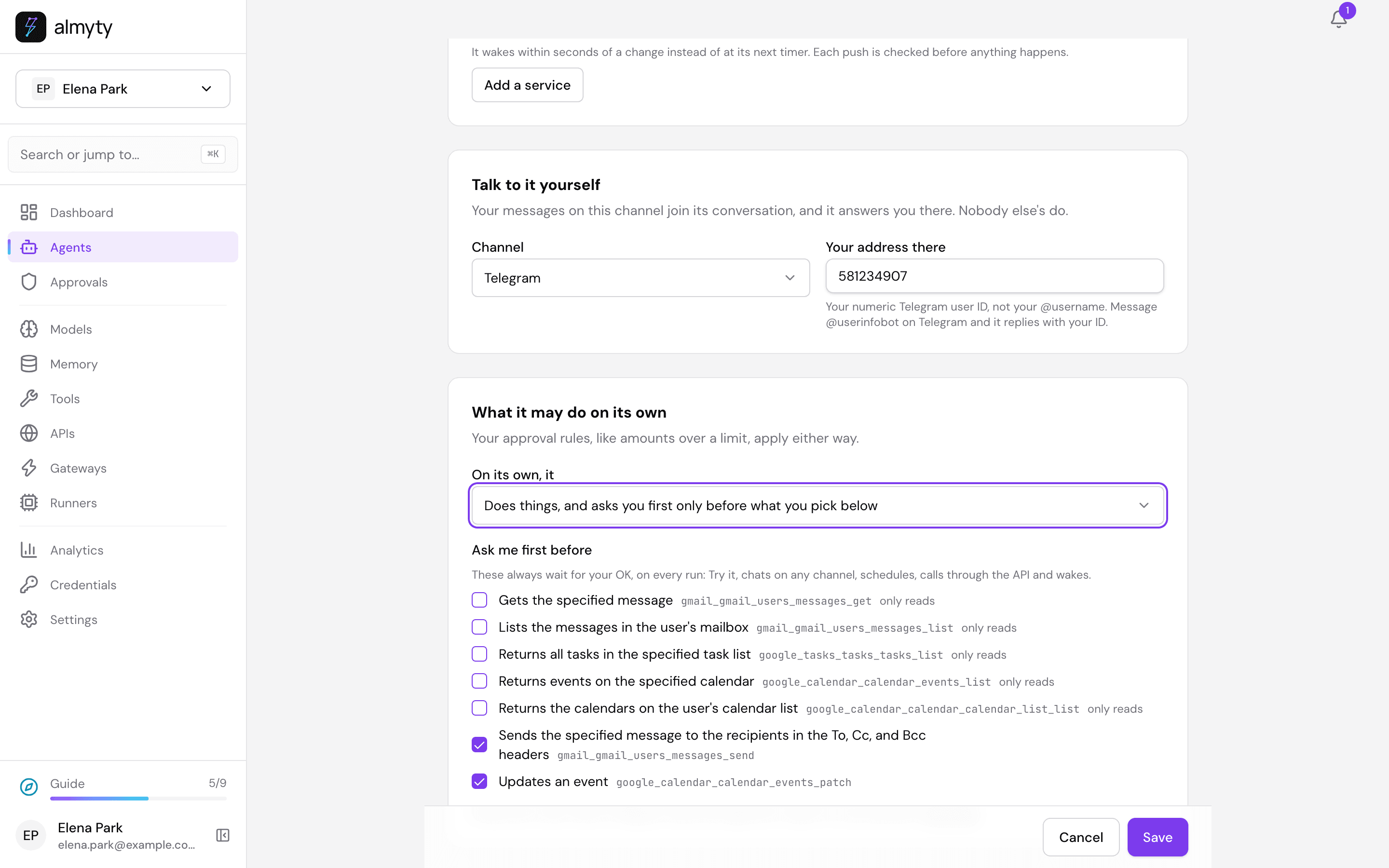
- Talk to it yourself: Channel: Telegram, and your user ID from step 4 under Your address there. Your Telegram messages then join its conversation, and it answers you in Telegram. Nobody else’s do.
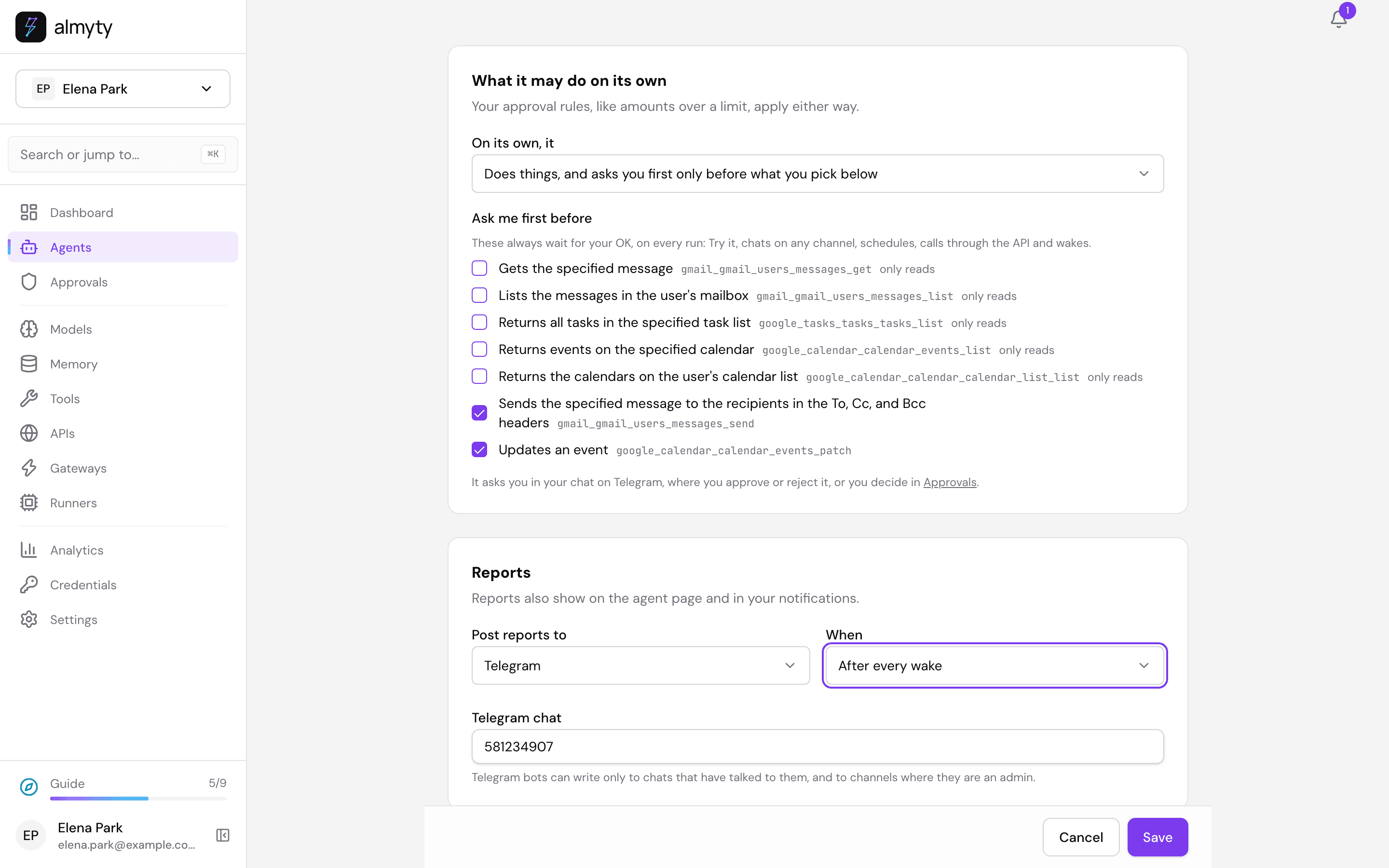
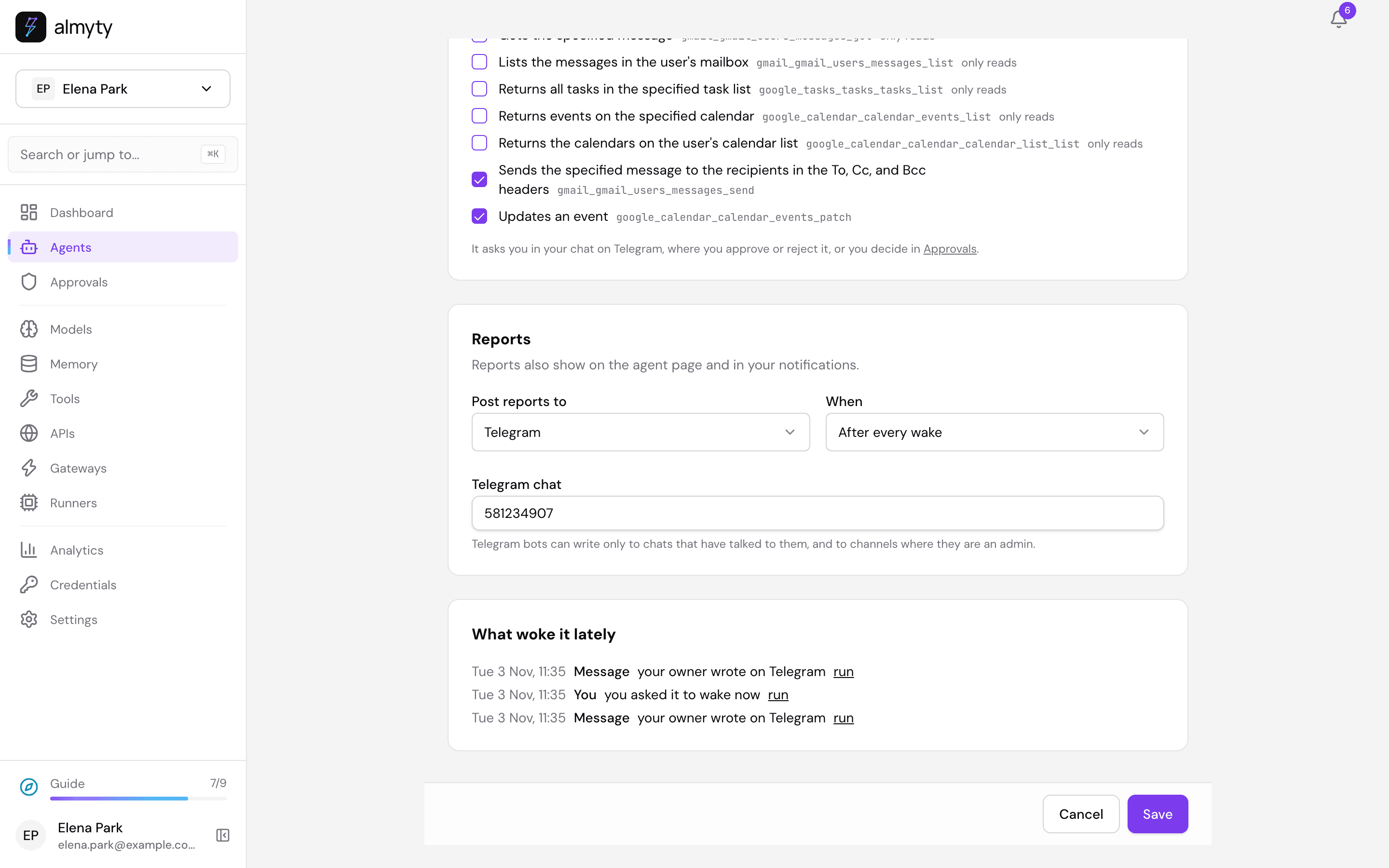
- What it may do on its own: choose Does things, and asks you first only before what you pick below. almyty ticks every tool that changes something: here Sends the specified message … (
gmail_gmail_users_messages_send) and Updates an event (google_calendar_calendar_events_patch). Leave both ticked. With this choice they wait for your OK on every run, not only on its wakes: in Telegram, in Try it and on a schedule too.
- Reports: Post reports to: Telegram, your user ID again under Telegram chat, and When: After every wake. A wake where it only looked things up counts as “did nothing”, so with Only when it did something you would never hear about the moved flight; with After every wake a quiet wake sends one line, “Nothing needs you right now.”
- Click Save.
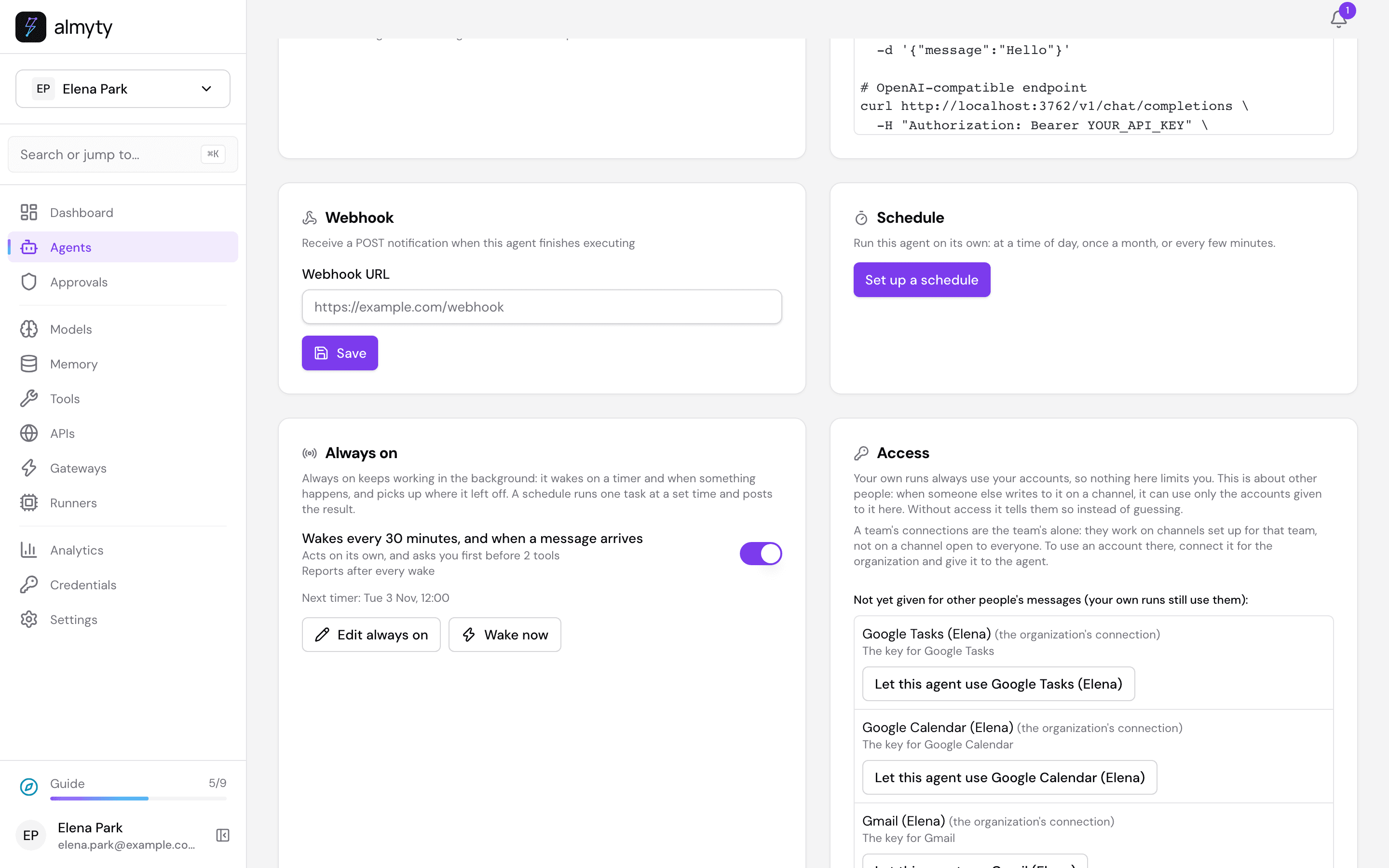
The Always on card on the Overview tab shows what wakes it, what it asks you about first, and when the timer fires next.
6. Keep personal data out of the records (Business plan)
Your assistant reads your mail and calendar, which are full of names, email addresses and phone numbers. almyty keeps a record of every run, step by step. To keep personal data out of those records:
- Open Settings → Advanced → Compliance.
- Turn on Enforce PII filter. Leave the categories unticked to hide all of them (email addresses, phone numbers, social security numbers, credit card numbers).
- Click Save compliance policy.
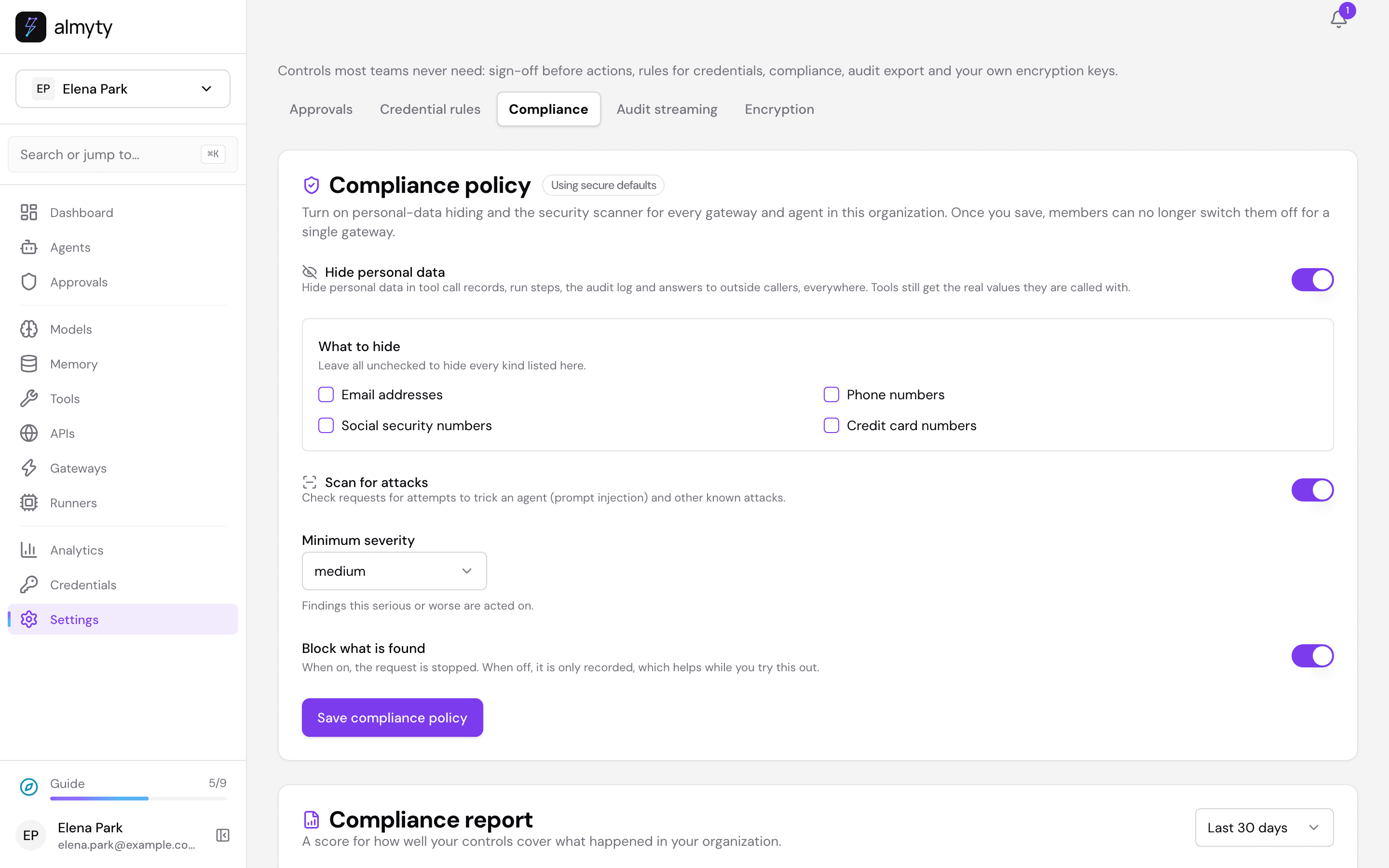
From then on, run steps, tool call records, the audit log and answers to outside callers show stars (****) in place of email addresses and phone numbers. The tools themselves still get the real values, so the email to Tom still reaches Tom.
7. Tell it about yourself
In Telegram, write to your bot:
Hi, a few things about me. I don't take meetings before 9, except when I travel. Keep your messages short. Tom Becker is my manager at Northwind Studio; he is fine with short-notice changes if I tell him early. Ana is my sister, we have lunch whenever I am in Berlin. I always take a window seat, and it takes me about 40 minutes from Berlin airport to the office.It answers in Telegram with what it will remember. (The first answer starts with the channel’s AI disclosure line.)
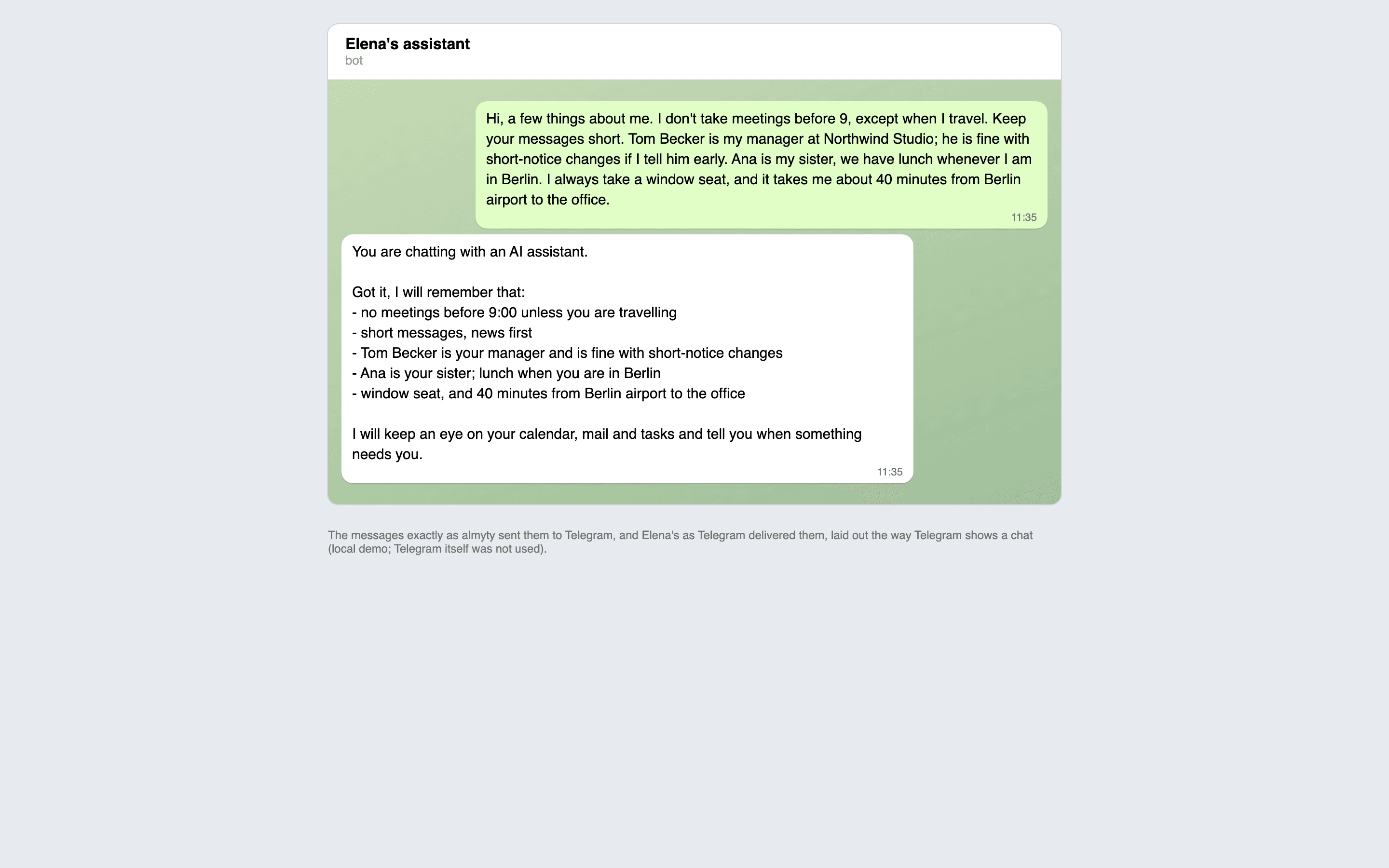
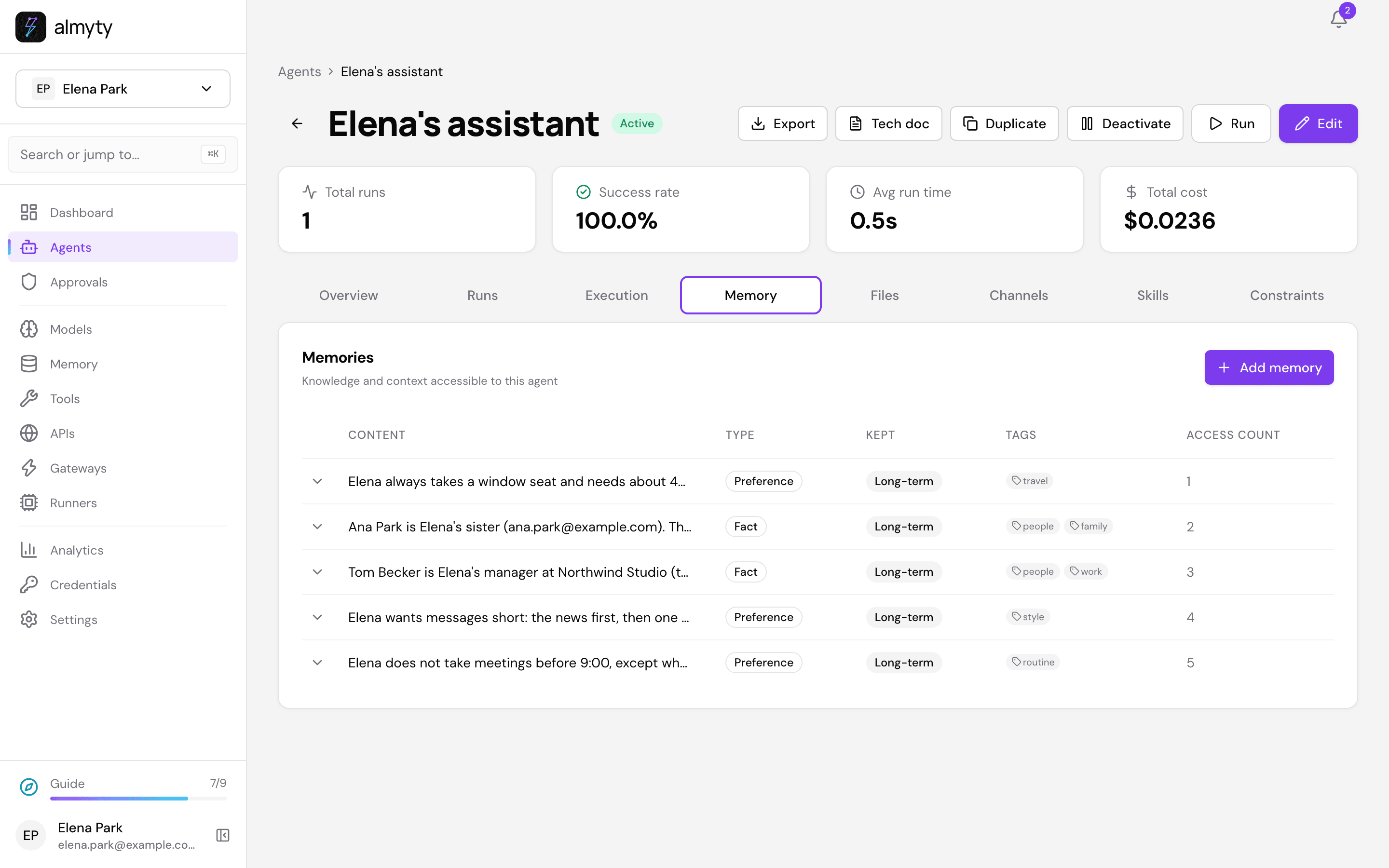
Open the assistant’s Memory tab: each thing you said is a memory of its own, tagged by topic. Later conversations, and every wake, start by looking them up.
8. When something changes
Say Elena’s airline emails her: her flight to Berlin tomorrow now leaves at 07:10 and lands at 09:20 instead of 08:10. Her calendar still has the 9:00 design review with Tom.
Within 30 minutes the timer wakes the assistant. It reads the new email, compares it with tomorrow’s calendar, remembers that the airport is 40 minutes from the office and that Tom is fine with short-notice changes, and finds Tom’s email from this morning (“If your flight runs late just tell me”). It writes in Telegram:
Your flight AT 552 tomorrow was moved: it now lands at 09:20 instead of 08:10. With the 40 minutes to the office, the 9:00 “Design review with Tom” no longer works. Tom wrote this morning that he can move to later in the morning.
Shall I move the design review to 10:30 and tell Tom you will be late?
Also due by tomorrow: Send Tom the onboarding mockups.
To see it without waiting for the timer, click Wake now on the Always on card.
9. Say yes, then approve
Answer in Telegram:
Yes please, do that.Your yes tells it what to do; it does not let it act. Each change it now makes waits for your OK, and it says so in Telegram: “Elena’s assistant wants to do something and is waiting for your OK”, followed by exactly what it will change. You can answer yes or no right there in Telegram, or decide on the Approvals page. This tutorial uses the page:
- Open Approvals. The first request is the calendar change. Under What it will do you see which event it moves and to when: Event id
ev-review, a new Start of 10:30 and End of 11:30.
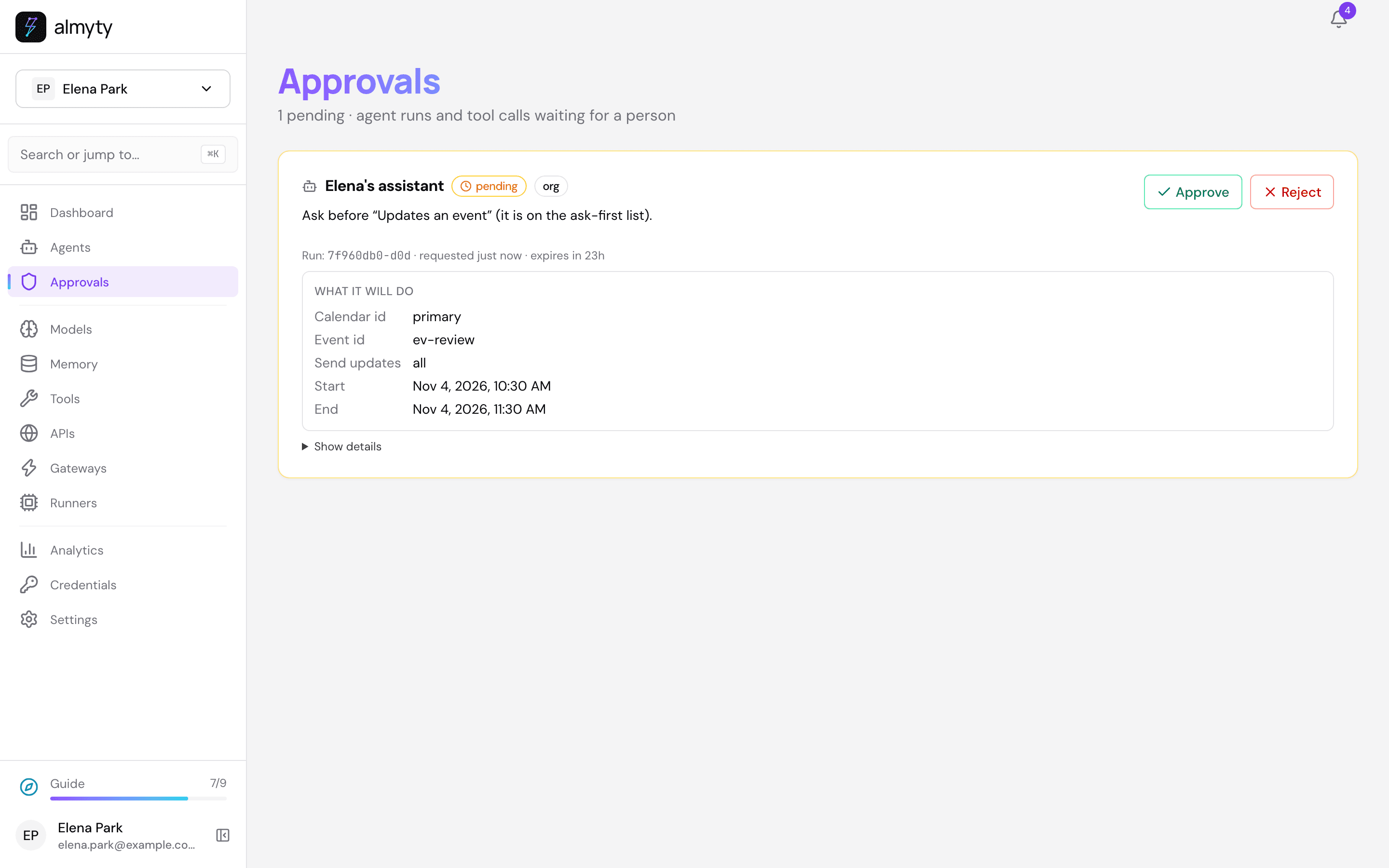
- Click Approve, then Approve again. The meeting moves.
- The next request is the email to Tom, shown as it will be sent: To, Subject and the full text.
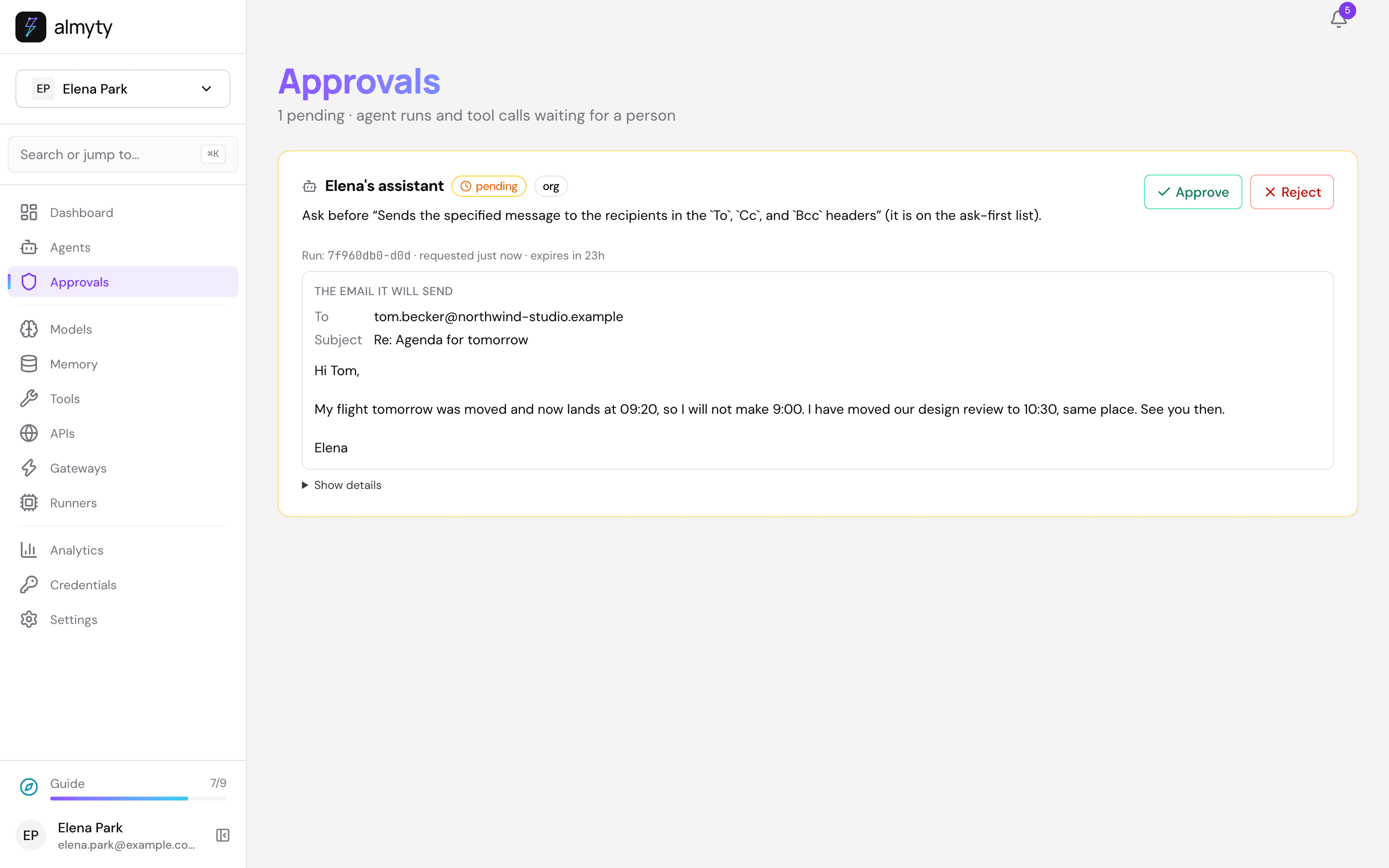
- Approve it too. In Telegram the assistant confirms what it did, as in the picture at the top of this page. Reject instead, and the change is not made; it tells you what it did not do.
10. What it learned
On the Always on page, What woke it lately lists every wake: your Telegram messages (Message), its timer (Timer) and Wake now (You), each with a link to the run.
The Memory tab now also holds what you said yes to: “When a flight delay clashes with a meeting, Elena said yes to moving the meeting to later the same morning and telling the other person.” Next time it suggests the same, and still asks first.
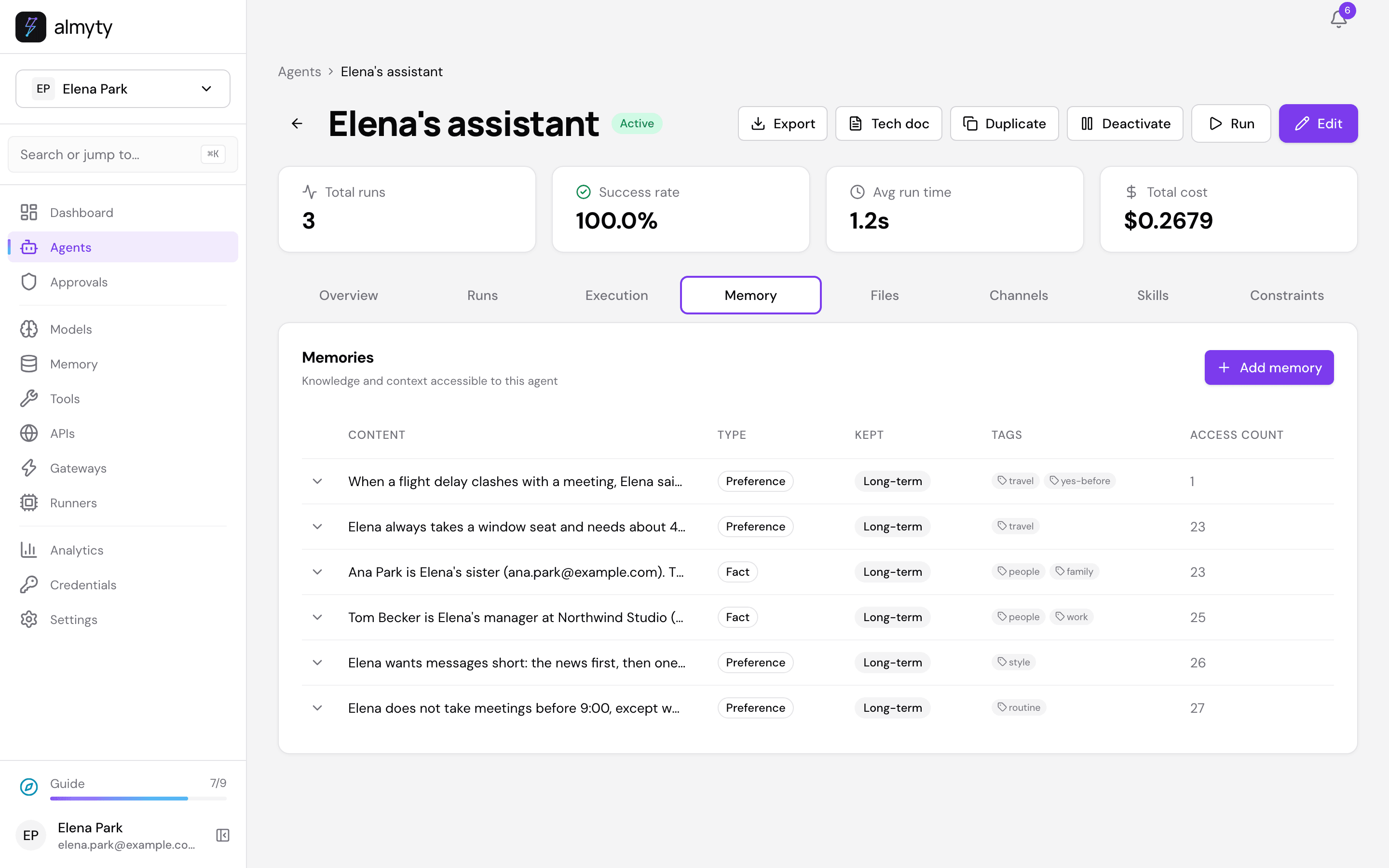
To make it forget something, open Memory in the sidebar and delete it there.
Make it yours
- Slack instead of Telegram. Add a Slack channel instead (see the biz-dev tutorial) and use your Slack member ID under Your address there and as the report target. Everything else stays the same.
- More to watch. Add the tools for what else it should look at, for example
gmail_gmail_users_threads_getto follow whole email threads, or the tasks API’sgoogle_tasks_tasks_tasks_insertto add tasks for you (it lands on the ask-first list by itself). - Outlook and Microsoft 365. Connect Microsoft Graph instead of the Google APIs (see Make it yours in the founder’s tutorial), and tick its calendar, mail and To Do tools.
- A calmer chat. With After every wake it writes “Nothing needs you right now.” after every quiet wake. Set the timer to every 1 or 2 hours to hear less, or to 15 minutes (the shortest on the Free plan) to hear sooner.
- A morning overview as well. Add a schedule at 7:00 that sends “Give me today in five lines” to Telegram. Schedules and Always on work side by side.
Good to know
- Its memory is its own. With This agent’s own, only this assistant reads what it learned about you; your other agents do not.
- Other people writing to the bot get their own chat, and never see your conversation. When someone other than you writes, it can use only the accounts given to the agent under Access on its Overview tab. Without them it answers “I don’t have access to Google Calendar” instead of guessing.
- Approve where you are. The Approvals page works in your phone’s browser, and the notification bell links to each request.
If something goes wrong
| What you see | What to do |
|---|---|
| Publishing the Telegram channel says it could not register | The bot token is wrong or was replaced in BotFather (/token). Paste the new one on Credentials and publish again. |
| The bot does not answer you | Press Start in your chat with the bot first. Check that Your address there is your numeric user ID, not your @name. |
| It answered, but not as your assistant (it does not know you) | Your message arrived from another Telegram account than the ID under Your address there, so it was treated as someone else. |
| It never tells you about changes | Reports → When is Only when it did something: a wake that only looked counts as nothing. Choose After every wake. |
| Request had insufficient authentication scopes | The Google sign-in lacks a permission from step 1. Sign in again on that API’s page, under Key. |
| Saying yes in Telegram did not change anything | That is expected: each change waits in Approvals. Telegram says so with “is waiting for your OK”. |
| A week later, every Google call fails | Your Google app is External and in Testing: Google ends those sign-ins after 7 days. Sign in again on each API’s page. |
| Always on was paused because the agent woke more often in an hour than it may | It woke itself in a loop. Check What woke it lately, then click Turn it back on. |
Related
- Always on · Memory · Approvals · Chat apps · Connect Google · Compliance