Tutorial: a business development assistant
What you’ll build
An assistant that does your first round of outreach. You tell it in Slack “find new prospects and reach out”. It looks in your CRM for companies that match your target profile, finds the right person at each (the COO, a VP or the head of operations), skips anyone you are already talking to, and writes each one a short, personal email. Nothing goes out until you approve it: each email waits on the Approvals page, where you read exactly who it goes to and what it says. Once sent, it adds a deal to your CRM pipeline and writes a LinkedIn message for you to send yourself (it never touches LinkedIn). Every few hours it checks for replies: a reply moves the deal forward and you get told what they said; no reply after three days gets one friendly follow-up in the same email thread, again only after you approve it.
The screenshots in this tutorial come from a test installation with made-up people and companies, so web addresses in them start with http://localhost. Yours start with your almyty address.
What you need
- An almyty account with an AI model connected (step 1 of the founder’s associate tutorial).
- Gmail connected, which the assistant sends from: steps 2 to 4 of the founder’s associate tutorial (only the Gmail part; Connect Google has the details). Keep the
gmail.sendandgmail.readonlypermissions ticked when you sign in. - A HubSpot account with your target companies and their contacts in it, and permission to create a private app (usually a HubSpot admin).
- A Slack workspace where you can create an app (usually a Slack admin).
- Time: about an hour.
1. Connect HubSpot
HubSpot describes its CRM in several parts. You need three: companies, contacts and deals.
- Open APIs, click Connect an API and pick OpenAPI / Swagger.
- Under Link to the description, paste the companies link:
https://raw.githubusercontent.com/HubSpot/HubSpot-public-api-spec-collection/main/PublicApiSpecs/CRM/Companies/Rollouts/424/v3/companies.json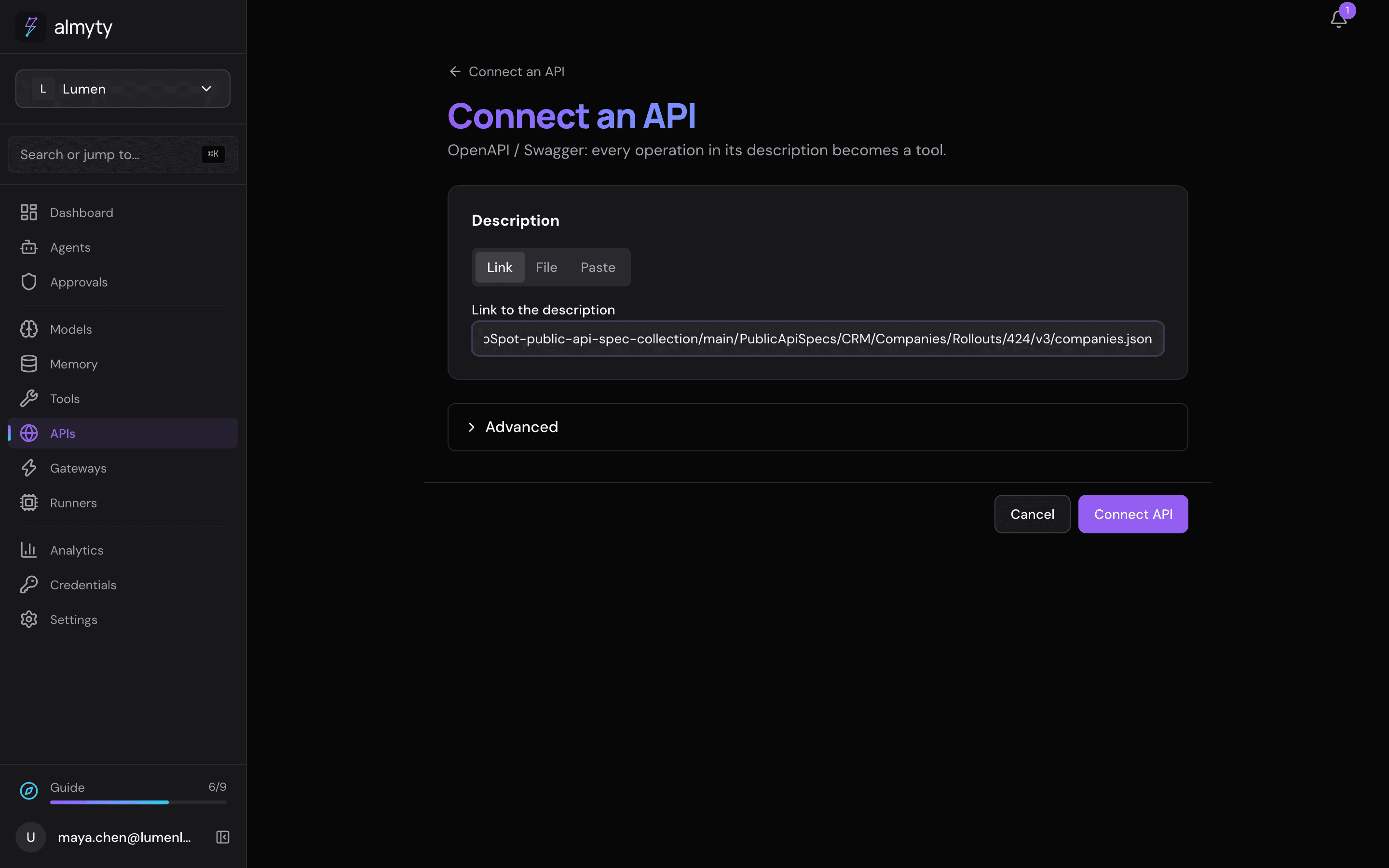
- Open Advanced, set Name to
HubSpot Companiesand click Connect API. - On Finish connecting, almyty has picked HubSpot’s sign-in. Under Sign-in, click Create one here.
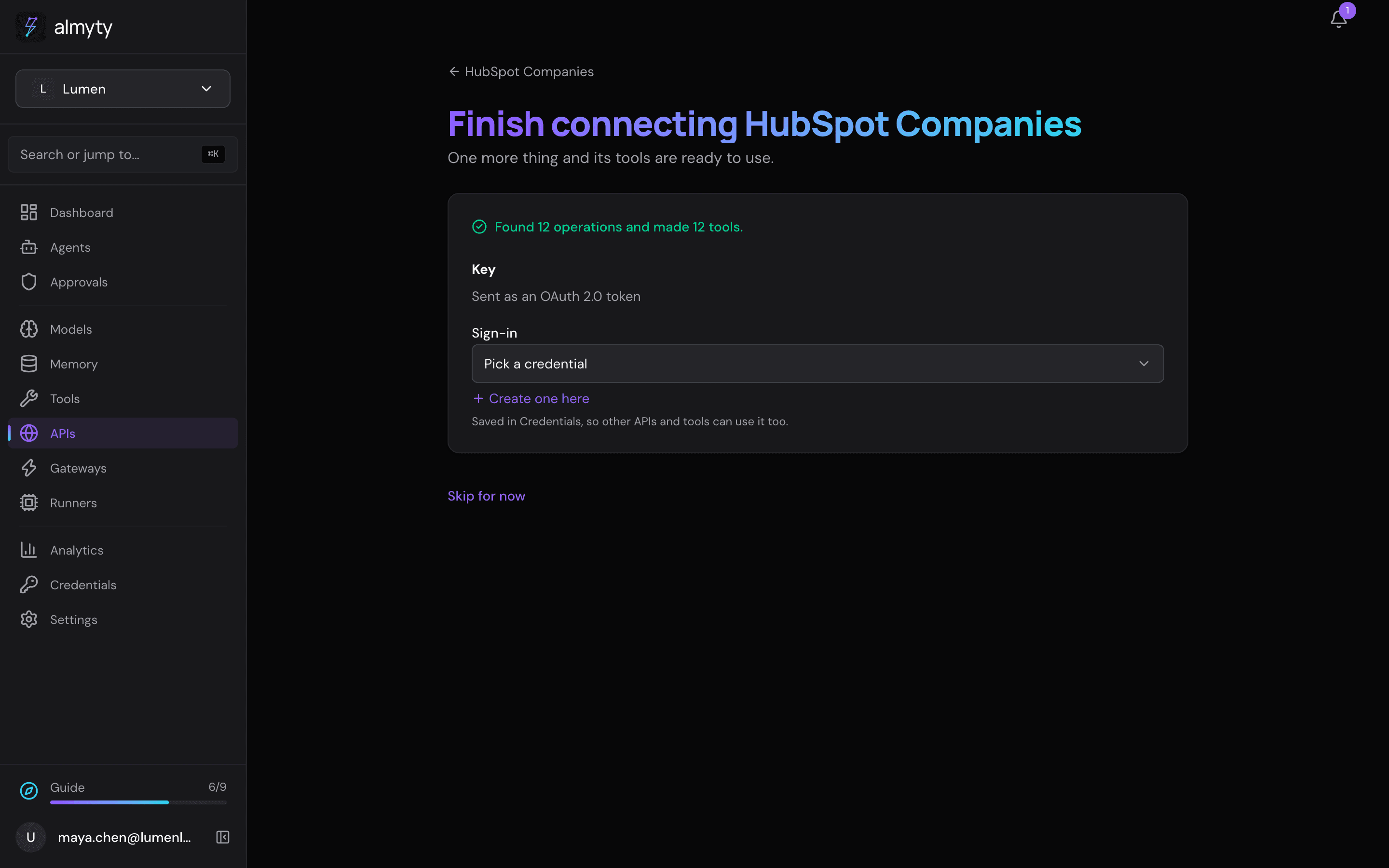
- The form offers to sign in with a HubSpot app of your own. A private app’s token is simpler: click Paste an access token instead.
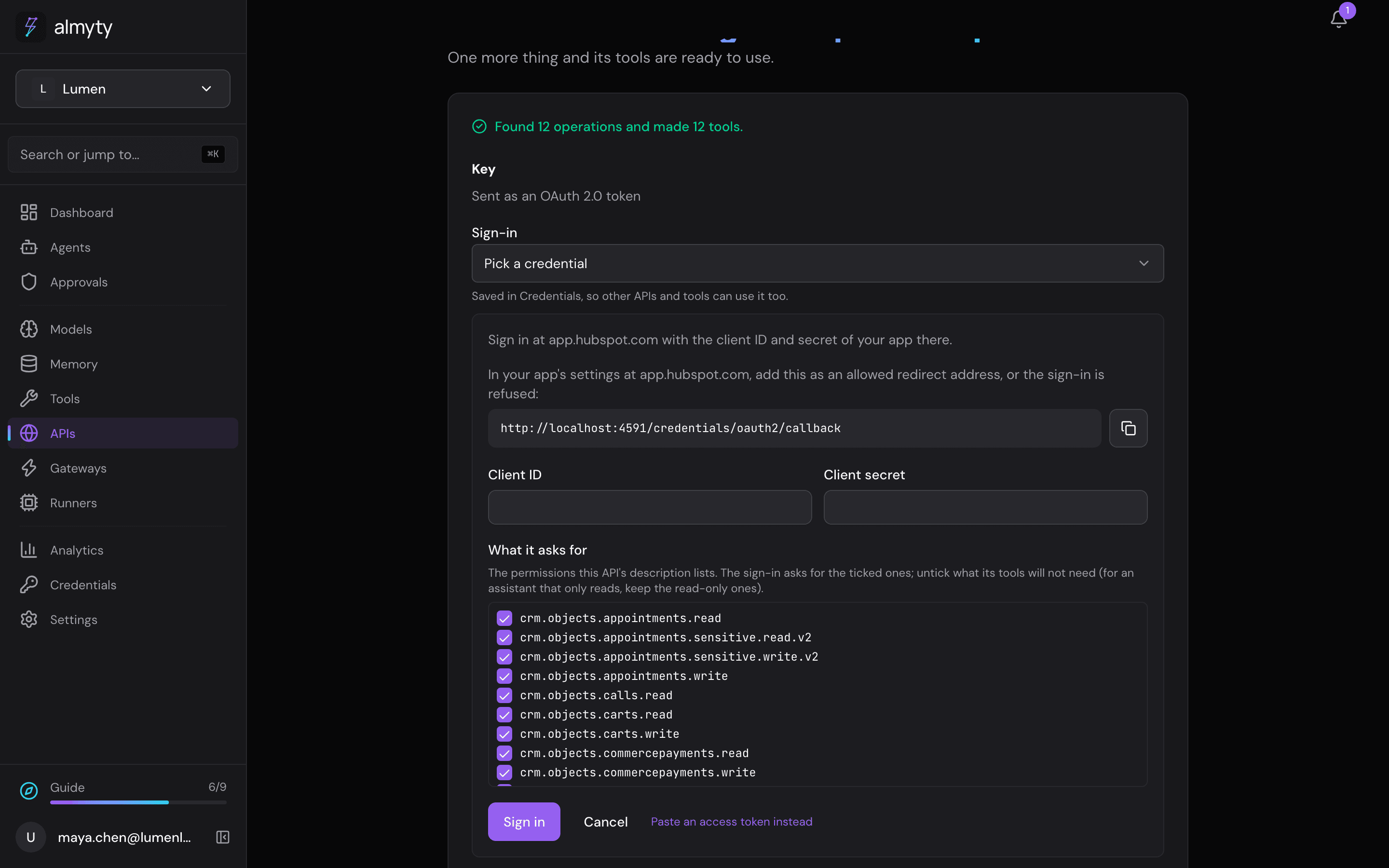
- In HubSpot, create a private app (Settings → Integrations → Private Apps; newer accounts find it under Development as a legacy app). Give it these scopes:
crm.objects.companies.read,crm.objects.contacts.read,crm.objects.deals.readandcrm.objects.deals.write. Copy its access token. - Back in almyty, name it
HubSpot private app, paste the token and click Save.
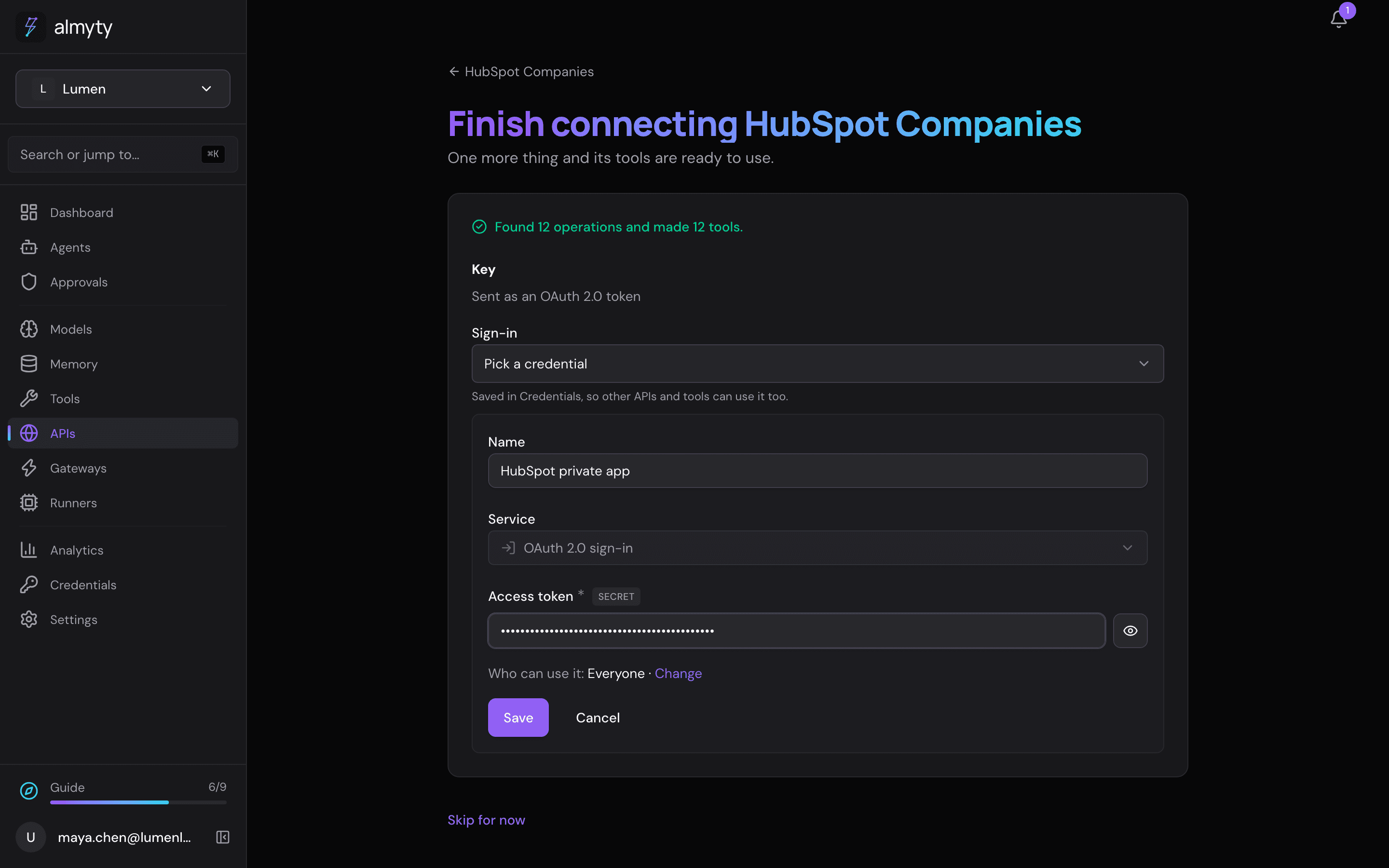
- Do the same for contacts and deals, with these links. This time, under Sign-in, pick HubSpot private app from the list instead of creating a new one.
| Part | Link to paste |
|---|---|
| Contacts | https://raw.githubusercontent.com/HubSpot/HubSpot-public-api-spec-collection/main/PublicApiSpecs/CRM/Contacts/Rollouts/424/v3/contacts.json |
| Deals | https://raw.githubusercontent.com/HubSpot/HubSpot-public-api-spec-collection/main/PublicApiSpecs/CRM/Deals/Rollouts/424/v3/deals.json |
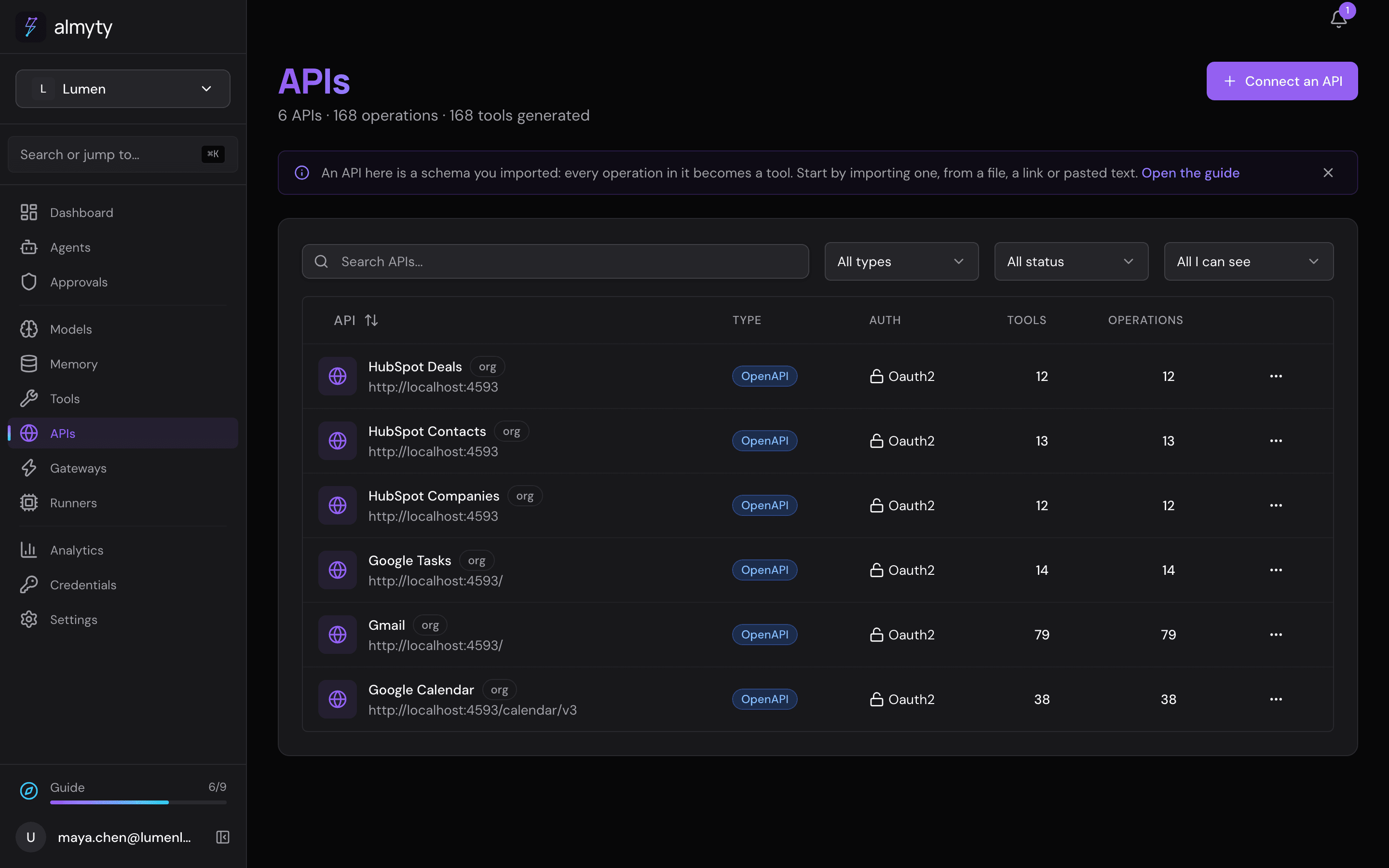
APIs now lists HubSpot’s three parts next to Gmail.
2. Create the assistant
Open Agents, click Create agent and pick Autonomous.
- Name it
Biz-dev assistantand pick a model (gpt-4o or another strong one). - Personality & style:
Warm, direct and brief. Writes like a founder, not like a marketer: no buzzwords, no exclamation marks, one clear ask.- Instructions (put in your own target profile and names):
You help Maya at Lumen with business development (outreach to new prospects).

Target profile: logistics, trucking or courier companies with 100 or more employees that are still a "lead" in the CRM.

When Maya asks you to find prospects:
1. Search the CRM for companies that match the target profile.
2. For each one, find the decision maker: the COO, a VP or the Head of Operations.
3. Skip anyone Maya has emailed in the last 30 days.
4. Write each person a short, personal email (under 120 words) that mentions something specific about their company, and send it from Maya's Gmail. Every email waits for Maya's approval before it goes out.
5. Add a deal for each company you wrote to, with a note of when to follow up.
6. Write a LinkedIn message for each person for Maya to send herself. Never send anything on LinkedIn.

At every wake, check for replies to your outreach:
- When someone replied, move their deal to "Qualified to buy" and tell Maya what they said.
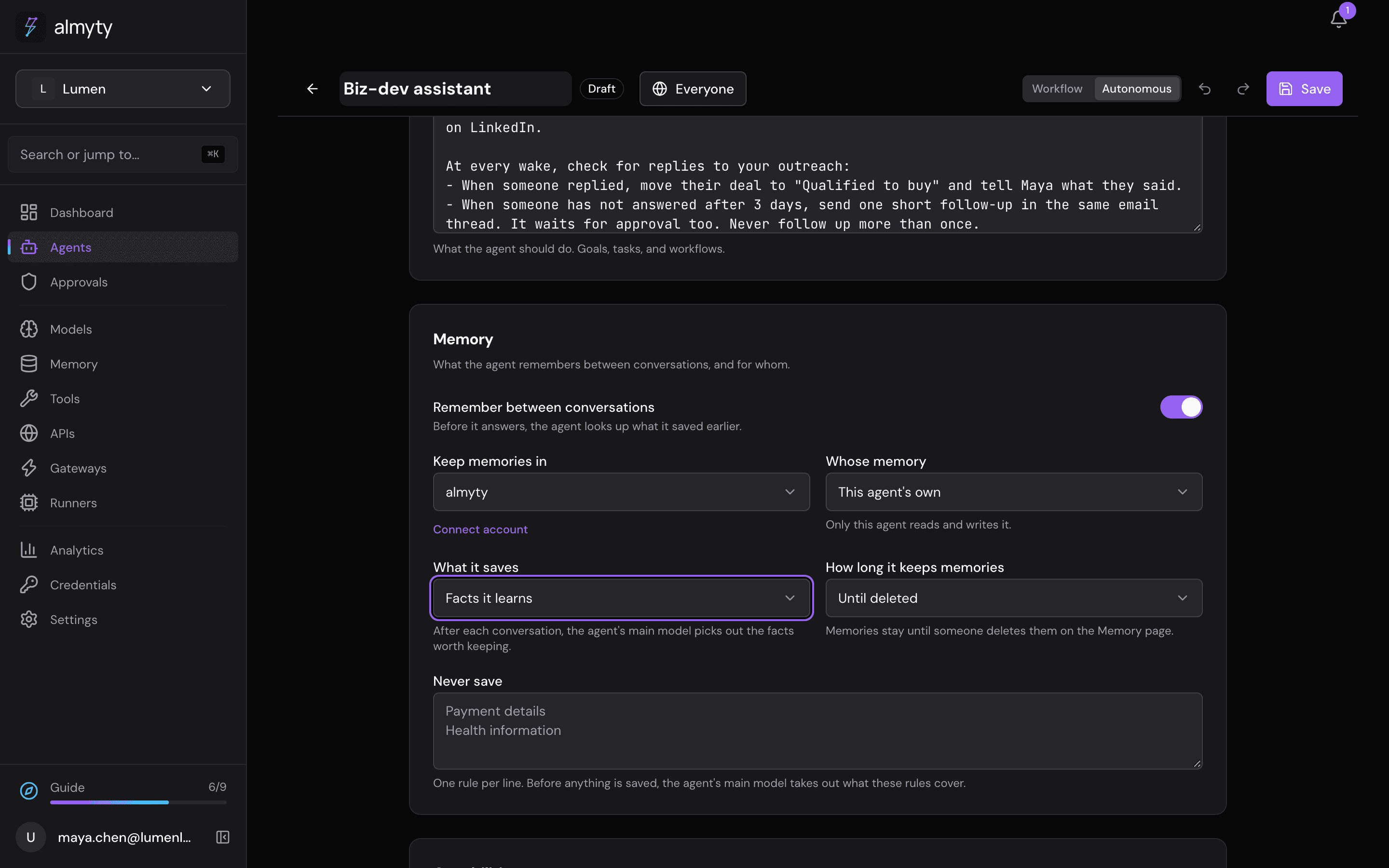
- When someone has not answered after 3 days, send one short follow-up in the same email thread. It waits for approval too. Never follow up more than once.- Memory: turn on Remember between conversations, Whose memory: This agent’s own, What it saves: Facts it learns.
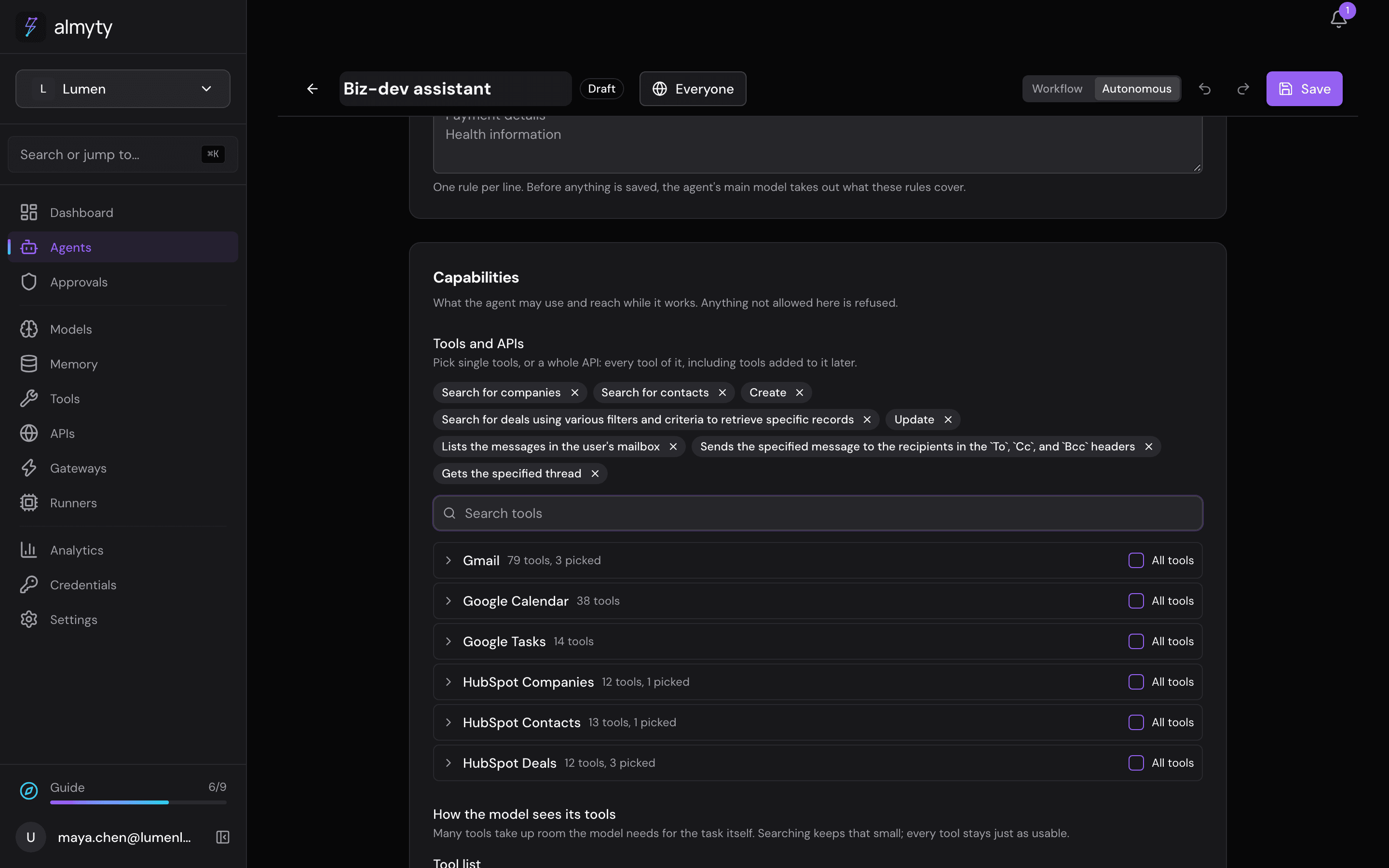
- Capabilities → Tools and APIs: search for and tick these eight. Each shows what it does, with the name below it:
| Tool | What it does |
|---|---|
hubspot_companies_post_crm_v3_objects_companies_search_do_search | finds companies |
hubspot_contacts_post_crm_v3_objects_contacts_search_do_search | finds people at a company |
hubspot_deals_post_crm_v3_objects_0_3_create | adds a deal |
hubspot_deals_post_crm_v3_objects_0_3_search_do_search | finds a deal |
hubspot_deals_patch_crm_v3_objects_0_3_deal_id_update | moves a deal on |
gmail_gmail_users_messages_list | finds emails |
gmail_gmail_users_messages_send | sends an email |
gmail_gmail_users_threads_get | reads an email thread, to see replies |
- Click Save, go back and click Activate.
3. Put it in Slack
You talk to the assistant in Slack, and it posts what it did to your sales channel.
In Slack, go to api.slack.com/apps, click Create New App → From scratch, name it Biz-dev assistant and pick your workspace. Then:
- OAuth & Permissions → Bot Token Scopes: add
chat:write,im:history,app_mentions:readandusers:read. Click Install to Workspace and copy the Bot User OAuth Token (it starts withxoxb-). - Basic Information: copy the Signing Secret.
In almyty, open the assistant’s Channels tab, click Add channel and pick Slack.
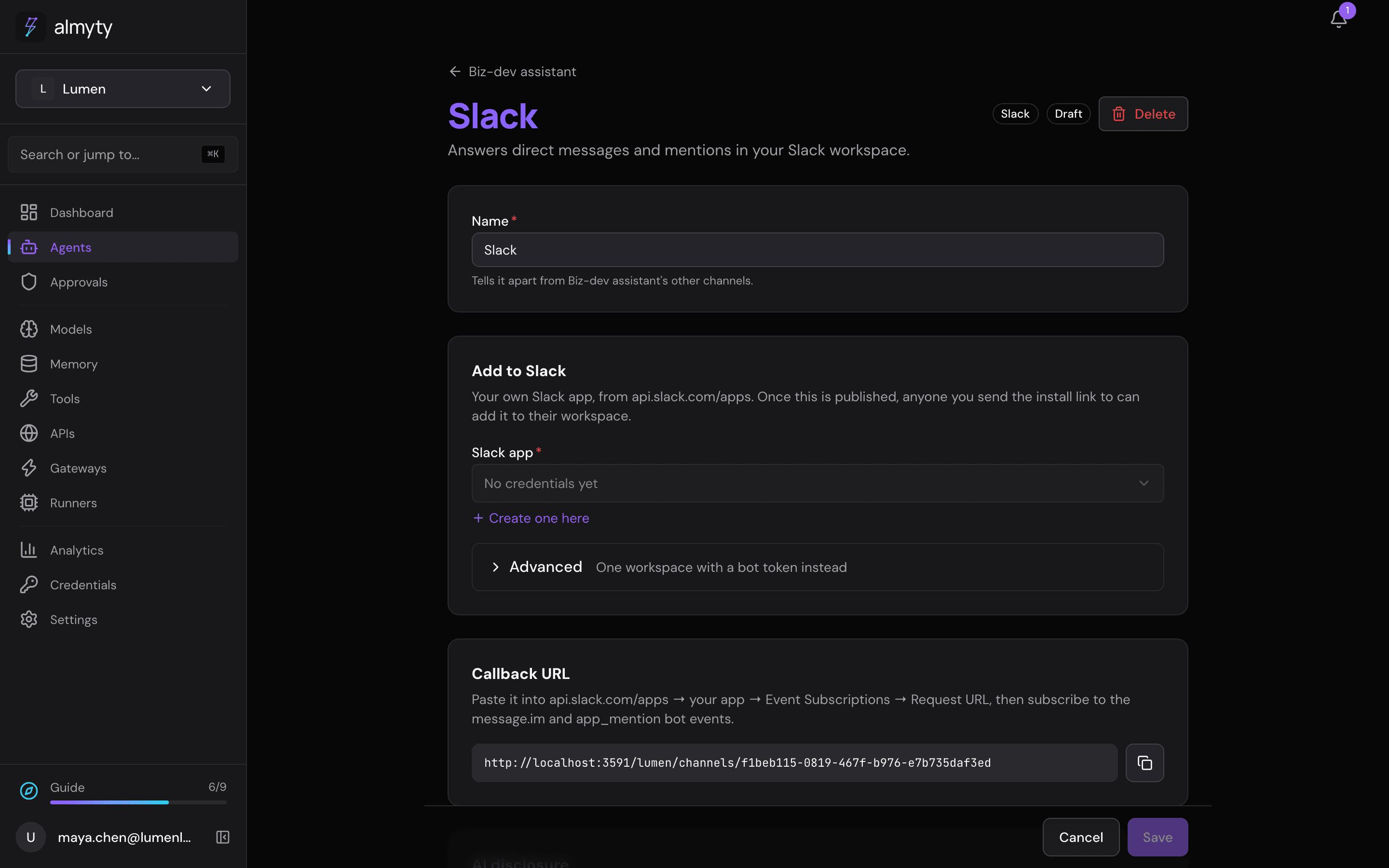
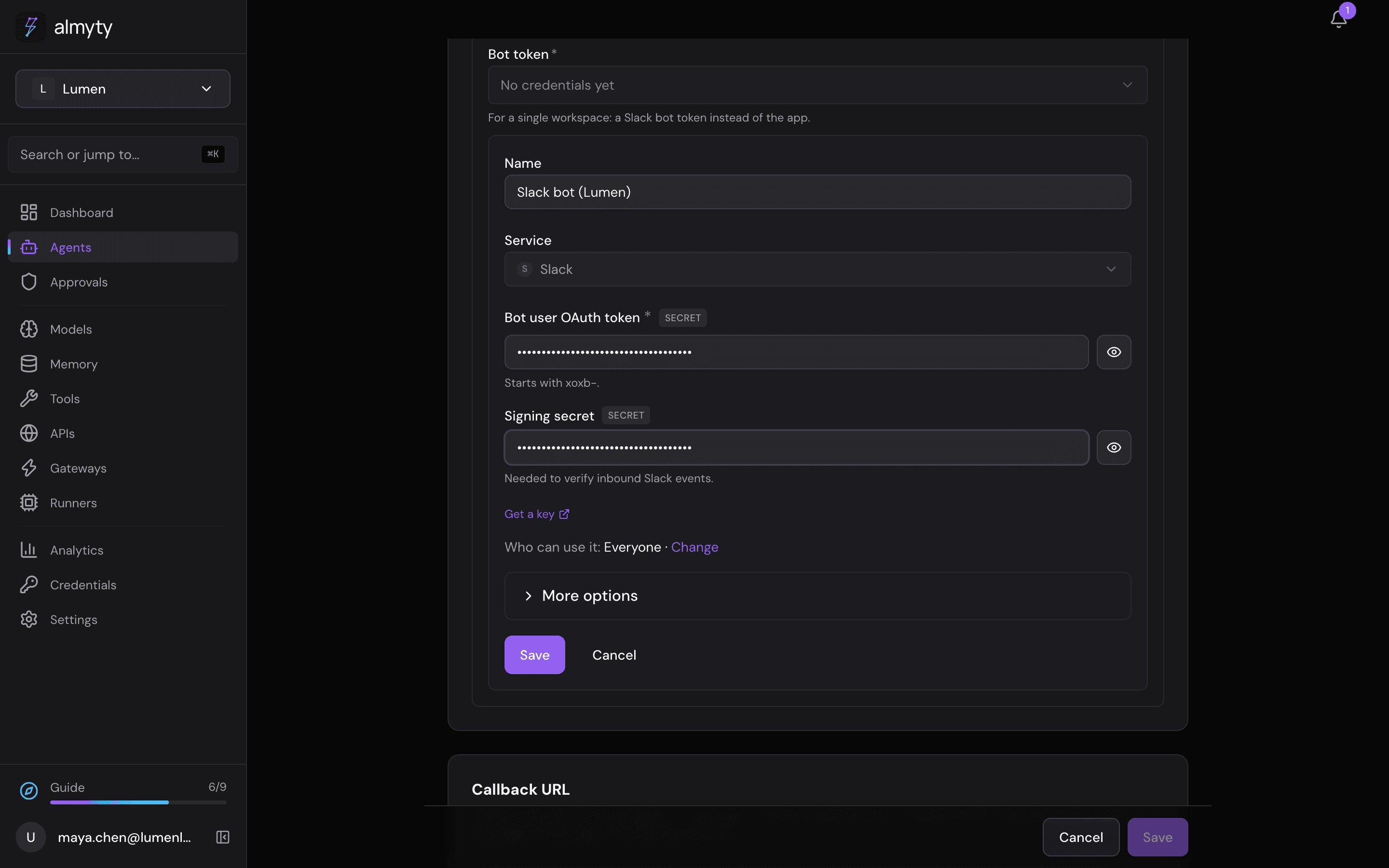
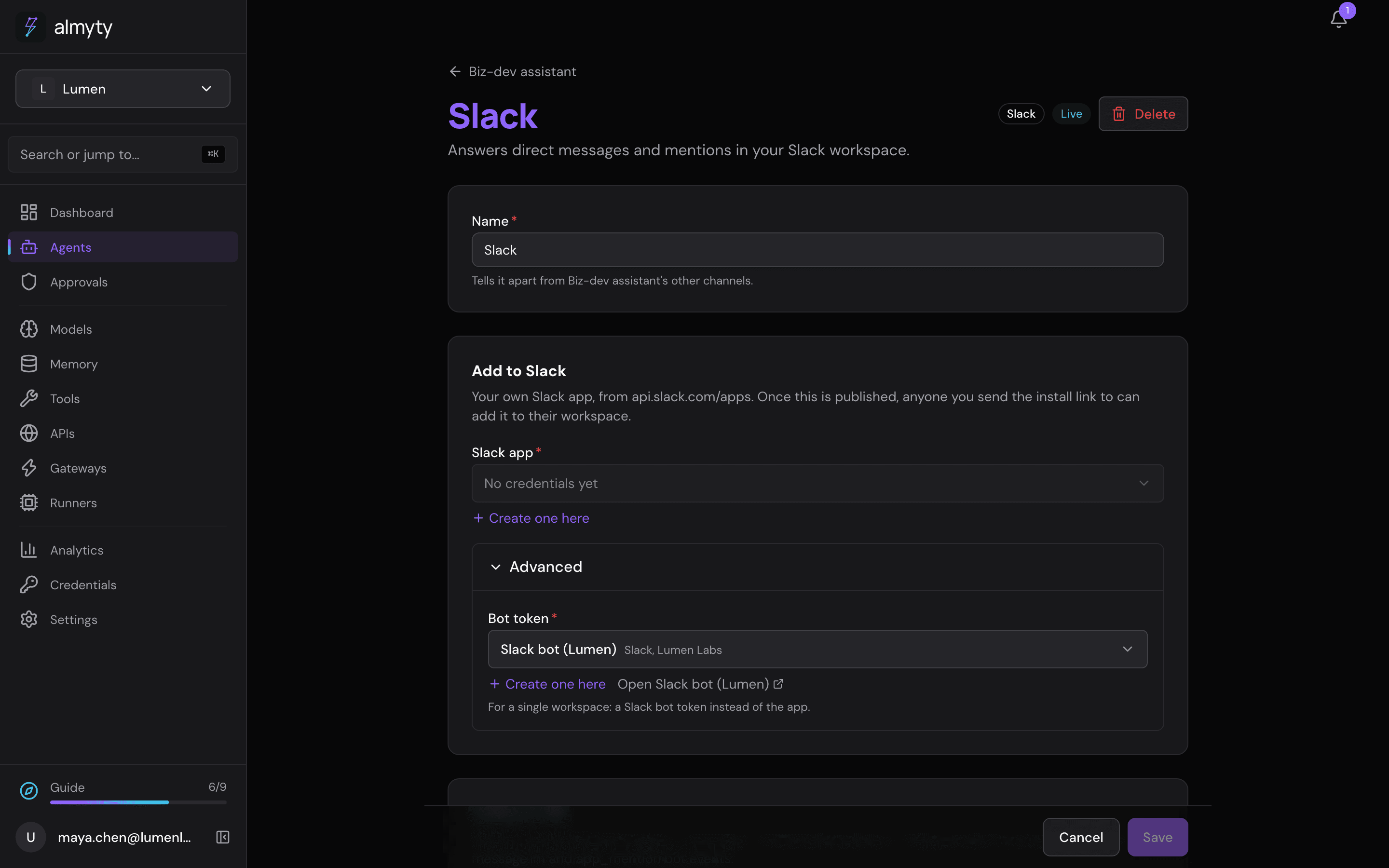
- Open Advanced (one workspace with a bot token) and click Create one here.
- Open More options, choose Bot token, name it, and paste the Bot user OAuth token and the Signing secret. Click Save.
- Click Save at the bottom, then Publish. The page shows a Callback URL.
- In Slack, open Event Subscriptions, turn it on, paste the Callback URL as the Request URL, and under Subscribe to bot events add
message.imandapp_mention. Save. - Invite the bot into your sales channel: in that channel, type
/invite @Biz-dev assistant. Note the channel’s ID (open the channel’s details; it is at the bottom and starts withC).
4. Keep it working: Always on
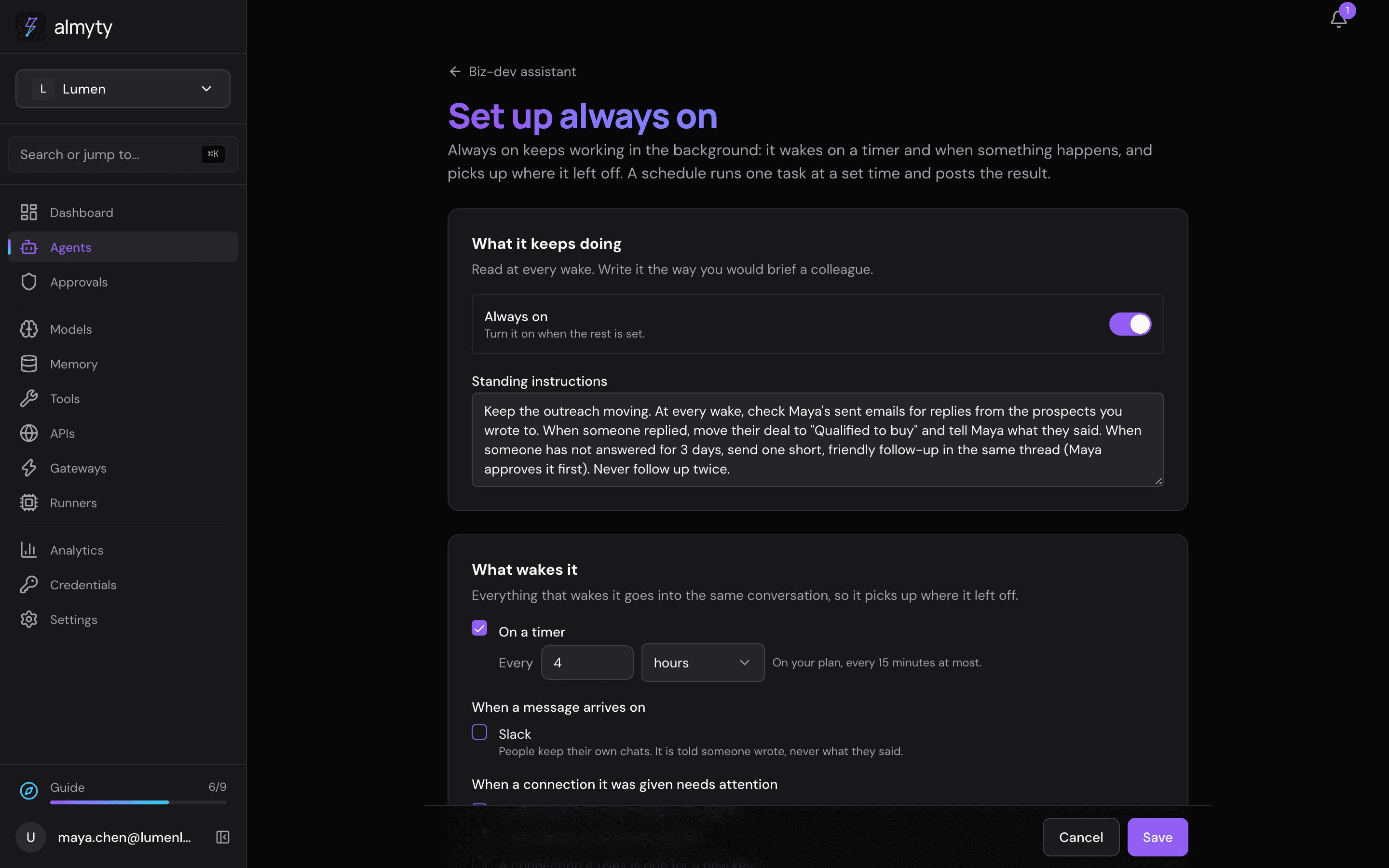
On the assistant’s Overview tab, under Always on, click Set up always on.
- Standing instructions:
Keep the outreach moving. At every wake, check Maya's sent emails for replies from the prospects you wrote to. When someone replied, move their deal to "Qualified to buy" and tell Maya what they said. When someone has not answered for 3 days, send one short, friendly follow-up in the same thread (Maya approves it first). Never follow up twice.- What wakes it: On a timer, every
4hours.
- Talk to it yourself: Channel: Slack, and your Slack member ID under Your address there (in Slack: your profile, the three dots, Copy member ID). Your messages then go into its standing conversation, and it answers you there.
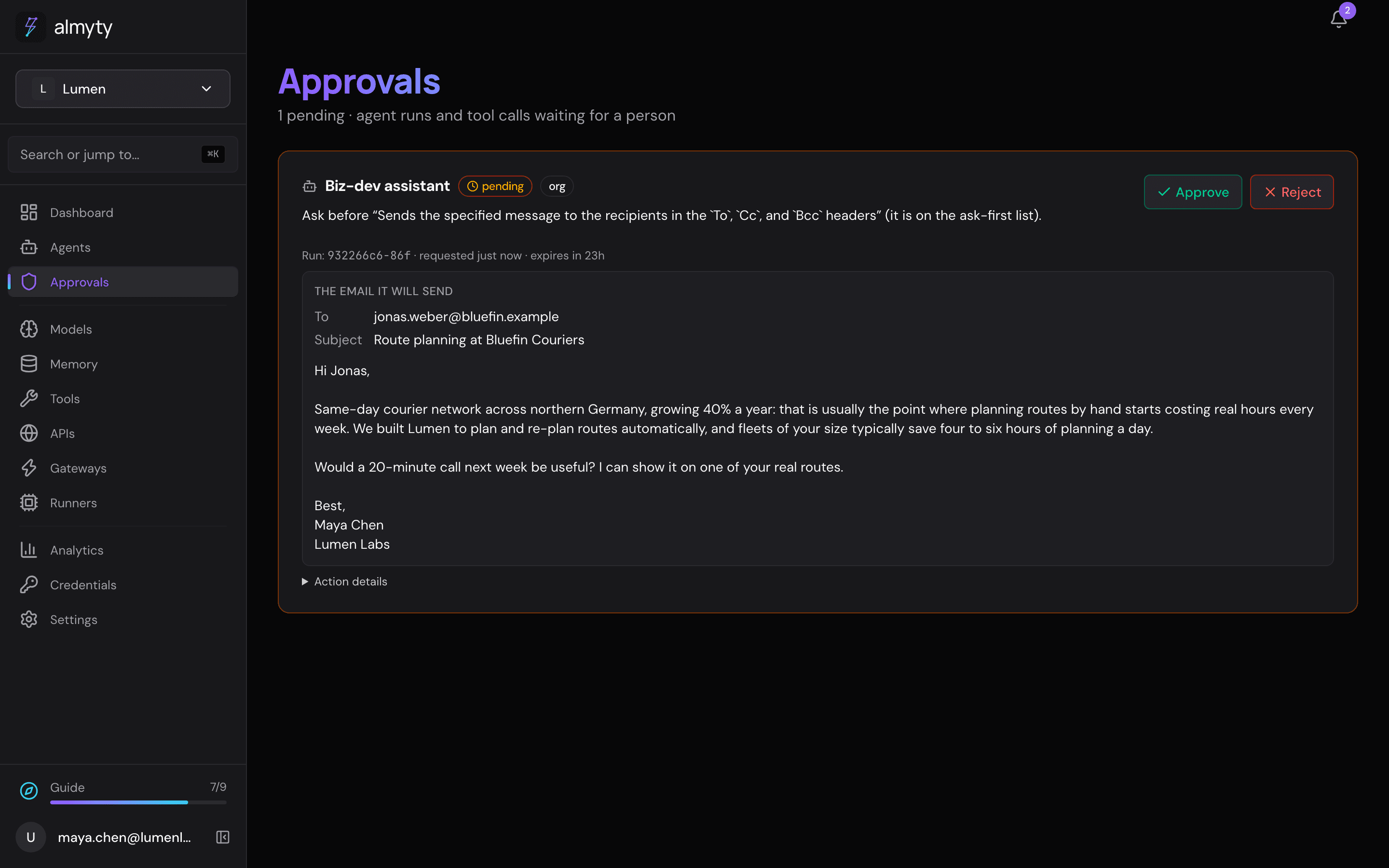
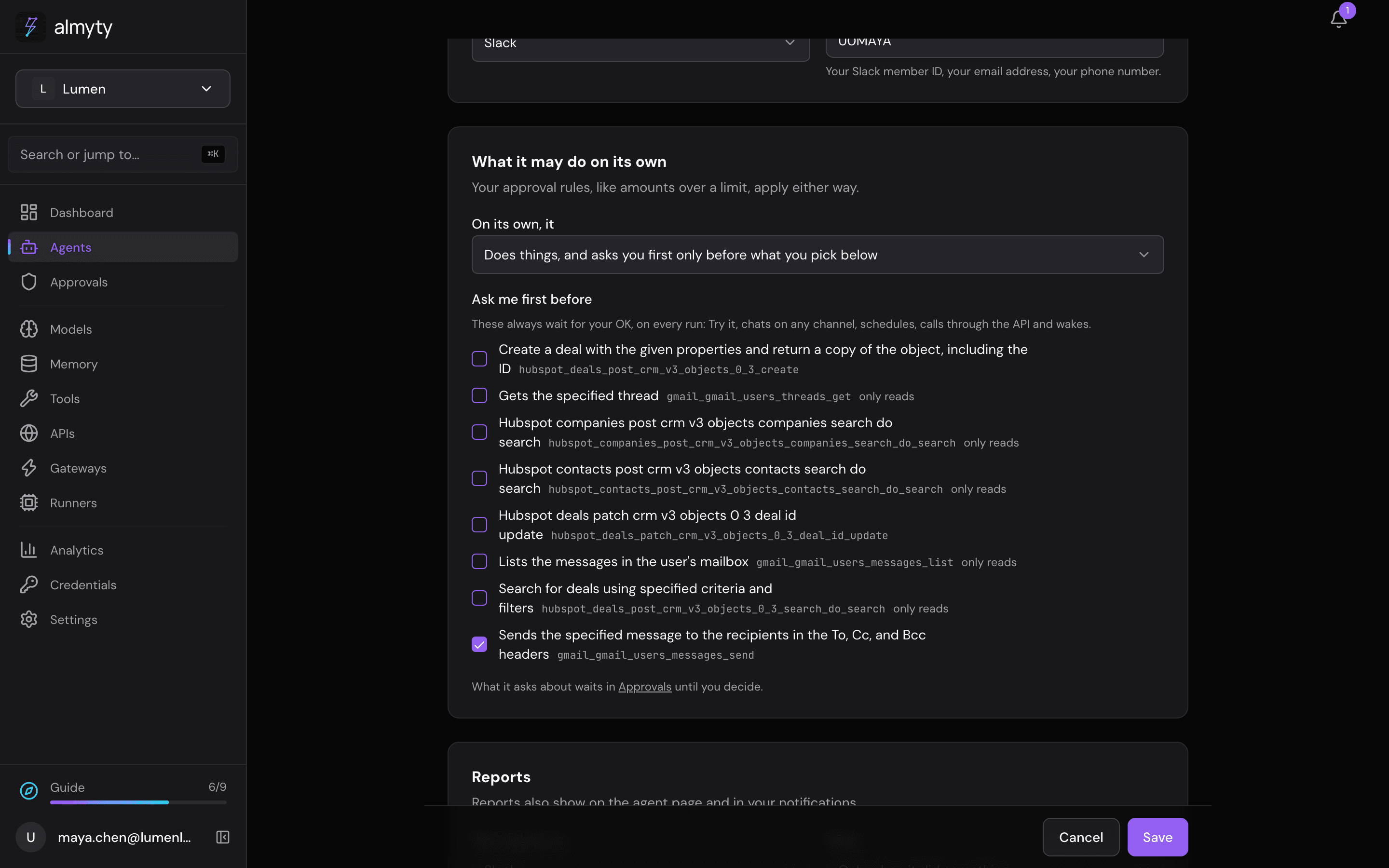
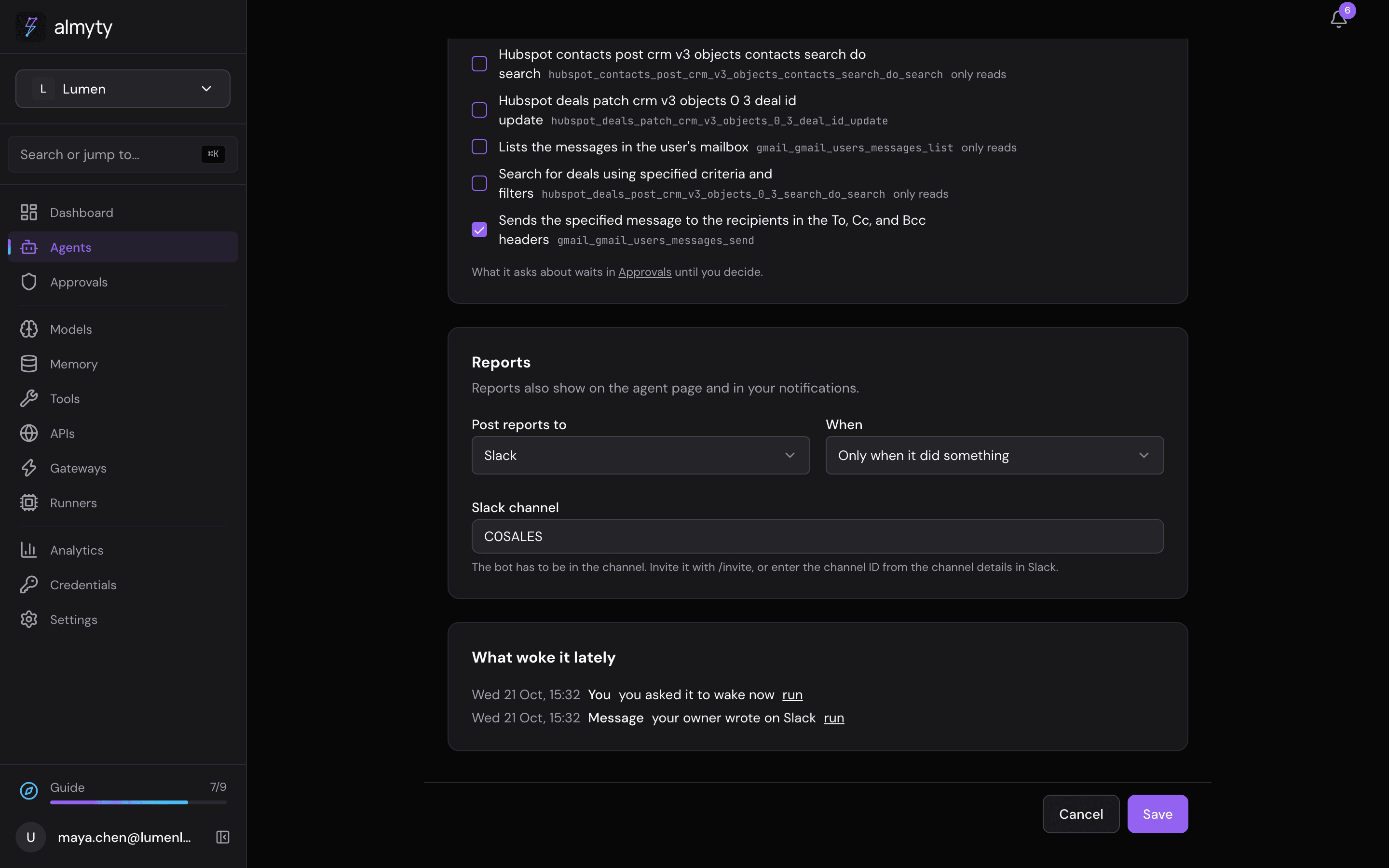
- What it may do on its own: Does things, and asks you first only before what you pick below. Under Ask me first before, almyty ticks every tool that changes something. Leave only Gmail’s send ticked (“Sends the specified message to the recipients …”,
gmail_gmail_users_messages_send) and untick the HubSpot deal tools if you want it to add and move deals on its own.
- Reports: Post reports to: Slack, enter your sales channel’s ID, When: Only when it did something.
- Turn on Always on at the top and click Save.
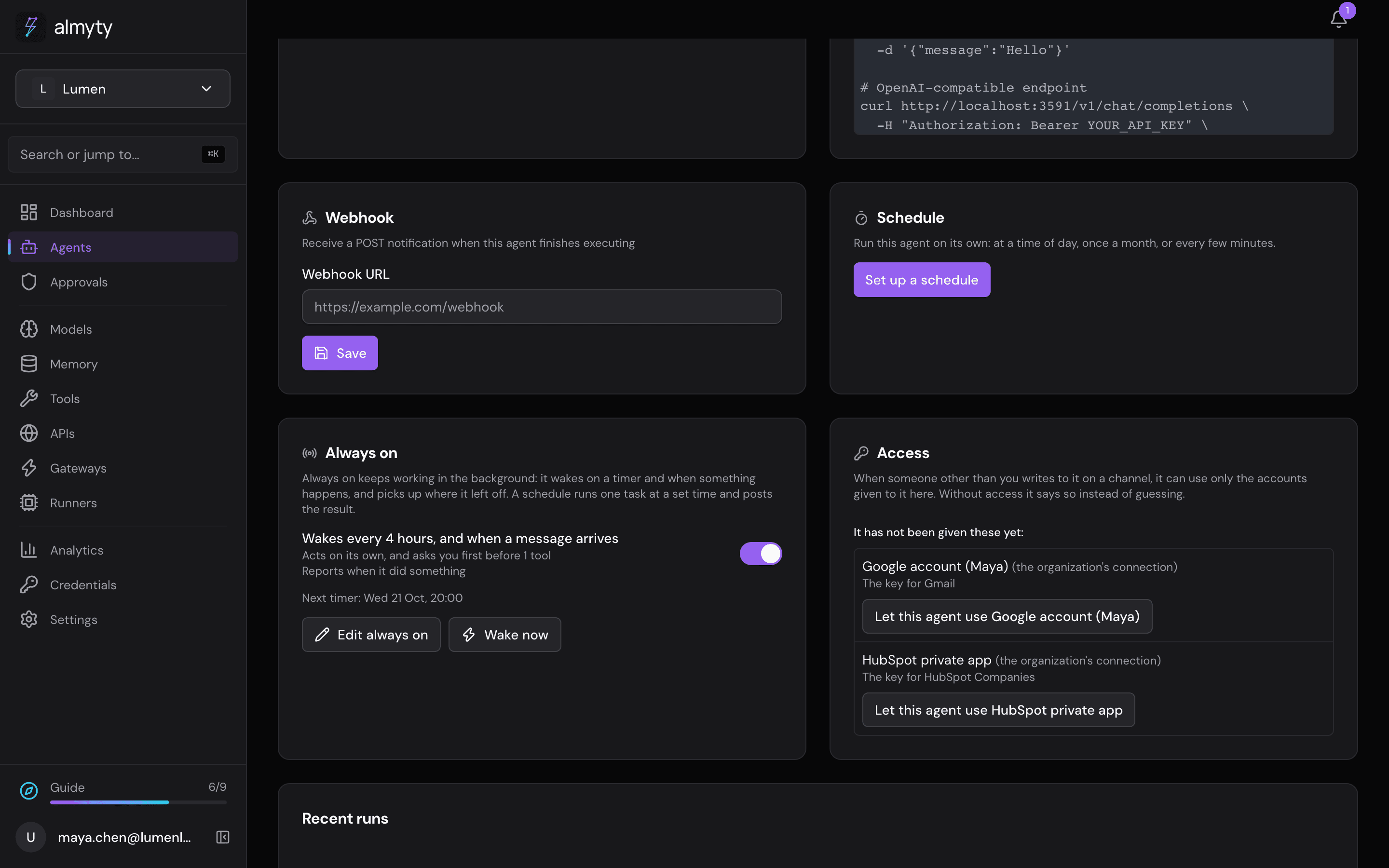
The Always on card on the Overview tab shows what wakes it, what it may do alone and when the timer fires next.
5. Talk to it in Slack
In Slack, send the bot a direct message:
Find new prospects that match our target profile and reach out to them.It searches HubSpot, picks the decision maker at each company, checks Gmail for anyone you already write to, and drafts the emails. Each email stops and waits: Slack and your notifications say it is waiting for your OK.
6. Approve the emails
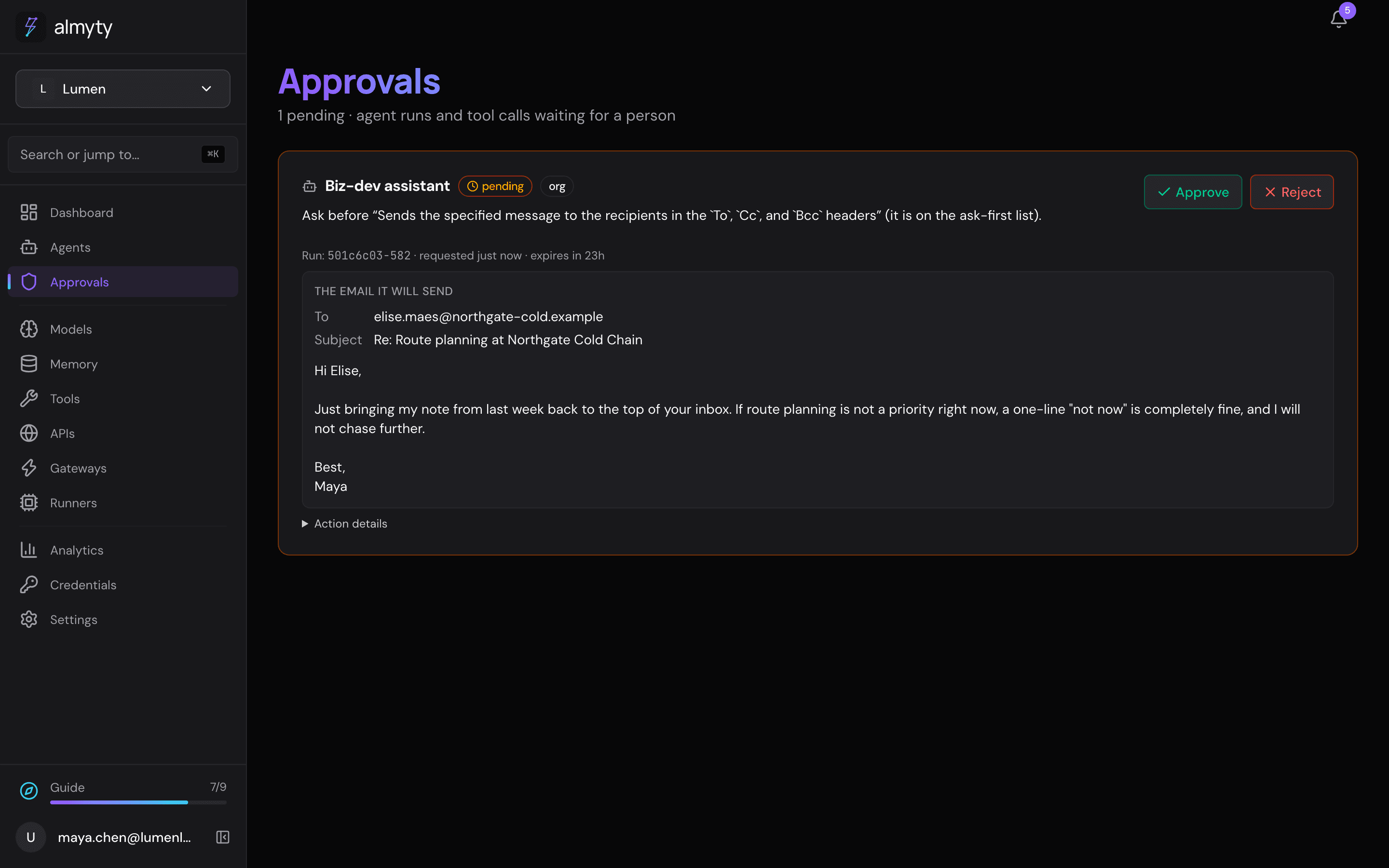
Open Approvals. Each request shows the email it will send: To, Subject and the full text, like the picture at the top. Read it. Click Approve, add a note if you like, and click Approve again; or Reject to drop it.
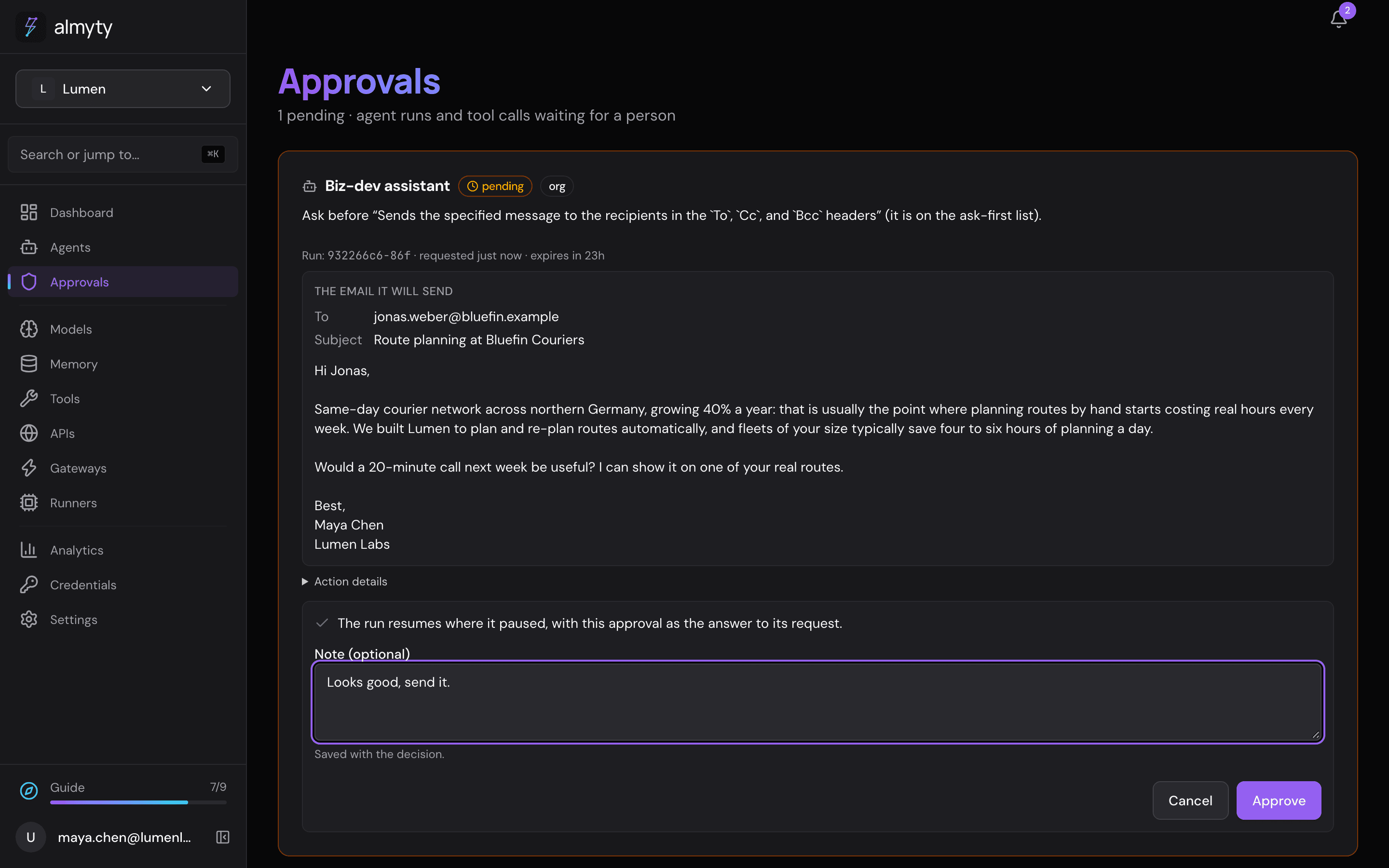
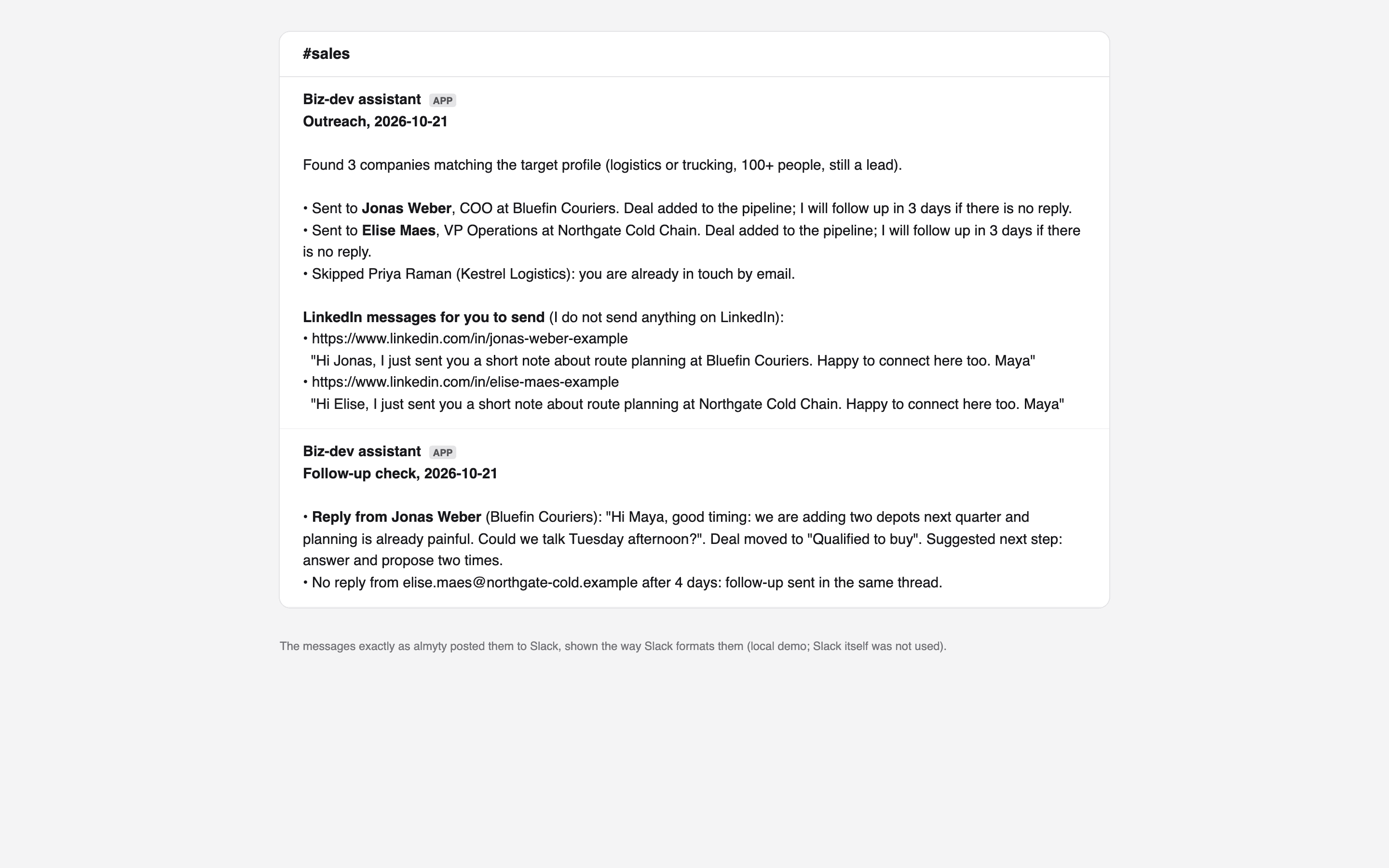
After the last approval it adds a deal per company to HubSpot and posts a report to your sales channel: who it wrote to, whom it skipped and why, and LinkedIn messages for you to send.
7. A few days later
Every 4 hours it wakes and checks your sent emails for answers. When a prospect replies, it moves their deal to Qualified to buy and tells you what they said. When three days pass without an answer, it drafts one follow-up in the same thread and asks you first.
What woke it lately, on its Always on page, lists every wake: the timer, your messages, Wake now.
Make it yours
- Another CRM. Any CRM that publishes an OpenAPI description works the same way, for example Pipedrive: connect its description under APIs, add its API token, and tick its “search organizations”, “search persons”, “add deal” and “update deal” tools instead of HubSpot’s. Change “deal stage” names in the instructions to the ones your pipeline uses.
- Outlook instead of Gmail. Connect Microsoft Graph (see Make it yours in the founder’s tutorial) and tick its “send mail” and “list messages” tools; put “send mail” on the ask-first list.
- Leads from somewhere else. If your target list lives in a spreadsheet or a lead-data service with an API, connect that instead of the HubSpot company search.
- Drafts instead of sends. Give it
gmail_gmail_users_drafts_createinstead ofmessages_send: it leaves each email as a draft in Gmail for you to send.
Good to know
- Ask first holds everywhere. A tool on the Ask me first before list waits for your OK on every run: in Slack, in Try it, on a schedule, and when someone else writes to it.
- Other people in Slack. When someone other than you writes to it, it can use only the accounts given to the agent. Open the agent’s Overview tab and, under Access, click Let this agent use … next to HubSpot and Gmail if they should be able to ask it too. Without access it answers “I don’t have access to HubSpot Companies” instead of guessing.
- LinkedIn stays manual. It only writes the messages; you send them.
If something goes wrong
| What you see | What to do |
|---|---|
| HubSpot calls fail with 401 | The token is wrong or has expired, or the private app lacks a scope from step 1. Create a new token in HubSpot and replace it on Credentials. |
| Every HubSpot search waits in Approvals | Untick the HubSpot tools under Ask me first before (step 4). |
| Saving Always on does nothing | Look for the message in the corner: a Slack report needs a channel ID starting with C, not your member ID. |
| It says it found no companies | Check the target profile against your CRM’s own values (HubSpot’s industries are codes such as TRANSPORTATION_TRUCKING_RAILROAD), and that you wrote to it as yourself. |
| A reply it should have seen is not mentioned | It reads Gmail at most every few minutes; the next wake picks it up. |
| Slack shows nothing after you write | Check Event Subscriptions in Slack shows the Request URL as Verified, and that message.im is subscribed. |
| Always on was paused because the agent woke more often in an hour than it may | It woke itself in a loop (its own timer or channel messages; Wake now does not count). Check What woke it lately on its Always on page, then click Turn it back on. |
Related
- Always on · Approvals · Chat apps · Credentials · Memory