MCP Server
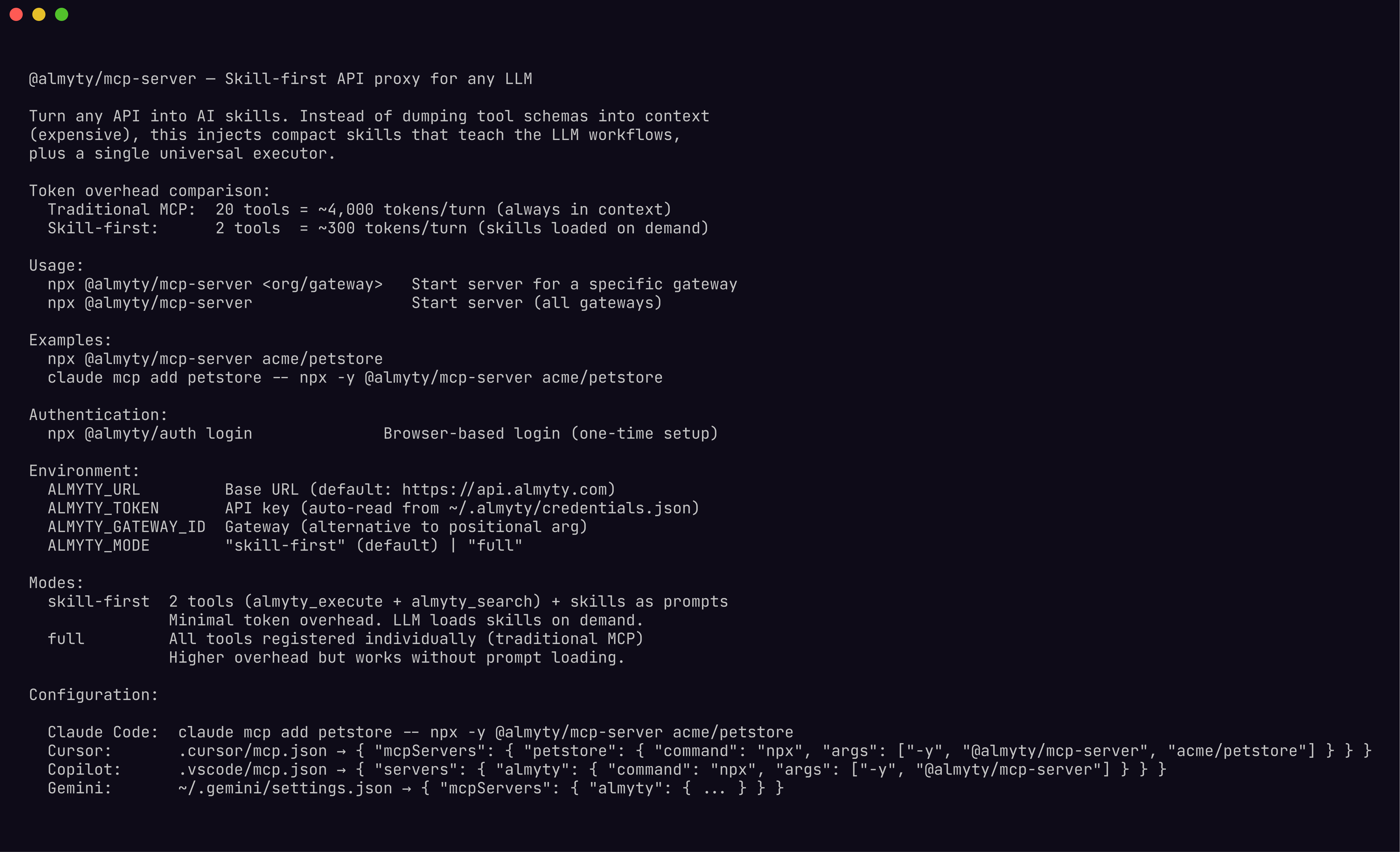
The @almyty/mcp-server package connects an almyty gateway to any MCP-compatible LLM client. You create a gateway in the almyty UI, assign tools to it, then point this server at that gateway. The LLM sees your tools as native MCP tools.
Prerequisites:
- Create a gateway in the UI (type: MCP, A2A, UTCP, or Skills, the MCP server works with all types)
- Assign tools to the gateway
- Authenticate:
npx @almyty/auth login - Run the server with your gateway ID
$ npx @almyty/mcp-server acme/petstoreHow it works
The MCP server fetches tools from your almyty gateway and registers them as MCP tools (or skills). When the LLM calls a tool, the server proxies the request through the gateway to the real API. Authentication, rate limiting, and audit logging are handled by the gateway.
Modes
Skill-first mode (default)
Instead of registering every tool as a separate MCP tool (which consumes context window tokens on every turn), skill-first mode registers only two tools:
| Tool | Purpose |
|---|---|
almyty_execute | Call any almyty tool by name with parameters |
almyty_search | Find tools by keyword |
Skills are registered as MCP prompts, loaded on demand only when the LLM needs them. This dramatically reduces token overhead:
| Approach | 20 tools | 50 tools | 100 tools |
|---|---|---|---|
| Traditional MCP (full mode) | ~4,000 tokens/turn | ~10,000 tokens/turn | ~20,000 tokens/turn |
| Skill-first | ~300 tokens/turn | ~300 tokens/turn | ~300 tokens/turn |
The LLM reads a skill prompt to learn the workflow, then calls almyty_execute with the tool name and parameters from the skill.
Full mode
Registers every tool individually as a standard MCP tool. Use this when your LLM client does not support MCP prompts, or when you have a small number of tools and prefer traditional tool calling:
$ ALMYTY_MODE=full npx @almyty/mcp-serverSetup
Prerequisites
Authenticate once before configuring any client:
$ npx @almyty/auth loginalmyty is a remote MCP server. Most clients can connect directly via URL, no npm install needed. Use the CLI proxy only if you want skill-first mode (lower token overhead).
Claude Desktop
Edit ~/Library/Application Support/Claude/claude_desktop_config.json:
{
  "mcpServers": {
    "almyty": {
      "url": "https://api.almyty.com/mcp"
    }
  }
}
For a specific gateway:
{
  "mcpServers": {
    "petstore": {
      "url": "https://api.almyty.com/acme/petstore"
    }
  }
}
Restart Claude Desktop. Tools appear under the hammer icon.
Claude Code
$ claude mcp add almyty --transport http https://api.almyty.com/mcpOr for a specific gateway:
$ claude mcp add petstore --transport http https://api.almyty.com/acme/petstoreCursor
.cursor/mcp.json:
{
  "mcpServers": {
    "almyty": { "url": "https://api.almyty.com/mcp" }
  }
}
Windsurf
~/.codeium/windsurf/mcp_config.json:
{
  "mcpServers": {
    "almyty": { "url": "https://api.almyty.com/mcp" }
  }
}
VS Code (GitHub Copilot)
.vscode/mcp.json:
{
  "servers": {
    "almyty": { "url": "https://api.almyty.com/mcp" }
  }
}
OpenAI Codex CLI
~/.codex/config.toml:
[mcp_servers.almyty]
url = "https://api.almyty.com/mcp"
Google Gemini CLI
~/.gemini/settings.json:
{
  "mcpServers": {
    "almyty": { "url": "https://api.almyty.com/mcp" }
  }
}
Using the CLI proxy instead (optional)
If you want skill-first mode (2 tools instead of N, lower token cost), use the local proxy:
$ npx @almyty/auth login
$ claude mcp add petstore -- npx -y @almyty/mcp-server acme/petstore
Environment variables
| Variable | Description | Default |
|---|---|---|
ALMYTY_URL | almyty backend URL | https://api.almyty.com |
ALMYTY_TOKEN | API key or JWT token | Read from ~/.almyty/credentials.json |
ALMYTY_GATEWAY_ID | Gateway to serve (org/slug). Also accepted as first positional arg. | — |
ALMYTY_MODE | skill-first or full | skill-first |
Finding your gateway ID
Your gateway ID is org/slug, shown on the gateway detail page. For example, if your org is “acme” and your gateway slug is “petstore”:
$ npx @almyty/mcp-server acme/petstoreSkills as MCP prompts
In skill-first mode, each skill from your gateway is registered as an MCP prompt with the naming pattern skill-<name>. The LLM client can list available prompts and load one when it needs detailed instructions for a specific API workflow.
An overview prompt (almyty-overview) is also registered, providing a compact index of all available tools and skills.
The flow works like this:
- The LLM sees
almyty_executeandalmyty_searchin its tool list. - When the user asks to do something API-related, the LLM calls
almyty_searchto find relevant tools. - The LLM loads the corresponding skill prompt to understand parameters and usage.
- The LLM calls
almyty_executewith the tool name and parameters from the skill.
Skills are only loaded into context when explicitly requested, keeping the baseline token cost low.
Troubleshooting
”No tools found”
The MCP server connected to the backend but no tools were returned. Possible causes:
- No tools assigned to your gateway. Open the almyty dashboard, go to your gateway, and assign tools.
- Wrong gateway ID. Double-check the
ALMYTY_GATEWAY_IDvalue. It should beorgSlug/gatewaySlug, not a UUID. - No gateways at all. If you have not set
ALMYTY_GATEWAY_ID, the server fetches tools from the universal/mcpendpoint. Make sure you have at least one gateway with tools assigned.
Authentication errors
Error: No authentication token found.
Set ALMYTY_TOKEN environment variable or run: npx @almyty/auth login
The MCP server needs a token. If you authenticated interactively with npx @almyty/auth login, the credentials file is read automatically. For MCP config files that run in a different user context (e.g., an IDE subprocess), you may need to set ALMYTY_TOKEN explicitly in the env block.
Connection timeouts
Tool discovery times out after 15 seconds. Tool execution times out after 120 seconds. If your backend is slow or behind a VPN:
- Check that
ALMYTY_URLis reachable from the machine running the MCP server. - If using a self-hosted instance, verify the backend health endpoint:
curl https://your-instance/health.
Tools appear in full mode but not skill-first
Skill-first mode requires skills to be configured on the gateway. If your gateway only has raw tools without generated skills, the almyty_search and almyty_execute tools will still work, but there will be no skill prompts to guide the LLM. Either switch to full mode or enable skill generation on your gateway in the dashboard.
stderr messages
The MCP server writes diagnostic output to stderr (stdout is reserved for the MCP JSON-RPC protocol). Messages like almyty: 12 tools, 3 skills (mode: skill-first) on startup are normal and will not interfere with the MCP protocol.