Hosted machines
A hosted machine is a computer almyty runs for you, so your agents can work on a project without you keeping a machine of your own switched on. You describe it once as an environment: which repository, what software it starts with, which websites it may reach. When an agent needs it, the machine starts. When nobody has used it for a while, it parks itself, and its files stay where they were for next time.
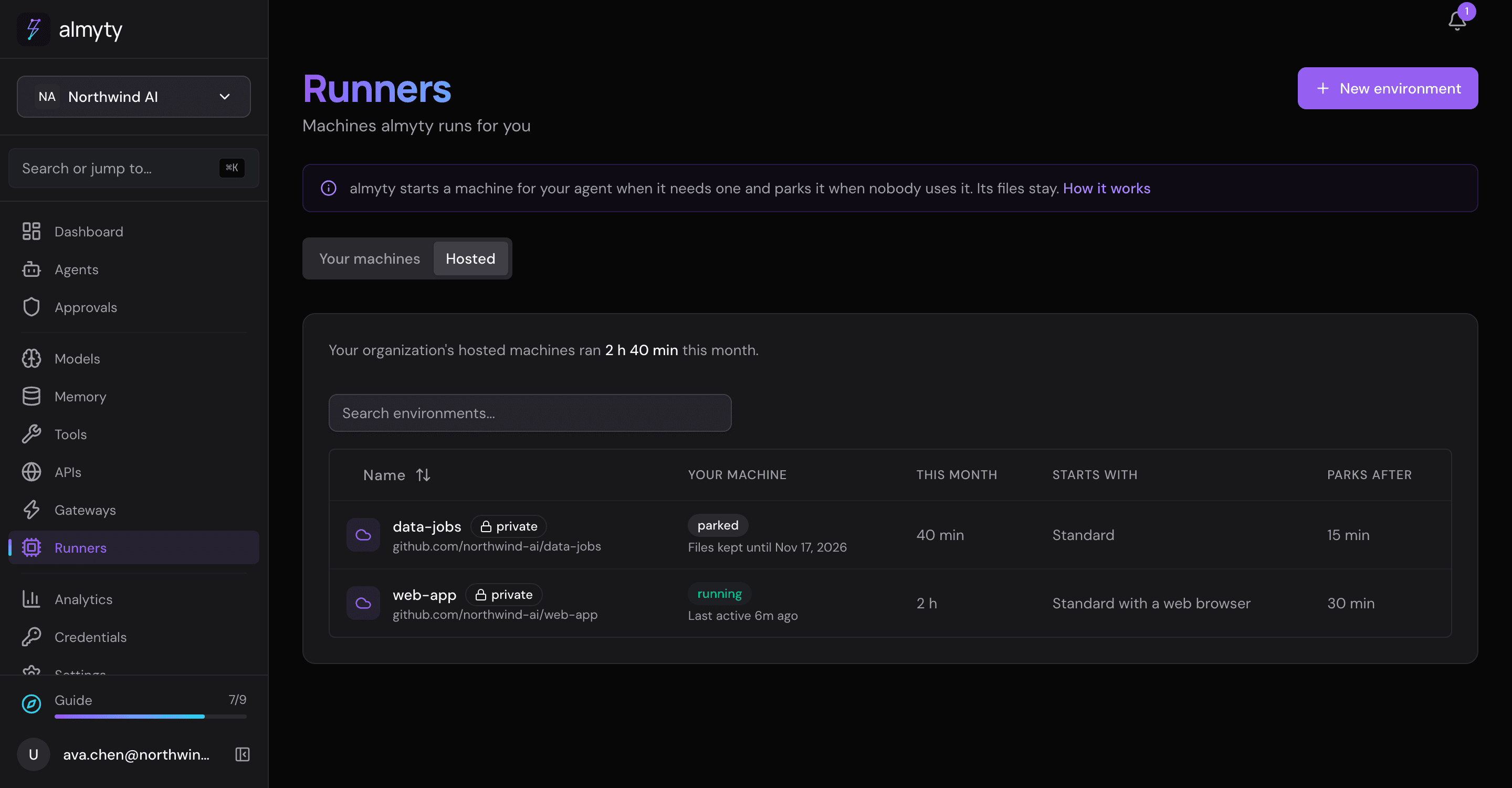
Hosted machines are switched on per server. When they are not available, the Hosted tab says so, and you can still use runners on your own machines.
Create an environment
- Open Runners in the sidebar and choose the Hosted tab.
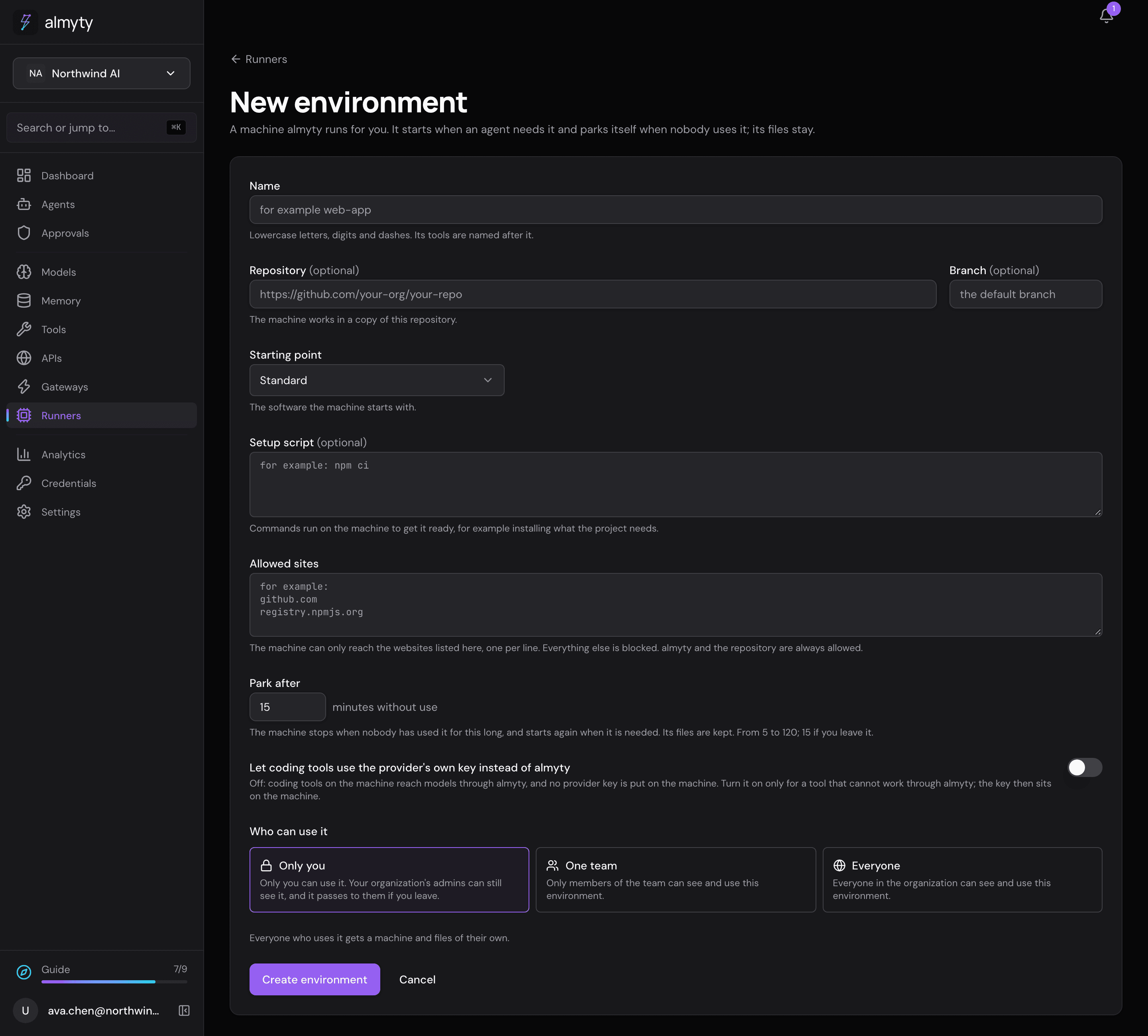
- Click New environment.
- Fill in the page:
- Name: lowercase letters, digits and dashes, such as
web-app. Its tools are named after it. - Repository and Branch (optional): the https address of the project the machine works on.
- Starting point: the software the machine starts with. Pick one from the list.
- Setup script (optional): commands that get the machine ready, for example
npm ci. - Allowed sites: the websites the machine may reach, one per line, such as
github.comorregistry.npmjs.org. Everything else is blocked. almyty itself and the repository are always allowed. - Park after: how many minutes without use before the machine stops. The page shows the range this server allows and the default.
- Who can use it: Only you, One team or Everyone. With Only you, your organization’s admins can still see the environment, and it passes to them if you leave. Sharing with a team or everyone is part of the Business plan; without it, those choices are greyed out with a link to the plans.
- Name: lowercase letters, digits and dashes, such as
- Click Create environment. Nothing starts yet: your machine starts the first time an agent or tool uses the environment.
Run an agent there
Open the agent, click Edit, and under Capabilities pick the environment in Runs on. Its runner work then happens on your machine in that environment. An agent runs either on a hosted environment or on your own machines, not both: picking an environment clears a chosen runner and its machine labels, and picking a runner clears the environment.
Your machine and its files
Everyone who uses an environment gets a machine and files of their own. The environment’s page shows yours:
| State | What it means |
|---|---|
| running | The machine is on and doing work, or waiting for the next call. |
| waking | It is starting because something needs it. An agent waits for it and then carries on. |
| not started | The machine exists, but nothing has asked for it yet. |
| parked | It stopped after its idle time. Its files are kept until the date shown, counted from the last time it was used. Using it again starts it and resets the date. |
| failed | It could not start. The reason is shown next to it. |
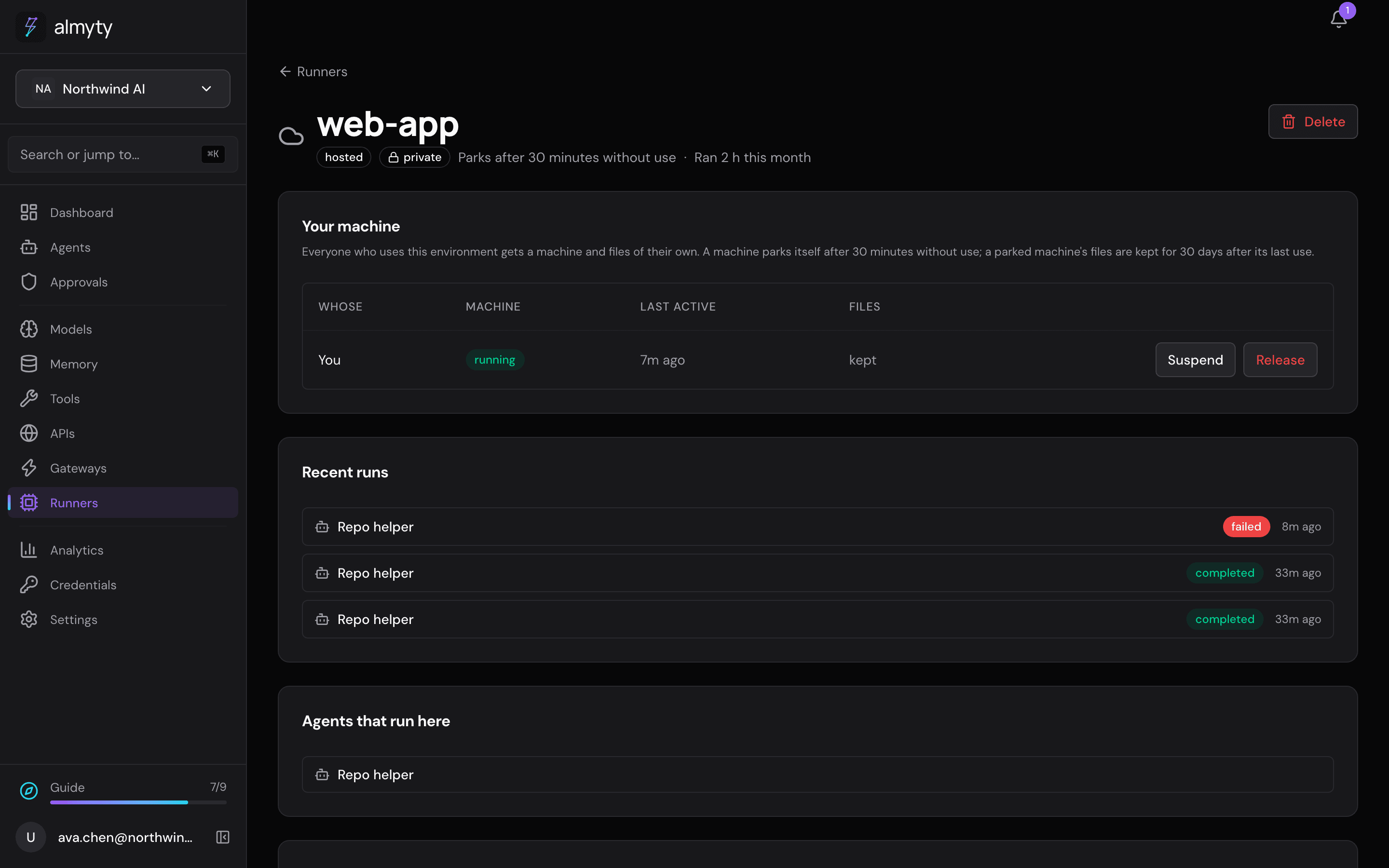
On the same page:
- Suspend parks a running machine now. Its files stay.
- Release lets the workspace go and deletes its files. You are asked once before it happens.
- How long the machine ran this month, next to its name. The Hosted tab shows the same for each environment; organization owners and admins also see the total for the whole organization.
- Recent runs lists the latest runs of agents set to run here: yours, or everyone’s for an owner or admin.
- Agents that run here lists the agents set to run on this environment.
- Settings is the same form as when you created it. Changes apply to machines that start after you save.
- Delete removes the environment, and every machine on it with its files.
Organization owners and admins see everyone’s machines on an environment they can see, and can suspend or release them.
When a member leaves, their environments pass to an admin, files and all. If the admin already has a machine on one of them, the member’s is kept beside it read-only: nothing runs in it unless you ask for it by name, so copy what you need and then release it. It is deleted after the usual time unused. You get a notification when this happens, and another when a team an environment was shared with is deleted and the environment becomes private again.
Coding tools and model keys
Coding tools on a hosted machine reach models through almyty, so no provider key is put on the machine. Two switches change that:
- Let coding tools use the provider’s own key instead of almyty, on the environment’s settings. Off by default. Turn it on only for a tool that cannot work through almyty; the key then sits on the machine.
- Let my hosted machines use this provider, on a model provider you keep private (open it from Credentials). Only you, its owner, can turn it on, and only your own hosted machines can then use it. Providers shared with the whole organization need no switch.
How long the record of machine minutes is kept is set in Settings, Data retention, under Hosted machine minutes. Left empty, the server’s own default applies.
For developers
- The pages call the
/environmentsAPI:GET /environments(each row withmine, the caller’s own machine, plusenabledand the form’ssettings),POST,GET,PATCHandDELETE /environments/:id,GET /environments/:id/workspaces,GET /environments/:id/runs,GET /environments/usage, andPOST /environments/:id/workspaces/:workspaceId/suspendand/release. - An agent’s choice is
agentConfig.environmentId. The server refuses it together withrunnerIdorrunnerLabels. - The vendor-key switch is
allowVendorKeyson the environment; the provider switch ishostedPodAccesson the provider; the retention field isrunnerUsageDays. - The Hosted tab is
/runners?tab=hosted; an environment’s page is/runners/hosted/:id. - Hosted machines are off unless the server runs with
HOSTED_RUNNERS_ENABLED=true. The idle time range, the images offered and how long parked files are kept are server settings; seedocs/hosted-runners.mdin the repository.