For developers: your APIs in coding assistants, and jobs on your own machines
This guide is for developers. It covers two things:
- Your company’s APIs as tools in your coding assistant. Connect an API once, and your coding assistant, code editor or any other MCP client can call it: “look up order NW-10428”, “open a ticket for this bug”, right from the editor. MCP (Model Context Protocol) is the common way AI assistants plug in outside tools.
- Agents that run jobs on your own machines. Start a small program called a runner on a laptop, build server or cloud machine, and your agents can run commands there: builds, scripts, checks.
It takes about 15 minutes. Unlike the other guides, this one ends in a terminal.
What you need
- An almyty account, and an API connected under APIs (see step 2 of the customer support guide; here it is Northwind Orders).
- A coding assistant or code editor that speaks MCP.
- For the runner: a machine with Node.js where you can install a package.
1. Publish your API’s tools
A gateway serves a set of tools at one address, for one kind of client. In the sidebar, open Gateways and click Create gateway.
- Under Protocol, pick MCP (for AI assistants, code editors and other MCP clients). UTCP and Skills serve the same tools to other kinds of clients.
- Under Tools, pick Northwind Orders: every tool of that API, including ones added later. Or search for single tools.
- Give it a Name. Its address is made from the name.
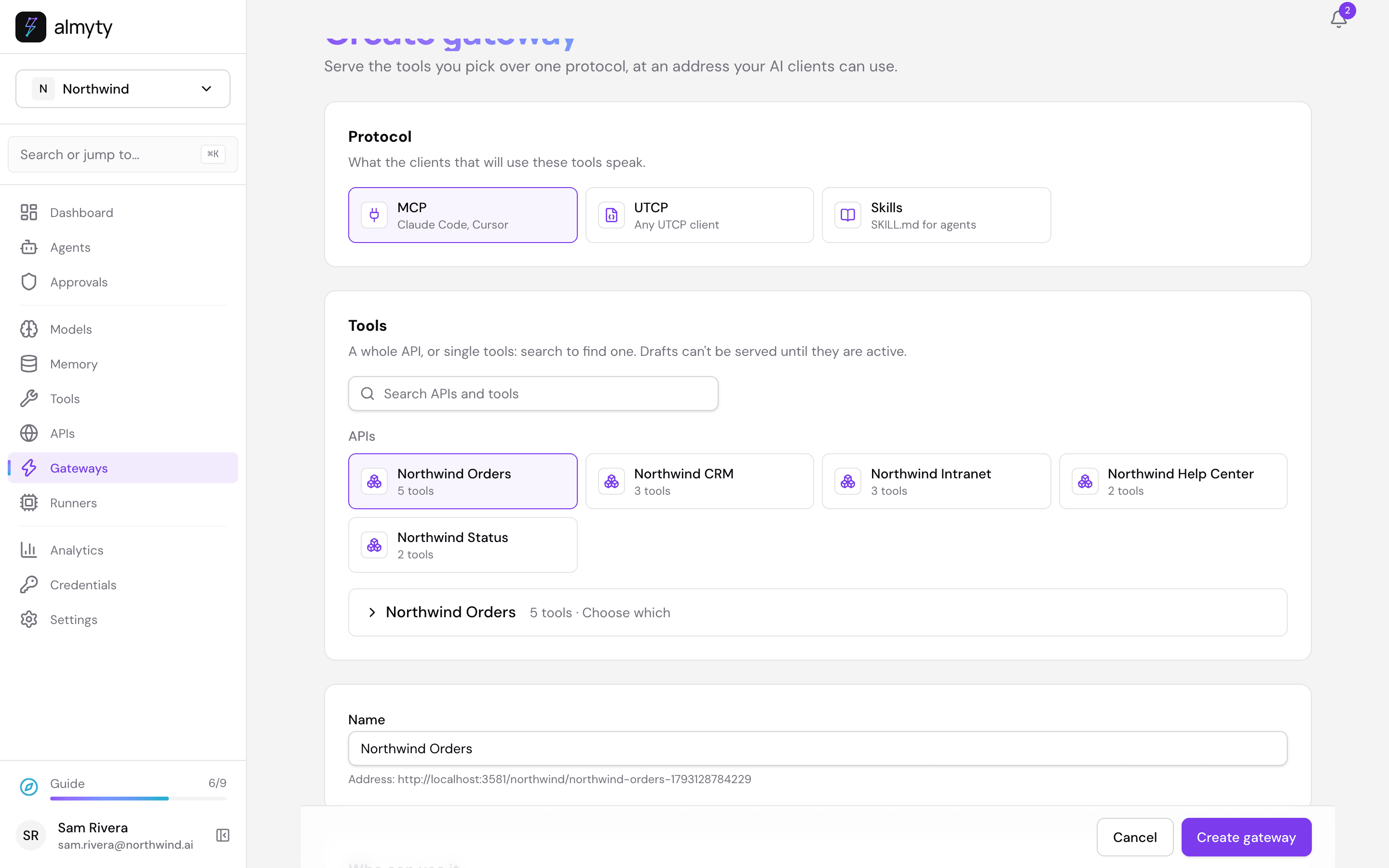
Click Create gateway.
2. Add it to your coding assistant
The gateway page shows Your access key once, so copy it now; later only its first characters are shown. Under Connect a client, pick your client from the list (or Other MCP clients) and copy the ready-made setup, which already contains the address and the key.
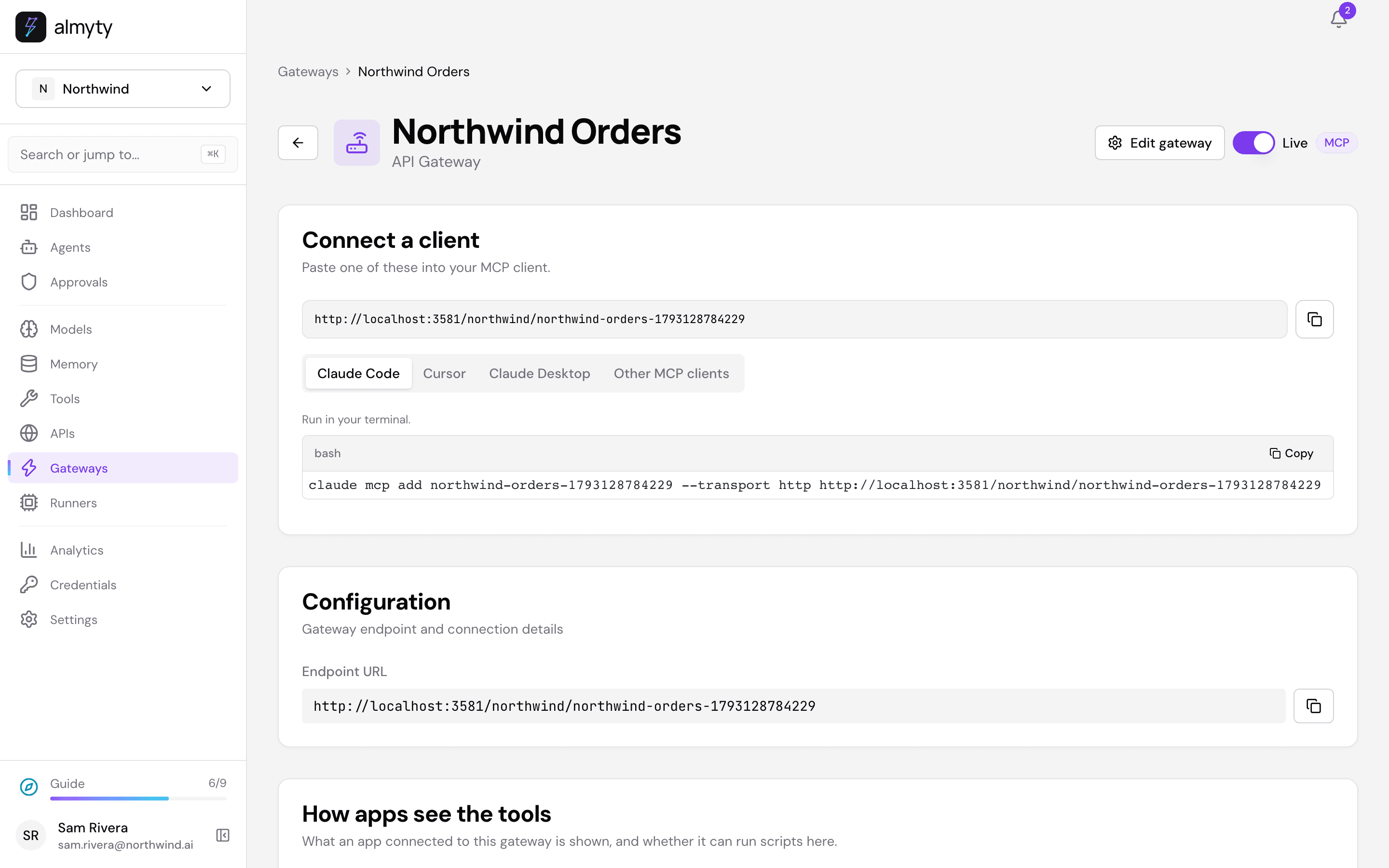
For a client set up with claude mcp add, it is one command:
claude mcp add northwind-orders --transport http \
  https://api.almyty.com/northwind/northwind-orders \
  --header "x-api-key: gw_..."
Now ask your assistant “What is the status of order NW-10428?” and it calls your API through the gateway. Every call shows up under Analytics, and more keys and the other ways to sign in are on the gateway’s page. See MCP gateways and Gateway sign-in.
Skills instead of MCP. Some coding agents work better with skill files than with a live connection. Make a gateway with Skills instead, then install it into your agents from the terminal:
npx @almyty/skills install @northwind/northwind-skillsSee Agent Skills and the skills CLI.
3. Start a runner on your machine
A runner lets agents run work on a machine you own. In the sidebar, open Runners and click Start a runner.
- Name: what to call the machine, for example
build-server. - Labels (optional): short tags that say what it has. Click Add label and fill in a key and a value, such as
osandlinux, orgpuandyes. An agent can ask for a machine with certain labels. - Who can use it: Only you, One team or Everyone.
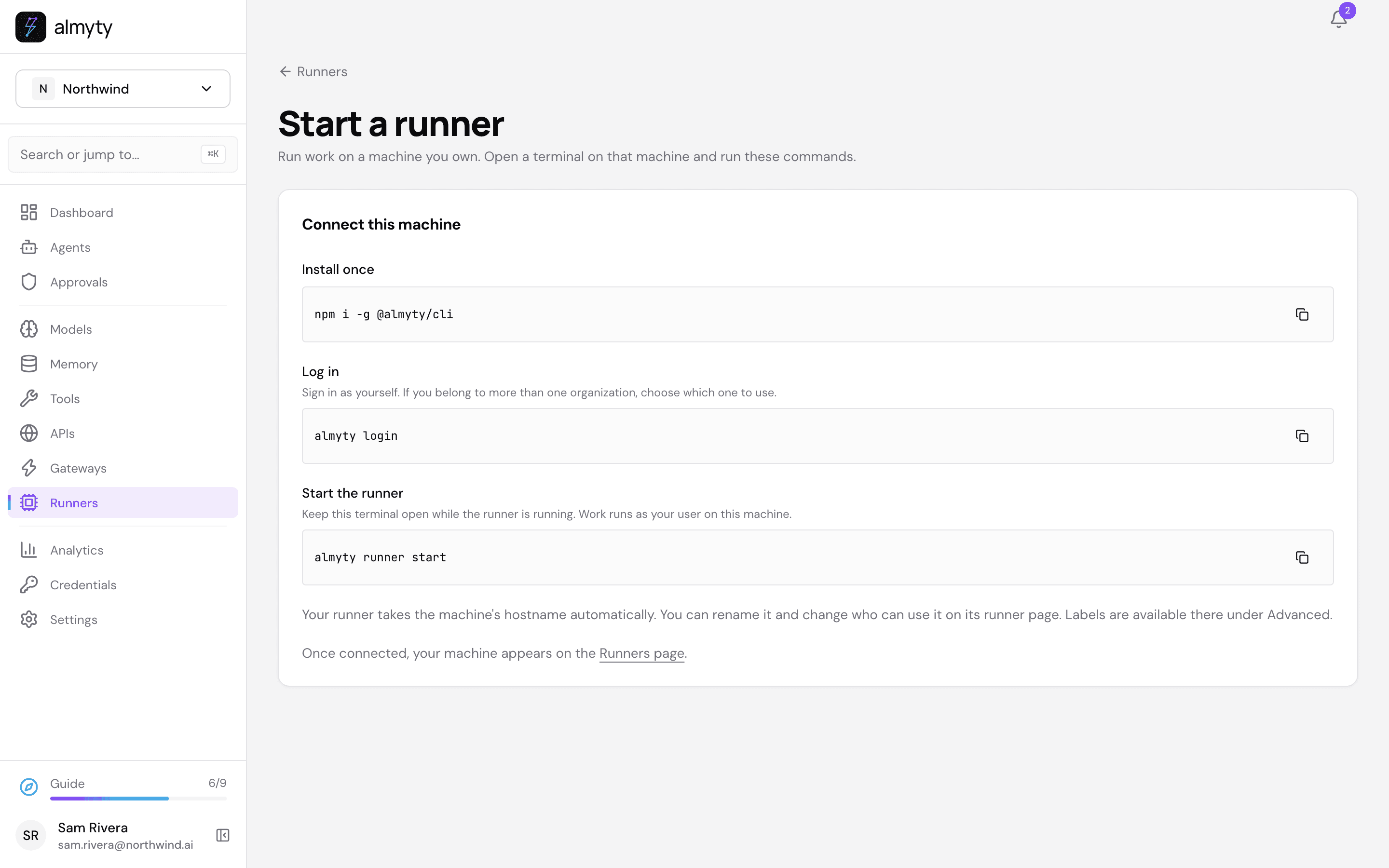
Click Generate command. The page gives you three commands to run on that machine: install the runner, log in as yourself, and start it.
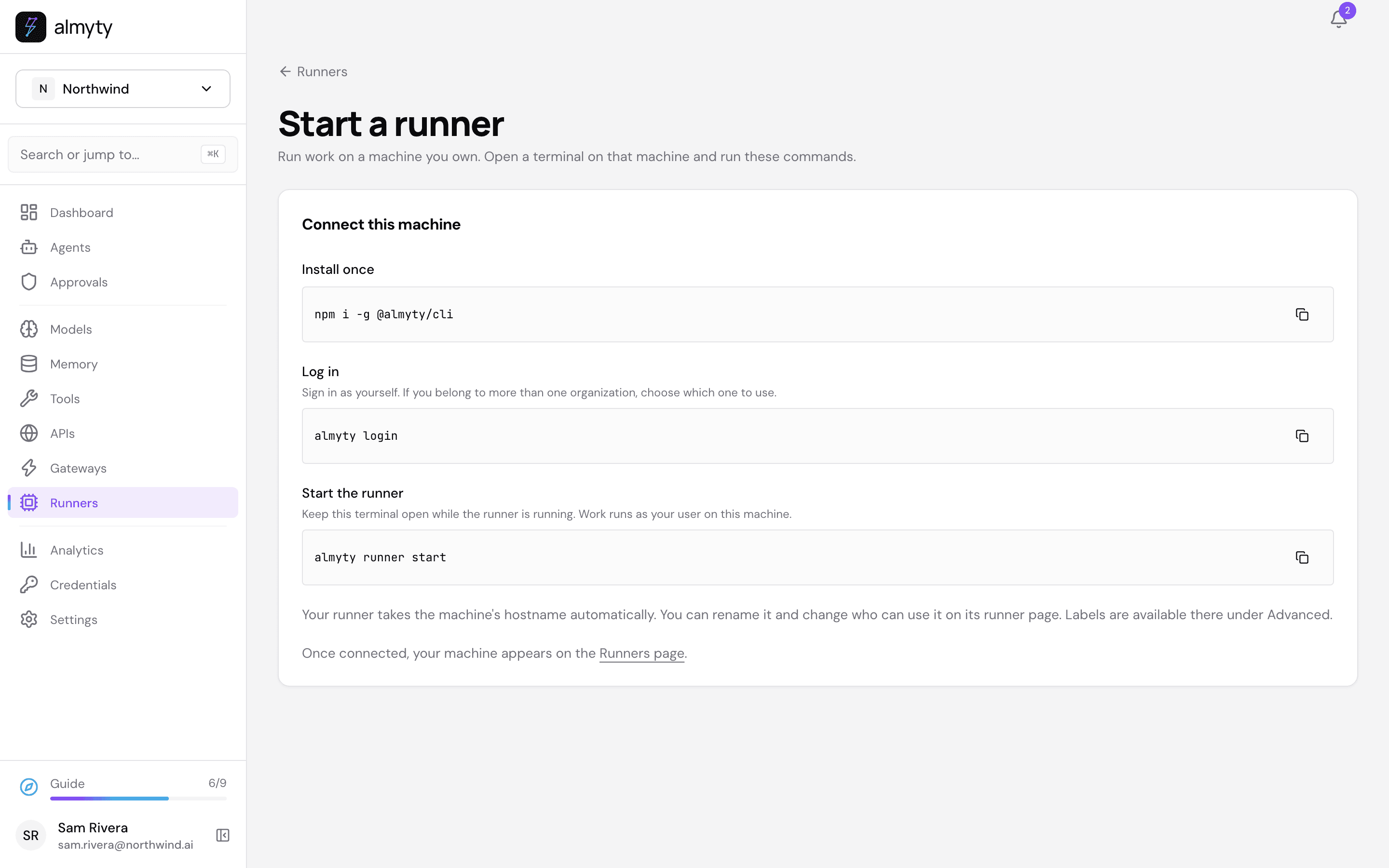
npm i -g @almyty/runner @almyty/auth
almyty-auth login
almyty-runner start --name build-server --org <your-org-id>
The runner connects as whoever ran almyty-auth login, so nobody else can attach to it even if they know its name. Commands it runs for your agents run as that user on that machine. Package installs are refused by default, and allowedCwdRoots and denyPatterns in ~/.almyty/config.json narrow what it may do further. When it connects, it appears on Runners as online.
4. Let an agent use it
Open an agent, click Edit, and scroll to Capabilities → Machine. Under Machine labels, enter the labels the machine must have (for example os=linux). Work goes only to an online runner with all of those labels. Leave it empty to use each tool’s own machine.
The agent can then run commands on that machine as part of its work: build a branch, run the tests, collect a log, and report back. See Runners and the runner CLI.
Reference
- Gateways: MCP, UTCP, Skills, choosing which tools a gateway serves.
- Call an agent from your own code with the OpenAI-compatible API or the Anthropic-compatible API.
- Drive almyty itself from an AI assistant: Control almyty via MCP.
- This walk-through is automated in
scripts/demo-seed/guides.mjs developerson the local demo stack.