Publishing a channel
Publishing is the moment a channel goes live and people can start talking to your assistant there. This page says what each kind of channel asks for before and after you publish it. For example: to put your assistant in Slack, you create a Slack app, give almyty its details, publish, and share the install link with your team.
Channels are added on the assistant’s Channels tab with Add channel; see Channels.
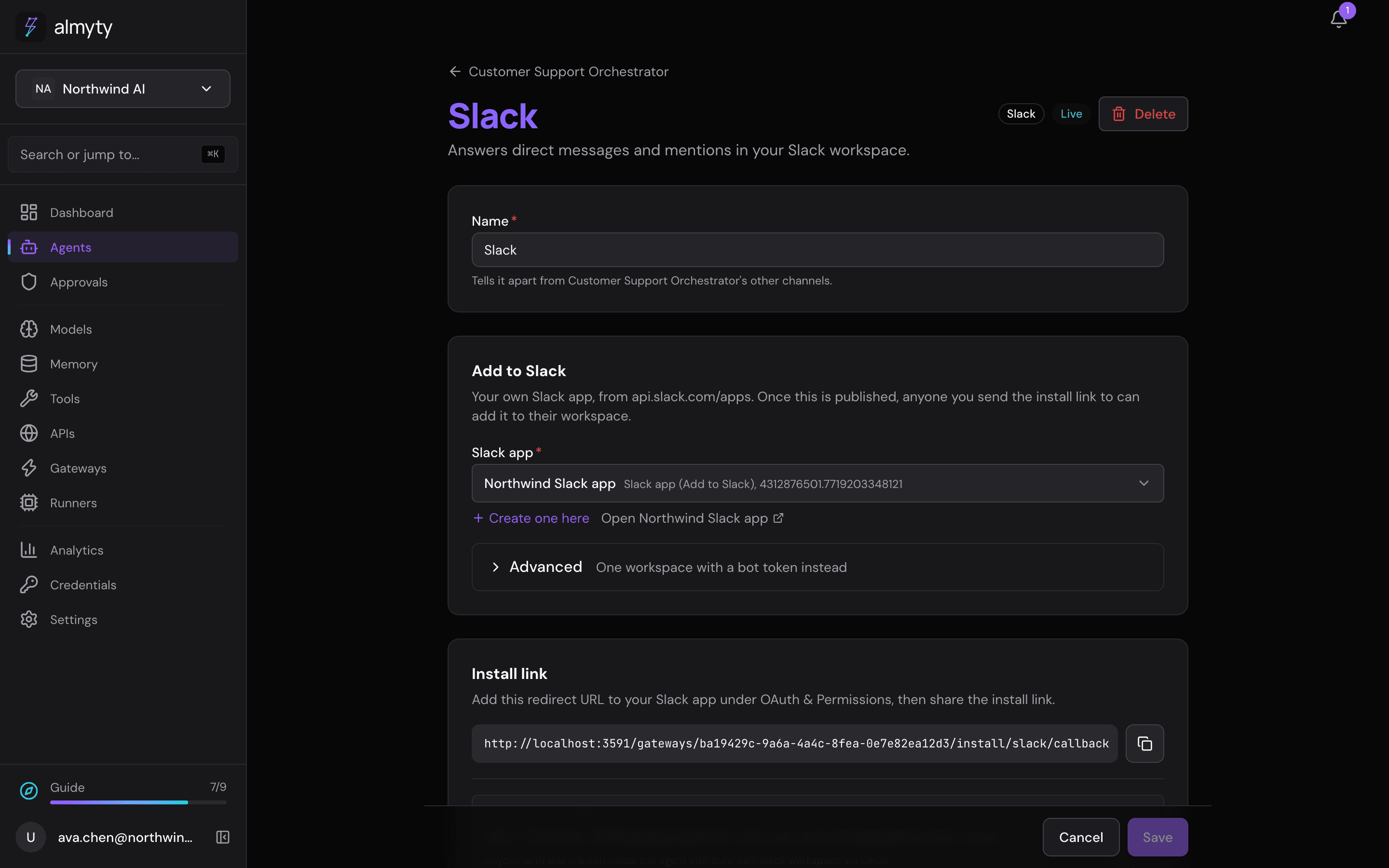
Slack: Add to Slack
- Create a Slack app at api.slack.com/apps.
- On the Slack channel’s page, under Add to Slack, pick the app’s details from your credentials, or click Create one here and enter its client ID, client secret and signing secret (all three are on the app’s settings page in Slack).
- Click Publish.
- The page now shows a redirect URL to add to your Slack app, and an install link to share. Every Slack workspace that installs it is listed, with a way to remove its access.
For a single workspace you can use a bot token instead, under Advanced.
The other messaging apps
Telegram, WhatsApp and the others need their platform keys, kept as a credential (a saved key almyty uses on your behalf). Pick one on the channel’s own page, or click Create one here to add it there. Then click Publish. See Chat interfaces for what each platform needs and where to paste almyty’s callback URL.
Once published, the channel is live and shows an Unpublish button.
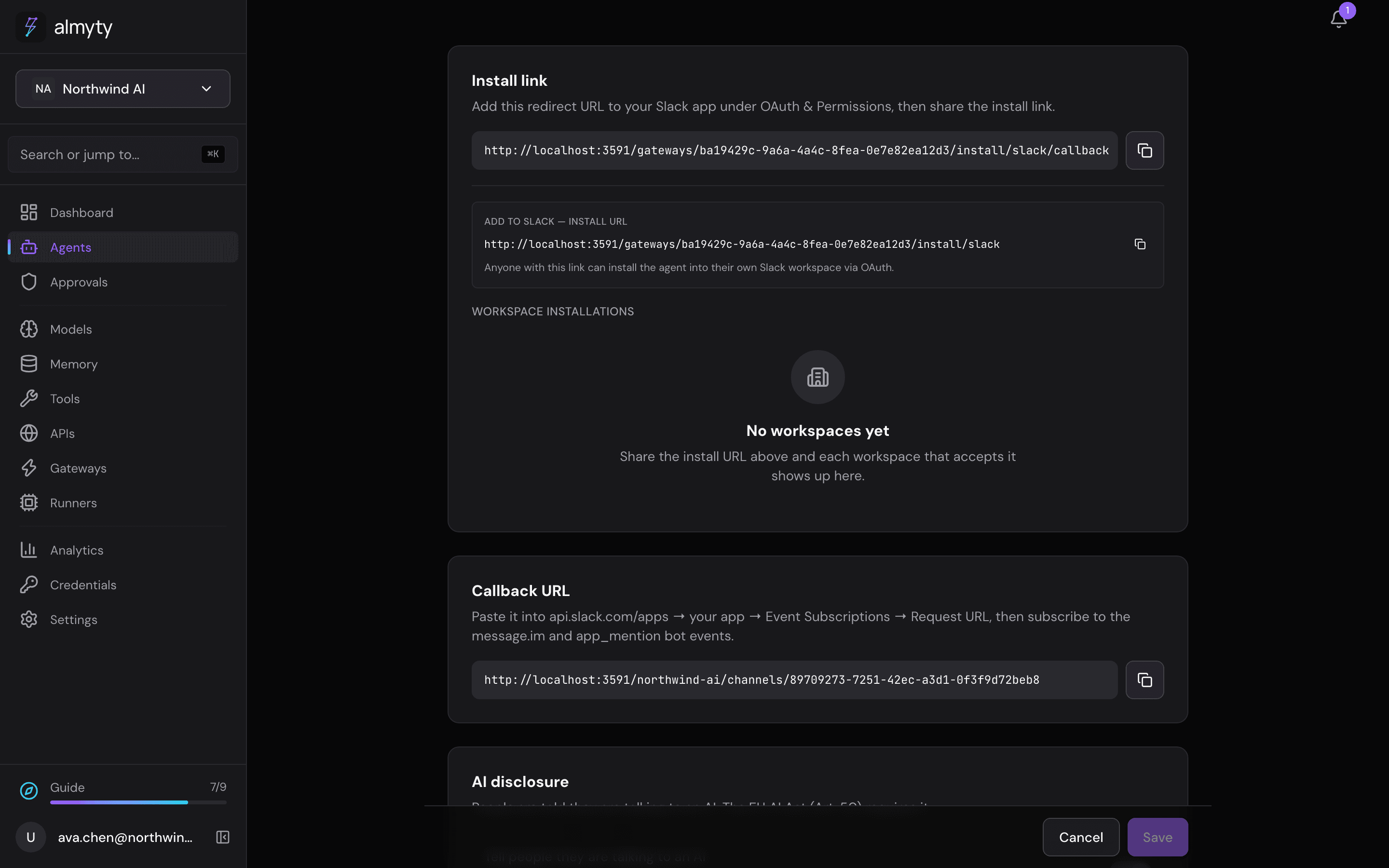
Publishing again after a change simply updates the live channel. Unpublish stops the channel answering without deleting it, so taking an assistant off Slack for an afternoon does not mean setting up the Slack app again: publishing again keeps the same address and keys.
Send scheduled results to a channel
A published messaging channel can also start a conversation. An agent’s schedule can send each result to it: a sales summary to a Slack channel every weekday at 8:00, a report to a Teams chat, an email to the team. On the schedule page, under Send the result to, choose the channel and where in it: a Slack channel the bot is in, a Teams channel or chat where the bot has been talked to, email addresses, or a phone number. The web chat, the widget and the apps only answer people who are there, so they are not offered.
The message goes out like a reply: from the same bot, with the channel’s AI disclosure line at the top, and counted against the channel’s spending limit. A message the app refuses shows on the run and in your notifications.
Web chat
The Web chat is a chat page on its own address, with your assistant’s name, greeting, colour and AI disclosure and none of the almyty dashboard around it. Its address is made from the assistant’s name; change it under Address on the channel’s page. The address has to be free across almyty, and the page tells you when another web chat already has it. After you publish, the link shows straight away. Your own domain and the websites allowed to embed the chat are on the same page. Visitors can attach images, PDFs and text files next to the message box, up to five per message.
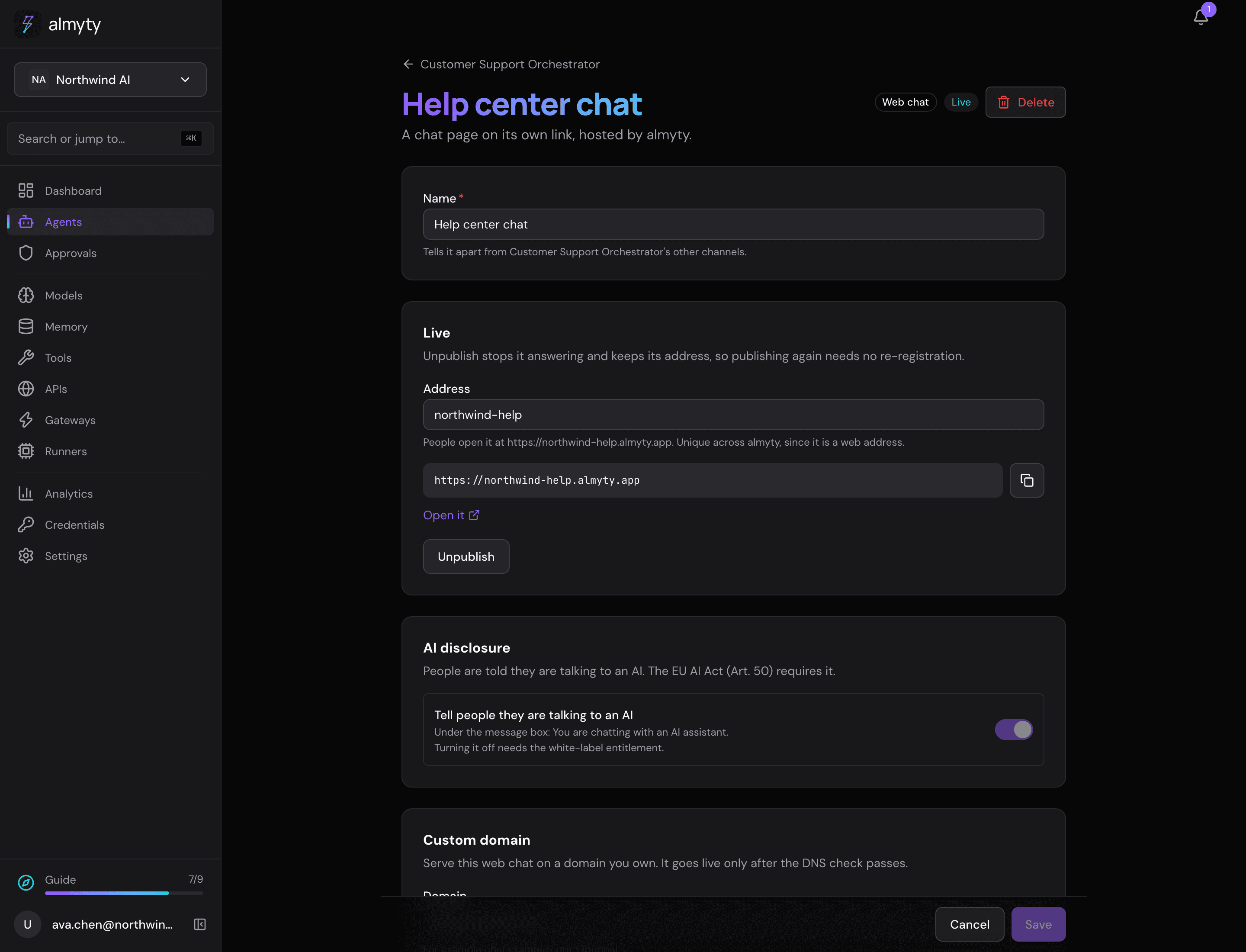
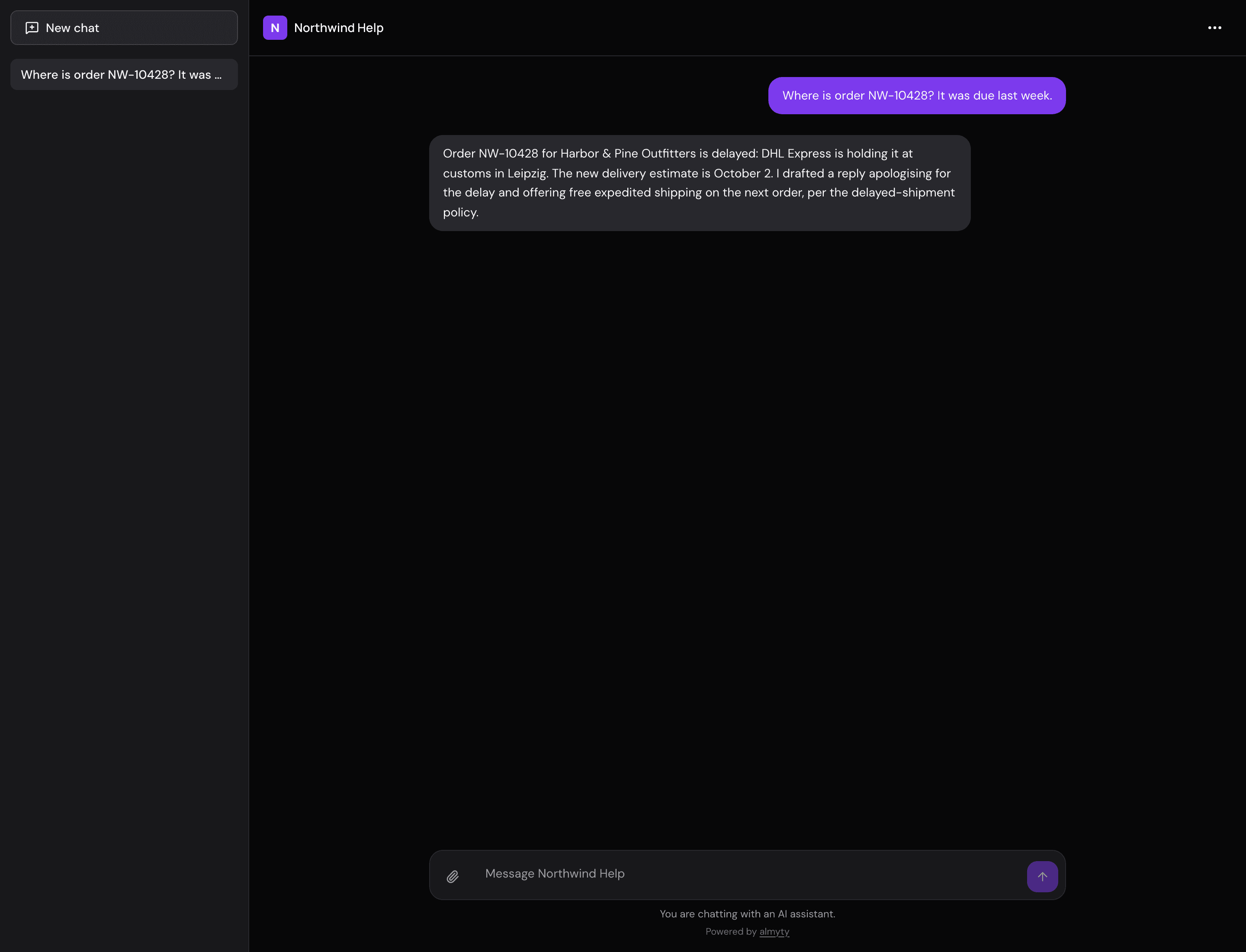
See Hosted chat app for addresses, your own domain and running it on your own servers.
Website widget
The Website widget puts your assistant in a chat bubble on a website you already have. Publish it, and its page gives you one line to paste into your site, just before the closing body tag (whoever edits your website will know where that is).
The widget takes its colour, name, greeting, theme and AI disclosure from the assistant’s branding (or the channel’s own), so it looks like the web chat. On its page you choose where it sits (bottom right or left) and its button icon, with a live preview, and list the websites allowed to show it.
The widget has no sign-in: anyone on an allowed site can use it, within the spend and message limits (each conversation counts as one visitor). So it only goes on a channel anyone can use. Visitors can attach images, PDFs and text files with the + next to the message box. When you allow it, the widget offers Download my chat and Delete my chat.
Other agents (A2A)
Other agents (A2A) lets AI agents elsewhere call your assistant, using the shared agent-to-agent standard. Publish it, and its page shows the addresses the other agent needs. Under How other agents sign in, make a key for each caller. Each key gets its own share of the per-visitor message limit, and every task runs under the spend limits. The channel answers only while it is published and the assistant is active. See A2A.
AI disclosure
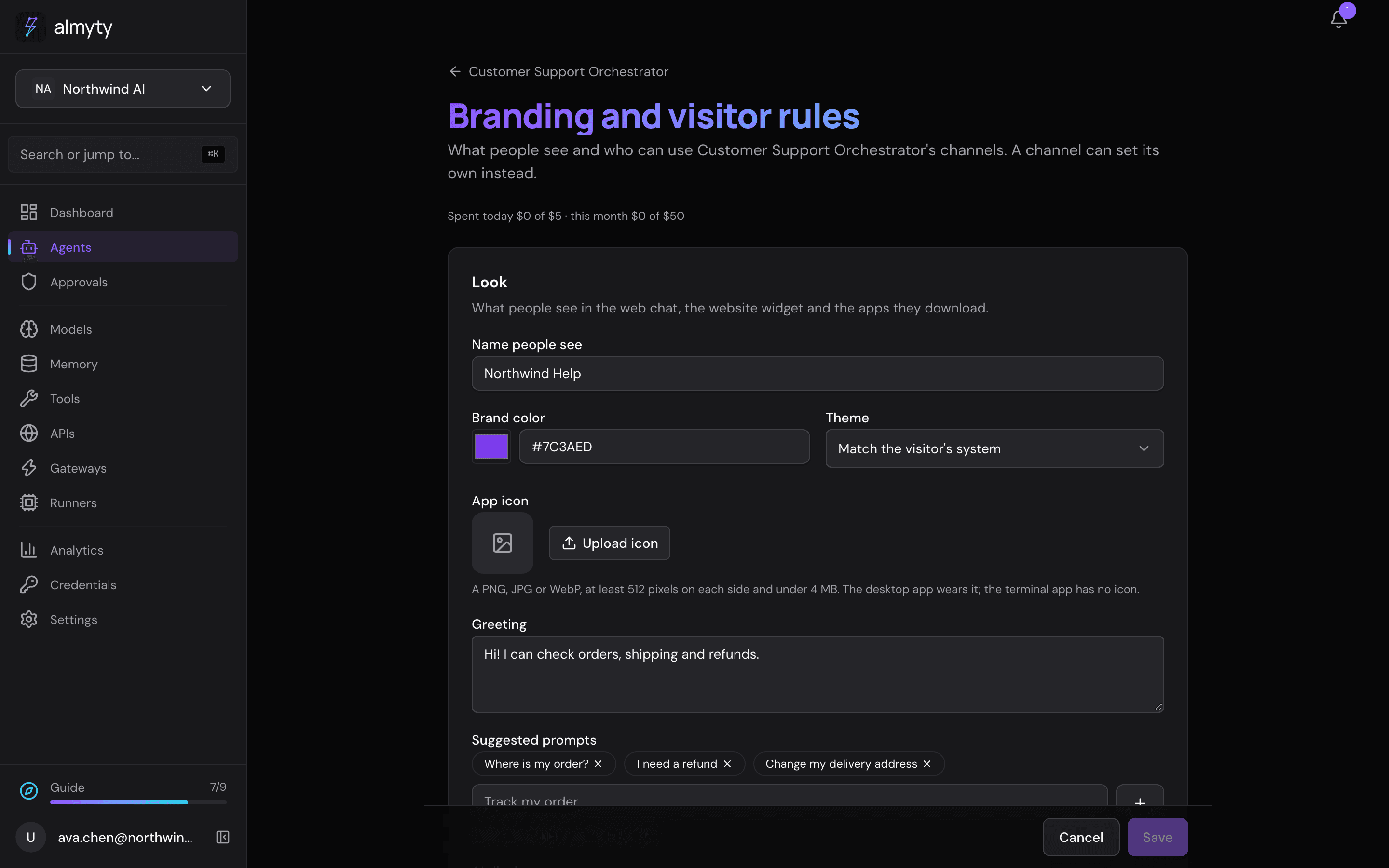
Every channel people talk to (the web chat, the website widget and each messaging app) has an AI disclosure switch, on by default. The web chat and widget show the disclosure line under the message box; a messaging app sends it before the first reply of each conversation. The line is the one set in Branding and visitor rules (or the channel’s own), and You are chatting with an AI assistant. when none is set. Turning it off needs the white-label option. See Compliance.
What a public channel needs before it goes live
While you are still editing, the channel’s page lists what stops it being published, so you are not surprised when you click Publish. For anything open to the public:
- A spend limit. Anyone with the link or the download can spend against your AI provider account, so a channel open to anyone needs a spend limit per run.
- Message limits. One visitor must not be able to use the assistant up for everyone else. There are separate limits per visitor and per internet address, because a web chat visitor has no account.
- No access to the visitor’s computer from a public download. A desktop or terminal app that works with files on the machine it is installed on cannot also be open to anyone.
When nobody has chosen who may use a channel, it counts as open to anyone, and the limits above apply. A limit left empty counts as not set, never as zero.
For developers
The website widget line:
<script src="https://<api-host>/gateways/<gateway-id>/widget.js" async></script>The A2A channel serves an Agent Card and a JSON-RPC endpoint at https://<api-host>/<org>/channels/<channel-id>. Each caller sends its key in the x-api-key header.