Runners
A runner is a small program you install on a computer or server of your own (a laptop, a build server, a cloud machine, anything that runs Node) so your agents can do work there. With a runner, an agent can run a build on your build server, read a report that only exists on one machine, or start a coding assistant on your laptop, all without that machine being opened up to the internet.
Don’t want to keep a machine running? Hosted machines are machines almyty runs for you, on the Hosted tab of the same page.
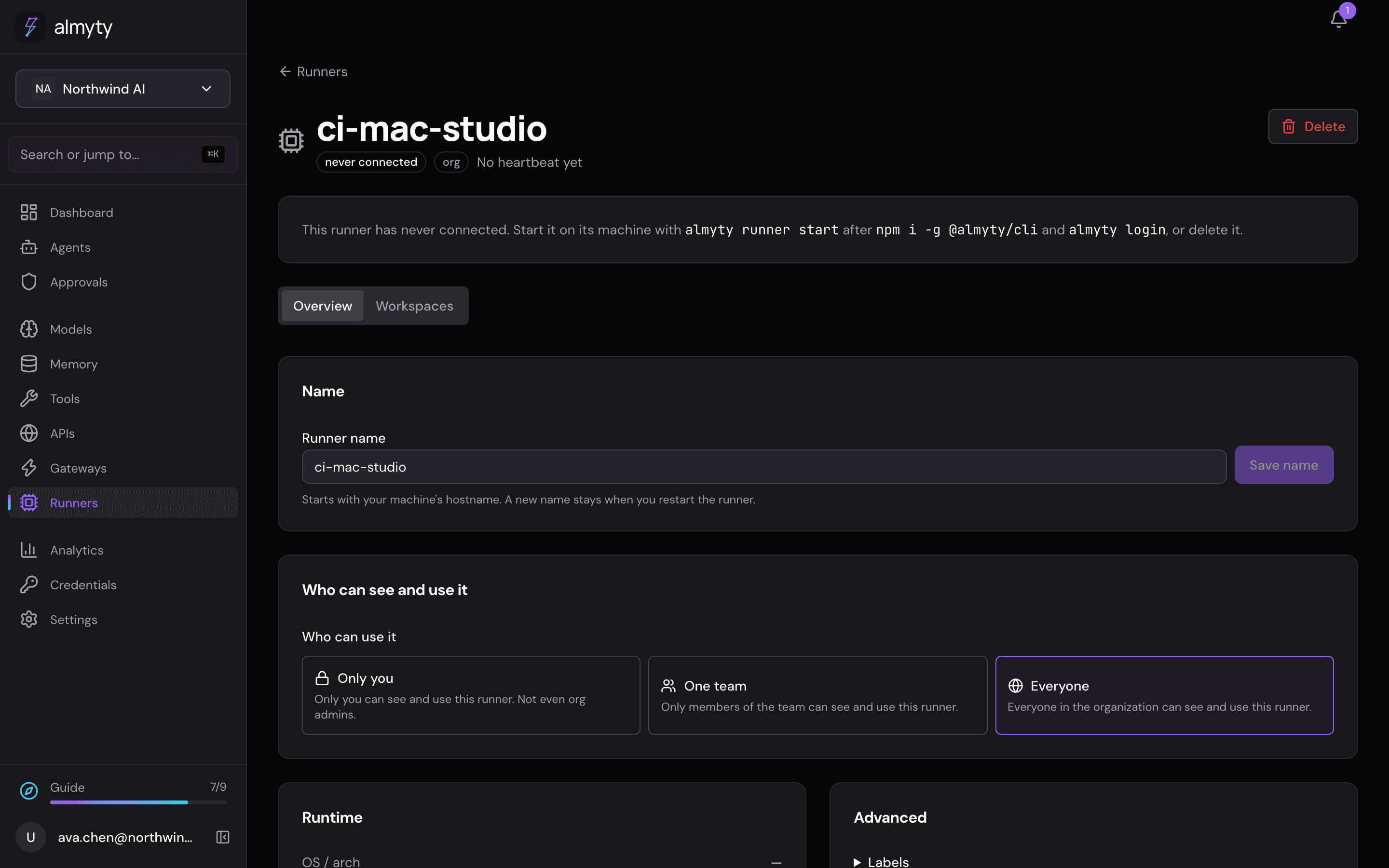
Start a runner
- Open Runners in the sidebar and click Start a runner.
- Keep or change the suggested Name. Optionally add Labels: short tags that say what the machine has, such as
os=macorgpu=yes(see below). - Under Who can use it, choose Only you (the default), One team or Everyone.
- Click Generate command. The page shows three commands with your runner’s name filled in: install once, log in as yourself, start it.
- Run them on the machine. When the runner reports in, it shows as online on the Runners page.
You can go back and change anything before the runner connects, or cancel, which deletes it again. To stop a runner, run almyty-runner stop on the machine or press Ctrl-C in its terminal.
Your login is what connects the runner, not its name. The runner uses the almyty login you made on that machine. Names are unique in an organization, so someone who knows yours is refused, and no other member can take over your runner.
Who can use it. A private runner is listed and used only for its owner (not even organization admins see it), and anything it publishes is private too. One team and Everyone open it to a team or to every member.
Each account has one runner for now. Starting a second one under another name is refused until you delete the first.
What an agent can do on it
A runner lets an agent run programs and read and write files on the machine, inside a folder set aside for the job (a workspace). So an agent can do whatever the machine can: run a build, look at data that only lives there, look after a server, or drive a command-line program it finds installed. What to do comes from the agent’s instructions; the runner just carries it out.
What the runner can do is published as tools, named after the runner. Add them to a gateway and any agent can use them: one you built here, or an AI assistant in your code editor.
Your agents’ own model calls still go through almyty, not the runner. Results of what ran on the machine go back to the agent, so running something locally does not mean its output stays on the machine.
Send work to a matching machine
Labels say what a machine has, such as os=mac or gpu=yes. Work that asks for labels only runs on an online runner that has all of them.
- For an agent: open the agent, click Edit, and under Capabilities → Machine fill in Machine labels (for example
gpu=yes, os=mac). The page lists the machines that match. Every runner tool the agent uses then runs on a matching online runner. - For a workspace: a workspace asked for with labels is placed on a matching online runner, and its work stays there.
Only runners the work is allowed to use count: a private runner takes its owner’s work, a team runner its team’s. When nothing matches, the call fails with a plain message such as “No machine with gpu=yes is online”. Upper and lower case don’t matter, and a runner may have more labels than asked for.
Coding agents
The runner can drive the common coding assistants that run in a terminal: Claude Code, Codex, Gemini, Cursor, aider and more. When it starts it looks for the ones installed (shown in the Coding agents card above) and can start them unattended: it signs each one in with the key you supply, keeps each one’s settings and session separate, lets it act without stopping to ask, and reports whether it is busy, idle or waiting for input. That is the building block for a team of coding assistants from different vendors working on the same code. You decide how they work together; the runner runs them.
Coding assistants started on the runner talk to their own AI vendor directly, with the key you supply, so those calls leave from the machine itself.
Workspaces
Work on a runner happens in a workspace: a folder on the machine reserved for one job for a limited time. You do not need to create one. When a run first uses a runner tool that works in a folder, almyty asks the runner to make one and uses it for the rest of that run. Another run gets its own.
- One job, one folder. Helper agents started by the run use the same folder when they use the same runner. A helper sent to a different runner gets its own folder there, still counted as part of the same job.
- Where it is. The folder is named after the agent and the run (for example
support-bot-1a2b3c4d) and lives in~/.almyty/workspaces/on the machine, unless the runner is limited to certain folders (then it goes inalmyty-workspaces/under the first of those). - When the job ends (the run and every helper it started have finished, failed, been cancelled or timed out), the workspace is released straight away and the runner is free for other work. While anything is still running, queued or waiting for input or approval, the workspace stays. Releasing a workspace stops its programs; the folder and its files stay on the machine.
- Time limit. One hour at most. If it runs out while the run is still going, the next call gets a new workspace in the same folder. If the runner goes offline, its workspaces are left stranded.
- Whose it is. The person who started the run, or the owner of the private or team gateway the run came through. A run through an org-wide gateway has nobody to hold a workspace, so its call fails and says so.
- How many. A runner holds a limited number of active workspaces at once. Past that, or when the runner cannot make the folder, the call fails with a message that says why, and the agent sees it.
Each runner’s page has a Workspaces tab listing the workspaces on it, active ones first, with the folder, the agent and run, status and time left, and a Release button on each active one.
- Everyone sees their own workspaces.
- A runner’s owner sees and can release every workspace on it.
- Organization owners and admins see and can release every workspace on team and org-wide runners. A private runner’s workspaces are its owner’s only.
A workspace is not a sandbox. Commands run as the machine’s user that started the runner, and can read any file that user can. Limit the folders and commands the runner may use, and read the runner safety limits.
For developers
Install once, log in, and start (the page fills in your name):
npm i -g @almyty/runner @almyty/auth
almyty-auth login
almyty-runner start --name my-laptop --org <org-id>
almyty-runner status- The runner exposes a generic process surface (spawn, shell, read, write, signal) scoped to a workspace. Its capabilities (such as
shell.execandrunner.info) are published as tools tagged with the runner’s name. - One runner per account is enforced by the backend (409 when you already have one under another name).
- A workspace’s folder goes under the first of the runner’s
allowedCwdRootswhen those are set. A runner holds at mostmaxConcurrentactive workspaces. - The Workspaces tab lives at
/runners/:id?tab=workspaces. Anyone not allowed to see a workspace is told it was not found. - There is no create button for workspaces. A script can make one with
POST /workspaces, passing the folder (cwd) and the runner (runnerId, orlabelsto let almyty pick a matching runner). Pass the result to a tool call asworkspaceId. - The runner uses host execution, not a filesystem or network sandbox.
Related
- Gateways: publish a runner’s tools so agents can call them
- CLI: the runner: install and flags
- Self-hosting: run almyty itself on your own servers