Internal help desk in Teams or Slack
Give your staff one place to ask everyday questions: “How many vacation days do I have left?”, “Can I get a new laptop?”, “What is the guest Wi-Fi?”. An assistant in Microsoft Teams or Slack answers from your HR and IT systems and from what you tell it, and says where each answer came from. Your HR and IT teams get fewer repeat questions.
This guide builds it for Northwind’s staff. It takes about 20 minutes and there is no code in it. Adding it to Teams needs someone who can register an app in your Microsoft account (usually IT).
What you need
- An almyty account with an AI model connected. If you have not done that yet, follow step 1 of the customer support guide.
- Your intranet or HR system’s API description (a file or link listing what the system can do, often called “OpenAPI” or “Swagger”). An API is the way one piece of software talks to another. Northwind’s intranet can search the staff handbook, look up leave balances and open IT requests.
- For Teams: an Azure bot registration. For Slack: a Slack app (see the sales guide).
1. Connect your intranet
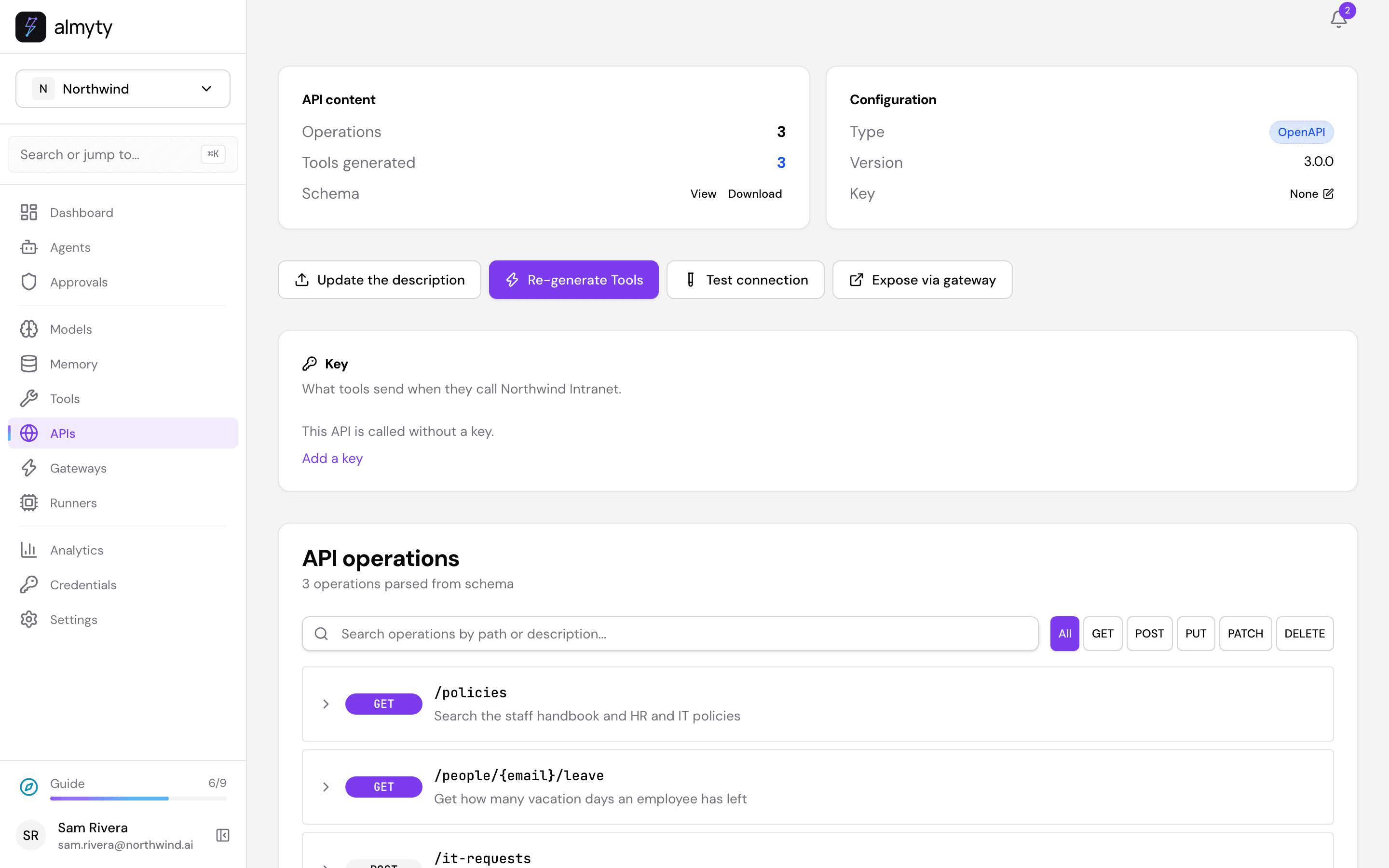
In the sidebar, open APIs and click Connect an API. Pick OpenAPI / Swagger, paste the link to your intranet’s description on Link (or pick File and upload it), and click Connect API.
almyty works out what it can do: search the handbook and policies, get an employee’s leave balance, and open an IT request.
2. Add your office guide
Some answers are not in any system: the Wi-Fi, office hours, where to park. If you already have them written down, for example in an office guide, add that text to Memory once.
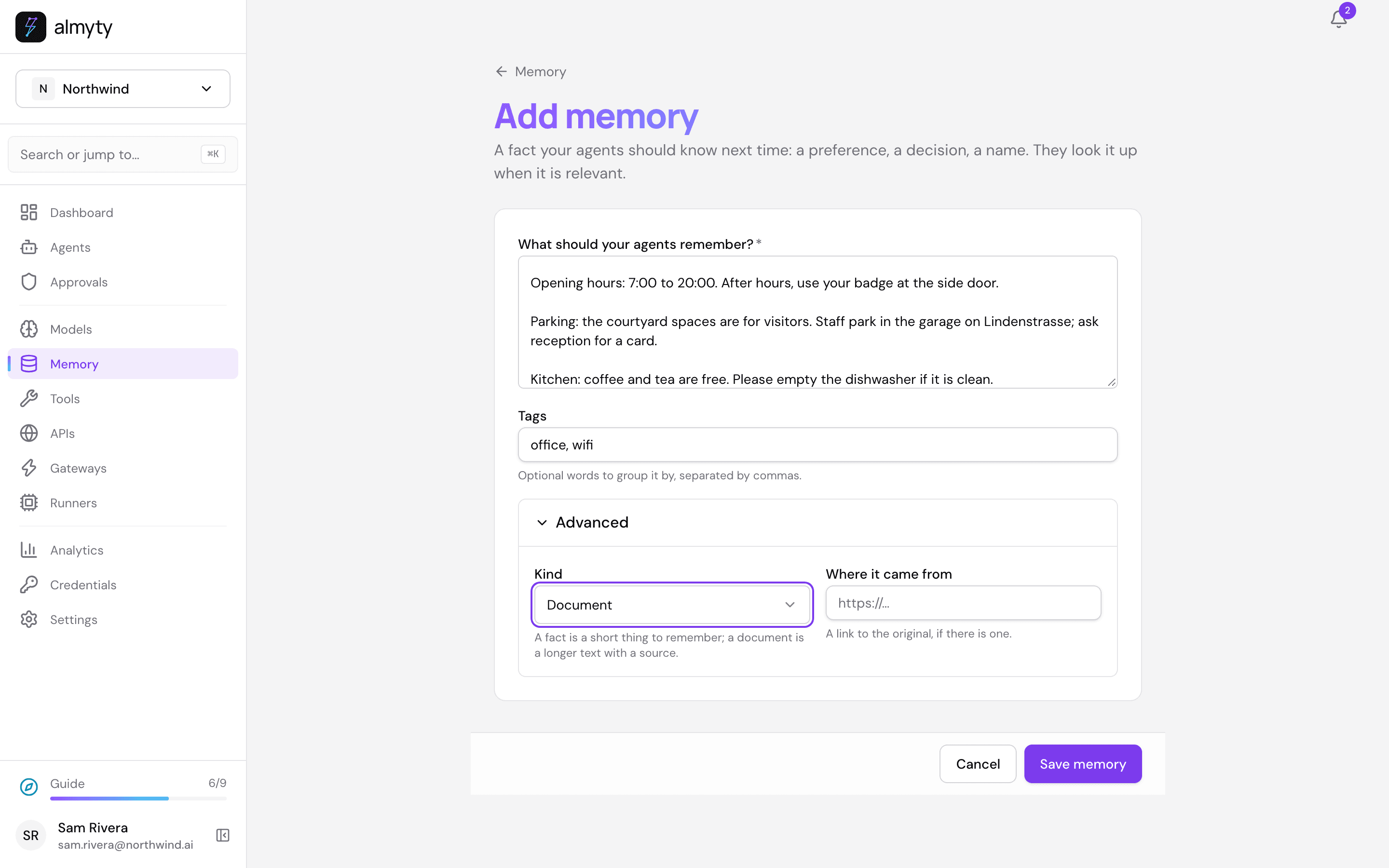
In the sidebar, open Memory and click Add memory. Under What should your agents remember?, paste the whole guide, for example:
Office guide, Leipzig office.
Wi-Fi: guests use NW-Guest; the password changes every Monday and is on the card at reception. Staff laptops join NW-Staff automatically.
Opening hours: 7:00 to 20:00. After hours, use your badge at the side door.
Parking: the courtyard spaces are for visitors. Staff park in the garage on Lindenstrasse; ask reception for a card.
Kitchen: coffee and tea are free. Please empty the dishwasher if it is clean.
Add Tags if you like (office, wifi). Open Advanced and set Kind to Document. A document can be as long as you like: for each question, the assistant reads only the parts that answer it. If the guide lives somewhere else too, paste its link into Where it came from. Click Save memory.
Everything you add on the Memory page is read by every assistant whose memory is shared, which is what you set up next.
3. Create the assistant
Open Agents, click Create agent and pick Autonomous at the top.
- Click the name New agent and call it
Ask HR and IT. - Work mode, the first section: open Model and pick one.
- Personality & style:
Friendly and to the point, like a helpful colleague. - Instructions:
You answer questions from Northwind staff about HR, IT and the office. Look things up before you answer: the staff handbook and policies, their leave balance (ask for their work email if you need it), and the office guide in memory. Say where the answer came from. If someone needs something done by IT, tell them how to open an IT request. Never share one person’s details with another.
Further down, under Memory, turn on Remember between conversations, set Whose memory to Shared by all agents (so it reads what you added in step 2) and What it saves to Only when asked (so it does not fill your shared memory with chat). Under Capabilities → Tools and APIs, tick All tools next to your intranet.
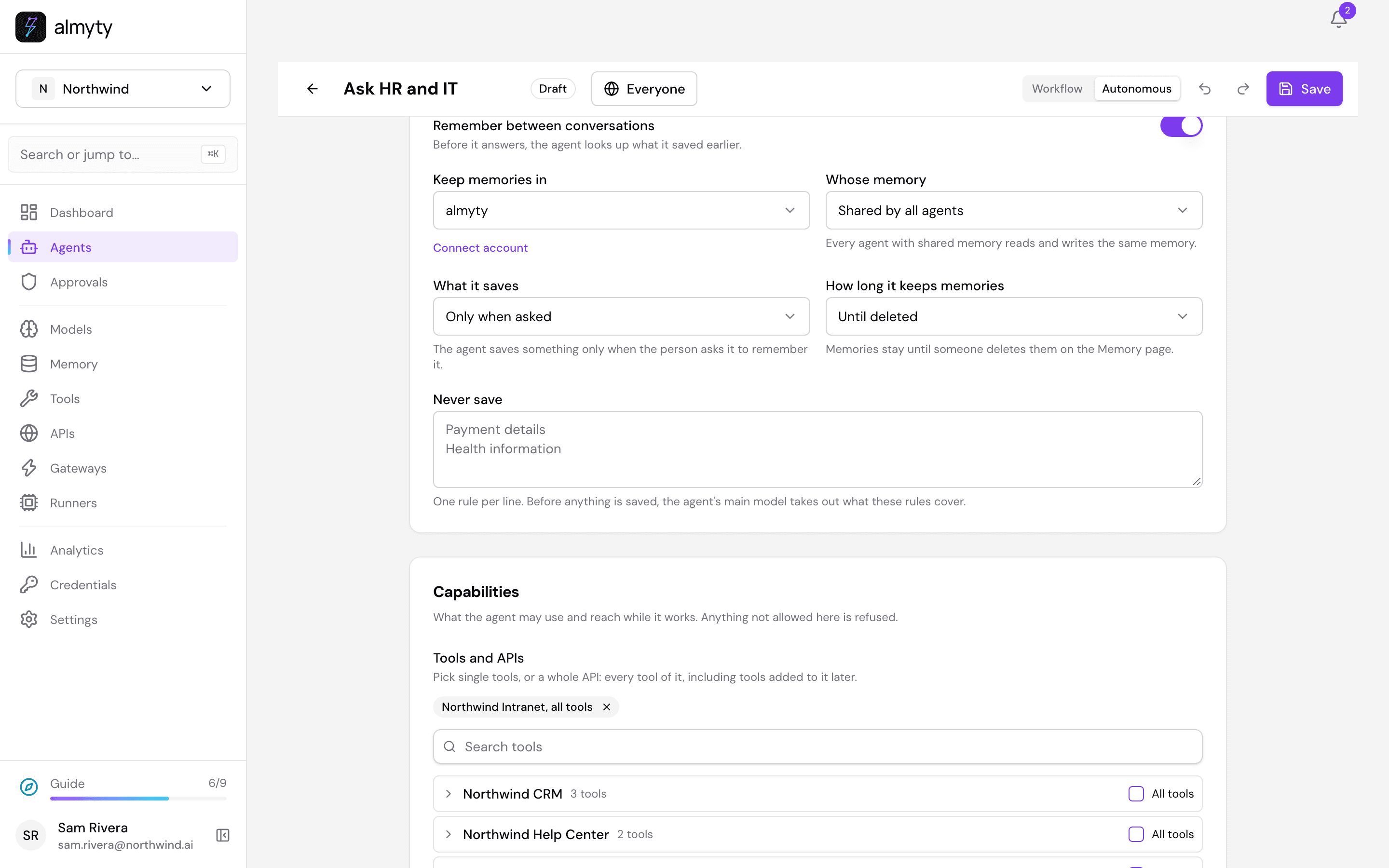
Click Save, go back to Agents, open Ask HR and IT and click Activate.
4. Try it
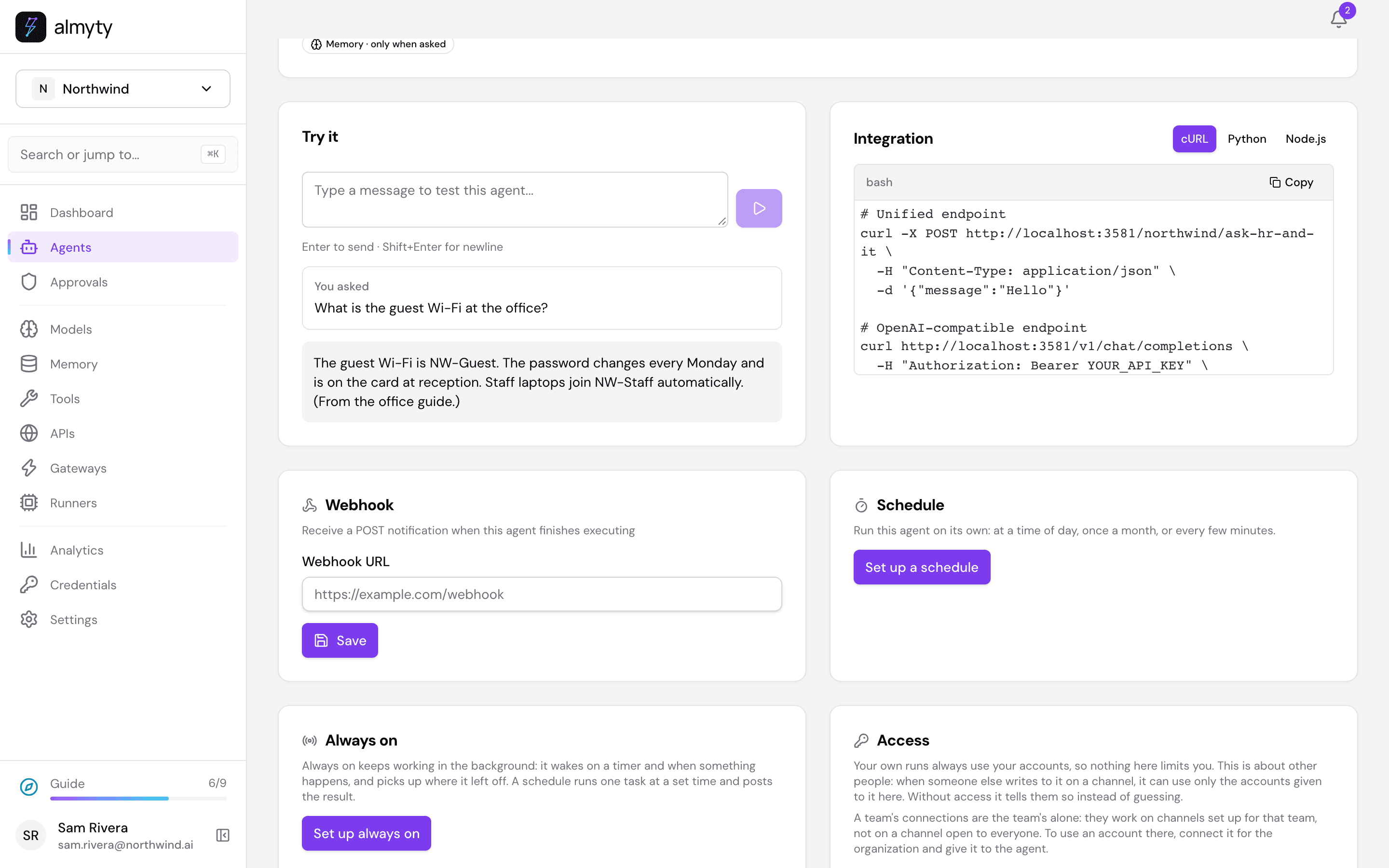
On the Overview tab, under Try it, ask: How many vacation days do I have left? My email is sam.rivera@northwind.example.
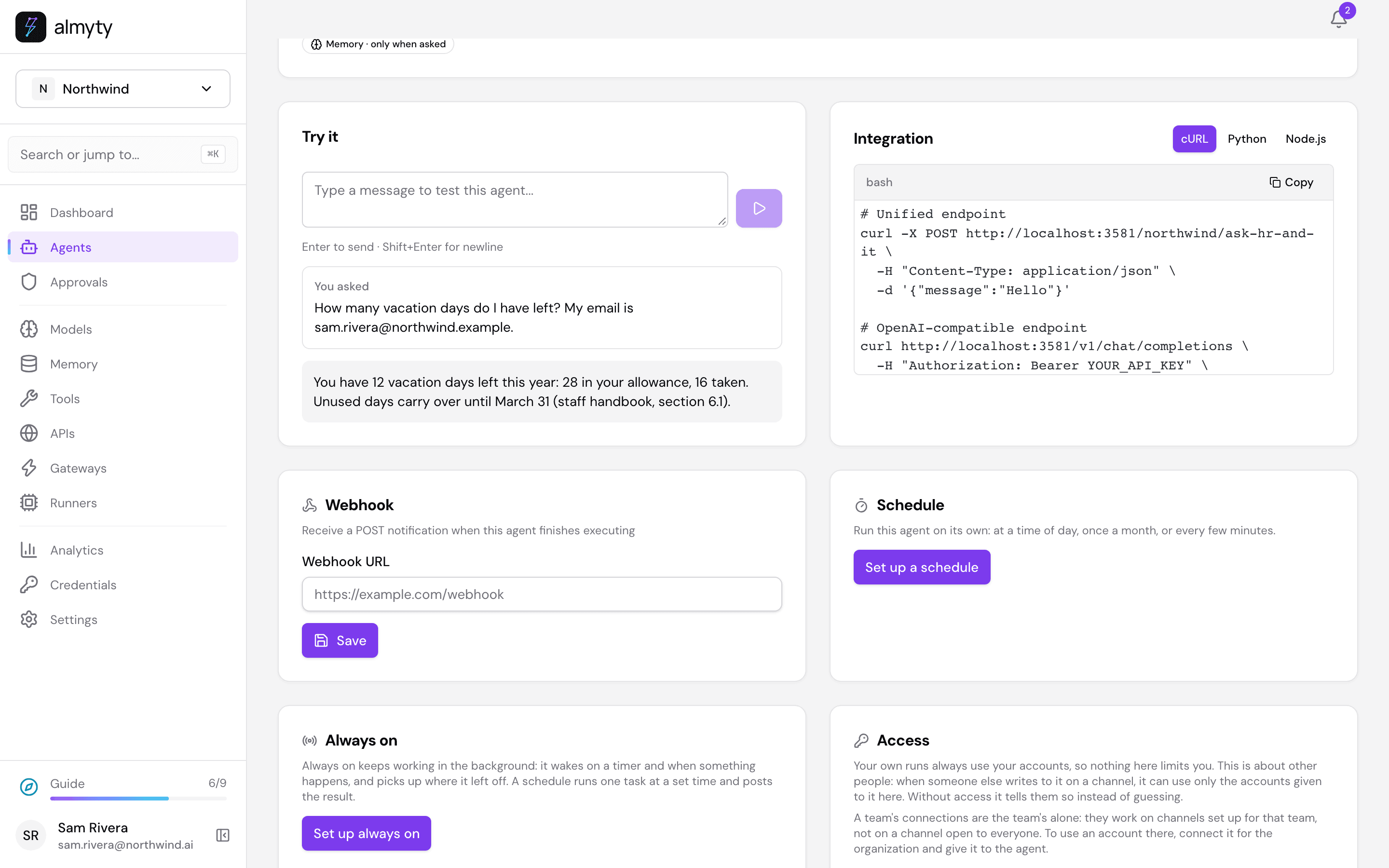
It looked the balance up in the intranet and answered with the numbers and the handbook section. Now ask something only the office guide knows: What is the guest Wi-Fi at the office?
5. Put it in Microsoft Teams
Open the assistant’s Channels tab, click Add channel and pick Microsoft Teams. Under Keys, click Create one here.
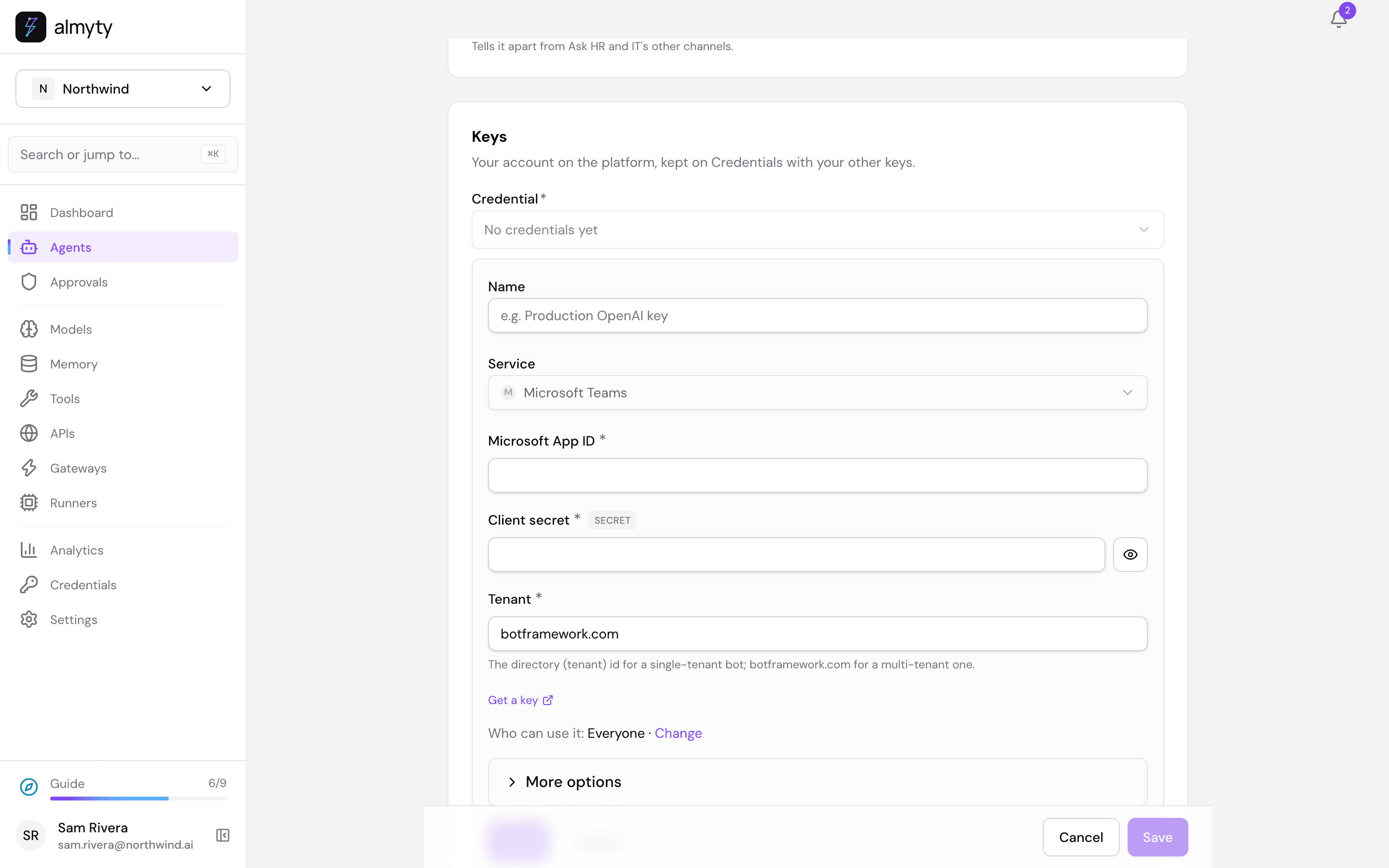
In Azure (your IT team can do this part): create an Azure Bot resource. From it, copy into the almyty form:
- Microsoft App ID: the bot’s app ID.
- Client secret: a secret created for that app.
- Tenant: your directory (tenant) ID for a bot only your company uses, or leave
botframework.comfor one other companies can add too.
Click Save under the form. Then, in the Azure bot’s Configuration, set the Messaging endpoint to the Callback URL almyty shows on the channel page, and turn on the Microsoft Teams channel in Azure. Back in almyty, click Save at the bottom and Publish.
Staff can now find the bot in Teams and message it directly, or add it to a team chat. In a group chat it knows who is asking.
Prefer Slack? Add a Slack channel instead (or as well). The steps are in the sales guide. The same assistant can answer in both.
Good to know
- Only staff can reach it. A Teams or Slack bot answers people in the organizations or workspaces where it is installed. In Teams, entering your own tenant ID keeps it inside your company.
- Private details stay private. The instructions tell it never to share one person’s details with another. For a firmer line, give it only the tools it needs, and remove any that could look up someone else’s records.
- Keep answers current: when something changes, delete the old guide on the Memory page and add the new one. The next answer uses it.
- See what people ask: every question is on the assistant’s Runs tab. Recurring questions are a good sign that a handbook page needs rewriting.
For developers
- This walk-through is automated in
scripts/demo-seed/guides.mjs helpdeskagainst the local demo stack, which serves a small fake intranet. - An autonomous agent looks up memories before each answer: facts, and memories you add as Document (under Advanced → Kind). A document is searched in passages, so the agent gets the parts that relate to the question. For text that changes often or lives in another system, connect that system as an API instead. See Memory.
- Teams channel details, including how incoming messages are verified: Chat apps.