Nightly systems report
Set up an assistant that checks your systems every night and posts a short report to your team’s Slack channel: what needs attention first, then one line saying everything else is fine. Nobody has to open five dashboards in the morning.
This guide builds it for Northwind’s operations team. It takes about 20 minutes and there is no code in it.
What you need
- An almyty account with an AI model connected. If you have not done that yet, follow step 1 of the customer support guide.
- A system that can report on the others: a monitoring or status tool with an API (a way for software to ask it questions) and a description of that API, often called “OpenAPI” or “Swagger”. Northwind’s is called Northwind Status and checks the website, checkout, payments, backups and storage.
- A Slack channel for the report, and permission to add an app to your Slack workspace.
1. Connect what you want checked
In the sidebar, open APIs and click Connect an API. Pick OpenAPI / Swagger, paste the link to your status tool’s description on Link (or pick File and upload it), and click Connect API.
almyty works out what it can do. Here: check the health of every system, and list the background jobs that failed in the last day.
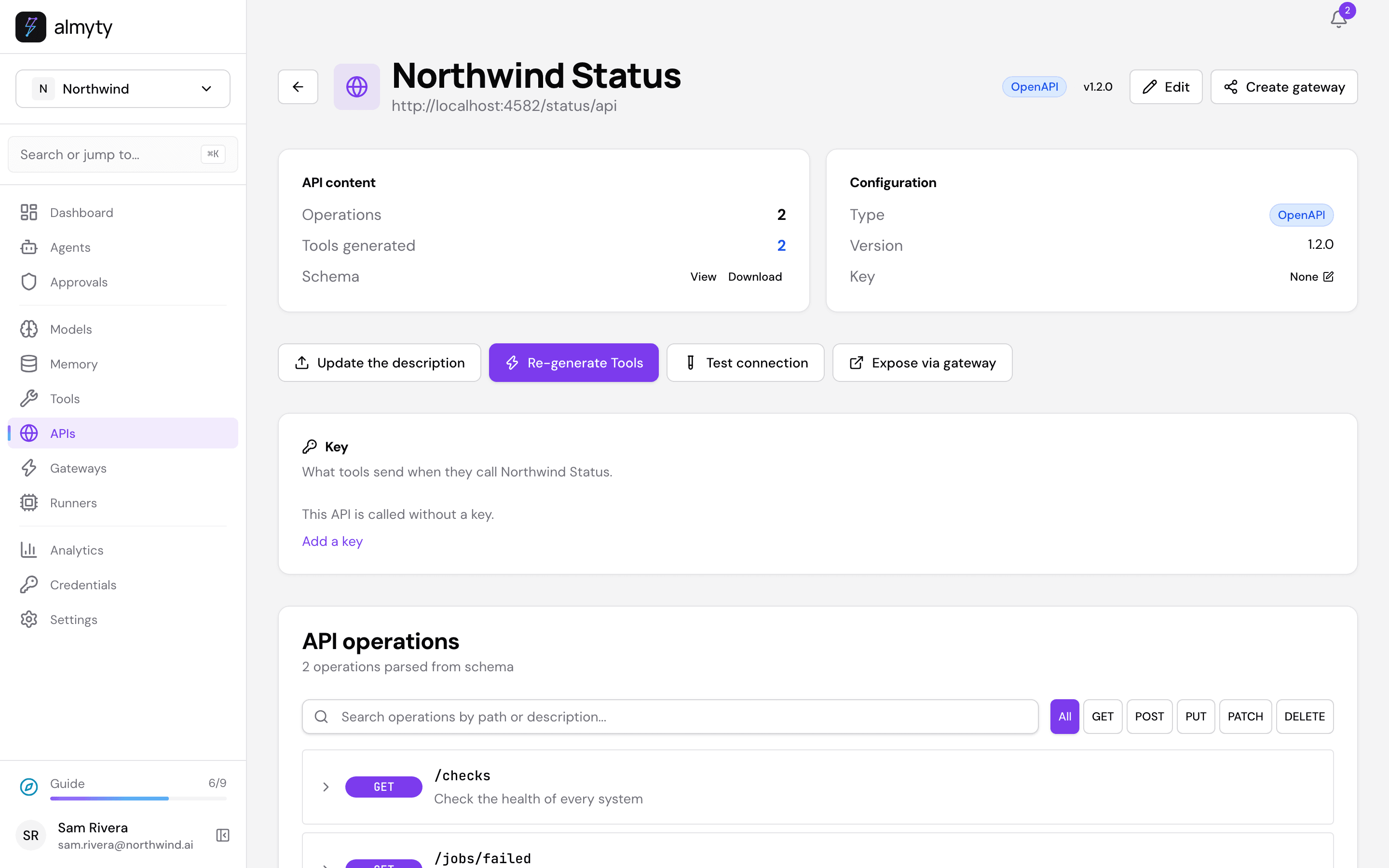
You can connect more than one system, for example your monitoring tool and your backup service. The assistant can use them all.
2. Create the assistant
Open Agents, click Create agent and pick Autonomous at the top.
- Click the name New agent and call it
Nightly systems check. - Work mode, the first section: open Model and pick one; a low-cost model such as gpt-4o-mini is plenty for a daily summary.
- Personality & style:
Plain and short. Lead with what needs attention. - Instructions:
Check the health of every Northwind system and write one short report: first what needs attention (anything degraded, failing or above 80% full) with the detail, then one line saying everything else is fine. If everything is fine, say so in one line.
Then scroll to Capabilities → Tools and APIs and tick All tools next to your status system.
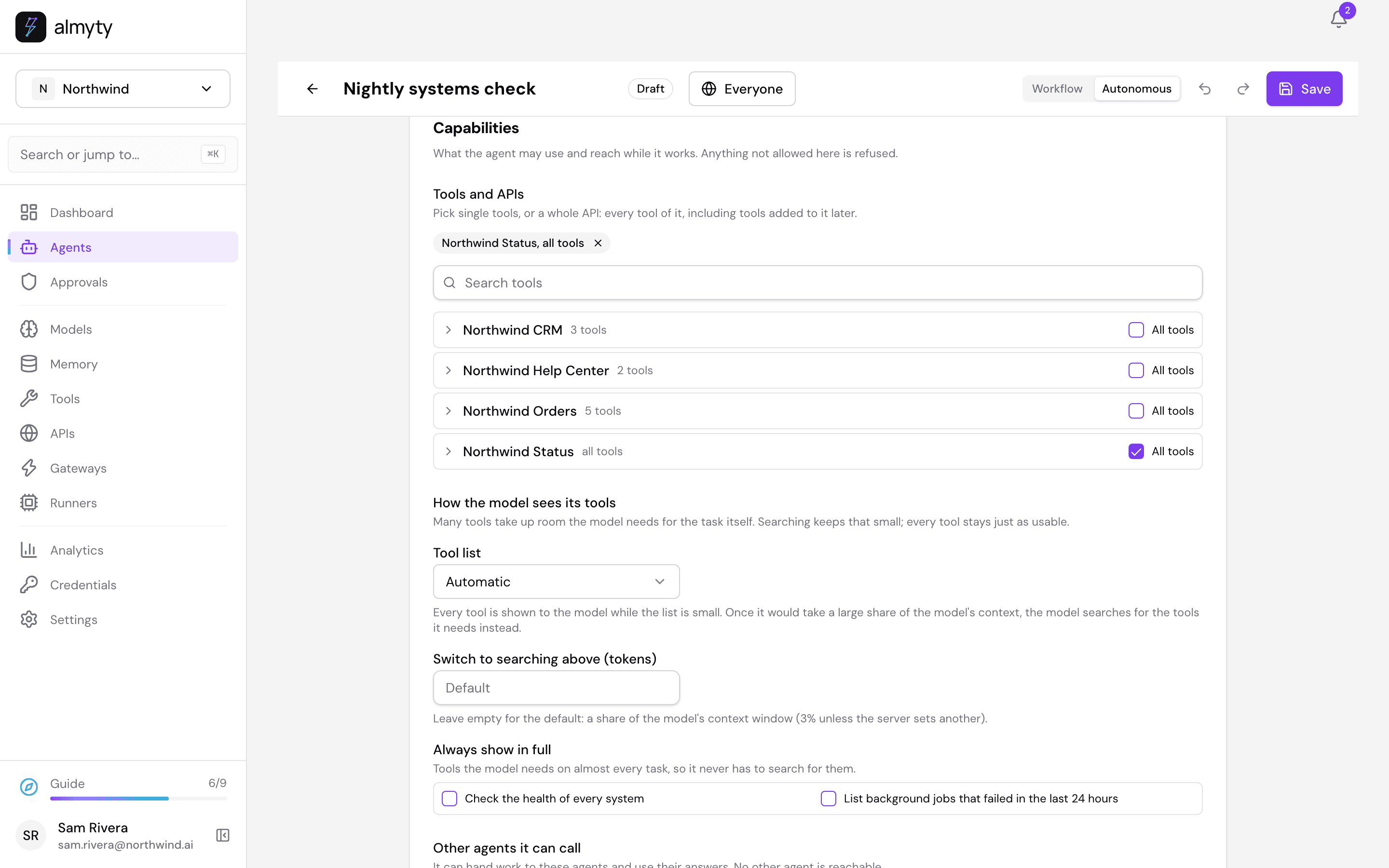
Click Save, go back to Agents, open Nightly systems check and click Activate.
3. Try it once
On the Overview tab, under Try it, type Run the nightly check. and press Enter.
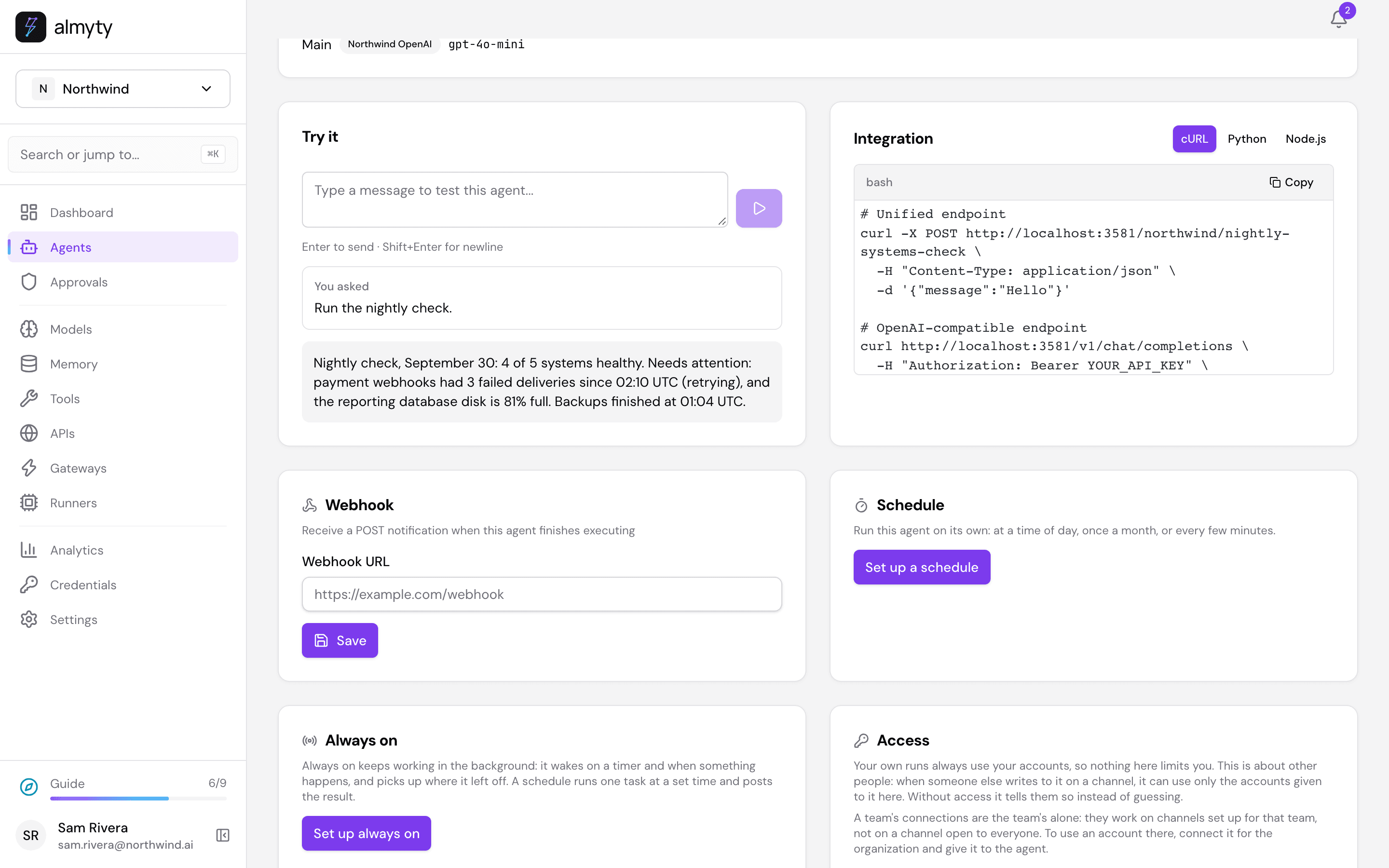
The assistant ran the health checks and wrote the report: “Nightly check, September 30: 4 of 5 systems healthy. Needs attention: payment webhooks had 3 failed deliveries since 02:10 UTC (retrying), and the reporting database disk is 81% full.” If it reads the way you want, it is ready for Slack. If not, change the instructions and try again.
4. Put it in Slack
The report goes to Slack through a Slack app that belongs to you. Open the assistant’s Channels tab, click Add channel and pick Slack. Under Add to Slack, click Create one here, fill in your Slack app’s details, click Save and then Publish. The sales guide shows each step, from creating the app in Slack to installing it in your workspace.
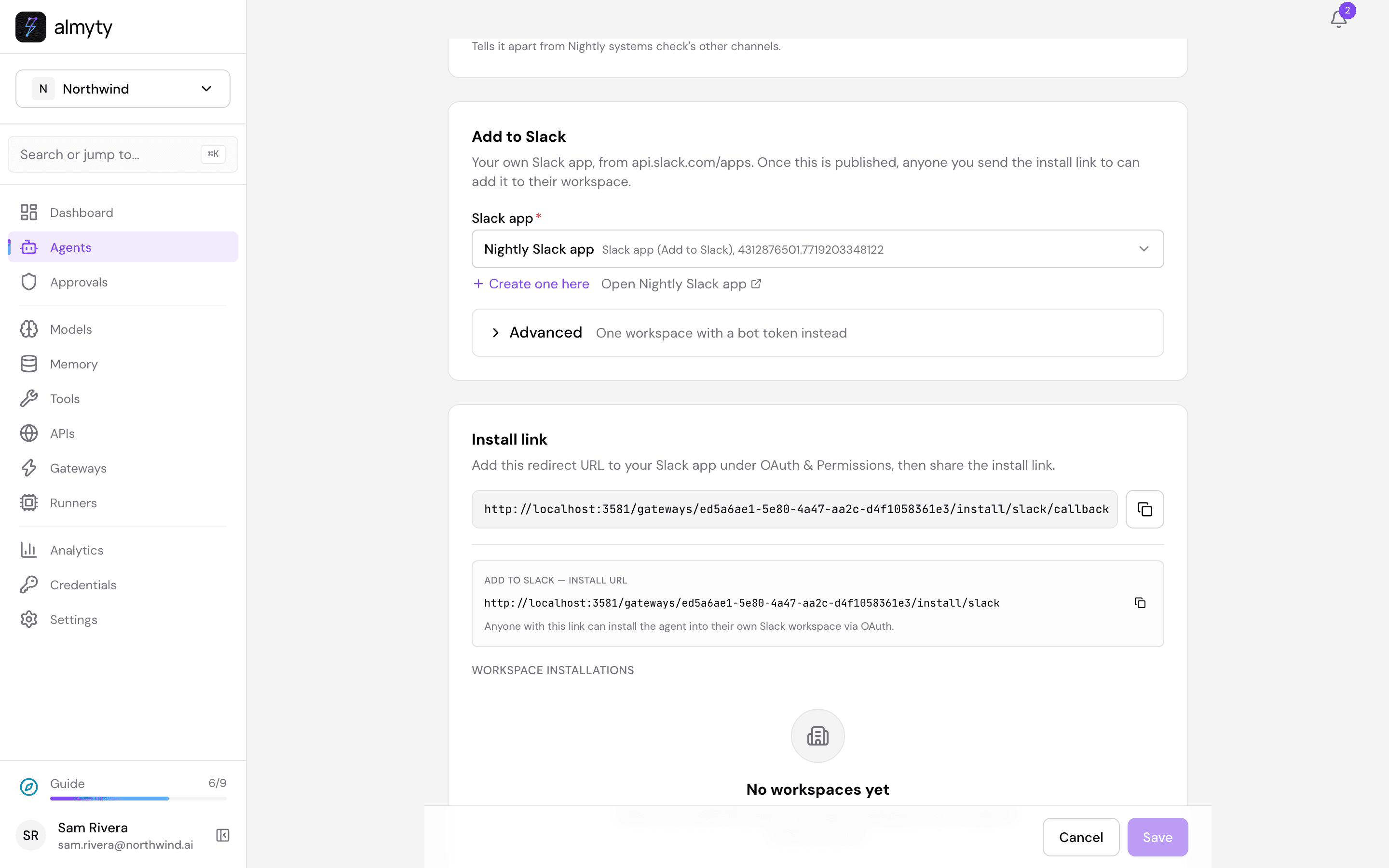
Once it is installed, invite the app to the channel the report should go to: in that Slack channel, type /invite @ followed by your app’s name. Then open the channel’s details in Slack (click its name at the top) and copy the Channel ID at the bottom, which looks like C07NWOPS01. You need it in the next step.
5. Make it run every night
Go back to the assistant’s Overview tab. On the Schedule card, click Set up a schedule.
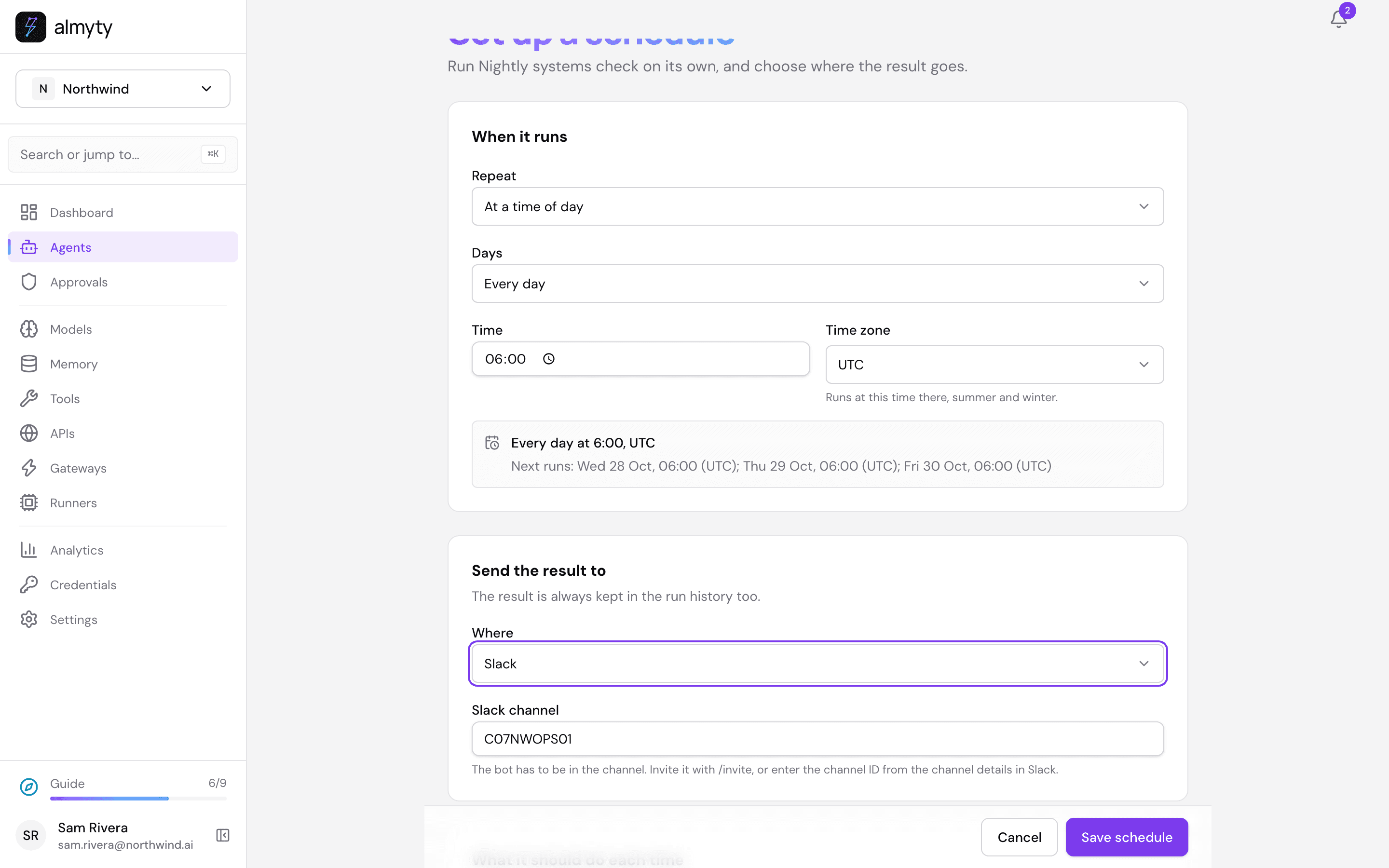
- Repeat: At a time of day.
- Days: Every day. (Pick Weekdays if nobody reads it at the weekend.)
- Time:
06:00, so the report is waiting when the team starts. - Time zone: check it. It starts as the one on your profile, and the assistant runs at that time there, in summer and in winter.
- Under Send the result to, set Where to Slack and paste the channel ID into Slack channel. (If the app can see your channels, you pick the channel by name instead.)
- Under What it should do each time, write the Message it gets:
Run the nightly check.
While you choose, the page says the schedule back in plain words, Every day at 6:00, and lists the next runs.
Click Save schedule. The Schedule card now says when it runs, when the next run is, and where the report goes. The switch on the card pauses it and keeps everything you set.
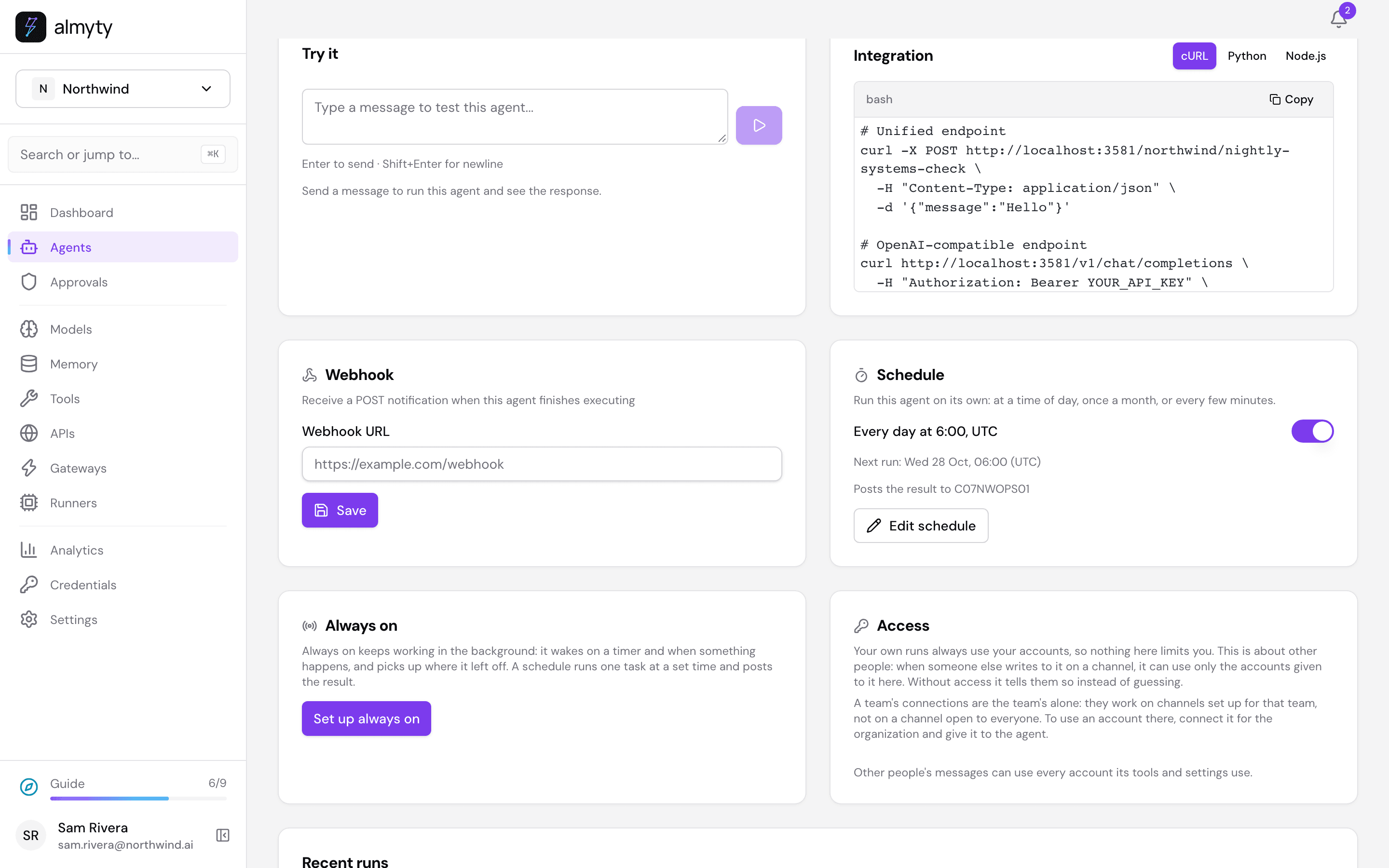
From now on it runs every morning on its own and posts the report to your channel.
6. See what it did
Every run is kept on the assistant’s Runs tab, and the latest ones under Recent runs on Overview. Open one to see each step: the health check it ran and what came back, the report it wrote, and what the run cost.
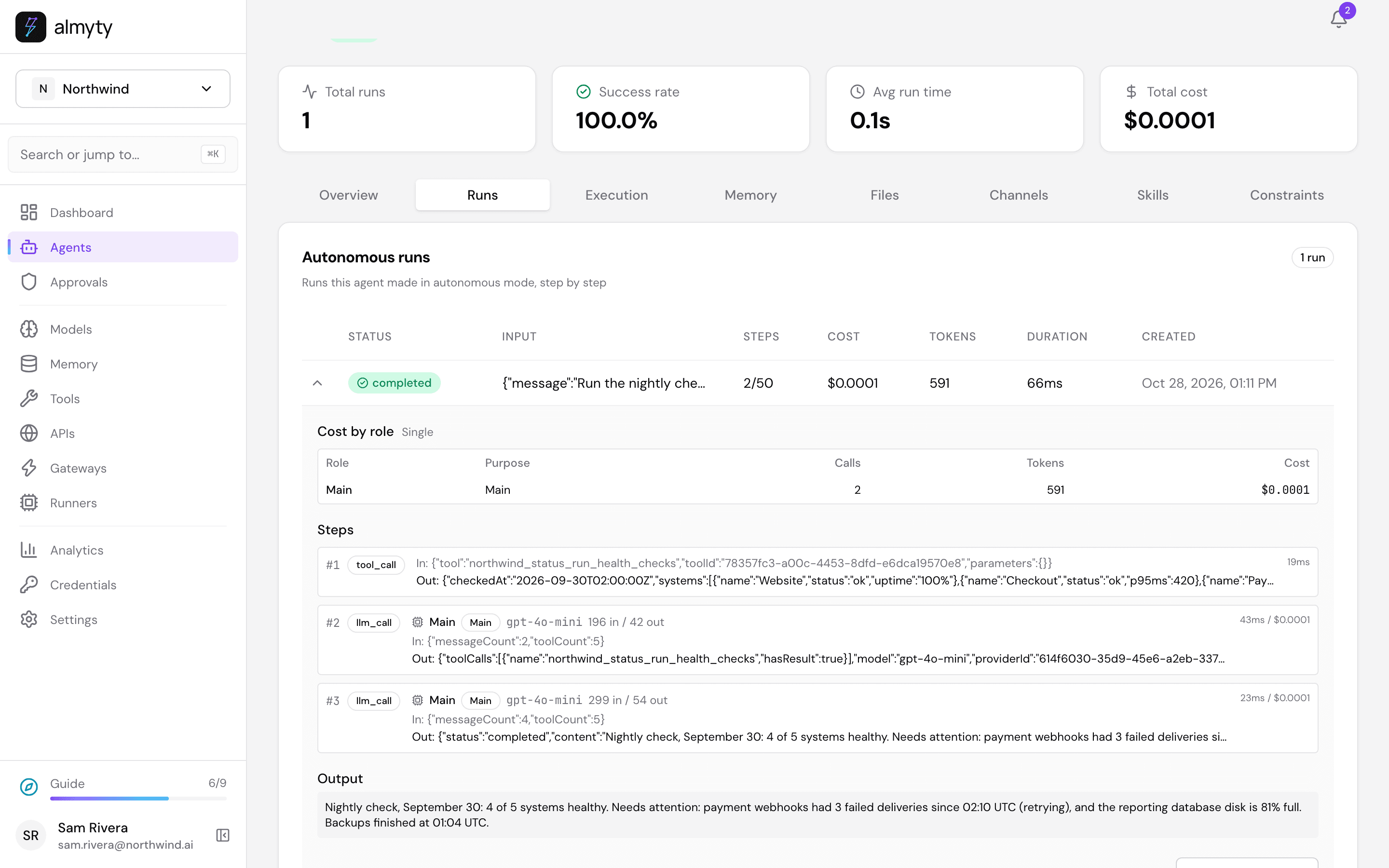
If a run fails, or Slack refuses the message (for example because the app was removed from the channel), Recent runs says so with the reason, and you get a notification in almyty.
Ideas
- Only speak up when something is wrong: change the instructions to “If everything is fine, answer with one line.” and keep the report short.
- More systems: connect your backup service or cloud provider and tick their tools too; the one report covers them all.
- Send it by email instead: add an Email channel to the assistant and choose it under Send the result to, with the addresses to send to. Teams, Telegram, Discord and others work the same way. See Scheduling.
- A second opinion: under Work mode, pick Cascade so a second model checks the report before it goes out. See Autonomous agents.
For developers
- This walk-through is automated in
scripts/demo-seed/guides.mjs operationson the local demo stack, which stands in for the status system. Nothing is posted to Slack there: the Slack app keys are placeholders, so the walk stops at saving the schedule. - The schedule is stored on the agent (
POST /agents/:id/schedulewithkind: "days",time,days,timezone,inputanddeliverTo: { kind: "channel", channelId, to }). A scheduled autonomous run goes through the same runtime as a chat message, so it can use its tools and ask for approval. See Scheduling. - The result is posted by the Slack channel’s own bot with
chat:write, split into several messages if it is long. Listing the channels by name needs thechannels:readscope; without it, enter the channel ID. - The agent’s Webhook card sends almyty’s own run summary as JSON to a URL of your choice instead; choose The agent’s webhook under Send the result to for that.