A refund assistant with safeguards
For teams that want an assistant to handle refunds but can’t accept “the AI decided to”. This example layers four safeguards on one assistant: firm rules it can’t argue with, a second AI model that checks every answer, a person who approves large refunds, and a record of everything it did.
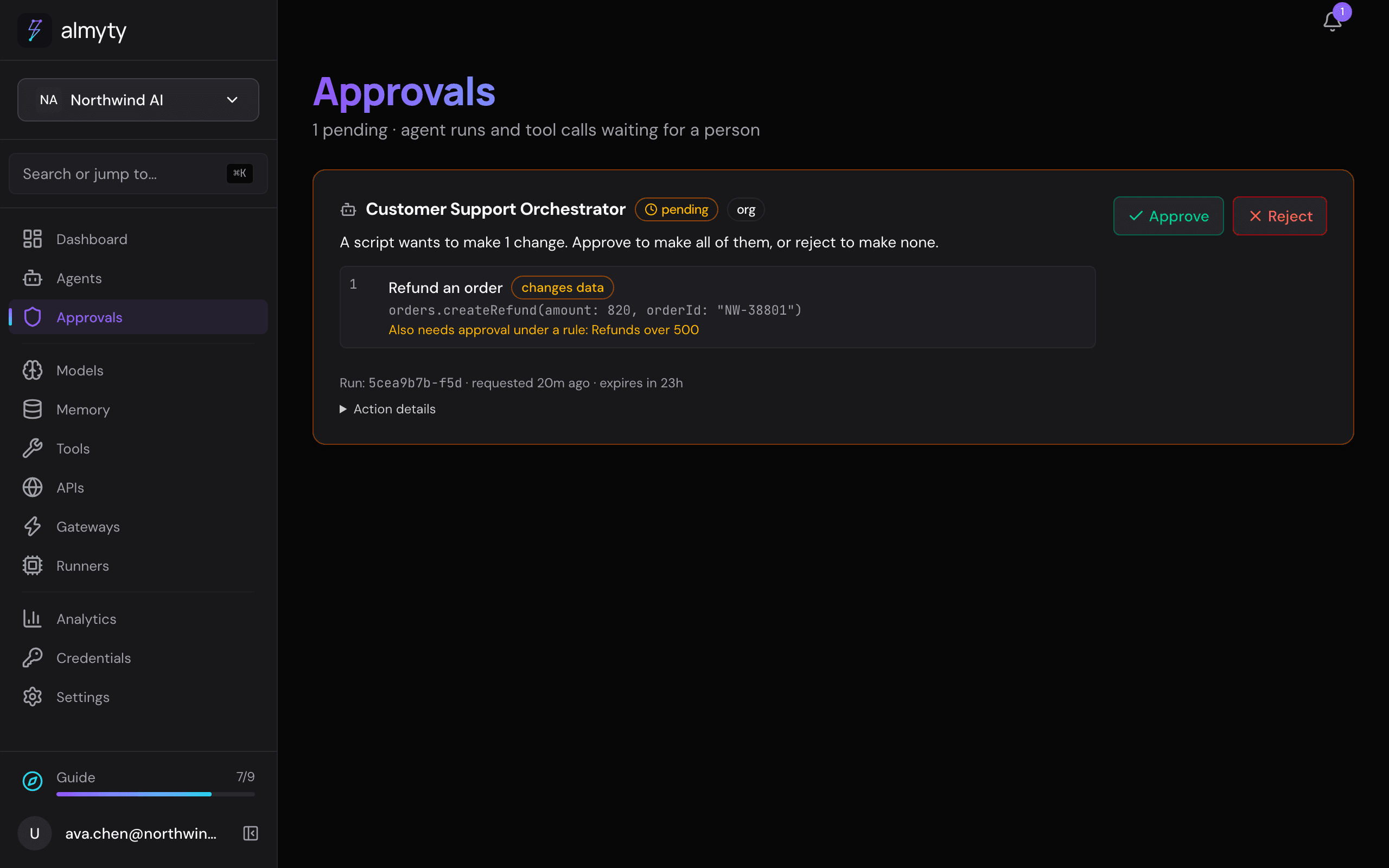
In the demo, the Customer Support Orchestrator stopped on a real case: Brightway Logistics asked for an $820 refund on order NW-44120, which arrived defective. That is over the $500 limit, so the assistant asked for approval and waited.
For a full walk-through with screenshots, see Customer support assistant.
What you need
- Your order system connected as an API, with “look up order” and “issue refund” operations.
- Someone who can approve refunds (an owner or admin of your organization).
How to build it
-
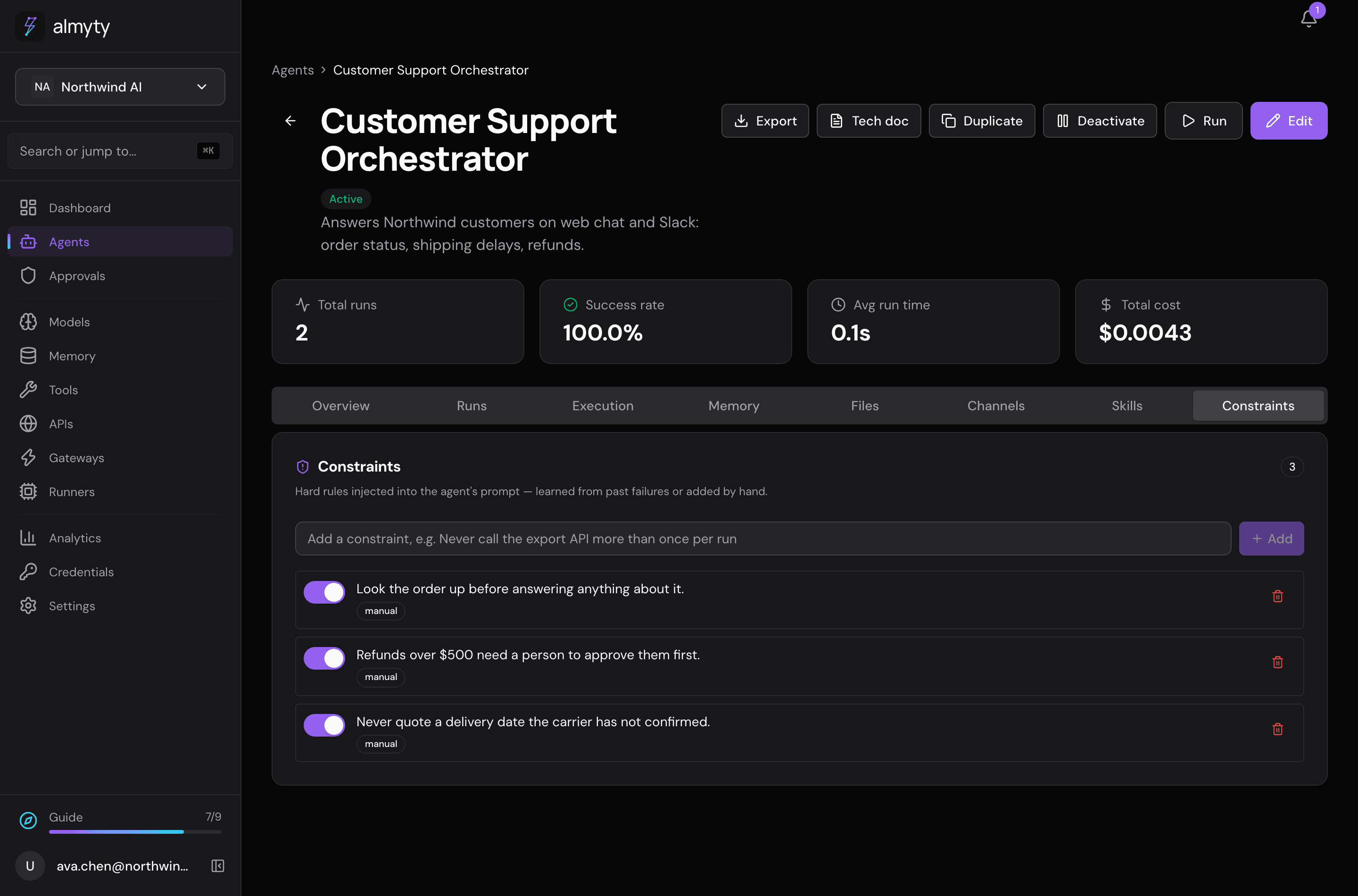
Write the firm rules. On the assistant’s Constraints tab, add rules such as “Refunds over $500 need a person to approve them first” and “Look the order up before answering anything about it.” Constraints go with every request, whatever the conversation says.
-
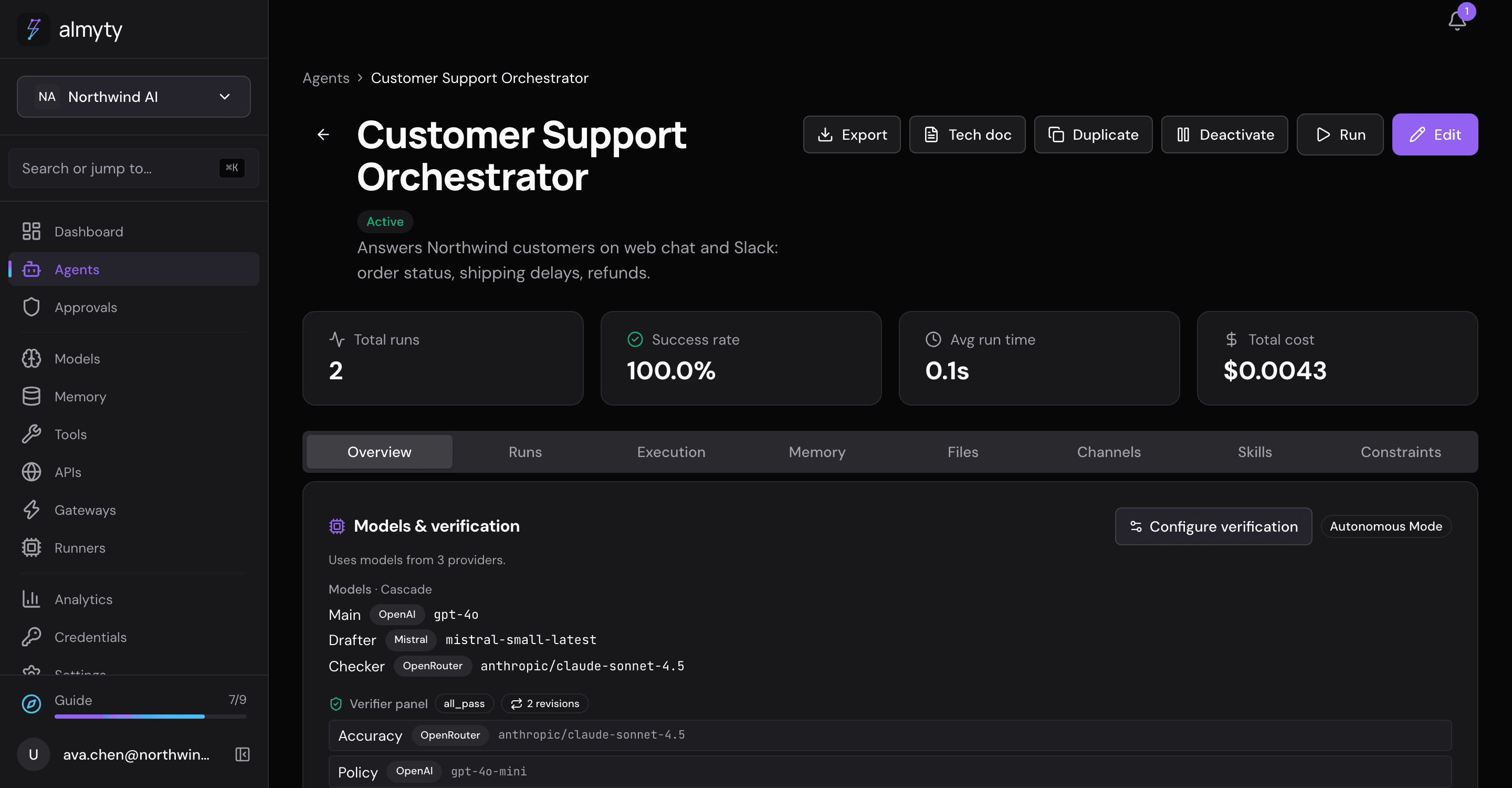
Have a second model check. On its Overview tab, under Models & verification, click Configure verification, turn on Enable verification and add reviewers, ideally from a different AI company than the main model. Each reviewer tries to find what is wrong with the answer; with All pass, the answer is revised until every reviewer passes it, up to the number of Max revise loops. The demo uses an “Accuracy” reviewer that checks order facts against what the tools returned, and a “Policy” reviewer that checks the refund limit.
-
Put a person on the large refunds. Tell it in its Instructions, as well as in the constraint: “Ask for approval before any refund over $500.” When it asks, the run pauses and the request appears on the Approvals page, where an owner or admin clicks Approve or Reject. Below the limit it goes ahead on its own. To make the limit hold even if the assistant forgets, add an amount rule, Ask before “Create refund” when amount is over 500, under Settings → Advanced → Approvals: almyty then checks every refund call before it is made. See ask before a large amount.
-
Keep the record. Every action and every change to the assistant is in the audit trail (Analytics, Audit trail), with who, when and what.
The assistant asks for approval because its instructions tell it to. Keep the rule short and put it in both places.
Ideas
- Decide centrally who approves what with approval rules (Business plan).
- Limit who may approve with roles.
- Run the whole thing inside your own network: see Run everything inside your own network.