Sales assistant in Slack
Give your sales team an assistant in Slack. Before a call, someone asks “What should I know about Kestrel Coffee?” and gets a short brief from your CRM: renewal date and value, open deals, the last conversation and open tickets. After the call, they paste their notes and the assistant saves them to the account, with the next steps.
This guide builds it for Northwind’s account managers. It takes about 15 minutes, and there is no code in it. You need someone who can create a Slack app in your Slack workspace for the last step (usually a Slack admin).
What you need
- An almyty account with an AI model connected. If you have not done that yet, follow step 1 of the customer support guide.
- The description of your CRM’s API: a file or link that lists what your CRM can do (often called “OpenAPI” or “Swagger”). An API is the way one piece of software talks to another. Most CRMs publish one; your IT team or the CRM’s developer settings have it.
- A Slack workspace where you can create an app.
1. Connect your CRM
In the sidebar, open APIs and click Connect an API. Pick OpenAPI / Swagger, then paste the link to your CRM’s description on Link, or pick File and upload it. Click Connect API.
almyty works out what your CRM can do. Here it found three things: find accounts by name, get an account with its contacts, deals and recent activity, and add a meeting note to an account. Each becomes a tool the assistant can use.
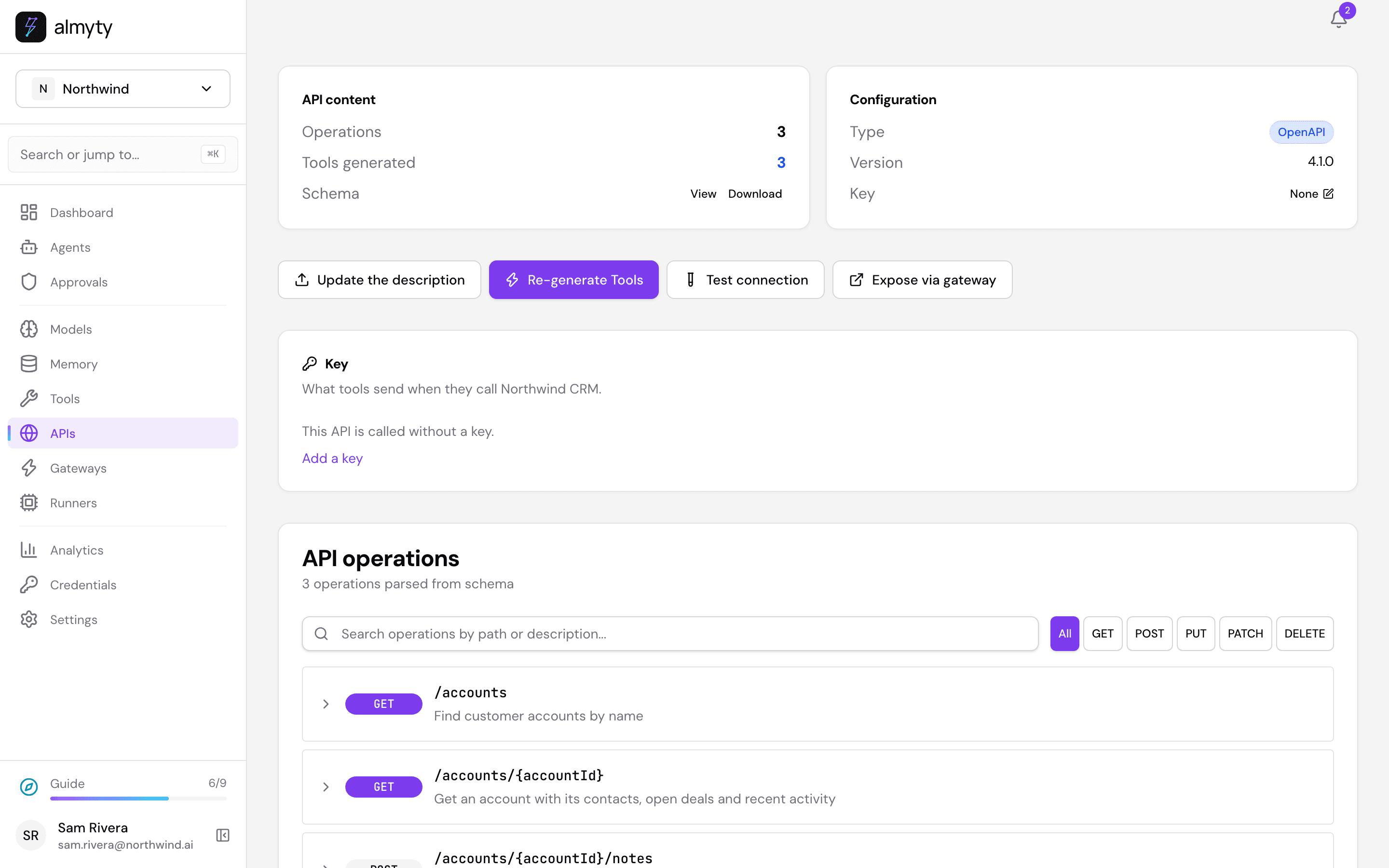
If your CRM needs a key, click Add a key on this page and paste it. The key is stored safely and only ever sent to your CRM.
2. Create the assistant
Open Agents, click Create agent and pick Autonomous at the top: you describe the job in plain words and it works out the steps.
- Click the name New agent at the top and call it
Sales assistant. - Work mode, the first section: open Model and pick one, for example gpt-4o.
- Personality & style:
Short and practical. Numbers first, no small talk. - Instructions:
You help Northwind account managers. Before a call, look the account up in the CRM and give a short brief: who they are, renewal date and value, open deals, the last conversation and open tickets. After a call, when someone gives you their notes, save them to the account as a meeting note with the next steps, and confirm what you saved.
Then scroll to Capabilities → Tools and APIs and tick All tools next to your CRM.
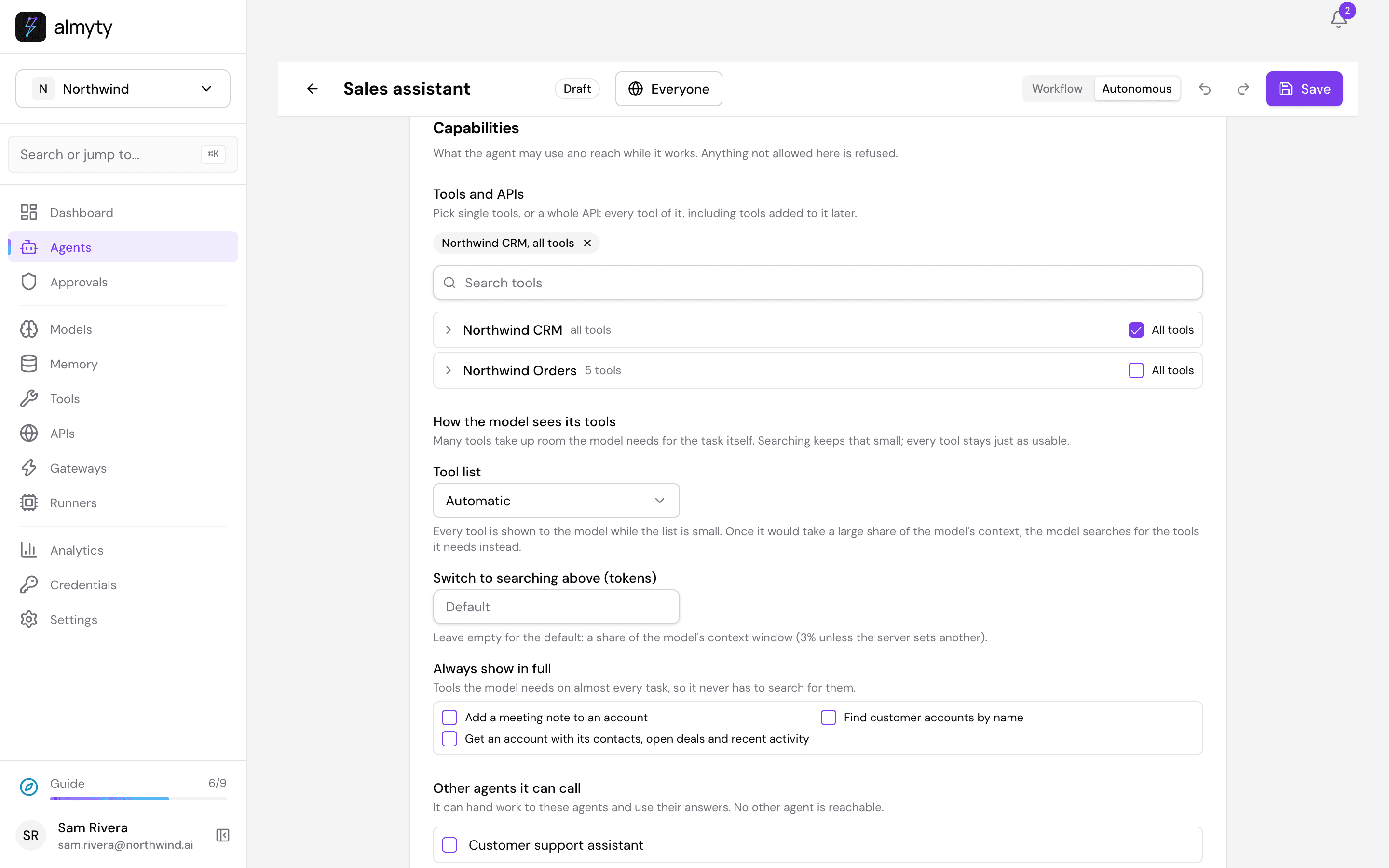
Click Save, go back to Agents with the arrow at the top left, open Sales assistant and click Activate.
3. Ask for a brief before a call
On the Overview tab, under Try it, type I have a call with Kestrel Coffee in ten minutes. What should I know? and press Enter.
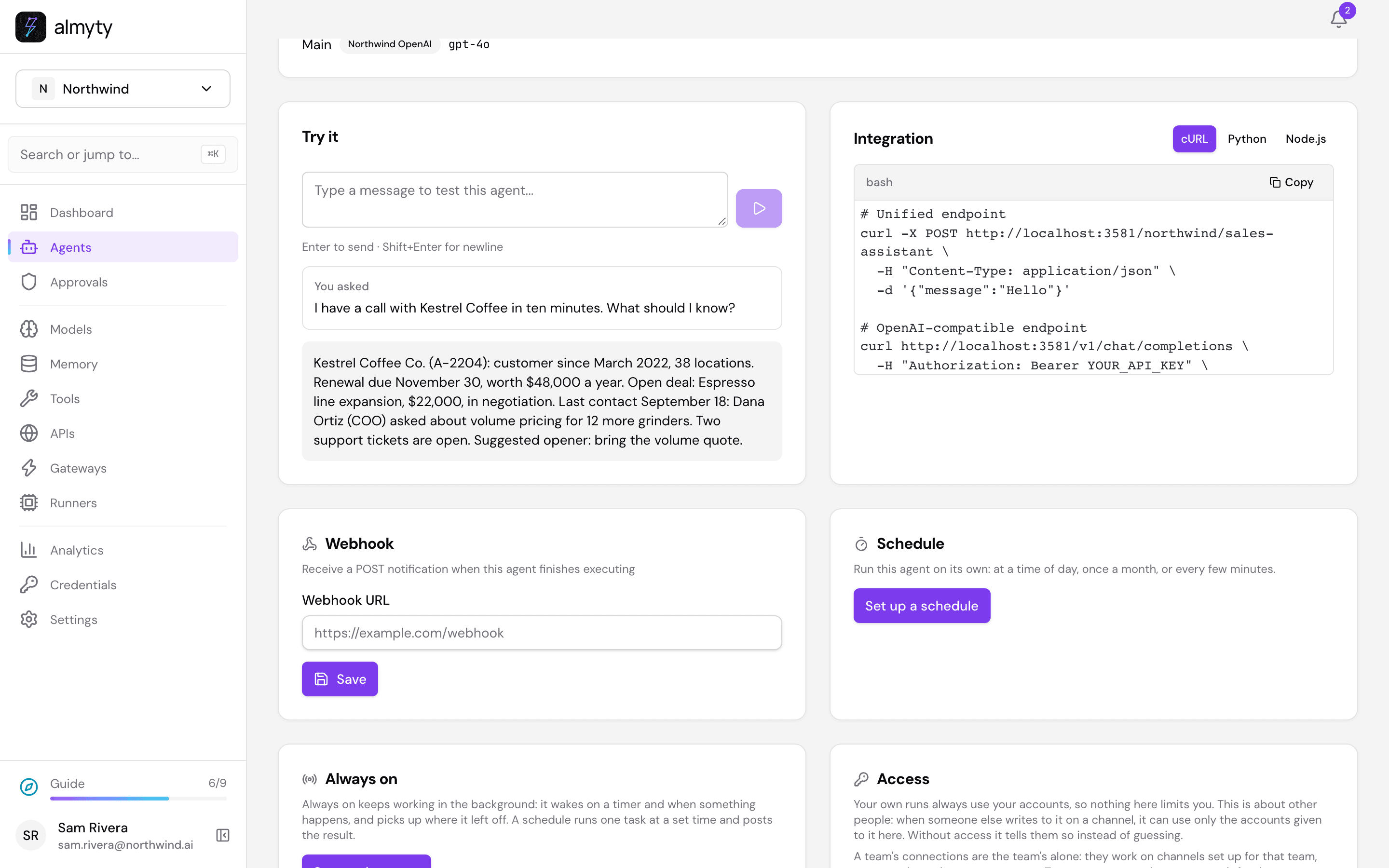
The assistant found the account in the CRM and summed it up: customer since 2022, the $48,000 renewal due on November 30, the open deal, what the COO asked last time, and two open tickets.
4. Save notes after the call
Now give it your notes: Save my notes from the Kestrel call: Dana wants volume pricing for 12 more grinders before the renewal. Next step: I send a quote by Friday.
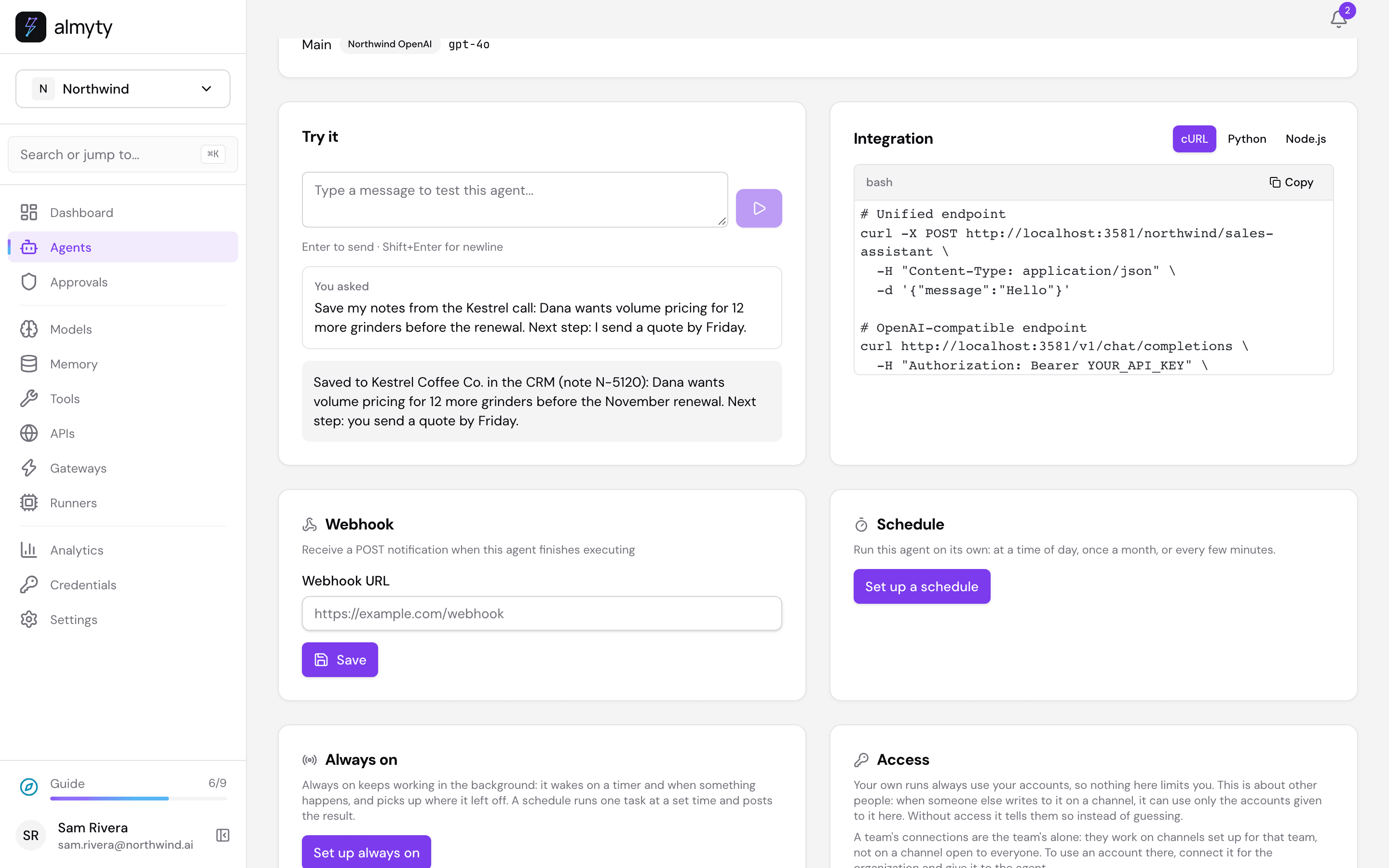
The assistant added a meeting note to Kestrel Coffee’s account in the CRM and told you what it saved. Nobody had to open the CRM.
5. Put it in Slack
Your assistant answers in Slack through a Slack app that belongs to you. You create the app once in Slack, and almyty gives you a link that installs it into your workspace.
In almyty, open the assistant’s Channels tab, click Add channel and pick Slack. Under Add to Slack, click Create one here.
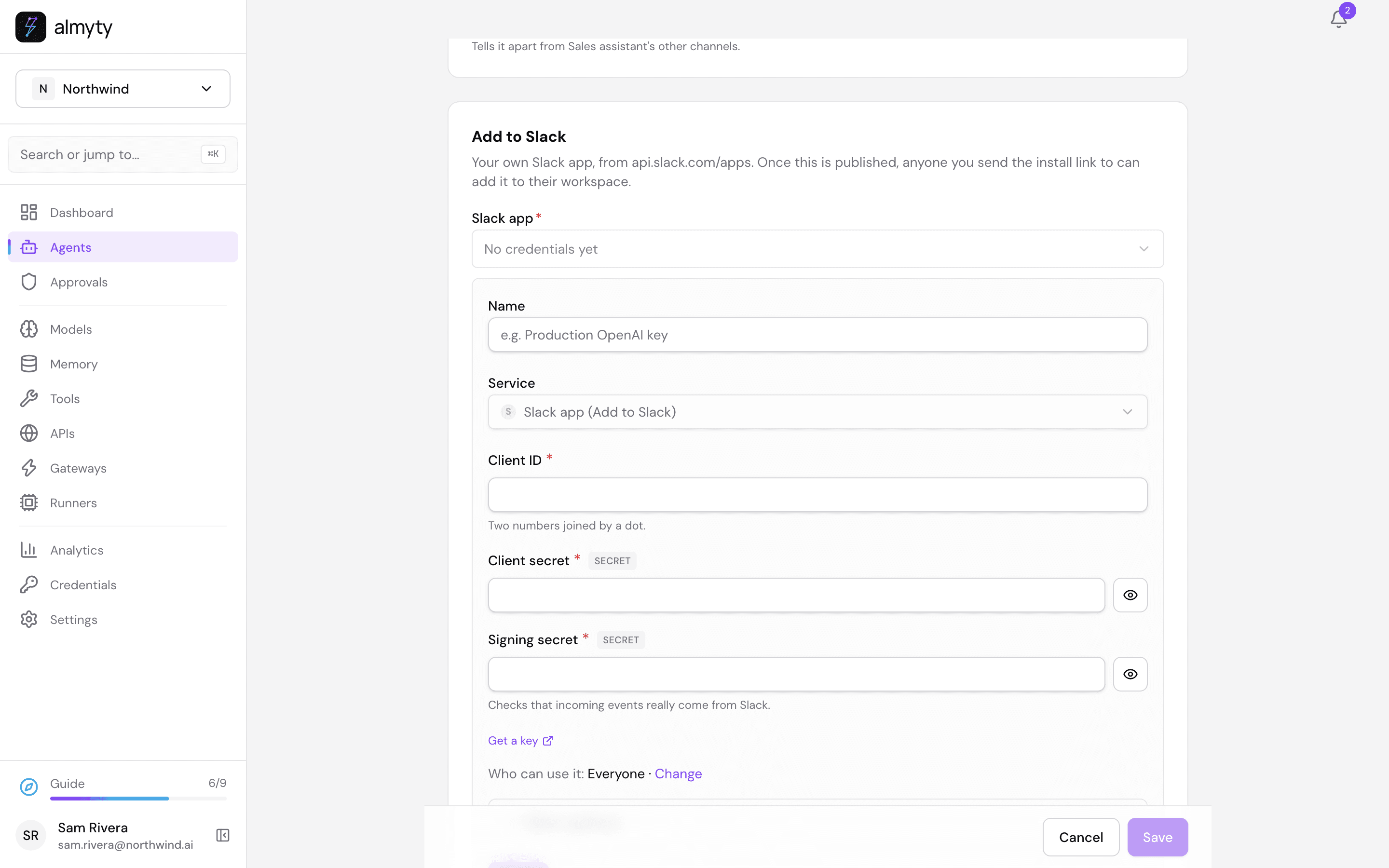
In Slack, go to api.slack.com/apps and click Create New App (from scratch), name it (for example “Sales assistant”) and pick your workspace. On the app’s Basic Information page you find three values. Copy each into the almyty form:
- Client ID (two numbers joined by a dot)
- Client Secret
- Signing Secret (almyty uses it to check that messages really come from Slack)
Back in almyty, click Save under the form. The page now shows a Callback URL. In your Slack app, open Event Subscriptions, turn it on, paste that address as the Request URL, and subscribe to the bot events message.im (direct messages) and app_mention (when someone @mentions it in a channel). Save in Slack.
Then, in almyty, click Save at the bottom of the page and Publish. You get two addresses under Install link:
- a redirect URL: add it in your Slack app under OAuth & Permissions → Redirect URLs;
- an install URL: open it (or send it to your Slack admin) and click Allow to add the assistant to your workspace.
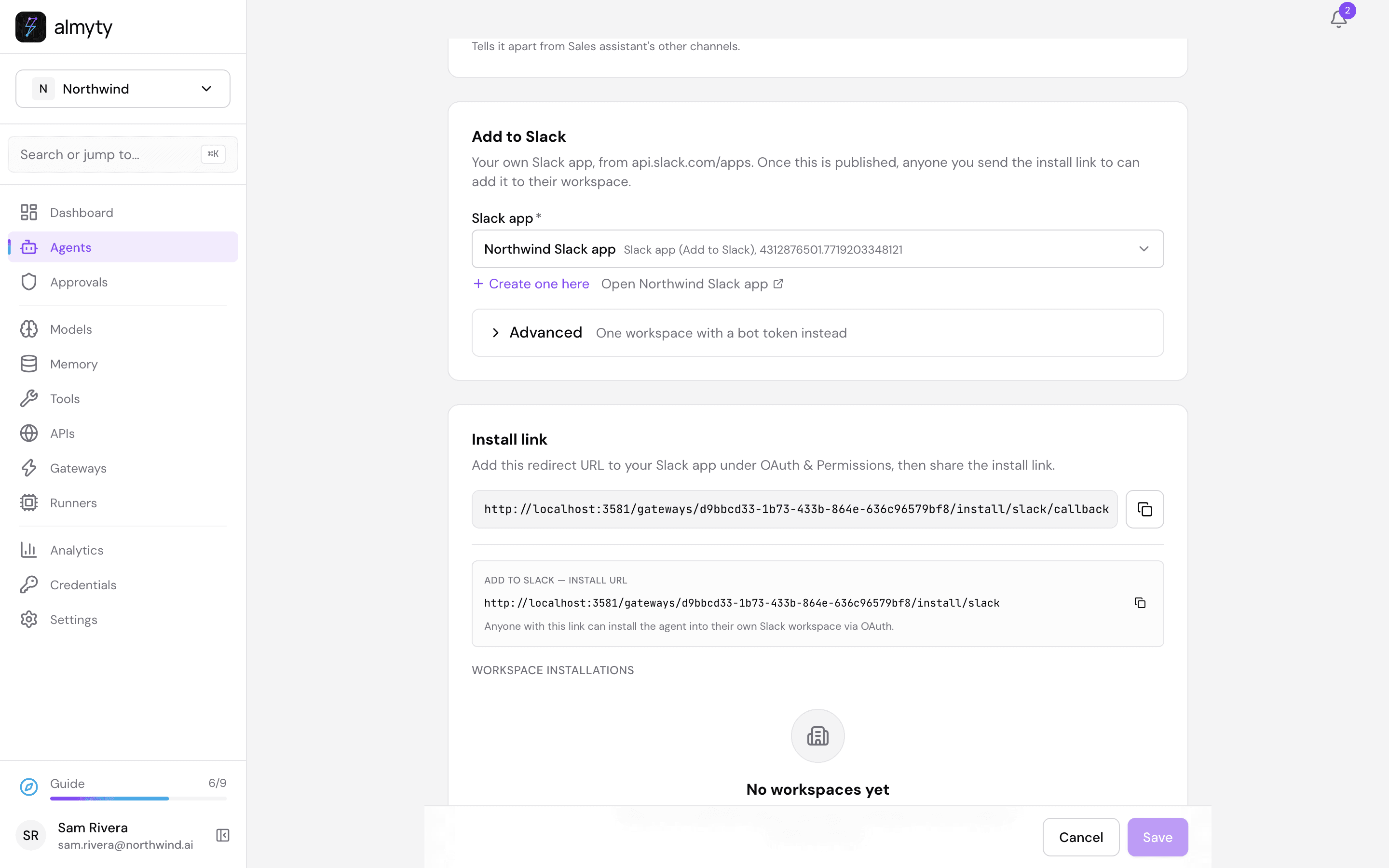
Each workspace that installs it appears under Workspace installations on this page, where you can also remove it.
Now anyone on the team can send the assistant a direct message, or @mention it in a channel, and ask for a brief or hand it their notes. In a channel it answers when it is @mentioned, and it knows who asked.
Good to know
- It only does what you ticked. It can read accounts and add notes, because those are the CRM tools you gave it. To keep it read-only, open your CRM under Capabilities → Tools and APIs, untick All tools and tick only the tools that read.
- Your CRM key stays in almyty. Slack users never see it.
- Who asked what is kept under the assistant’s Runs tab, and every change to the assistant is in its Change history.
- To have a person check notes before they are saved, add a line to its instructions like “Ask for approval before saving a note”, and approve them on Approvals. See Approvals.
For developers
- This walk-through is automated in
scripts/demo-seed/guides.mjs salesagainst the local demo stack, which serves a small fake CRM. - A single workspace can use a bot token instead of the Add to Slack flow: open Advanced under Add to Slack. See Publishing a channel.
- Installing through the install link asks Slack for these bot permissions:
chat:write,app_mentions:read,im:history,files:readandusers:read. In a channel it answers only when it is @mentioned. See Chat apps for every platform’s setup.