Tutorial: new customer onboarding, an agent that works for weeks
What you’ll build
An agent that onboards each new customer over their first two weeks, without you keeping track. When a deal moves to Closed won in HubSpot, it creates a folder for that customer in Google Drive, shares it with their main contact, and sends them a welcome email from your Gmail asking for two files: their vehicles and their depots. Then it waits, for days if it has to. Every 12 hours it looks in the folder. Three days without the files gets a short, friendly reminder in the same email thread; after two reminders it asks you to call them instead. When both files are in, it asks you to approve the kickoff call, puts it in your calendar with the customer and your customer success colleague, emails that colleague a handover, and writes every step on the deal in HubSpot.
What makes this different from the other tutorials is time. The job takes two weeks, but the agent is not running for two weeks. Between two checks nothing runs at all: no run is open, nothing is held in memory, nothing waits on a connection. (One run does stay open: the one waiting for your OK on the kickoff. It is parked in the database, not running, until you decide.) Each time it wakes it reads where things stand from HubSpot, Drive and Gmail, does the next step, writes it down on the deal and stops. That is why you can restart almyty between two wakes and lose nothing, and why a wake never sends the welcome email a second time: it checks first.
The screenshots in this tutorial come from a test installation with made-up people (Maya Chen, founder of “Lumen”, and her new customer Bluefin Couriers), so web addresses in them start with http://localhost. In the test installation the two weeks pass in a few minutes, so the times in the screenshots are close together. Yours start with your almyty address and take as long as your customer does.
What you need
- An almyty account with an AI model connected (step 1 of the founder’s associate tutorial).
- Gmail and Google Calendar connected, with your own Google app: steps 2 to 4 of the founder’s associate tutorial. This agent sends email and creates calendar events, so when you sign in keep
gmail.send,gmail.readonlyandcalendar.eventsticked. If you followed the founder’s tutorial, those sign-ins are read-only: open each API on APIs and sign in again under Key with these permissions. - HubSpot Contacts and Deals connected: step 1 of the business development tutorial. The private app needs
crm.objects.contacts.read,crm.objects.deals.readandcrm.objects.deals.write. - The Google Drive API turned on in the same Google Cloud project: APIs & Services → Library → Google Drive API → Enable.
- Time: about 45 minutes. After that it works on its own.
1. Connect Google Drive
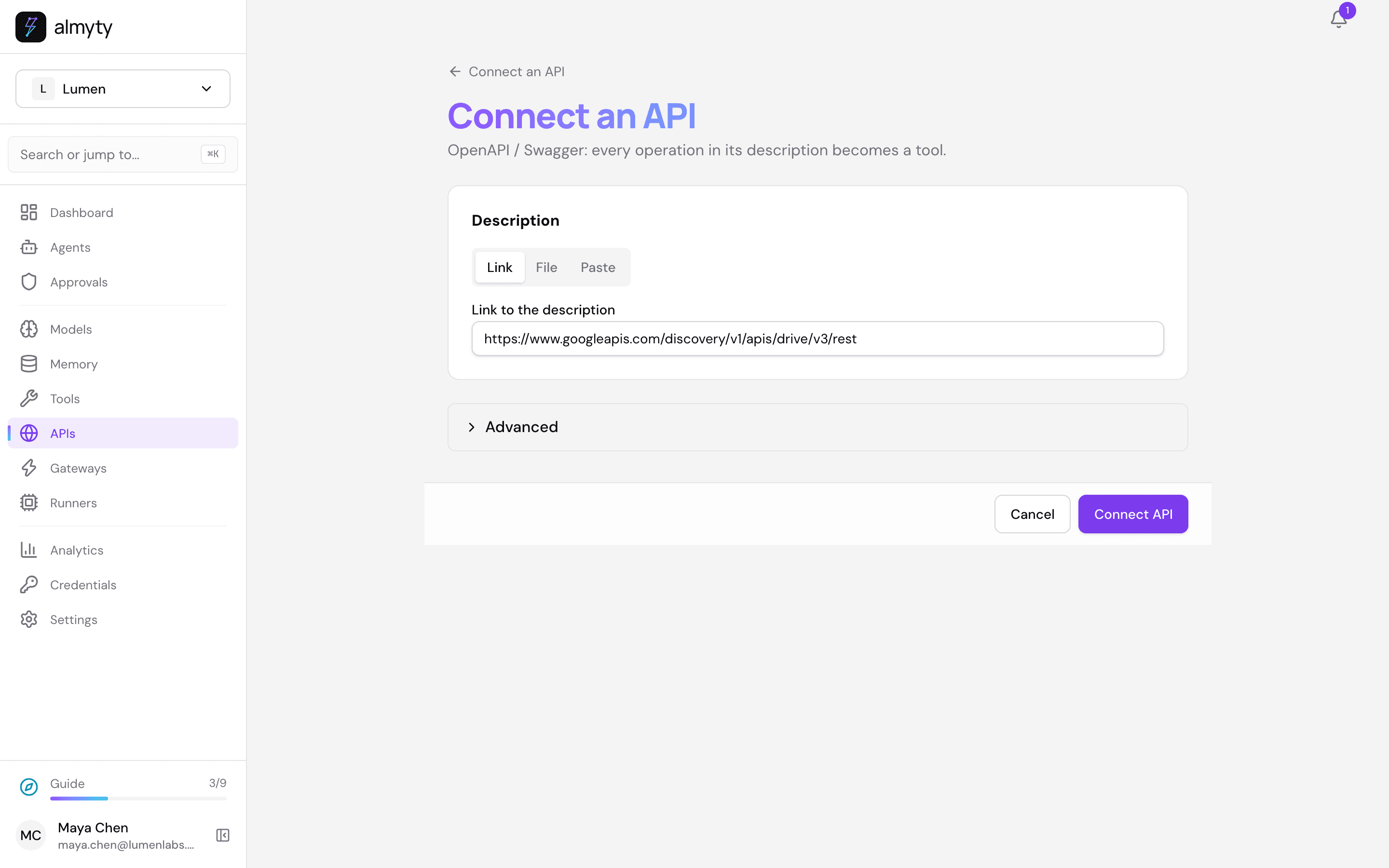
- Open APIs, click Connect an API and pick OpenAPI / Swagger.
- Under Link to the description, paste Google’s description of Google Drive:
https://www.googleapis.com/discovery/v1/apis/drive/v3/rest- Open Advanced, set Name to
Google Driveand click Connect API.
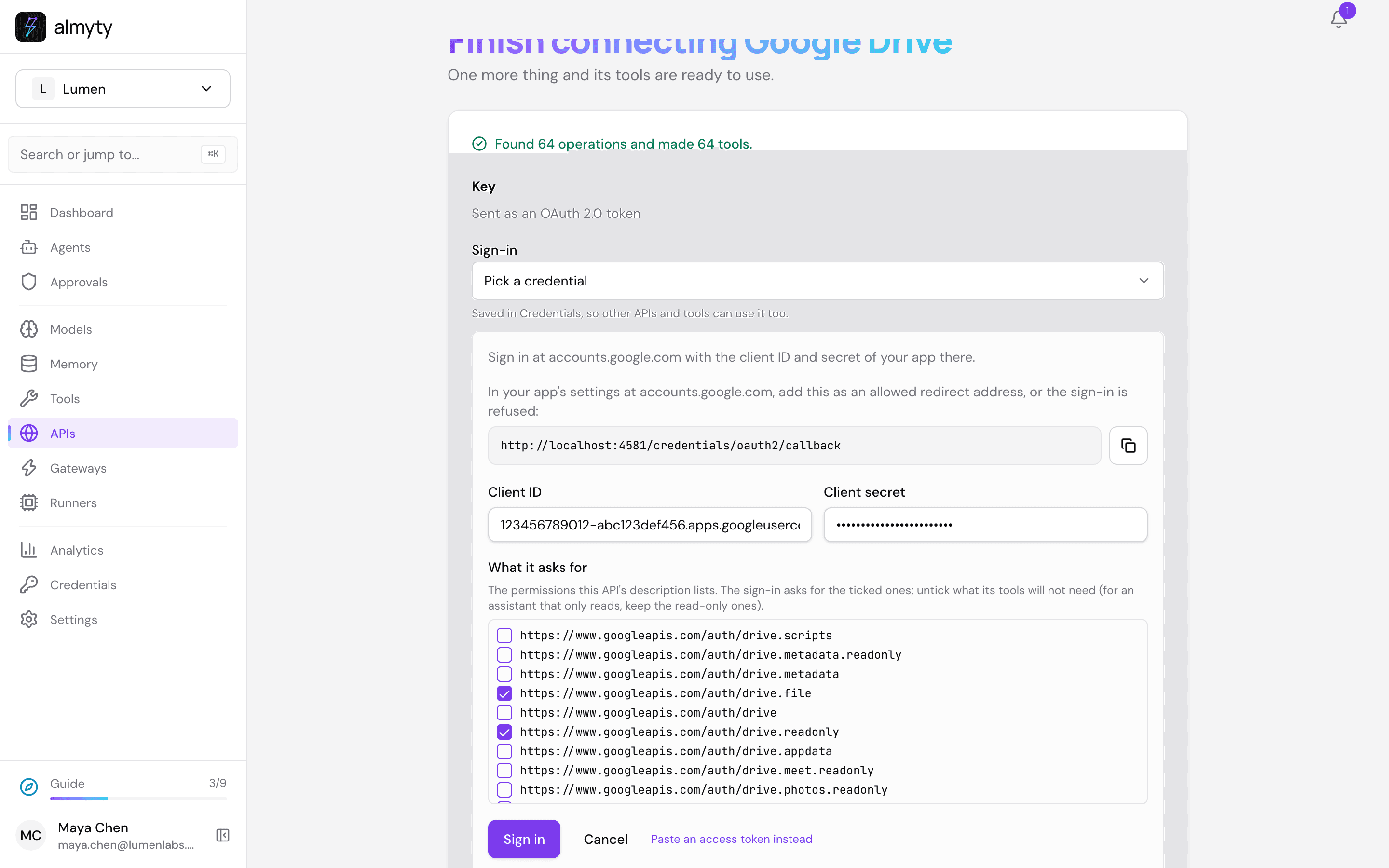
- almyty makes a tool for each of the 64 things Google Drive can do. Under Sign-in, click Create one here, and paste the Client ID and Client secret of your Google app (the same ones as for Gmail and Calendar). The redirect address is the same as before, so you do not need to add it in Google again.
- Under What it asks for, untick everything except two:
https://www.googleapis.com/auth/drive.file: it may create folders and share the ones it created, and nothing else of yours.https://www.googleapis.com/auth/drive.readonly: it may see the files your customer puts into those folders. Those files belong to your customer, not to the agent, sodrive.filealone does not show them. Google countsdrive.readonlyamong the permissions it checks closely, like reading mail: with an External app in Testing it works for your test users, as in the founder’s tutorial.
- Click Sign in and allow it on Google’s consent screen.
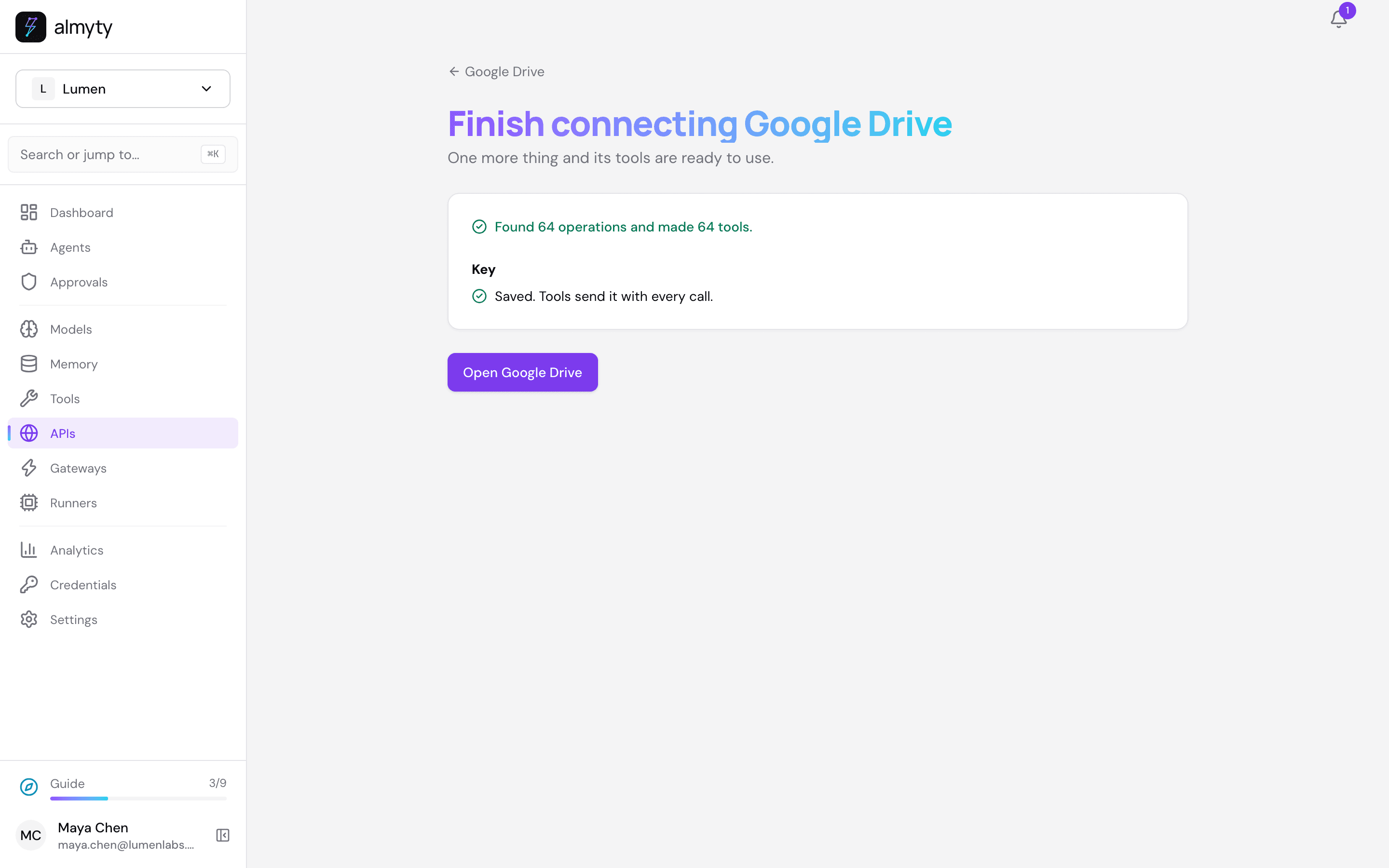
You come back to Saved. Tools send it with every call.
2. Create the agent
Open Agents, click Create agent and pick Autonomous.
- Name it
Onboarding agentand pick a model (gpt-4o or another strong one). - Personality & style:
Friendly, clear and patient. Writes to customers like a helpful person, not like a system: short emails, one ask each, never pushy.- Instructions (put in your own names and the files you need from a new customer):
You onboard Lumen's new customers, from signed deal to kickoff call.

A customer is new when their deal in HubSpot is in the stage "Closed won". For each one:
1. Find their main contact in HubSpot: the COO, a VP or the Head of Operations.
2. Create a folder in Google Drive called "<company> onboarding" and share it with the contact, so they can upload files.
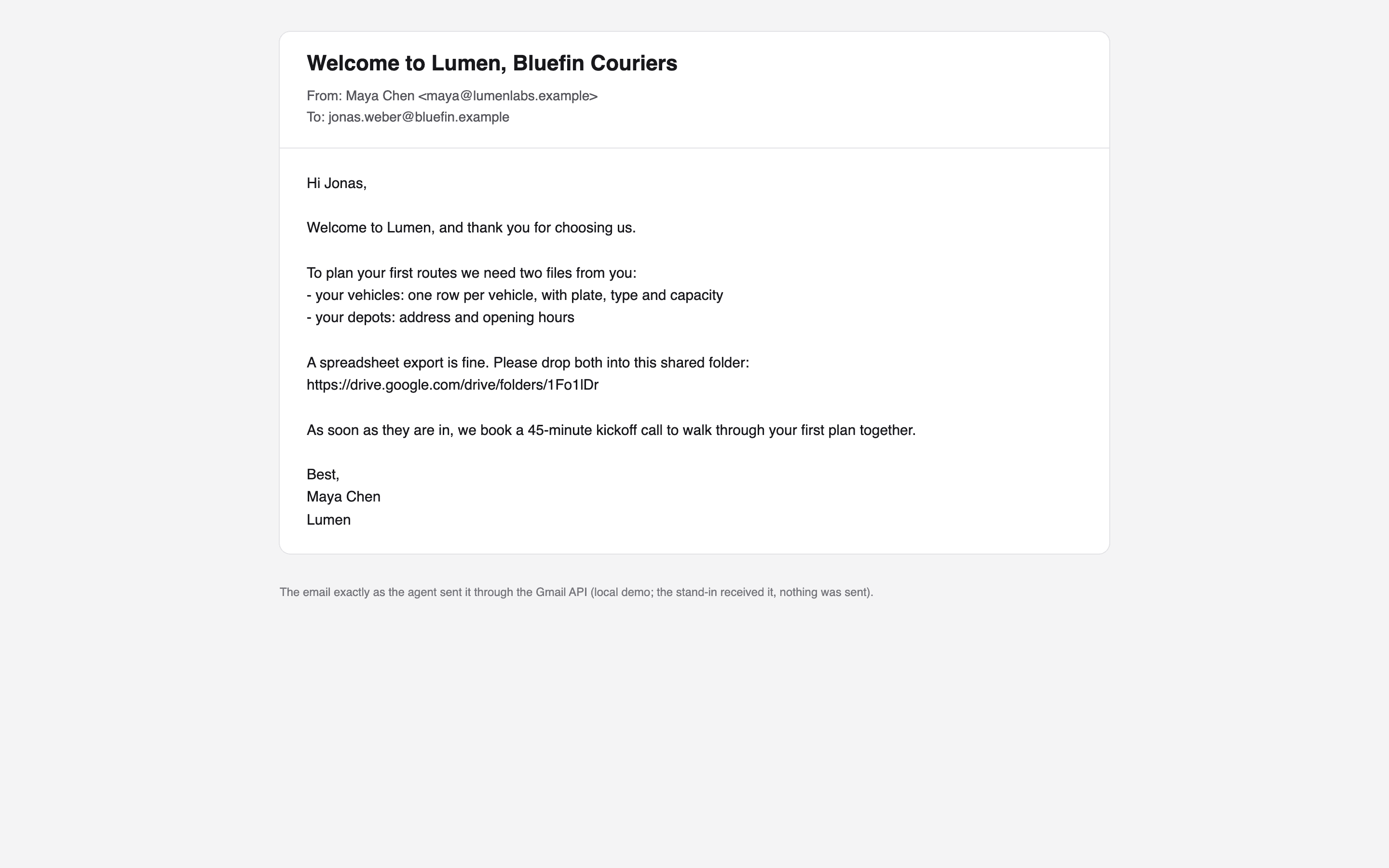
3. Email the contact from Gmail: welcome them, and ask for two files in that folder: their vehicles (plate, type, capacity) and their depots (address, opening hours). Give them the folder link.
4. Wait for both files. Look in the folder at every wake. When they are not there 3 days after your last email, send a short, friendly reminder in the same email thread. Send at most two reminders; after that, ask Maya to call them.
5. When both files are in, book a 45-minute kickoff call in Maya's calendar with the contact and Sam Ortiz (sam.ortiz@lumenlabs.example, customer success), two working days later at 10:00 UTC. Maya approves it first.
6. Hand over to Sam with a short email: the contact, the files, the folder link and the kickoff time.
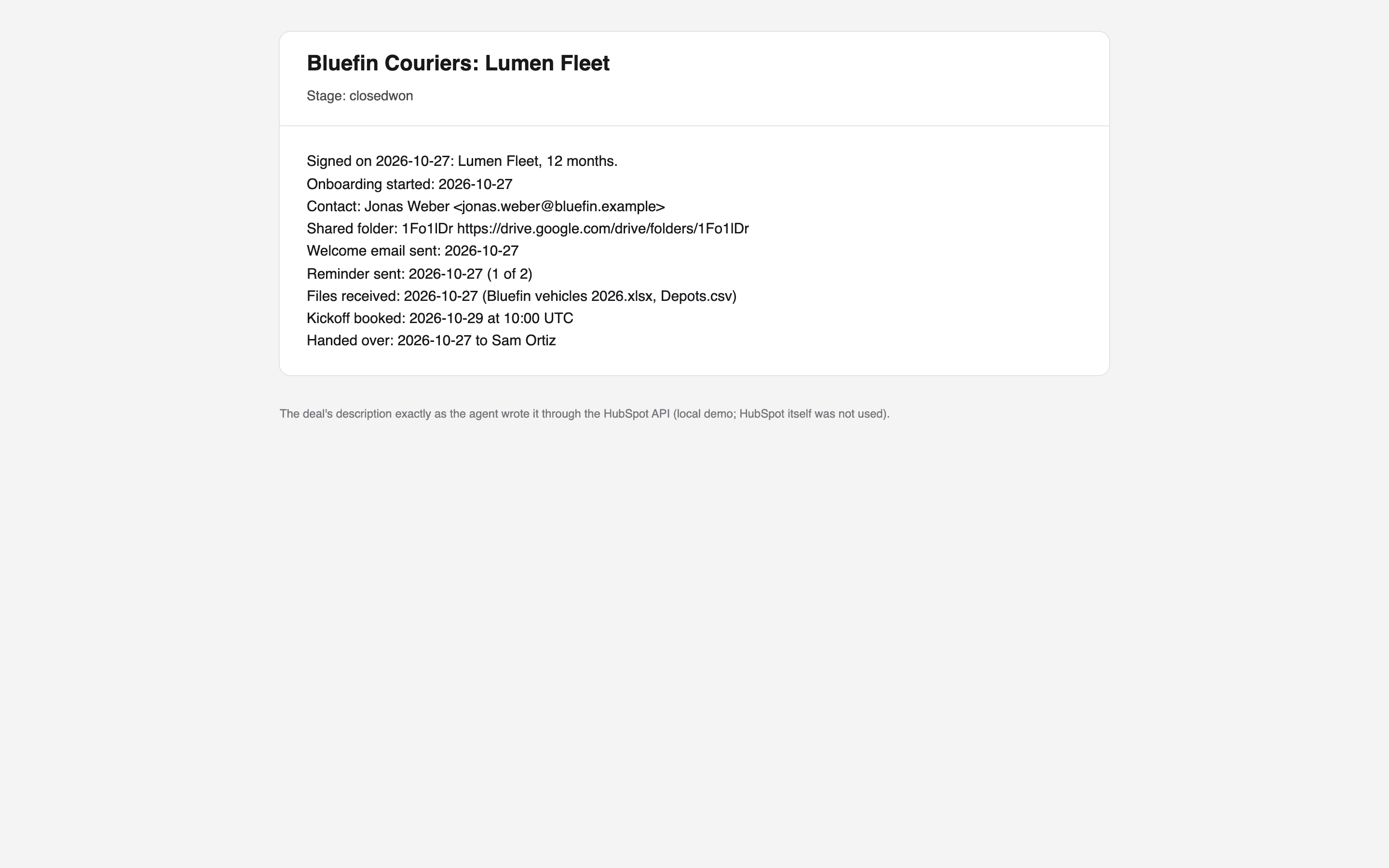
7. Write every step on the deal's description in HubSpot, one line each, so anyone can see where onboarding stands.

Before you create, share, send or book anything, check the deal, the Drive folder and your sent emails. Never do the same thing twice.
When you search Google Drive, use one condition per search, such as name = 'Bluefin Couriers onboarding' or '<folder id>' in parents.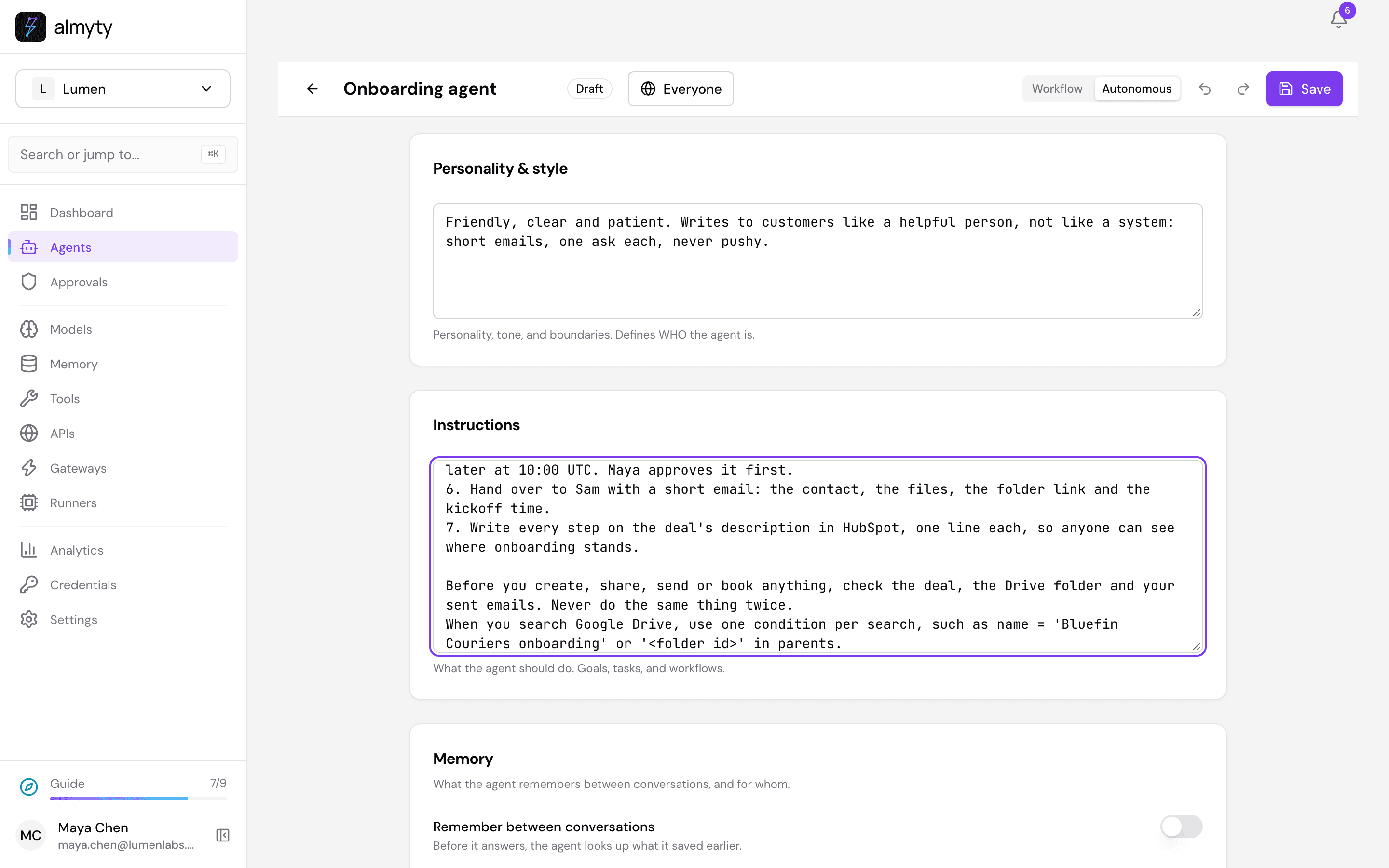
The last two lines matter most. The agent does each step at a different wake, days apart, so it must never assume where it is: it looks at the deal, the folder and the sent emails first, and only then acts. The lines it writes on the deal are its notes to itself, and to you.
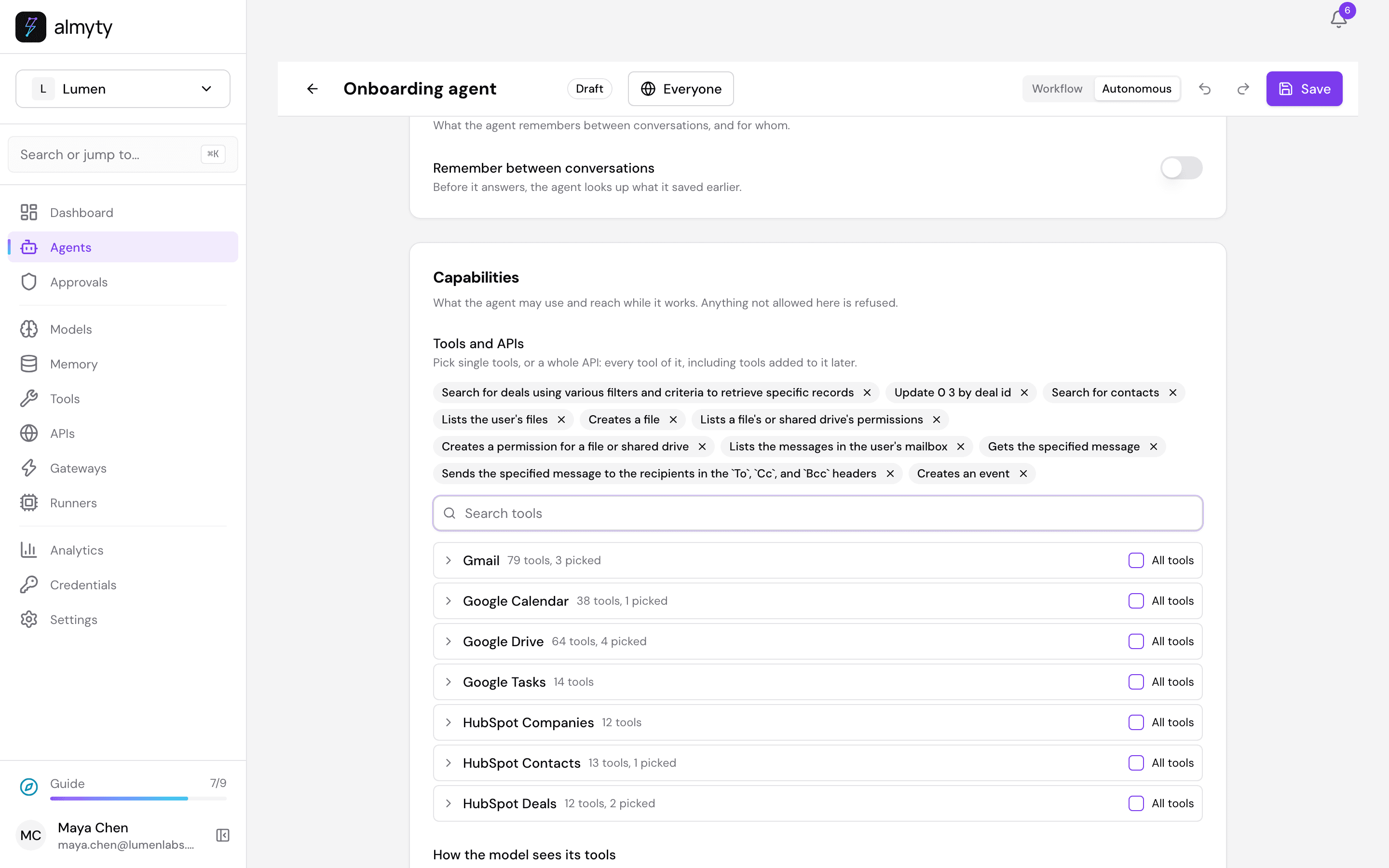
- Capabilities → Tools and APIs: search for and tick these eleven:
| Tool | What it does |
|---|---|
hubspot_deals_post_crm_v3_objects_0_3_search_do_search | finds the won deals |
hubspot_deals_patch_crm_v3_objects_0_3_deal_id_update | writes a step on the deal |
hubspot_contacts_post_crm_v3_objects_contacts_search_do_search | finds the customer’s contact |
google_drive_drive_files_list | finds the folder, and the files in it |
google_drive_drive_files_create | creates the folder |
google_drive_drive_permissions_list | sees who the folder is shared with |
google_drive_drive_permissions_create | shares the folder |
gmail_gmail_users_messages_list | finds sent emails and replies |
gmail_gmail_users_messages_get | reads one email |
gmail_gmail_users_messages_send | sends the welcome, reminders and the handover |
google_calendar_calendar_events_insert | books the kickoff call |
- Click Save, go back and click Activate.
Tell almyty which tools change something
3. Keep it going: Always on
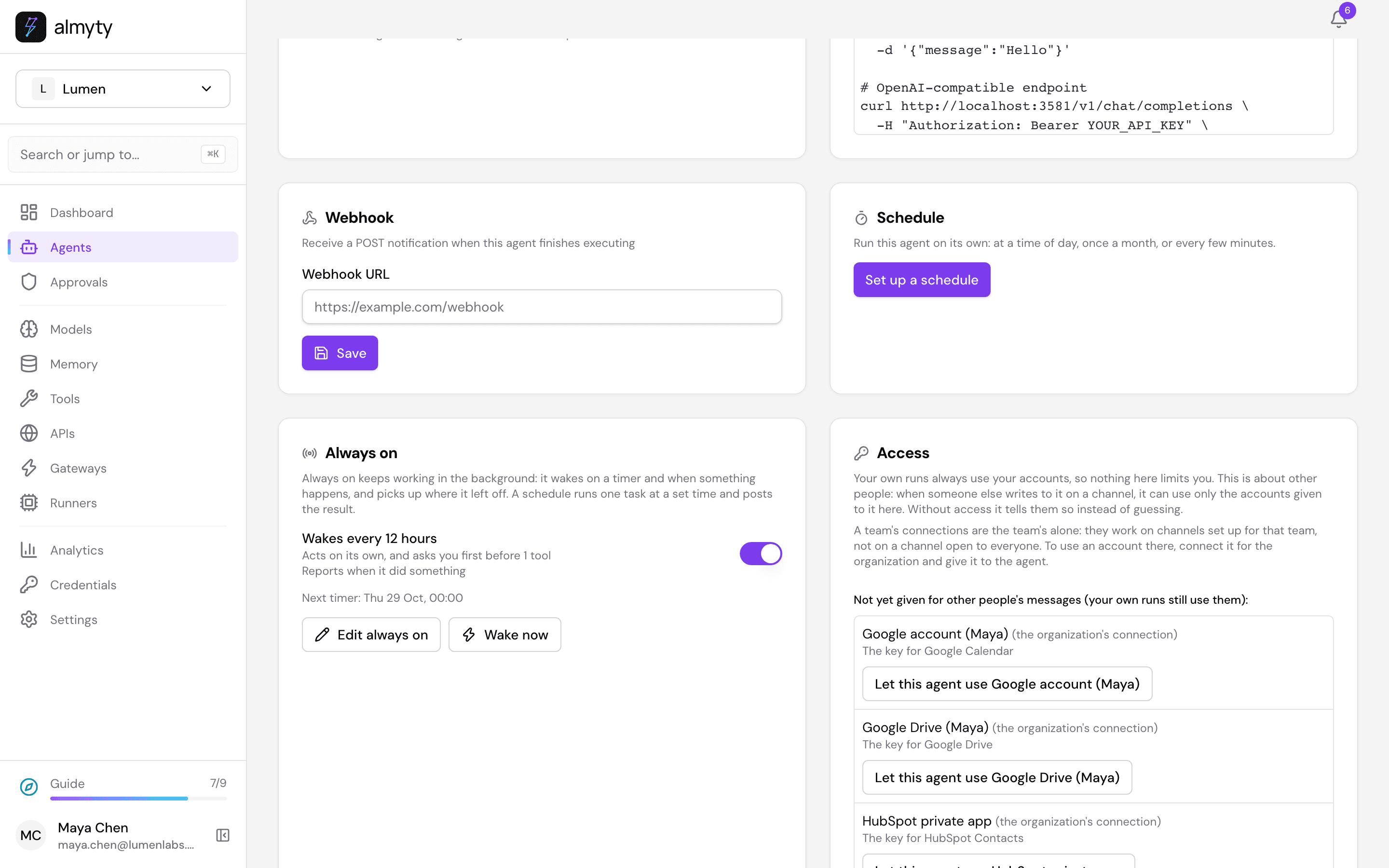
On the agent’s Overview tab, under Always on, click Set up always on.
- Standing instructions:
Keep onboarding moving. At every wake, look for deals in "Closed won" that are not handed over yet, and take each one a step further as your instructions say. Check before you act, so nothing is done twice.- What wakes it: On a timer, every
12hours. Twice a day is plenty for a job that moves in days, and each wake is short.
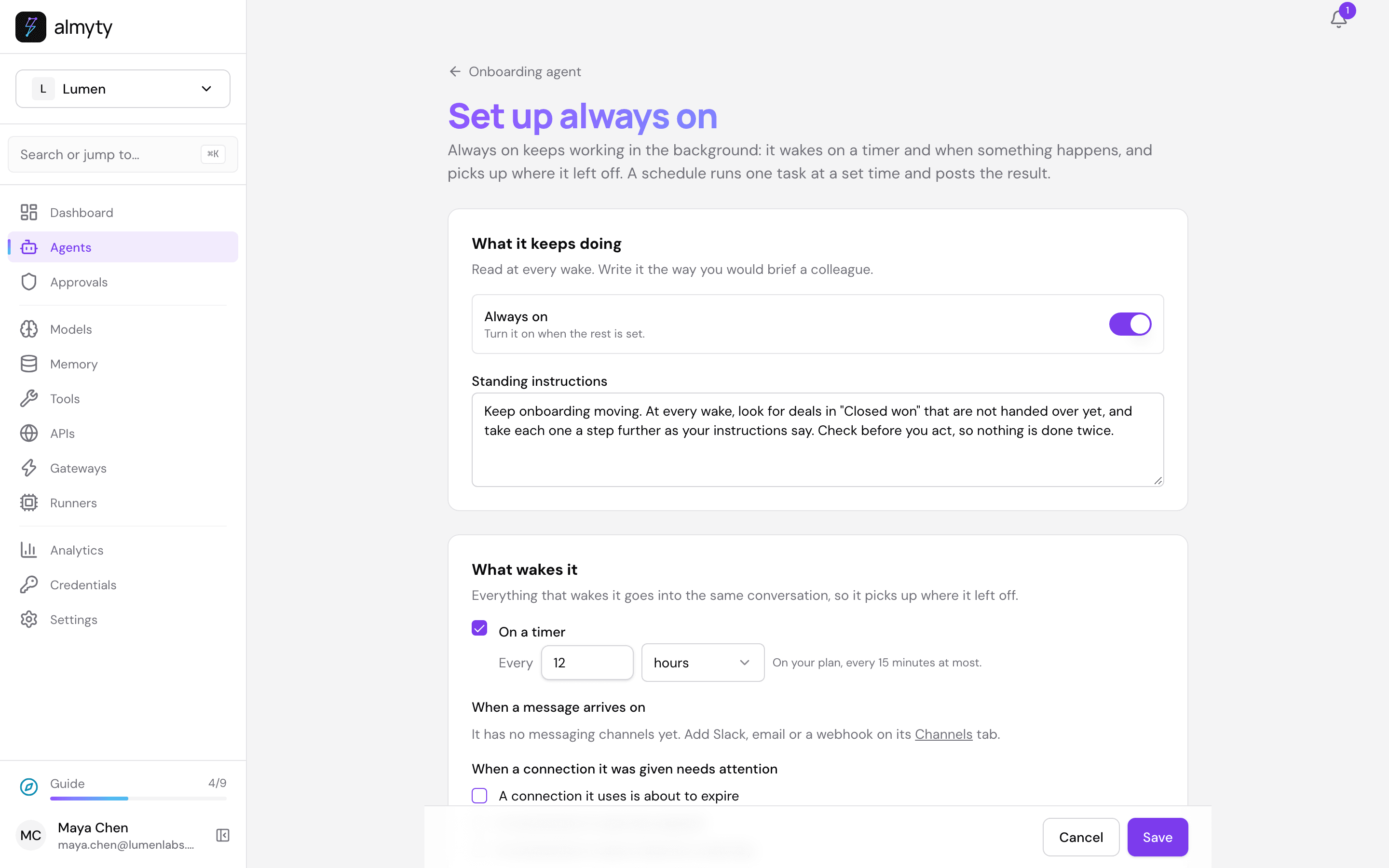
- Talk to it yourself: leave Only on the agent page. You steer this agent through HubSpot: moving a deal to Closed won is how you tell it about a new customer.
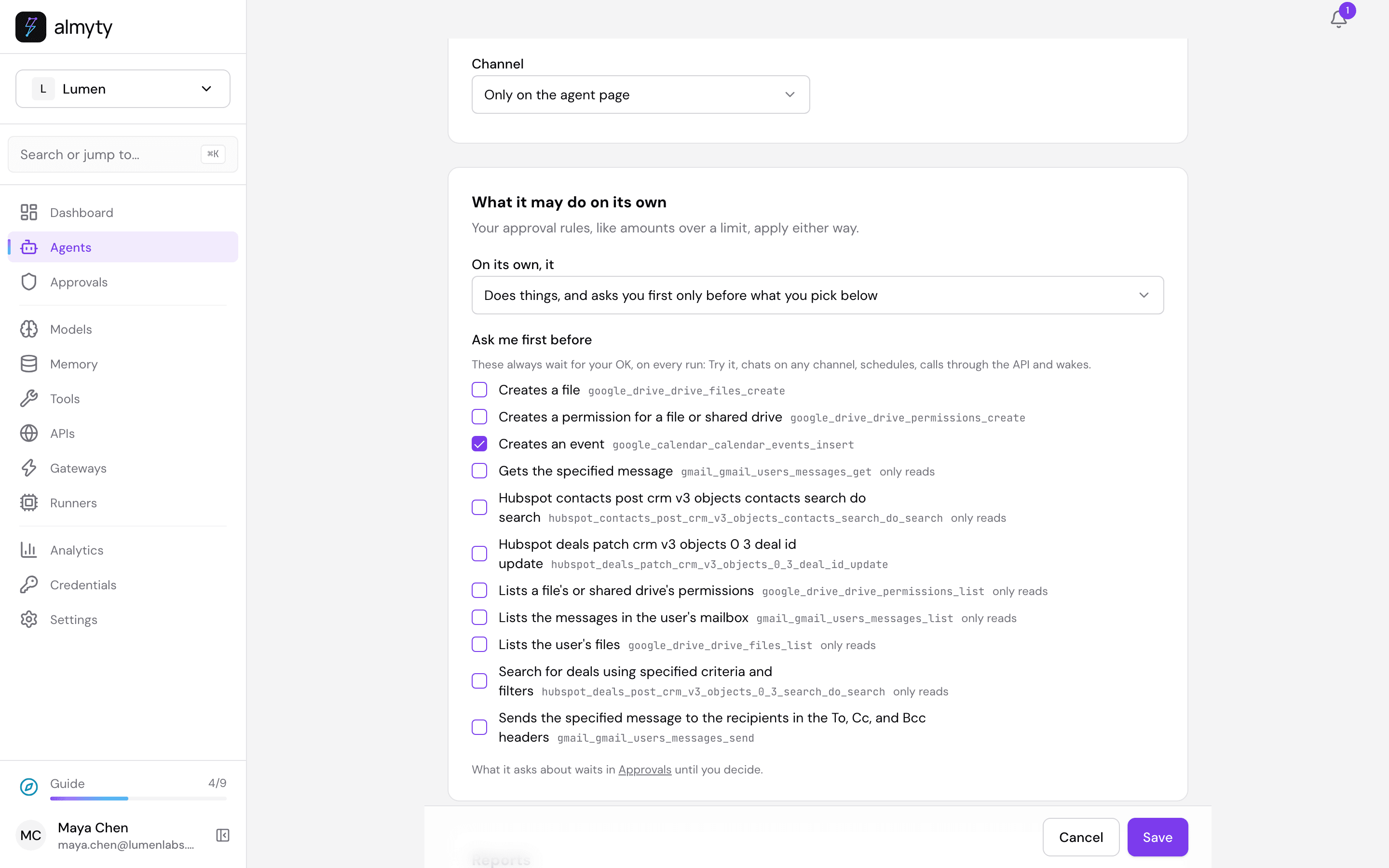
- What it may do on its own: Does things, and asks you first only before what you pick below. Under Ask me first before, almyty ticks every tool that changes something. Untick all but Creates an event (
google_calendar_calendar_events_insert): the agent creates the folder, sends the emails and writes on the deal by itself, and asks you before it puts a meeting in your calendar.
- Reports: leave Post reports to: Only notifications and set When to Only when it did something, so a wake that only looked does not notify you.
- Turn on Always on at the top and click Save.
The Always on card on the Overview tab now shows the timer, what it may do alone, and when it wakes next.
4. A new customer
In HubSpot, open the deal (here Bluefin Couriers: Lumen Fleet) and move it to Closed won. The contact on the company (here Jonas Weber, COO) is who the agent writes to.
At its next wake the agent starts. To see it straight away, click Wake now on the Always on card. When Last woke on the card shows the wake, click See the run next to it.
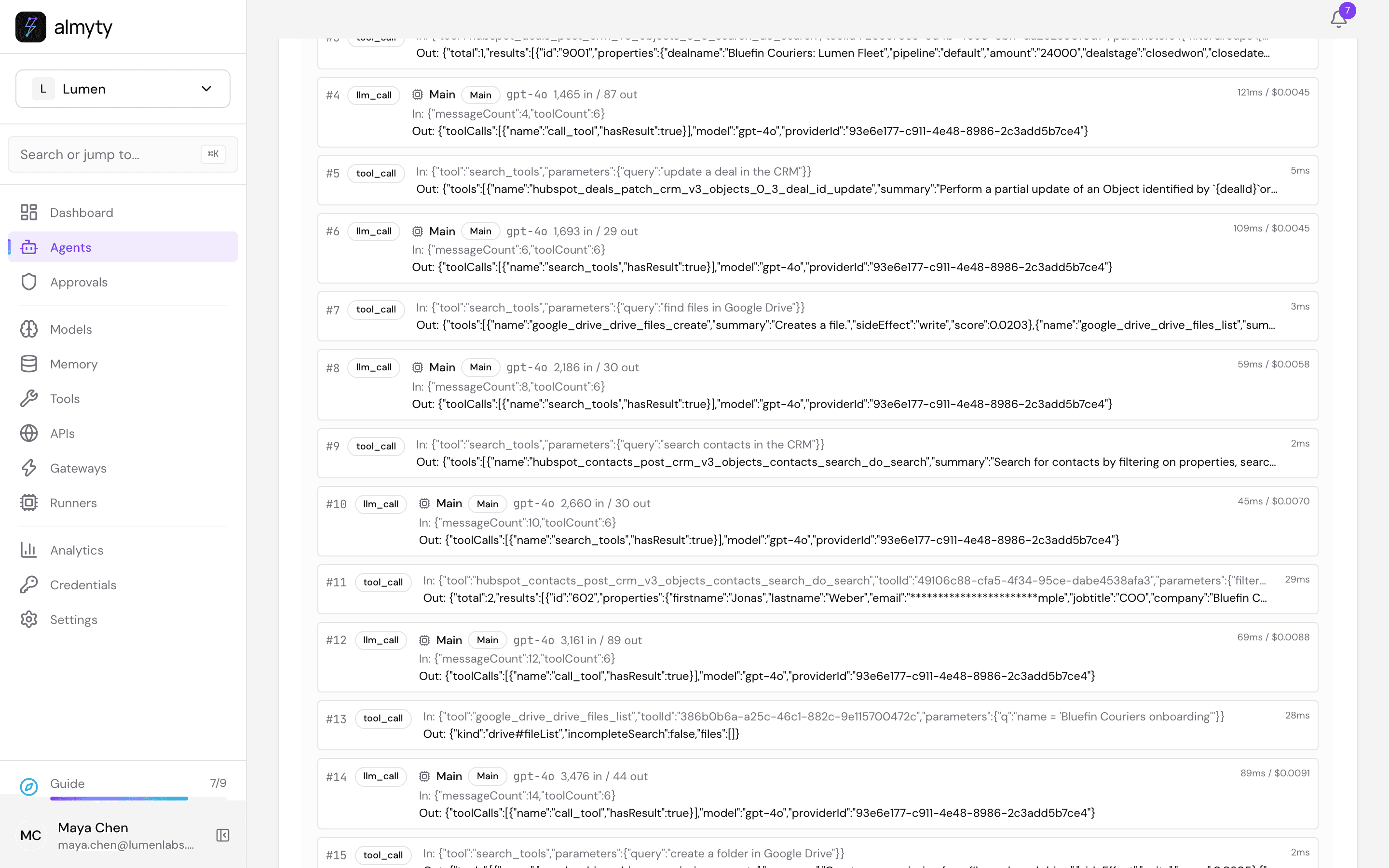
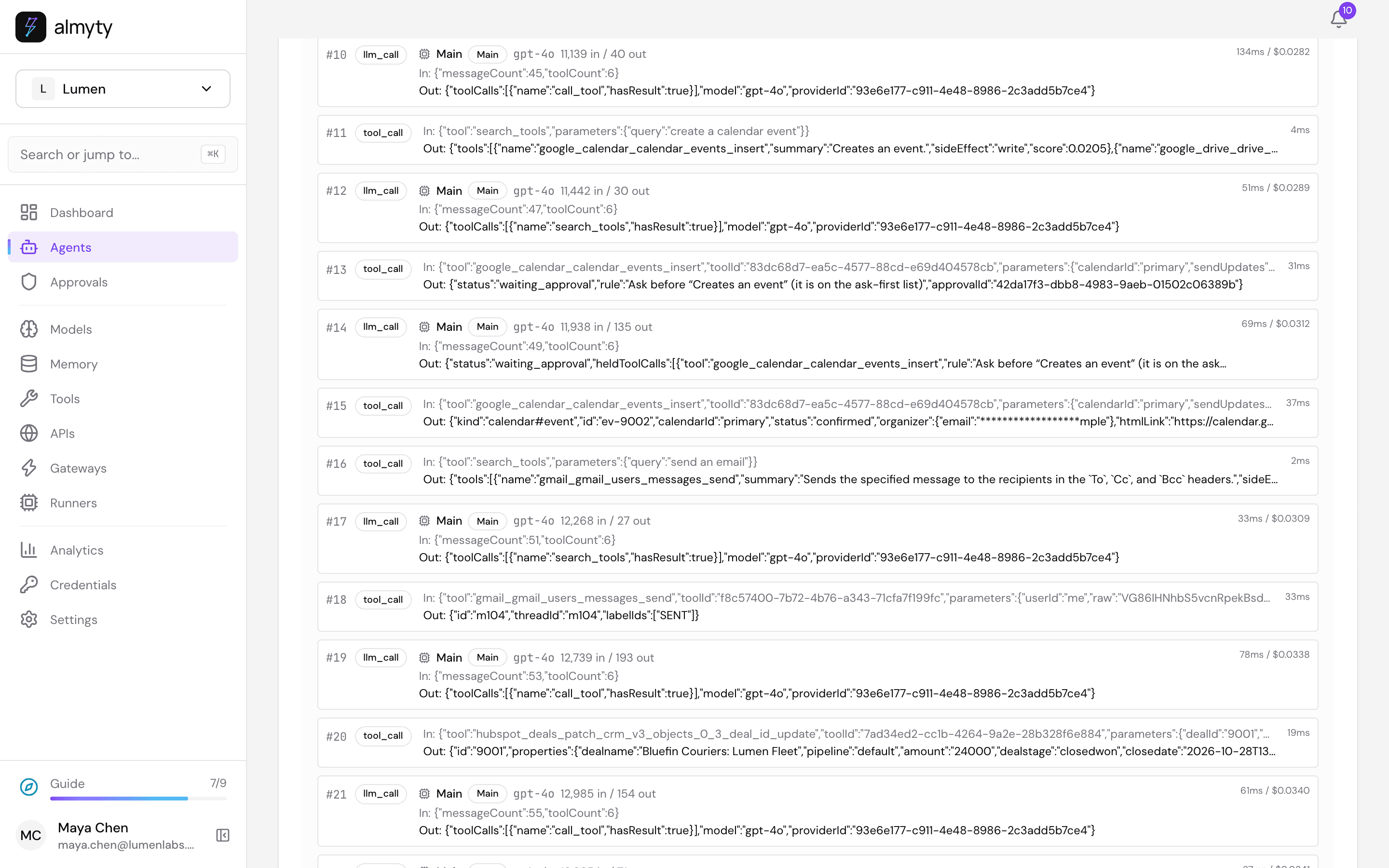
Look at the order: before it created the folder it searched Drive for one with that name, and before it sent the welcome email it searched your sent mail for one. On a first wake both searches come back empty. On any later wake they would find what it made, and it would not make it again.
The welcome email, as Jonas gets it:
5. Waiting
Now nothing happens for a while, and that is the point. Every 12 hours the agent wakes, looks in the folder and your mail, writes nothing, and stops. A wake that changed nothing does not notify you.
Three days after the welcome email the folder is still empty, so the next wake sends a reminder in the same thread and notes it on the deal. Jonas answers that the files come on Monday; the following wake reads his reply and simply keeps waiting, with the reminder count where it was. The start and the reminder show in your notifications; the wakes that only looked do not:
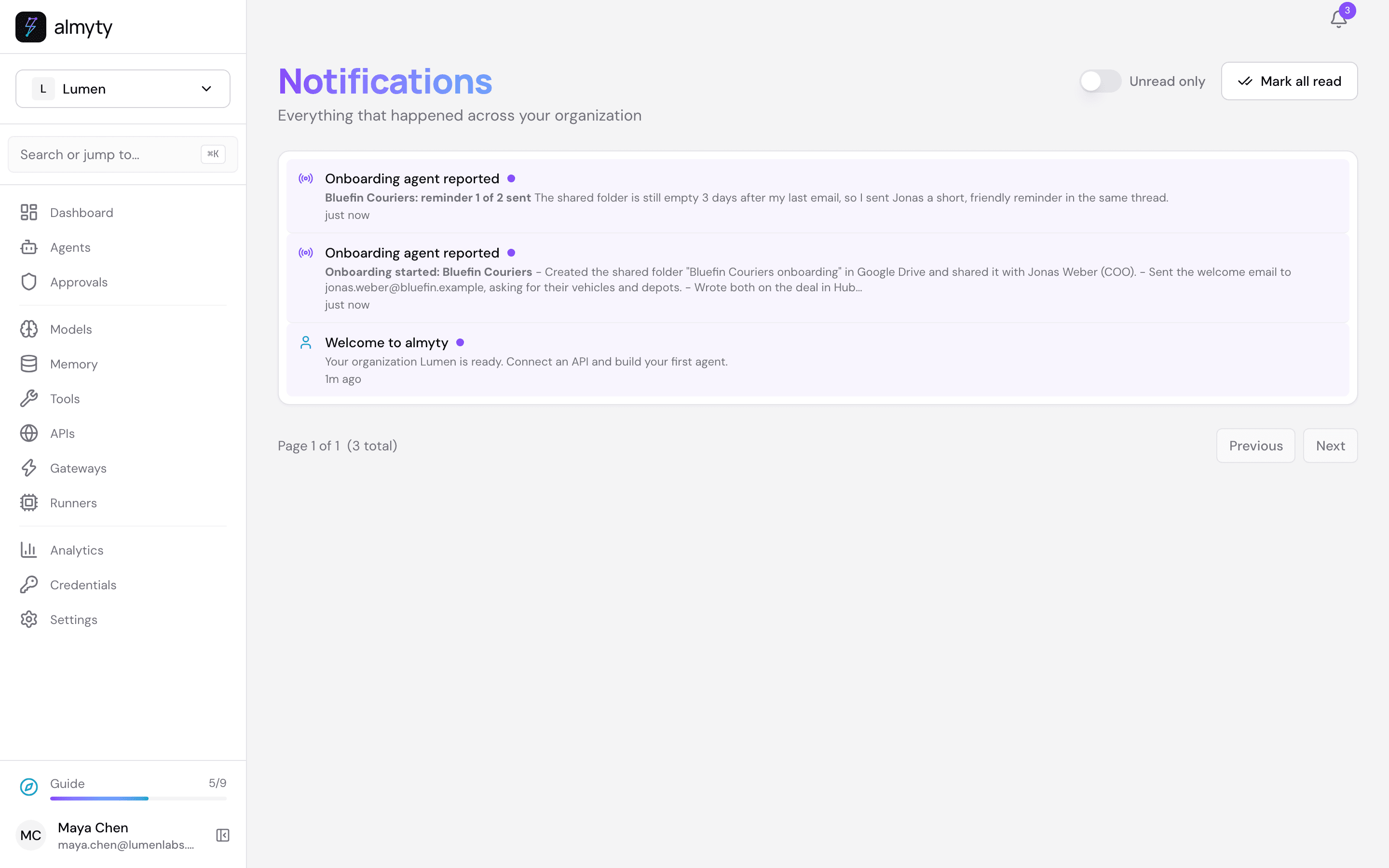
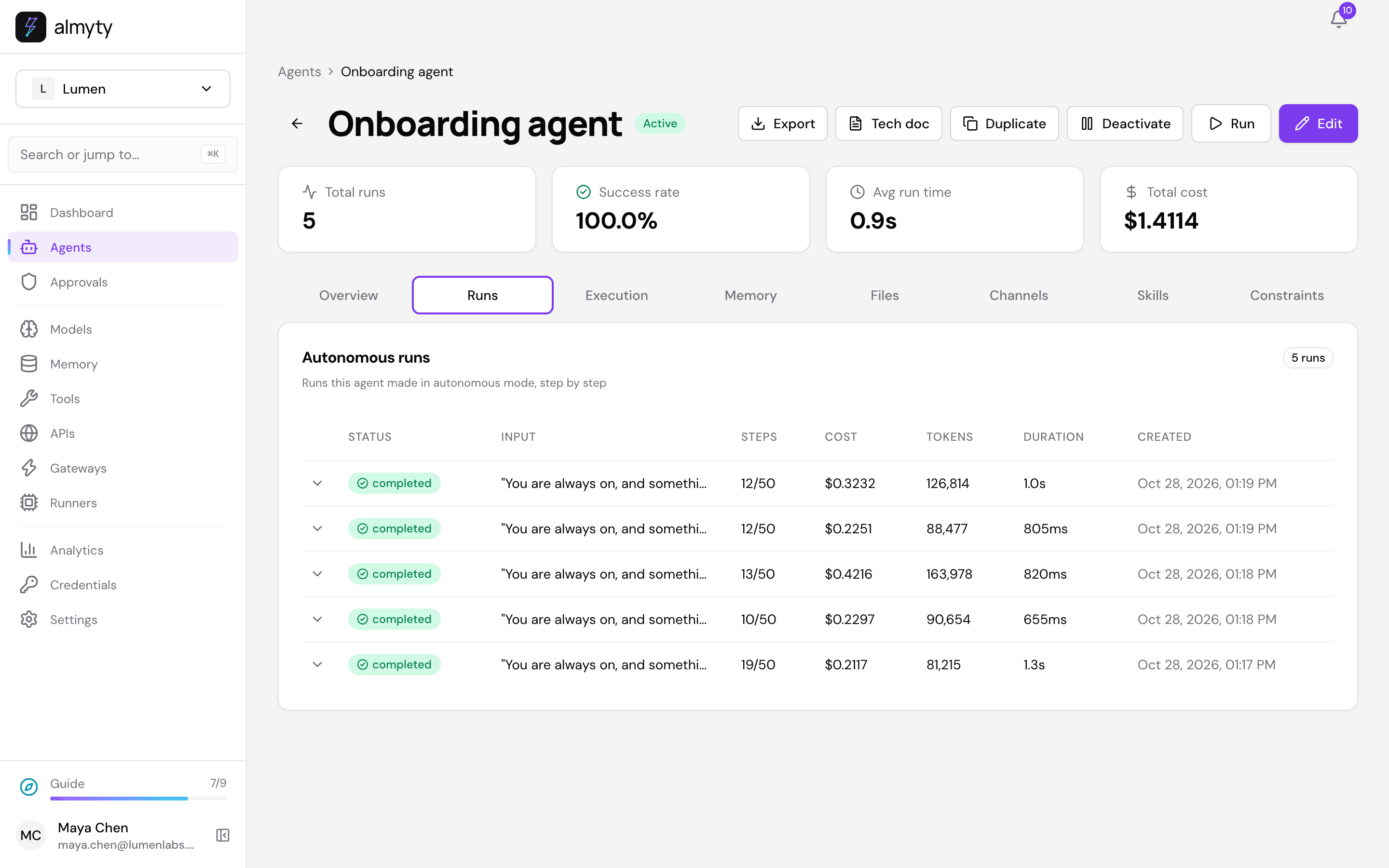
Runs on the agent page lists every wake. Each one is short and finished; there is no run that sits open for days.
6. Approve the kickoff
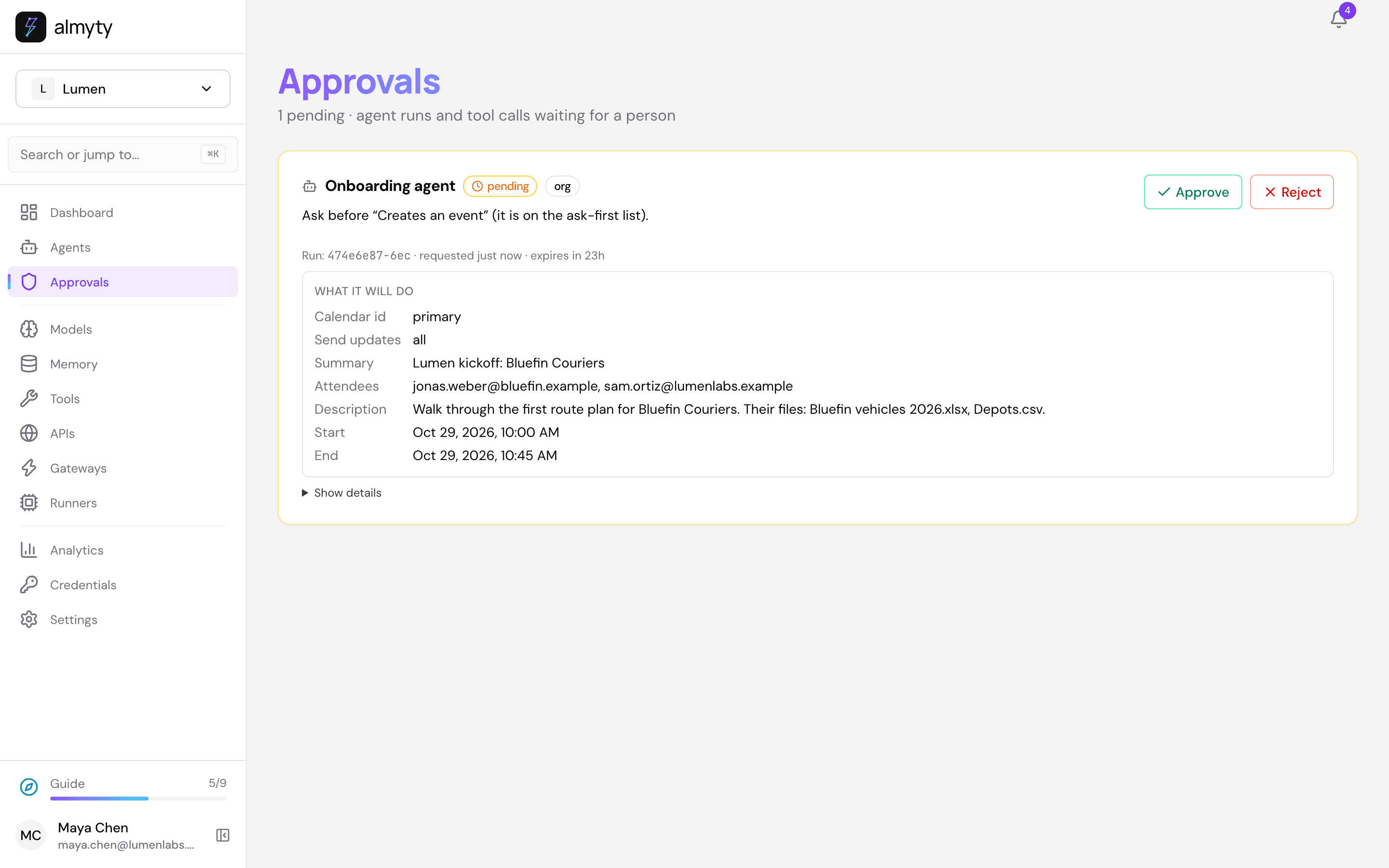
Jonas uploads Bluefin vehicles 2026.xlsx and Depots.csv to the folder. At the next wake the agent sees both, and wants to book the kickoff. Creating an event is on your ask-first list, so the run stops and waits for you: your notifications say so, and Approvals shows the held call, like the picture at the top. The card says what it will do: the event’s summary, its start and end, its description and the people it invites. Show details has the call exactly as the agent made it.
Click Approve, add a note if you like, and click Approve again. Reject cancels this run instead; the next wake finds the files still there and asks you again.
The run carries on where it stopped: it books the call, emails Sam the handover and writes the last lines on the deal.
The deal in HubSpot now tells the whole story, one line per step:
7. Two weeks on one page
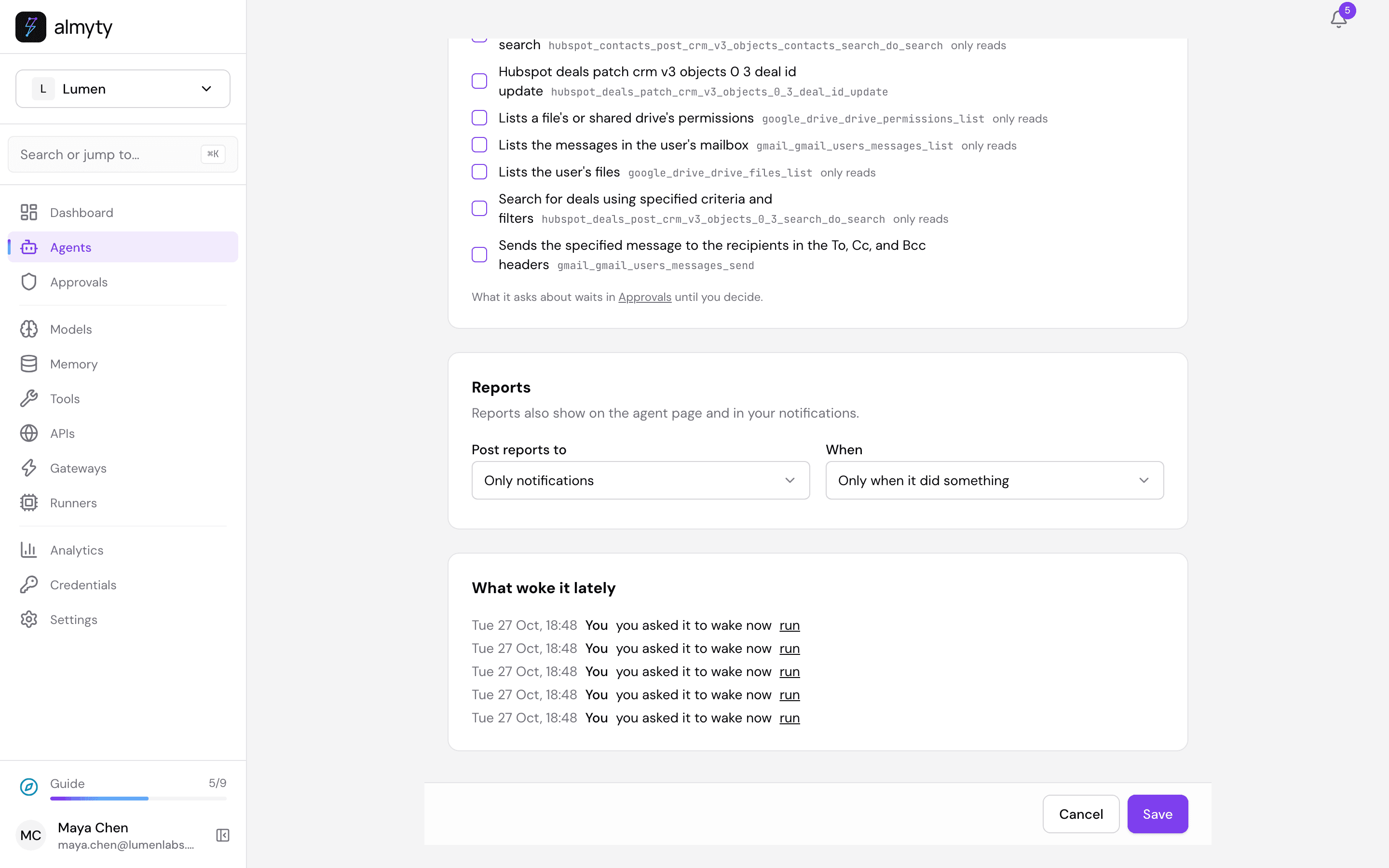
On the agent’s Always on page, What woke it lately lists every wake, newest first, with what woke it (here: you, with Wake now; normally the timer). Click run on a line to open what that wake did.
8. Restarts, and coming back to a run
Because nothing runs between two wakes, restarting almyty (an update, a new server) between two wakes is safe today: the timer is kept, and the next wake reads the deal and carries on. In the test installation behind these screenshots almyty was restarted between the reminder and Jonas’s reply; the next wake picked up exactly where the deal said it was, and sent nothing twice.
A restart in the middle of a run
Come back to a run and watch it catch up
Make it yours
- Your own product. If the customer needs an account in your product too, and your product has an OpenAPI description, connect it under APIs the same way (paste its link or upload the file, add its API key), tick its “create account” and “invite user” tools, and add a step to the instructions: “Before you create their account, look for one with the deal id.”
- Another CRM. With Pipedrive, connect its OpenAPI description and use its “search deals”, “update deal” and “search persons” tools; tell the agent to look for deals whose status is
wonand to write its steps in a note on the deal. - Other files. Change the two files in steps 3 and 4 of the instructions. The agent compares what is in the folder with what you asked for.
- Read every email first. Put
gmail_gmail_users_messages_sendon the Ask me first before list too: every welcome, reminder and handover then waits in Approvals. - A Slack message when it is done. Add a Slack channel (see the biz-dev tutorial) and pick it under Post reports to.
Good to know
- Ask first holds everywhere. A tool on the Ask me first before list waits for your OK on every run of the agent: its wakes, Try it, a schedule, and a chat on any of its channels.
- The deal is the agent’s notebook. It reads its own lines on the deal at every wake to know where it is, so you can correct them by hand, and anyone on your team can see where an onboarding stands without opening almyty.
- One search condition at a time in Drive. almyty’s security check refuses a Drive search that joins conditions with
and(name = 'x' and trashed = false) as possible SQL injection. That is why the instructions ask for one condition per search.
If something goes wrong
| What you see | What to do |
|---|---|
| A run fails with Security check blocked tool “google_drive_drive_files_list”: SQL injection in input “q” | The search joined two conditions with and. Keep the last line of the instructions; the next wake tries again. |
| Drive says Insufficient Permission when it creates or shares the folder | The Google Drive sign-in lacks drive.file. Sign in again on the Google Drive API page, under Key. |
| It created the folder but never sees the customer’s files | The sign-in lacks drive.readonly, or the customer put the files somewhere else. Sign in again with it, or ask them to use the shared folder. |
| Gmail says Request had insufficient authentication scopes when it sends | The Gmail sign-in is read-only. Sign in again on the Gmail API page with gmail.send ticked. |
| Nothing happens when a deal is won | It wakes every 12 hours; click Wake now to check straight away. Then check the deal’s stage is exactly Closed won and the company has a contact. |
| The kickoff waits in Approvals for days | That is the ask-first list doing its job: approve or reject it. While it waits, new wakes join that run instead of starting another, so it never asks twice at once. A request expires after 24 hours. |
| Always on was paused because the agent woke more often in an hour than it may | Something kept waking it. Check What woke it lately, then click Turn it back on. |