Authentication
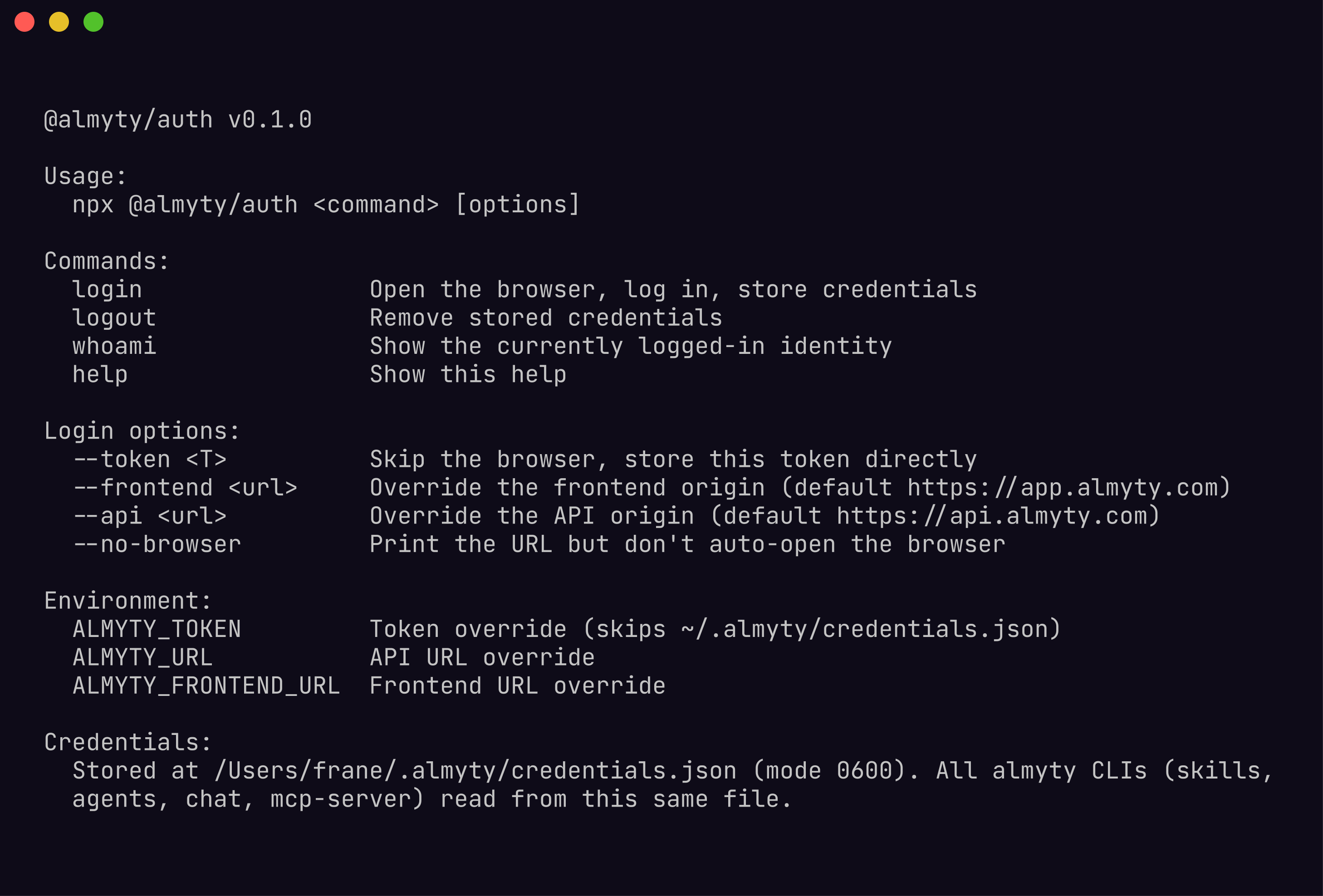
All almyty CLI packages share a single credentials file at ~/.almyty/credentials.json. Authenticate once with @almyty/auth and every other CLI picks it up automatically.
Browser login (interactive)
The default login flow opens your browser, authenticates via your almyty account, and mints a long-lived API key:
$ npx @almyty/auth loginStep by step:
- The CLI starts a temporary local HTTP server on a random port.
- Your default browser opens the almyty login page with a callback URL pointing to that local server.
- You sign in (or create an account) at
app.almyty.com. - The browser redirects back to the local server with an authorization code.
- The CLI exchanges the code for an API key, writes it to
~/.almyty/credentials.json(mode0600), and shuts down the local server.
If you are already logged in to almyty in your browser, the flow completes in under two seconds.
Token login (CI / scripts)
Pass a pre-generated API key directly. This skips the browser entirely:
$ npx @almyty/auth login --token ak_live_abc123...Generate API keys from Settings > API Keys in the almyty dashboard. Use this method in CI pipelines, Docker containers, and automation scripts.
Headless login (SSH / remote servers)
When no browser is available, use --no-browser to get a URL you can open on another machine:
$ npx @almyty/auth login --no-browser
Open this URL in any browser:
  https://app.almyty.com/cli-auth?code=xyz789

Waiting for authentication...
Copy the URL, open it on any device where you are signed in, approve the request, and the CLI picks up the token.
Staging and self-hosted environments
Override the backend and frontend URLs when authenticating against a non-production instance:
$ npx @almyty/auth login --api https://api.staging.almyty.com --frontend https://app.staging.almyty.comThe URLs are saved in the credentials file so subsequent CLI calls use the same environment. You can also set them globally with environment variables (see below).
Logout and identity
# Remove stored credentials
$ npx @almyty/auth logout

# Show the currently authenticated user and environment
$ npx @almyty/auth whoami
Logged in as alice@example.com
Organization: acme
API: https://api.almyty.com
Credentials file
The credentials file lives at ~/.almyty/credentials.json with file mode 0600 (readable only by the owner). Its structure:
{
  "url": "https://api.almyty.com",
  "token": "ak_live_abc123...",
  "email": "alice@example.com",
  "frontendUrl": "https://app.almyty.com"
}
All almyty CLI packages (@almyty/skills, @almyty/agents, @almyty/chat, @almyty/mcp-server) read this file. Authenticate once and they all work.
Environment variable overrides
Environment variables take precedence over the credentials file. This is useful for CI, Docker, and per-session overrides:
| Variable | Description | Default |
|---|---|---|
ALMYTY_TOKEN | API key or JWT token | Read from credentials file |
ALMYTY_URL | Backend API URL | https://api.almyty.com |
# One-liner for CI
$ ALMYTY_TOKEN=ak_live_abc123 npx @almyty/skills install @acme/petstore

# Export for the session
$ export ALMYTY_TOKEN=ak_live_abc123
$ export ALMYTY_URL=https://api.staging.almyty.com
$ npx @almyty/skills list
When ALMYTY_TOKEN is set, the CLI never reads the credentials file at all.
Troubleshooting
”Not authenticated” errors
If any CLI prints Not authenticated, it means neither the environment variable nor the credentials file contains a valid token. Run:
$ npx @almyty/auth login401 Unauthorized
The token exists but the server rejected it. Common causes:
- Expired token. API keys do not expire by default, but JWTs do. Re-run
npx @almyty/auth loginto get a fresh key. - Wrong environment. Your credentials file points at production but you are trying to reach staging, or vice versa. Check with
npx @almyty/auth whoamiand re-login with--apiif needed. - Revoked key. An organization admin may have revoked the key. Generate a new one from Settings > API Keys.
Wrong environment
If whoami shows the wrong URL, log out and re-login with the correct environment:
$ npx @almyty/auth logout
$ npx @almyty/auth login --api https://api.staging.almyty.com --frontend https://app.staging.almyty.com
File permission errors
The credentials file must be owned by your user with mode 0600. If you see permission errors:
$ chmod 600 ~/.almyty/credentials.jsonBrowser does not open
On some Linux desktop environments, xdg-open may not be configured. Use --no-browser and open the URL manually.